
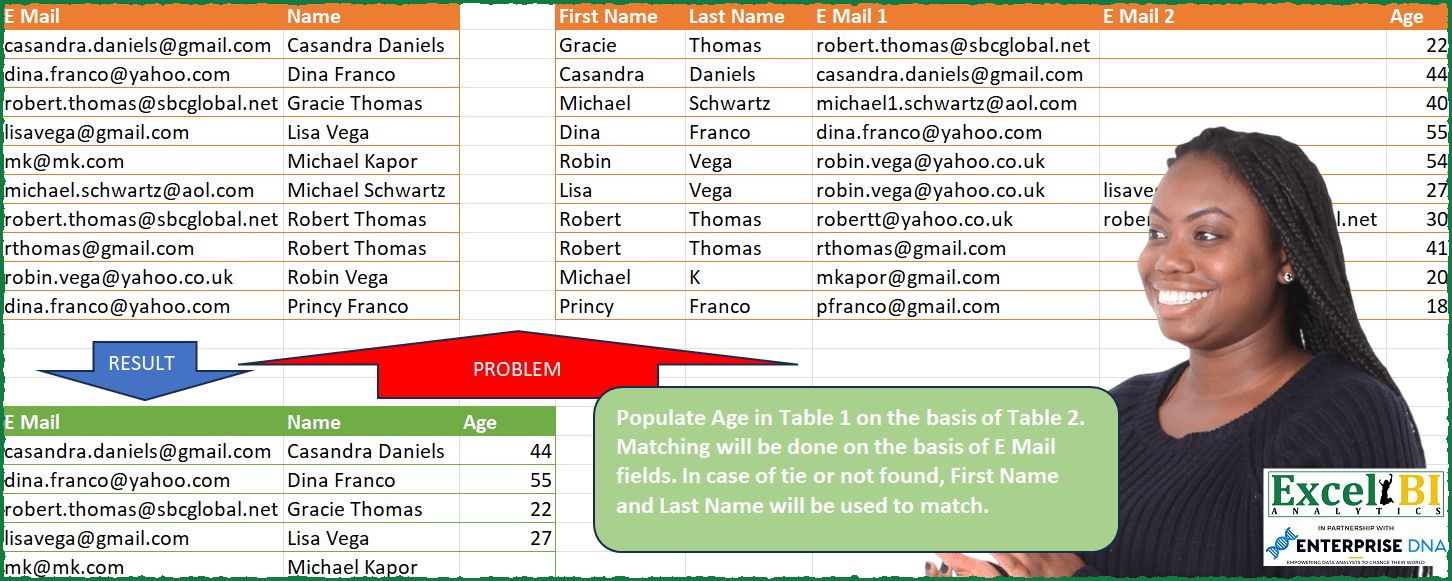
Populate Age in Table 1 on the basis of Table 2. Matching will be done on the basis of E Mail fields. In case of tie or not found, First Name and Last Name will be used to match.
📌 Challenge Details and Links
ExcelBI Power Query Challenge Number: 78
Challenge Difficulty: ⭐️⭐️⭐️⭐️
📥Download Sample File
📥Link to the solutions on LinkedIn
Solving the challenge of Match Ages Using Email First with Power Query
Power Query solution 1 for Match Ages Using Email First, proposed by Bo Rydobon 🇹🇭:
let
  Source = Excel.CurrentWorkbook(){[Name = "Table1"]}[Content],
  T2 = Table.Buffer(Excel.CurrentWorkbook(){[Name = "Table2"]}[Content]),
  Ans = Table.AddColumn(
    Source,
    "Age",
    each
      let
        a = Table.SelectRows(T2, (t) => t[E Mail 1] = [E Mail] or t[E Mail 2] = [E Mail])
      in
        if Table.RowCount(a) > 0 then
          Table.SelectRows(a, (t) => t[First Name] & " " & t[Last Name] = [Name])[Age]{0}?
            ?? Table.SelectRows(T2, (t) => t[First Name] & " " & t[Last Name] = [Name])[Age]{0}
        else
          null
  )
in
  Ans
Power Query solution 2 for Match Ages Using Email First, proposed by Zoran Milokanović:
let
  Source = Excel.CurrentWorkbook(){[Name = "Table1"]}[Content],
  SourceT2 = Table.CombineColumns(
    Excel.CurrentWorkbook(){[Name = "Table2"]}[Content],
    {"First Name", "Last Name"},
    Combiner.CombineTextByDelimiter(" ", QuoteStyle.None),
    "Name"
  ),
  UnpivotedT2 = Table.UnpivotOtherColumns(SourceT2, {"Name", "Age"}, "Attribute", "Value"),
  Solution = Table.AddColumn(
    Source,
    "Age",
    each
      let
        en = try UnpivotedT2{[Value = [E Mail], Name = [Name]]}[Age] otherwise null,
        e  = try UnpivotedT2{[Value = [E Mail]]}[Age] otherwise null,
        n  = try SourceT2{[Name = [Name]]}[Age] otherwise null
      in
        n ?? e ?? en
  )
in
  Solution
Power Query solution 3 for Match Ages Using Email First, proposed by Alejandro Simón 🇵🇦 🇪🇸:
let
  Source = Excel.CurrentWorkbook(){[Name = "Table1"]}[Content],
  Index = Table.AddIndexColumn(Source, "Index", 0, 1, Int64.Type),
  Group = Table.Combine(
    Table.Group(
      Index,
      {"E Mail"},
      {
        {
          "All",
          (x) =>
            let
              a = x,
              b = Table.RowCount(a),
              c = Table.AddColumn(
                a,
                "Age",
                each try

                    if b = 2 then
                      Table2
                        [Age]
                        {
                          List.PositionOf(
                            List.Transform(
                              List.Zip({Table2[First Name], Table2[Last Name]}),
                              each _{0} & " " & _{1}
                            ),
                            [Name]
                          )
                        }
                    else
                      try

                          if b = 1 then
                            Table2[Age]{List.PositionOf(Table2[E Mail 1], [E Mail])}
                          else
                            null
                      otherwise
                        Table2[Age]{List.PositionOf(Table2[E Mail 2], [E Mail])}
                otherwise
                  null
              )
            in
              c
        }
      }
    )[All]
  ),
  Sol = Table.RemoveColumns(Table.Sort(Group, {{"Index", Order.Ascending}}), {"Index"})
in
  Sol
Power Query solution 4 for Match Ages Using Email First, proposed by Luan Rodrigues:
let
  Fonte = Tabela1,
  list = Fonte[Name],
  mesc1 = Table.NestedJoin(
    Fonte,
    {"E Mail", "Name"},
    mesc,
    {"E Mail", "Name"},
    "Fonte",
    JoinKind.LeftOuter
  ),
  exp1 = Table.ExpandTableColumn(mesc1, "Fonte", {"Age"}),
  mesc2 = Table.NestedJoin(exp1, {"Name"}, mesc, {"Name"}, "Fonte Expandido", JoinKind.LeftOuter),
  exp2 = Table.ExpandTableColumn(mesc2, "Fonte Expandido", {"Age"}, {"Age.1"}),
  mesc3 = Table.NestedJoin(
    exp2,
    {"E Mail"},
    mesc,
    {"E Mail"},
    "Fonte Expandido Expandido",
    JoinKind.LeftOuter
  ),
  exp3 = Table.ExpandTableColumn(mesc3, "Fonte Expandido Expandido", {"Age"}, {"Age.2"}),
  class = Table.Sort(exp3, each List.PositionOf(list, [Name])),
  add = Table.AddColumn(
    class,
    "Personalizar",
    each [a = List.NonNullCount(Record.FieldValues(_)), b = if a <= 3 then null else [Age.1]][b]
  ),
  col = Table.SelectColumns(add, {"E Mail", "Name", "Personalizar"}),
  dr = Table.Distinct(col),
  dr1 = Table.Distinct(dr, {"Name", "Personalizar"}),
  mesc =
    let
      f = Tabela2,
      g = Table.UnpivotOtherColumns(f, {"First Name", "Last Name", "Age"}, "Atributo", "E Mail"),
      h = Table.CombineColumns(
        g,
        {"First Name", "Last Name"},
        Combiner.CombineTextByDelimiter(" ", QuoteStyle.None),
        "Name"
      )
    in
      h
in
  dr1
Power Query solution 5 for Match Ages Using Email First, proposed by Eric Laforce:
let
  Source = Excel.CurrentWorkbook(){[Name = "tData78_1"]}[Content],
  T2 = Excel.CurrentWorkbook(){[Name = "tData78_2"]}[Content],
  Add_FullName = Table.CombineColumns(
    T2,
    {"First Name", "Last Name"},
    Combiner.CombineTextByDelimiter(" ", QuoteStyle.None),
    "FullName"
  ),
  Mail1 = List.Buffer(T2[E Mail 1]),
  Mail2 = List.Buffer(T2[E Mail 2]),
  FullName = List.Buffer(Add_FullName[FullName]),
  Age = List.Buffer(Add_FullName[Age]),
  Add_Age = Table.AddColumn(
    Source,
    "Age",
    each try
      Age{List.PositionOf(Mail1, [E Mail])}
    otherwise
      try
        Age{List.PositionOf(Mail2, [E Mail])}
      otherwise
        try Age{List.PositionOf(FullName, [Name])} otherwise null
  )
in
  Add_Age
Solving the challenge of Match Ages Using Email First with Excel
Excel solution 1 for Match Ages Using Email First, proposed by Bo Rydobon 🇹🇭:
=MAP(A2:A11,B2:B11,LAMBDA(e,n,LET(a,F2:H11,b,FILTER(a,D2:D11&" "&E2:E11=n,{0,0,""}),IF(COUNTIF(a,e),INDEX(IFERROR(FILTER(b,(INDEX(b,,1)=e)+(INDEX(b,,2)=e)),b),1,3),""))))Excel solution 2 for Match Ages Using Email First, proposed by Bo Rydobon 🇹🇭:
=LET(m,B2:B11,f,D2:D11&" "&E2:E11&"*",XLOOKUP(SEQUENCE(ROWS(m)),IFNA(BYROW(MATCH(F2:G11&f,A2:A11&m,),LAMBDA(a,-LOOKUP(,-a))),MATCH(f,m,)),H2:H11,""))

I match
Michael Kapor with  Michael K 18
Michael Schwartz  40

or without    Michael Kapor and Michael K
=LET(m,B2:B11,f,D2:D11&" "&E2:E11,XLOOKUP(SEQUENCE(ROWS(m)),IFNA(BYROW(MATCH(F2:G11&f,A2:A11&m,),LAMBDA(a,-LOOKUP(,-a))),MATCH(f,m,)),H2:H11,""))
Excel solution 3 for Match Ages Using Email First, proposed by محمد حلمي:
=LET(a,A2:A11,h,H2:H11,r,VSTACK(HSTACK(D2:F11,h),HSTACK(D2:E11,G2:G11,h)),n,DROP(r,,3),IF(MAP(a,LAMBDA(a,SUM(--(A2:a=a))=1)),XLOOKUP(a,INDEX(r,,3),n,""),
XLOOKUP(B2:B11,TAKE(r,,1)&" "&INDEX(r,,2),n)))
Excel solution 4 for Match Ages Using Email First, proposed by Oscar Mendez Roca Farell:
=LET(_e,A1:A11,_m,B1:B11,_n, DROP( TEXTSPLIT( CONCAT( REPT(D2:D11&" "&E2:E11&"|",2)), ,"|"), -1), _f, LAMBDA(a, b, c, XLOOKUP(a, b, SCAN(, TOCOL(H2:I11), LAMBDA(i, x, i*(x=0)+x)), c)), HSTACK(_e,_m, VSTACK("Age", DROP( IFERROR(_f(_e&_m, TOCOL(F2:G11)&_n, ),_f(_m,_n,"")), 1))))Excel solution 5 for Match Ages Using Email First, proposed by Sunny Baggu:
=IFERROR(MAP(A2:A11,B2:B11,LAMBDA(a,b,FILTER(H2:H11,EXACT(a,F2:F11)+EXACT(a,G2:G11)+EXACT(b,D2:D11&" "&E2:E11)=2))),
MAP(A2:A11,B2:B11,LAMBDA(a,b,IF(OR(F2:F11=a),TAKE(FILTER(H2:H11,EXACT(b,D2:D11&" "&E2:E11)),1),""))))
Excel solution 6 for Match Ages Using Email First, proposed by Surendra Reddy:
=HSTACK(A2:A11,B2:B11,LET(a,B2:B11&A2:A11,b,D2:D11&" "&E2:E11&F2:F11,d,D2:D11&" "&E2:E11&G2:G11,IFNA(IFNA(XLOOKUP(a,b,H2:H11),XLOOKUP(a,d,H2:H11)),XLOOKUP(B2:B11,d,H2:H11,""))))Excel solution 7 for Match Ages Using Email First, proposed by Caroline Blake:
=LET(_array,A2:B11,_calc,XLOOKUP(CHOOSECOLS(_array,2),D2:D11&" "&E2:E11,H2:H11,,0,1),_calcb,XLOOKUP((CHOOSECOLS(_array,2)&CHOOSECOLS(_array,1)),D2:D11&" "&E2:E11&F2:F11,H2:H11,0,0,1),_calcc,XLOOKUP(CHOOSECOLS(_array,1),G1:G11,H1:H11,0,0,1),HSTACK(_array,IFNA(IF(_calcb=0,IF(_calcc=0,_calc,_calcc),_calcb),"")))&&&