
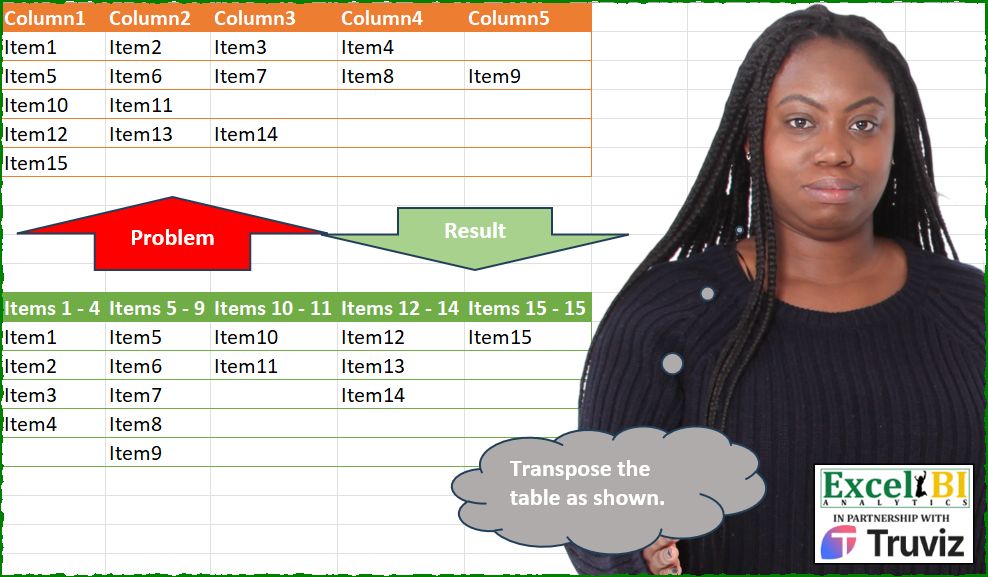
Transpose the table as shown.
📌 Challenge Details and Links
ExcelBI Power Query Challenge Number: 216
Challenge Difficulty: ⭐️
📥Download Sample File
📥Link to the solutions on LinkedIn
Solving the challenge of Show Transposed Amount Values with Power Query
Power Query solution 1 for Show Transposed Amount Values, proposed by Zoran Milokanović:
let
  Source = Table.ToRows(Excel.CurrentWorkbook(){[Name = "Input"]}[Content]),
  S = Table.FromColumns(
    Source,
    List.TransformMany(
      Source,
      each {List.RemoveNulls(_)},
      (i, _) => _{0} & " - " & Text.Select(List.Last(_), {"0" .. "9"})
    )
  )
in
  S
Power Query solution 2 for Show Transposed Amount Values, proposed by Kris Jaganah:
let
  S = Excel.CurrentWorkbook(){[Name = "Table1"]}[Content],
  A = Table.ToRows(S),
  B = List.Transform(
    A,
    each Text.Insert(List.Min(_), 4, "s ") & " - " & Text.Middle(List.Max(_), 4, 2)
  ),
  C = Table.FromColumns(A, B)
in
  C
Power Query solution 3 for Show Transposed Amount Values, proposed by Kris Jaganah:
let
  S = Excel.CurrentWorkbook(){[Name = "Table1"]}[Content],
  A = Table.AddColumn(
    S,
    "Col",
    each
      let
        a = List.RemoveNulls(Record.FieldValues(_)),
        b = Text.AfterDelimiter(a{0}, "Item"),
        c = Text.AfterDelimiter(List.Last(a), "Item"),
        d = "Items " & b & " - " & c
      in
        d
  ),
  B = Table.FromRows(Table.ToColumns(S), A[Col])
in
  B
Power Query solution 4 for Show Transposed Amount Values, proposed by Aditya Kumar Darak 🇮🇳:
let
  Source = Excel.CurrentWorkbook(){[Name = "data"]}[Content],
  ToRows = Table.ToRows(Source),
  Headers = List.Transform(
    ToRows,
    each [
      N  = List.RemoveNulls(_),
      F  = N{0},
      L  = List.Last(N),
      FF = Text.Select(F, {"0" .. "9"}),
      FL = Text.Select(L, {"0" .. "9"}),
      R  = "Item" & (if F = L then " " & FF else "s " & FF & " - " & FL)
    ][R]
  ),
  Return = Table.FromColumns(ToRows, Headers)
in
  Return
Power Query solution 5 for Show Transposed Amount Values, proposed by Alejandro Simón 🇵🇦 🇪🇸:
let
  Source = Excel.CurrentWorkbook(){[Name = "Table1"]}[Content],
  Sol = Table.Transpose(
    Source,
    List.Transform(
      Table.ToRows(Source),
      each
        let
          a = List.Transform(List.RemoveNulls(_), (x) => Text.Remove(x, {"A" .. "z"})),
          b = "Items " & a{0} & " - " & List.Last(a)
        in
          b
    )
  )
in
  Sol
Power Query solution 6 for Show Transposed Amount Values, proposed by Alejandro Simón 🇵🇦 🇪🇸:
let
  Source = Excel.CurrentWorkbook(){[Name = "Table1"]}[Content],
  Col = Table.ToRows(Source),
  Sol = Table.FromColumns(
    Col,
    List.Transform(
      Col,
      each
        let
          a = List.Transform(List.RemoveNulls(_), (x) => Text.Remove(x, {"A" .. "z"})),
          b = "Items " & a{0} & " - " & List.Last(a)
        in
          b
    )
  )
in
  Sol
Power Query solution 7 for Show Transposed Amount Values, proposed by Luan Rodrigues:
let
  Fonte = Tabela1,
  tab = List.Transform(Table.ToRows(Fonte), List.RemoveNulls),
  cab = List.Transform(
    tab,
    (x) =>
      [
        a = List.Transform(x, (y) => Text.Select(y, {"0" .. "9"})),
        b = "Items " & Text.Combine({List.First(a), List.Last(a)}, " - ")
      ][b]
  ),
  res = Table.FromColumns(tab, cab)
in
  res
Power Query solution 8 for Show Transposed Amount Values, proposed by Abdallah Ally:
let
  Source = Excel.CurrentWorkbook(){[Name = "Table1"]}[Content],
  ToRows = Table.ToRows(Source),
  Columns = List.Transform(
    ToRows,
    each [
      a = List.RemoveNulls(_),
      b = List.Transform(a, each Text.Replace(_, "Item", "")),
      c = "Items " & List.First(b) & " - " & List.Last(b)
    ][c]
  ),
  Result = Table.FromColumns(ToRows, Columns)
in
  Result
Power Query solution 9 for Show Transposed Amount Values, proposed by Eric Laforce:
let
  Source = Excel.CurrentWorkbook(){[Name = "tData216"]}[Content],
  OriginalRows = List.Buffer(Table.ToRows(Source)),
  ColNames = List.Accumulate(
    OriginalRows,
    [i = 0, r = {}],
    (s, c) =>
      let
        _i    = s[i] + List.Count(List.RemoveNulls(c)),
        _Name = "Items " & Number.ToText(s[i] + 1) & " - " & Number.ToText(_i)
      in
        [i = _i, r = s[r] & {_Name}]
  )[r],
  Result = Table.FromColumns(OriginalRows, ColNames)
in
  Result
Power Query solution 10 for Show Transposed Amount Values, proposed by Albert Cid Cañigueral:
let
  Origen = Excel.CurrentWorkbook(){[Name = "Tabla1"]}[Content],
  a = List.Transform(
    Table.ToRows(Origen),
    each
      let
        a = List.Transform(List.RemoveNulls(_), (x) => Text.Remove(x, {"A" .. "z"}))
      in
        "Items " & List.First(a) & " - " & List.Last(a)
  ),
  b = Table.Transpose(Origen),
  c = Table.RenameColumns(b, List.Zip({Table.ColumnNames(b), a}))
in
  c
Power Query solution 11 for Show Transposed Amount Values, proposed by 🇮🇷 Navid Esmaeilzadeh اسماعیل زاده:
let
  S = Excel.CurrentWorkbook(){[Name = "Table1"]}[Content],
  A = Table.ToRows(S),
  B = Table.FromList(A, Splitter.SplitByNothing(), null, null, ExtraValues.Error),
  C = Table.ExpandListColumn(B, "Column1"),
  D = Table.SelectRows(C, each ([Column1] <> null)),
  E = Table.AddColumn(
    D,
    "N",
    each
      let
        A = Number.From(Text.Select([Column1], {"0" .. "9"})),
        B =
          if A = 15 then
            "Item15-15"
          else if A >= 12 then
            "Item12-14"
          else if A >= 10 then
            "Item10-11"
          else if A >= 5 then
            "Item5-9"
          else
            "Item1-4"
      in
        B
  ),
  F = Table.Group(E, {"N"}, {{"tbl", each _, type table [Column1 = text, N = text]}}),
  G = Table.AddColumn(F, "Tbl2", each Table.AddIndexColumn([tbl], "i", 1, 1)),
  H = Table.SelectColumns(G, {"Tbl2"}),
  I = Table.ExpandTableColumn(H, "Tbl2", {"Column1", "N", "i"}, {"Column1", "N", "i"}),
  J = Table.Pivot(I, List.Distinct(I[N]), "N", "Column1"),
  K = Table.RemoveColumns(J, {"i"})
in
  K
Power Query solution 12 for Show Transposed Amount Values, proposed by Yaroslav Drohomyretskyi:
let
  Source = Excel.CurrentWorkbook(){[Name = "Table1"]}[Content],
  T = Table.Transpose(Source),
  Result = Table.RenameColumns(
    T,
    List.Zip(
      {
        Table.ColumnNames(T),
        List.Transform(
          Table.ColumnNames(T),
          each Text.Insert(Table.Column(T, _){0}, 4, "s ")
            & " - "
            & Text.Select(List.Last(List.RemoveNulls(Table.Column(T, _))), {"0" .. "9"})
        )
      }
    )
  )
in
  Result
Power Query solution 13 for Show Transposed Amount Values, proposed by Ahmed Ariem:
let

 f= (x)=> List.Transform( List.Transform( Table.ToColumns(x),List.RemoveNulls)
 , (x)=>x{0} &"-" &Text.Select( List.Max(x),{"0".."9"})  ),

 t = (x,y)=> Table.RenameColumns( x, List.Zip({Table.ColumnNames(x),y})),

 Source = Excel.CurrentWorkbook(){[Name="Table1"]}[Content],
 Trans = Table.Transpose(Source),
 Transform = f(Trans),
 final = t( Trans,Transform)
in
 final
----
attached file
https://1drv.ms/x/s!AiUZ0Ws7G26RkFbdwXablZyiqp4l?e=Pe912u
Power Query solution 14 for Show Transposed Amount Values, proposed by Glyn Willis:
let
  Source = Excel.CurrentWorkbook(){[Name = "Table1"]}[Content],
  #"Grouped Rows" =
    let
      t = Table.Group(
        Source,
        {"Column1"},
        {
          {
            "result",
            each
              let
                myrec = List.RemoveNulls(Record.ToList(Table.First(_)))
              in
                {myrec, List.First(myrec) & " - " & List.Last(myrec)},
            type list
          }
        }
      )[result],
      h = List.Transform(t, List.Last),
      c = List.Transform(t, List.First),
      r = Table.FromColumns(c, h)
    in
      r
in
  #"Grouped Rows"
Power Query solution 15 for Show Transposed Amount Values, proposed by Gertjan Davies:
let
  Source = Problem,
  Transpose = Table.Transpose(Source),
  ToT2C = Table.FromList(
    Table.ToColumns(Transpose),
    Splitter.SplitByNothing(),
    null,
    null,
    ExtraValues.Error
  ),
  Process = (cList as list) as list =>
    let
      Strip  = List.Transform(cList, each Text.Replace(_, "Item", "")),
      MinI   = List.Min(Strip),
      MaxI   = List.Max(Strip),
      Cname  = {"Items " & Text.From(MinI) & " - " & Text.From(MaxI)},
      Result = Cname & cList
    in
      Result,
  Prep = Table.AddColumn(ToT2C, "Endresult", each (Process([Column1]))),
  ToER = Table.FromColumns(Prep[Endresult]),
  Headers = Table.PromoteHeaders(ToER, [PromoteAllScalars = true])
in
  Headers
Solving the challenge of Show Transposed Amount Values with Excel
Excel solution 1 for Show Transposed Amount Values, proposed by Bo Rydobon 🇹🇭:
=LET(z,TRANSPOSE(A2:E6),VSTACK(BYCOL(z,LAMBDA(c,@c&" - "&TAKE(TOCOL(c,3),-1))),z&""))

😓
=TRANSPOSE(HSTACK(BYROW(A2:E6,LAMBDA(c,@+c&" - "&INDEX(c,COUNTA(c)))),A2:E6&""))
Excel solution 2 for Show Transposed Amount Values, proposed by Rick Rothstein:
=LET(
    t,
    TRANSPOSE(
        A2:E6
    ),
    VSTACK(
        BYCOL(
            IF(
                t=0,
                1/0,
                t
            ),
            LAMBDA(
                c,
                "Items "&MID(
                    @c,
                    5,
                    9
                )&" - "&MID(
                    TAKE(
                        TOCOL(
                            c,
                            3
                        ),
                        -1
                    ),
                    5,
                    9
                )
            )
        ),
        IF(
            t=0,
            "",
            t
        )
    )
)
Excel solution 3 for Show Transposed Amount Values, proposed by محمد حلمي:
=LET(e,
    TRANSPOSE(
        A2:E6&""
    ),
    VSTACK(BYCOL(e,
    LAMBDA(a,

LET(i,
    MID(
        a,
        5,
        9
    ),
    "Items "&@i&" - "&MAX(--(0&i))))),
    e))
Excel solution 4 for Show Transposed Amount Values, proposed by Kris Jaganah:
=VSTACK(
    TOROW(
        BYROW(
            A2:E6,
            LAMBDA(
                x,
                LET(
                    a,
                    TOROW(
                        --TEXTAFTER(
                            x,
                            "m"
                        ),
                        3
                    ),
                    "Items "&MIN(
                        a
                    )&" - "&MAX(
                        a
                    )
                )
            )
        )
    ),
    TRANSPOSE(
        A2:E6
    )
)
Excel solution 5 for Show Transposed Amount Values, proposed by Julian Poeltl:
=LET(
    T,
    TRANSPOSE(
        A2:E6
    ),
    S,
    IFERROR(
        --SUBSTITUTE(
            T,
            "Item",
            ""
        ),
        ""
    ),
    VSTACK(
        BYCOL(
            S,
            LAMBDA(
                A,
                "Items "&MIN(
                    A
                )&" - "&MAX(
                    A
                )
            )
        ),
        IF(
            N(
                S
            ),
            "Item"&S,
            ""
        )
    )
)
Excel solution 6 for Show Transposed Amount Values, proposed by Alejandro Campos:
=LET(
    a,
     DROP(
         TRANSPOSE(
             A1:E6
         ),
          ,
          1
     ),
     IF(
         a = 0,
          "",
          a
     )
)
Excel solution 7 for Show Transposed Amount Values, proposed by Hussein SATOUR:
=LET(
    a,
    TRANSPOSE(
        A2:E6
    ),
    b,
    BYCOL(
        a,
        LAMBDA(
            x,
            REPLACE(
                TAKE(
                    x,
                    1
                ),
                5,
                0,
                "s "
            )&" - "&SUBSTITUTE(
                TAKE(
                    FILTER(
                        x,
                        x<>0
                    ),
                    -1
                ),
                "Item",
                ""
            )
        )
    ),
    VSTACK(
        b,
        IF(
            a=0,
            "",
            a
        )
    )
)
Excel solution 8 for Show Transposed Amount Values, proposed by Oscar Mendez Roca Farell:
=TRANSPOSE(HSTACK(BYROW(--(0&MID(
    A2:E6,
     5,
     3
)),
     LAMBDA(
         r,
          "Items "&@r&-MAX(
              r
          )
     )),
     A2:E6&""))
Excel solution 9 for Show Transposed Amount Values, proposed by Duy Tùng:
=LET(
    a,
    TEXT(
        TRANSPOSE(
            A2:E6
        ),
        "[>0];"
    ),
    b,
    IFERROR(
        MAP(
            a,
            LAMBDA(
                x,
                --MID(
                    x,
                    5,
                    2
                )
            )
        ),
        ""
    ),
    VSTACK(
        "Items "&BYCOL(
            b,
            MIN
        )&" - "&BYCOL(
            b,
            MAX
        ),
        a
    )
)
Excel solution 10 for Show Transposed Amount Values, proposed by Sunny Baggu:
=LET(

     _a,
     TRANSPOSE(
         IF(
             A2:E6 = "",
           &   x,
              A2:E6
         )
     ),

     _b,
     "Items " &
     BYCOL(

          TEXTAFTER(
              _a,
               "Item",
               ,
               ,
               ,
               ""
          ),

          LAMBDA(
              a,
               TEXTJOIN(
                   "-",
                    ,
                    TAKE(
                        TOCOL(
                            a,
                             3
                        ),
                         {1,
                         -1}
                    )
               )
          )

     ),

     VSTACK(
         _b,
          IFERROR(
              _a,
               ""
          )
     )

)
Excel solution 11 for Show Transposed Amount Values, proposed by LEONARD OCHEA 🇷🇴:
=LET(
    i,
    "Item",
    t,
    TRANSPOSE(
        A2:E6
    )&"",
    VSTACK(
        BYCOL(
            IFNA(
                --TEXTAFTER(
                    t,
                    i
                ),
                ""
            ),
            LAMBDA(
                x,
                i&"s "&MIN(
                    x
                )&" - "&MAX(
                    x
                )
            )
        ),
        t
    )
)
Excel solution 12 for Show Transposed Amount Values, proposed by Abdallah Ally:
=LET(
    a,
    A2:E6,
    b,
    BYROW(
        ""&a,
        LAMBDA(
            x,
            LET(
                c,
                FILTER(
                    x,
                    x>""
                ),
                "Items "&SUBSTITUTE(
                    TAKE(
                        c,
                        ,
                        1
                    )&" - "&TAKE(
                        c,
                        ,
                        -1
                    ),
                    "Item",
                    ""
                )
            )
        )
    ),
    TRANSPOSE(
        ""& HSTACK(
            b,
            a
        )
    )
)
Excel solution 13 for Show Transposed Amount Values, proposed by Hamidi Hamid:
=LET(
    x,
    IF(
        TRANSPOSE(
            A2:E6
        )=0,
        "",
        TRANSPOSE(
            A2:E6
        )
    ),
    v,
    BYCOL(
        x,
        LAMBDA(
            a,
            SUM(
                N(
                    a<>""
                )
            )
        )
    ),
    z,
    SCAN(
        0,
        v,
        LAMBDA(
            a,
            b,
            a+b
        )
    )-v+1&" - "&SCAN(
        0,
        v,
        LAMBDA(
            a,
            b,
            a+b
        )
    ),
    VSTACK(
        "Items "&z,
        x
    )
)
Excel solution 14 for Show Transposed Amount Values, proposed by Asheesh Pahwa:
=LET(
    c,
    SUBSTITUTE(
        A2:E6,
        "Item",
        "Item "
    ),
    r,
    DROP(
        REDUCE(
            "",
            SEQUENCE(
                5
            ),
            LAMBDA(
                x,
                y,

                HSTACK(
                    x,
                    LET(
                        I,
                        INDEX(
                            c,
                            y,

                        ),
                        t,
                        TOCOL(
                            I
                        ),

                        f,
                        FILTER(
                            t,
                            t<>""
                        ),
                        VSTACK(
                            "Items "&TEXTAFTER(
                                TAKE(
                                    f,
                                    1
                                ),
                                " "
                            )&" - "&TEXTAFTER(
                                TAKE(
                                    f,
                                    -1
                                ),
                                " "
                            ),
                            t
                        )
                    )
                )
            )
        ),
        ,
        1
    ),
    r
)
Excel solution 15 for Show Transposed Amount Values, proposed by ferhat CK:
=LET(
    b,
    TRANSPOSE(
        A2:E6
    ),
    n,
    LAMBDA(
        x,
        TOCOL(
            --SUBSTITUTE(
                CHOOSECOLS(
                    b,
                    x
                ),
                "Item",
                ""
            ),
            3
        )
    ),
    c,
    BYCOL(
        SEQUENCE(
            ,
            5
        ),
        LAMBDA(
            x,
            "Item "&MIN(
                n(
                    x
                )
            )&"-"&MAX(
                n(
                    x
                )
            )
        )
    ),
    VSTACK(
        c,
        IF(
            b=0,
            "",
            b
        )
    )
)
Excel solution 16 for Show Transposed Amount Values, proposed by Albert Cid Cañigueral:
=VSTACK(
    TOROW(
        "items "&BYROW(
            A2:E6,
            LAMBDA(
                f,
                TEXTJOIN(
                    " - ",
                    1,
                    TAKE(
                        --MID(
                            TOROW(
                                f,
                                3
                            ),
                            5,
                            2
                        ),
                        ,
                        {1;-1}
                    )
                )
            )
        )
    ),
    TRANSPOSE(
        A2:E6
    )
)
Excel solution 17 for Show Transposed Amount Values, proposed by Imam Hambali:
=LET(

    a,
     A2:E6,

    b,
     TRANSPOSE(
         a
     ),

    l,
     LAMBDA(
         x,
          IFNA(
              REGEXEXTRACT(
                  x,
                  "d+",
                  1
              )*1,
              ""
          )
     ),

    VSTACK(
        BYCOL(
            S3:W7,
             LAMBDA(
                 x,
                  "Items "&MIN(
                      l(
                          x
                      )
                  )& " - "& MAX(
                      l(
                          x
                      )
                  )
             )
        ),
        IF(
            b>0,
            b,
            ""
        )
    )

)
Excel solution 18 for Show Transposed Amount Values, proposed by Mey Tithveasna:
=LET(
    t,
    TRANSPOSE(
        A2:E6
    ),
    b,
    BYCOL(
        t,
        LAMBDA(
            x,
            "Items " &MID(
                @x,
                5,
                9
            )&"-"&MID(
                TAKE(
                    TOCOL(
                        x,
                        3
                    ),
                    -1
                ),
                5,
                9
            )
        )
    ),
    VSTACK(
        b,
        t&""
    )
)
Excel solution 19 for Show Transposed Amount Values, proposed by Stefan Alexandrov:
=IF(TRANSPOSE(A2:E6)=0,"",TRANSPOSE(A2:E6))Solving the challenge of Show Transposed Amount Values with Python
Python solution 1 for Show Transposed Amount Values, proposed by Konrad Gryczan, PhD:
I had an Eureka Moment
result = input.T.reset_index(drop=True)
result.columns = test.columns
result.columns.name = None
print(result.equals(test)) # True
Python solution 2 for Show Transposed Amount Values, proposed by Konrad Gryczan, PhD:
import pandas as pd
path = "PQ_Challenge_216.xlsx"
input = pd.read_excel(path, usecols="A:E", nrows=5)
test  = pd.read_excel(path, usecols="A:E", skiprows=10, nrows=5)
result = input.melt(var_name='Column', value_name='Item')
result['Column'] = result['Column'].str.replace('Column', '')
result['item_n'] = result['Item'].str.extract(r'(d+)', expand=False).astype('Int64')
result['rn'] = result.groupby('Column').cumcount() + 1
result['Column_label'] = result.groupby('rn')['item_n'].transform(lambda x: f"Items {x.min()} - {x.max()}")
result = result.pivot(index='Column', columns='Column_label', values='Item').reset_index(drop=True)
result.columns.name = None
result = result[['Items 1 - 4', 'Items 5 - 9', 'Items 10 - 11', 'Items 12 - 14', 'Items 15 - 15']]
print(result.equals(test)) # True
Solving the challenge of Show Transposed Amount Values with Python in Excel
Python in Excel solution 1 for Show Transposed Amount Values, proposed by Alejandro Campos:
df_transposed = xl("A1:E6", headers=True).fillna("").T.set_axis(
 ['Items 1 - 4', 'Items 5 - 9', 'Items 10 - 11', 'Items 12 - 14', 'Items 15 - 15'],
 axis=1).reset_index(drop=True)
Python in Excel solution 2 for Show Transposed Amount Values, proposed by Abdallah Ally:
df = xl("A1:E6", headers=True)
# Perform data manipulation
columns = [
 'Items ' + (c[0] + ' - ' + c[-1]).replace('Item', '')
 for i in df.index if (c:=[x for x in df.iloc[i] if pd.notna(x)])
]
values = {columns[i]: df.iloc[i].values for i in df.index}
df = pd.DataFrame(data = values).fillna('')
df
Python in Excel solution 3 for Show Transposed Amount Values, proposed by Ümit Barış Köse, MSc:
df = xl("A2:E6")
data = {}
for i in df.index:
 filtered_row = df.iloc[i].dropna().tolist()
 if filtered_row:
 first_item = filtered_row[0].replace('Item', '')
 last_item = filtered_row[-1].replace('Item', '')
 column_name = f'Items {first_item} - {last_item}'
 data[column_name] = df.iloc[i].fillna('').values
df_result = pd.DataFrame(data).fillna('')
df_result
Solving the challenge of Show Transposed Amount Values with R
R solution 1 for Show Transposed Amount Values, proposed by Konrad Gryczan, PhD:
library(tidyverse)
library(readxl)
path = "Power Query/PQ_Challenge_216.xlsx"
input = read_excel(path, range = "A1:E6")
test = read_excel(path, range = "A11:E16")
result = input %>%
 pivot_longer(everything(), names_to = "Column", values_to = "Item") %>%
 mutate(Column = str_remove(Column, "Column"),
 item_n = str_remove(Item, "Item") %>% as.numeric()) %>%
 arrange(Column) %>%
 mutate(rn = row_number(), .by = Column) %>%
 mutate(Column_label = paste0("Items ", min(item_n, na.rm = TRUE), " - ", max(item_n, na.rm = TRUE)), .by = rn) %>%
 select(Column_label, Item, Column) %>%
 pivot_wider(names_from = Column_label, values_from = Item) %>%
 select(-Column)
all.equal(result, test, check.attributes = FALSE)
#> [1] TRUE
Solving the challenge of Show Transposed Amount Values with Excel VBA
Excel VBA solution 1 for Show Transposed Amount Values, proposed by Md. Zohurul Islam:
Sub ExcelBI_PQ_Challenge_216()
 Dim rng As Range
 Dim r As Long
 Dim x As Long
 Dim lastRow As Long

 'create headers
 Range("G1") = "Items 1 - 4"
 Range("H1") = "Items 5 - 9"
 Range("I1") = "Items 10 - 11"
 Range("J1") = "Items 12 - 24"
 Range("K1") = "Items 15 - 15"

 For r = 1 To 5
 'set changable range
 Set rng = Range(Cells(r + 1, 1), Cells(r + 1, 5))
 lastRow = 2
 'loop to transpose from row items to TOCOL
 For x = 1 To 5
 Cells(lastRow, r + 6) = rng(x)
 lastRow = lastRow + 1
 Next x
 Next r
Range("G:K").EntireColumn.AutoFit
End Sub
Excel VBA solution 2 for Show Transposed Amount Values, proposed by Ümit Barış Köse, MSc:
Sub c216()
 Dim hucre As Range
 Dim Row As Integer, Col As Integer, i1 As Integer, i2 As Integer
 Range("G1:K10").ClearContents
 Row = 2
 Col = 7
 For Each hucre In Range("A2:E6")
 If hucre.Value <> 0 Then Cells(Row, Col) = hucre
 If hucre.Column = 5 Then
 i1 = Replace(Cells(2, Col), "Item", "")
 LastRow = Cells(Rows.Count, Col).End(xlUp).Row
 i2 = Replace(Cells(LastRow, Col), "Item", "")
 Cells(1, Col) = "Items " & i1 & " - " & i2
 Row = 2
 Col = Col + 1
 Else
 Row = Row + 1
 End If
 Next hucre
End Sub
&&