
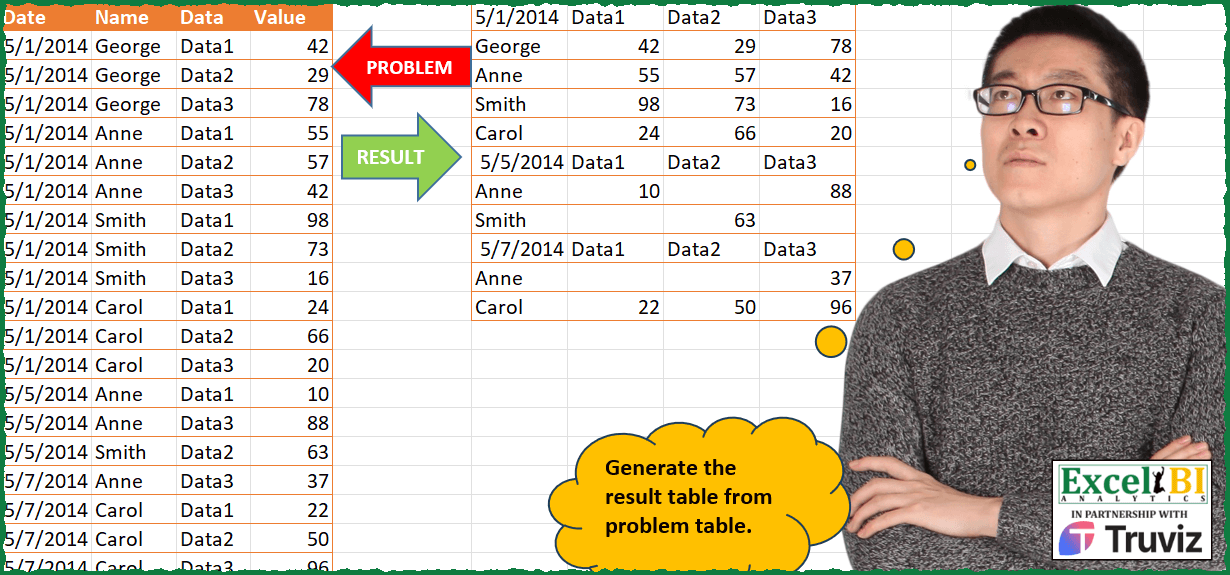
Let’s do reverse of yesterday’s problem. Generate the result table from problem table.
📌 Challenge Details and Links
ExcelBI Power Query Challenge Number: 182
Challenge Difficulty: ⭐️⭐️
📥Download Sample File
📥Link to the solutions on LinkedIn
Solving the challenge of Reverse Data Splitting Problem with Power Query
Power Query solution 1 for Reverse Data Splitting Problem, proposed by Zoran Milokanović:
let
  Source = Excel.CurrentWorkbook(){[Name = "Input"]}[Content],
  P = Table.Group(
    Source,
    {"Date"},
    {
      {
        "T",
        each Table.ToRows(
          Table.DemoteHeaders(
            Table.Sort(
              Table.Pivot(_, List.Distinct([Data]), "Data", "Value"),
              (s) => List.PositionOf([Name], s[Name])
            )
          )
        )
      }
    }
  ),
  S = Table.FromRows(
    List.TransformMany(
      P[T],
      each _,
      (i, _) =>
        let
          r = List.Skip(_)
        in
          {r, {Text.From(Date.From(P[Date]{List.PositionOf(P[T], i)}))} & List.Skip(r)}{
            Number.From(r{0} = "Name")
          }
    )
  )
in
  S
Power Query solution 2 for Reverse Data Splitting Problem, proposed by Aditya Kumar Darak 🇮🇳:
let
  Source = Excel.CurrentWorkbook(){[Name = "data"]}[Content],
  Group = Table.Group(
    Source,
    "Date",
    {
      "All",
      each [
        P  = Table.Pivot(_, List.Sort(List.Distinct([Data])), "Data", "Value"),
        S  = Table.Sort(P, (f) => List.PositionOf([Name], f[Name])),
        DT = DateTime.ToText(Table.FirstValue(_), "M/d/yy", "en-us"),
        RC = Table.RenameColumns(S, {"Name", DT}),
        FT = Table.RemoveColumns(RC, "Date"),
        R  = Table.DemoteHeaders(FT)
      ][R]
    }
  ),
  Return = Table.Combine(Group[All])
in
  Return
Power Query solution 3 for Reverse Data Splitting Problem, proposed by Alejandro Simón 🇵🇦 🇪🇸:
let
  Source = Excel.CurrentWorkbook(){[Name = "Table1"]}[Content],
  Group1 = Table.Group(
    Source,
    {"Date", "Name"},
    {
      {
        "A",
        each
          let
            a = Table.FromRows({[Value]}, [Data])
          in
            a
      }
    }
  ),
  Expand = Table.ExpandTableColumn(Group1, "A", List.Distinct(Source[Data])),
  Group2 = Table.Combine(
    Table.Group(
      Expand,
      {"Date"},
      {
        {
          "B",
          each
            let
              a = _,
              b = Text.From(Date.From([Date]{0})),
              c = Table.RenameColumns(a, {"Name", b}),
              d = Table.DemoteHeaders(Table.RemoveColumns(c, "Date"))
            in
              d
        }
      }
    )[B]
  )
in
  Group2
Power Query solution 4 for Reverse Data Splitting Problem, proposed by Alejandro Simón 🇵🇦 🇪🇸:
let
  Source = Excel.CurrentWorkbook(){[Name = "Table1"]}[Content],
  Group1 = Table.Group(
    Source,
    {"Date", "Name"},
    {
      {
        "A",
        each
          let
            a = Table.FromRows({[Value]}, [Data])
          in
            a
      }
    }
  ),
  Expand = Table.ExpandTableColumn(Group1, "A", Table.ColumnNames(Group1[A]{0})),
  Group2 = Table.Combine(
    Table.Group(
      Expand,
      {"Date"},
      {
        {
          "B",
          each
            let
              a = _,
              b = Text.From(Date.From([Date]{0})),
              c = Table.RenameColumns(a, {"Name", b}),
              d = Table.DemoteHeaders(Table.RemoveColumns(c, "Date"))
            in
              d
        }
      }
    )[B]
  )
in
  Group2
Power Query solution 5 for Reverse Data Splitting Problem, proposed by Alejandro Simón 🇵🇦 🇪🇸:
Show translation
Power Query solution 6 for Reverse Data Splitting Problem, proposed by Hussein SATOUR:
let
  Source = Excel.CurrentWorkbook(){[Name = "Table1"]}[Content],
  PivotData = Table.Pivot(Source, List.Distinct(Source[Data]), "Data", "Value", List.Sum),
  GroupByDate = Table.Group(PivotData, {"Date"}, {{"Count", each _, type table}}),
  AddTab = Table.AddColumn(
    GroupByDate,
    "Custom",
    each
      let
        a = Text.From(Date.From(List.Min([Count][Date]))),
        b = Table.DemoteHeaders([Count])
      in
        Table.RemoveColumns(
          Table.ReplaceValue(b, "Name", a, Replacer.ReplaceText, {"Column2"}),
          {"Column1"}
        )
  ),
  RemovCols = Table.RemoveColumns(AddTab, {"Date", "Count"}),
  ExpandTab = Table.ExpandTableColumn(
    RemovCols,
    "Custom",
    {"Column2", "Column3", "Column4", "Column5"}
  )
in
  ExpandTab
Power Query solution 7 for Reverse Data Splitting Problem, proposed by Brian Julius:
let
  Source = Table.TransformColumnTypes(
    Excel.CurrentWorkbook(){[Name = "Table1"]}[Content],
    {"Date", Date.Type}
  ),
  Pivot = Table.Pivot(Source, List.Distinct(Source[Data]), "Data", "Value"),
  Group = Table.RemoveColumns(Table.Group(Pivot, {"Date"}, {{"All", each _}}), "Date"),
  AddRemix = Table.SelectColumns(
    Table.AddColumn(
      Group,
      "Remix",
      each [
        a = [All],
        b = Text.From(List.First([All][Date])),
        c = Table.RemoveColumns(a, "Date"),
        d = Table.RenameColumns(c, {"Name", b}),
        e = Table.DemoteHeaders(d)
      ][e]
    ),
    "Remix"
  ),
  Expand = Table.ExpandTableColumn(AddRemix, "Remix", {"Column1", "Column2", "Column3", "Column4"})
in
  Expand
Power Query solution 8 for Reverse Data Splitting Problem, proposed by Ramiro Ayala Chávez:
let
  S = Excel.CurrentWorkbook(){[Name = "Table1"]}[Content],
  a = Table.Pivot(Table.AddIndexColumn(S, "I"), List.Distinct(S[Data]), "Data", "Value", List.Sum),
  b = Table.TransformColumns(
    Table.Group(a, {"Date", "Name"}, {"G", each _}),
    {
      "G",
      each Table.FirstN(
        Table.AddColumn(
          _,
          "M",
          (x) =>
            Table.FromRows(
              {List.Transform({[Data1]} & {[Data2]} & {[Data3]}, each List.Last(List.Sort(_)))}
            )
        ),
        1
      )
    }
  ),
  c = Table.RemoveColumns(
    Table.DemoteHeaders(
      Table.Sort(
        Table.ExpandTableColumn(
          Table.ExpandTableColumn(b, "G", {"I", "M"}),
          "M",
          {"Column1", "Column2", "Column3"},
          List.Skip(Table.ColumnNames(a), 3)
        ),
        {"I"}
      )
    ),
    "Column3"
  ),
  d = Table.RenameColumns(c, List.Zip({Table.ColumnNames(c), {"D", "N", "D1", "D2", "D3"}})),
  e = Table.Combine(
    Table.RemoveRows(Table.Group(d, {"D"}, {"H", each Table.InsertRows(_, 0, {d{0}})}), 0)[H]
  ),
  Sol = Table.SelectColumns(
    Table.AddColumn(
      Table.FillUp(Table.ReplaceValue(e, "Date", null, Replacer.ReplaceValue, {"D"}), {"D"}),
      "Name",
      each if [N] = "Name" then [D] else [N]
    ),
    {"Name", "D1", "D2", "D3"}
  )
in
  Sol
Power Query solution 9 for Reverse Data Splitting Problem, proposed by Eric Laforce:
let
  Source = Excel.CurrentWorkbook(){[Name = "tData182"]}[Content],
  CNData = List.Sort(List.Distinct(Source[Data])),
  Group = Table.Group(
    Source,
    "Date",
    {
      "G",
      each
        let
          Group = Table.Group(
            _,
            "Name",
            {
              "G",
              each
                let
                  TR = Table.ToRows(Table.Pivot(_, CNData, "Data", "Value"))
                in
                  List.Transform(TR, List.Skip)
            }
          ),
          Header = {Date.ToText(Date.From([Date]{0}), "MM/dd/yyyy")} & CNData
        in
          {Header} & List.Combine(Group[G])
    }
  ),
  Result = Table.FromRows(List.Combine(Group[G]))
in
  Result
Power Query solution 10 for Reverse Data Splitting Problem, proposed by Peter Tholstrup:
let
  Source = Excel.CurrentWorkbook(){[Name = "Table1"]}[Content],
  f = (t) =>
    [
      pivot        = Table.Pivot(t, List.Distinct(Source[Data]), "Data", "Value"),
      sort         = Table.Sort(pivot, {each List.PositionOf(t[Name], [Name])}),
      date_as_text = Date.ToText(Date.From(t[Date]{0}), null, "en-US"),
      rename       = Table.RenameColumns(sort, {"Name", date_as_text}),
      remove       = Table.RemoveColumns(rename, {"Date"}),
      order        = {date_as_text} & List.Sort(List.Skip(Table.ColumnNames(remove))),
      reorder      = Table.ReorderColumns(remove, order),
      demote       = Table.DemoteHeaders(reorder)
    ][demote],
  group = Table.Group(Source, {"Date"}, {"temp", f}),
  result = Table.Combine(group[temp])
in
  result
Power Query solution 11 for Reverse Data Splitting Problem, proposed by Venkata Rajesh:
let
  Source = Data,
  Pivoted = Table.Pivot(Source, List.Distinct(Source[Data]), "Data", "Value", List.Sum),
  Grouped = Table.Group(
    Pivoted,
    {"Date"},
    {
      {
        "Expect",
        each Table.DemoteHeaders(Table.RenameColumns(_, {{"Name", Date.ToText(_[Date]{0})}}))
      }
    }
  )[[Expect]],
  Output = Table.ExpandTableColumn(
    Grouped,
    "Expect",
    List.Skip(Table.ColumnNames(Grouped{0}[Expect]))
  )
in
  Output
Power Query solution 12 for Reverse Data Splitting Problem, proposed by Arnaud Duvernois:
let
  Source = Excel.CurrentWorkbook(){[Name = "tSource"]}[Content],
  Type = Table.TransformColumnTypes(Source, {{"Date", type date}}),
  Pivot = Table.Pivot(Type, List.Distinct(Type[Data]), "Data", "Value", List.Sum),
  GroupBy = Table.Group(
    Pivot,
    {"Date"},
    {
      {
        "tbl",
        each
          let
            a = List.Distinct([Date])
          in
            Table.FromRows(
              {a & List.Skip(Table.ColumnNames(_), 2)}
                & Table.ToRows(Table.RemoveColumns(_, {"Date"}))
            )
      }
    }
  ),
  Combine = Table.Combine(GroupBy[tbl])
in
  Combine
Solving the challenge of Reverse Data Splitting Problem with Excel
Excel solution 1 for Reverse Data Splitting Problem, proposed by Bo Rydobon 🇹🇭:
=DROP(REDUCE(0,UNIQUE(A2:A20),LAMBDA(a,v,LET(p,PIVOTBY(B1:B20,C1:C20,D1:D20,MIN,1,0,,0,,A2:A20=v),VSTACK(a,IF((SEQUENCE(ROWS(p))=1)*(p=""),v,p))))),1)Excel solution 2 for Reverse Data Splitting Problem, proposed by Bo Rydobon 🇹🇭:
=LET(d,A2:A20,b,B2:B20,h,C2:C20,u,TOROW(UNIQUE(h)),
DROP(REDUCE(0,UNIQUE(d),LAMBDA(a,v,LET(e,UNIQUE(FILTER(b,d=v)),
VSTACK(a,HSTACK(v,u),HSTACK(e,XLOOKUP(v&e&u,d&b&h,D2:D20,"")))))),1))
Excel solution 3 for Reverse Data Splitting Problem, proposed by محمد حلمي:
=DROP(REDUCE(0,UNIQUE(A2:A20),LAMBDA(A,V,VSTACK(
A,LET(R,A2:A20,b,B2:B20,c,C2:C20,D,TOROW(UNIQUE(c)),
n,UNIQUE(FILTER(b,R=V)),VSTACK(HSTACK(V,D),
HSTACK(n,XLOOKUP(V&n&D,R&b&c,D2:D20,""))))))),1)
Excel solution 4 for Reverse Data Splitting Problem, proposed by Julian Poeltl:
=LET(T,A2:D20,Date,TAKE(T,,1),Name,CHOOSECOLS(T,2),Data,CHOOSECOLS(T,3),Value,TAKE(T,,-1),UD,TRANSPOSE(UNIQUE(Data)),DROP(REDUCE(0,UNIQUE(Date),LAMBDA(A,B,LET(UN,UNIQUE(FILTER(Name,Date=B)),VSTACK(A,HSTACK(B,UD),HSTACK(UN,XLOOKUP(B&UD&UN,Date&Data&Name,Value,"")))))),1))Excel solution 5 for Reverse Data Splitting Problem, proposed by Duy Tùng:
=DROP(REDUCE(0,UNIQUE(A2:A20),LAMBDA(x,y,LET(a,DROP(PIVOTBY(HSTACK(XMATCH(B2:B20,B2:B20),B2:B20),C2:C20,D2:D20,MAX,0,0,,0,,A2:A20=y),,1),VSTACK(x,IF(TAKE(a,1)&TAKE(a,,1)="",y,a))))),1)Excel solution 6 for Reverse Data Splitting Problem, proposed by Sunny Baggu:
=LET(
 _d, TOROW(UNIQUE(C2:C20)),
 _ud, UNIQUE(A2:A20),
 DROP(
 REDUCE(
 "",
 _ud,
 LAMBDA(a, v,
 LET(
 _a, UNIQUE(FILTER(B2:B20, A2:A20 = v)),
 VSTACK(
 a,
 HSTACK(v, _d),
 HSTACK(_a, XLOOKUP(v & _a & _d, A2:A20 & B2:B20 & C2:C20, D2:D20, 0))
 )
 )
 )
 ),
 1
 )
)
Excel solution 7 for Reverse Data Splitting Problem, proposed by LEONARD OCHEA 🇷🇴:
=DROP(REDUCE("",UNIQUE(A2:A20),LAMBDA(a,b,VSTACK(a,LET(f,FILTER(B2:D20,A2:A20=b),p,PIVOTBY(INDEX(f,,1),INDEX(f,,2),INDEX(f,,3),SUM,,0,,0),IF(EXPAND(1,ROWS(p),COLUMNS(p),0),b,p))))),1)Excel solution 8 for Reverse Data Splitting Problem, proposed by 🇵🇪 Ned Navarrete C.:
=DROP(REDUCE("",UNIQUE(A2:A20),LAMBDA(c,v,LET(f,FILTER(B2:D20,A2:A20=v),i,LAMBDA(j,INDEX(f,,j)),n,UNIQUE(i(1)),d,TOROW(SORT(UNIQUE(i(2)))),VSTACK(c,HSTACK(v,d),HSTACK(n,XLOOKUP(n&d,i(1)&i(2),i(3),"")))))),1)Excel solution 9 for Reverse Data Splitting Problem, proposed by Md. Zohurul Islam:
=LET(u,A2:D20,v,TAKE(u,,1),f,LAMBDA(w,PIVOTBY(CHOOSECOLS(w,1),CHOOSECOLS(w,2),TAKE(w,,-1),SUM,0,0,,0)),
z,DROP(REDUCE("",UNIQUE(v),LAMBDA(x,y,LET(p,FILTER(DROP(u,,1),v=y),q,f(p),r,HSTACK(VSTACK(y,DROP(TAKE(q,,1),1)),DROP(q,,1)),
s,VSTACK(x,r),s))),1),z)
Excel solution 10 for Reverse Data Splitting Problem, proposed by Tolga Demirci, PMP, PMI-ACP, MOS-Expert:
=VSTACK(HSTACK( " ",TOROW(UNIQUE(C2:C20))),LET(q,LET(a,TEXTSPLIT(TEXTJOIN(,,MAP(TOCOL(BYCOL(TOROW(UNIQUE(A2:A20)),LAMBDA(d,TEXTJOIN(",",,LET(c,MAP(A2:A20,B2:B20,LAMBDA(a,b,XLOOKUP(d,a,b))),UNIQUE(FILTER(c,NOT(ISNA(c))))))&","))),LAMBDA(b,TEXTJOIN(",",,LET(m,TOCOL(TEXTSPLIT(b,",")),FILTER(m,m<>"")))&","))),,","),FILTER(a,a<>"")),HSTACK(q,DROP(TRANSPOSE(TEXTSPLIT(TEXTJOIN(,,BYCOL(TOROW(UNIQUE(C2:C20)),LAMBDA(i,TEXTJOIN(",",FALSE,IFERROR(MAP(q,DATEVALUE(LET(c,TEXT(TOCOL(TEXTSPLIT(TEXTJOIN(,,MAP(UNIQUE(A2:A20),MAP(UNIQUE(A2:A20),LAMBDA(d,TEXTJOIN(",",,LET(c,MAP(A2:A20,B2:B20,LAMBDA(a,b,XLOOKUP(d,a,b))),UNIQUE(FILTER(c,NOT(ISNA(c))))))&",")),LAMBDA(q,w,TEXTJOIN(",",,DATEVALUE(TEXT(LET(n,TEXTSPLIT(TEXTJOIN(,,REPT(q&",",COUNTA(LET(m,TOCOL(TEXTSPLIT(w,",")),FILTER(m,m<>""))))),,","),FILTER(n,n<>"")),"mm/dd/yyyy")))&","))),",")),"mm/dd/yyyy"),FILTER(c,c<>""))),LAMBDA(a,b,FILTER(D2:D20,(a=B2:B20)*(b=A2:A20)*(i=C2:C20)>0))),""))&"/"))),",","/",FALSE)),,-1))))Excel solution 11 for Reverse Data Splitting Problem, proposed by Burhan Cesur:
=DROP(LET(d,UNIQUE(A2:A20),REDUCE("",d,LAMBDA(s,v,VSTACK(s,LET(a,FIL&TER(A2:D20,A2:A20=v),b,UNIQUE(INDEX(a,,2)),REDUCE(HSTACK(v,TOROW(UNIQUE(C2:C20))),b,LAMBDA(x,y,VSTACK(x,LET(g,FILTER(CHOOSECOLS(a,3,4),CHOOSECOLS(a,2)=y),HSTACK(y,MAKEARRAY(1,3,LAMBDA(r,c,XLOOKUP("Data"&c,CHOOSECOLS(g,1),CHOOSECOLS(g,2),""))))))))))))),1)Excel solution 12 for Reverse Data Splitting Problem, proposed by Burhan Cesur:
=DROP(REDUCE("",UNIQUE(A2:A20),LAMBDA(s,v,LET(a,FILTER(A2:D20,A2:A20=v),d,TOROW(UNIQUE(C2:C20)),n,UNIQUE(CHOOSECOLS(a,2)),c,DROP(PIVOTBY(CHOOSECOLS(a,1,2),CHOOSECOLS(a,3),CHOOSECOLS(a,4),MAX,0,0,,0),1,1),VSTACK(s,VSTACK(HSTACK(v,d),SORTBY(c,n,IF(v=A2,-1,1))))))),1)Excel solution 13 for Reverse Data Splitting Problem, proposed by Anjan Kumar Bose:
=INDEX($D$2:$D$20,MATCH(1,($F2=$B$2:$B$20)*($F$1=$A$2:$A$20)*(G$1=$C$2:$C$20),0)) this also worked. I am happy!! I always forget how to use (Index + Match )Solving the challenge of Reverse Data Splitting Problem with Python
Python solution 1 for Reverse Data Splitting Problem, proposed by Luke Jarych:
Python:
import pandas as pd
import xlwings as xw
wb = xw.Book(r'PQ_Challenge_18 - Transpose Dates and Names.xlsx')
sh = wb.sheets[0]
table = sh.tables['Table1']
rng = sh.range(table.range.address)
df = rng.options(pd.DataFrame, header = True, index=False, numbers=int).value
pivoted_df = df.pivot_table(index=['Date', 'Name'], columns='Data', values='Value').reset_index()
grouped = pivoted_df.groupby('Date')
dfs = {}
for name, group in grouped:
 group = group.rename(columns={'Name': first_date})
 group = group.drop(columns='Date')

 header_list = [group.columns.tolist()]
 values_list = group.values.tolist()
 combined_list = header_list + values_list

 df = pd.DataFrame(combined_list)

 dfs[name] = df
dfs = pd.concat(dfs.values()).fillna('')
Solving the challenge of Reverse Data Splitting Problem with Python in Excel
Python in Excel solution 1 for Reverse Data Splitting Problem, proposed by Abdallah Ally:
import pandas as pd
file_path = 'PQ_Challenge_182.xlsx'
df = pd.read_excel(file_path, usecols='A:D').astype(str)
# Perform data transformation and cleansing
df['Order'] = (df['Name'] != df['Name'].shift(1)).cumsum()
items = []
for date in df['Date'].unique():
 items.append([date, 'Data1', 'Data2', 'Data3'])
 tmp = df[df['Date'] == date]
 tmp = tmp.pivot(index=['Order', 'Name'], columns='Data', values='Value').reset_index()
 items.extend([x for x in tmp.iloc[:, 1:].values])
df = pd.DataFrame(items).astype(str).replace('nan', '')
# Display results
df
Solving the challenge of Reverse Data Splitting Problem with R
R solution 1 for Reverse Data Splitting Problem, proposed by Konrad Gryczan, PhD:
library(tidyverse)
library(openxlsx2)
path = "Power Query/PQ_Challenge_182.xlsx"
input = wb_read(path, rows = 1:20, cols = "A:D")
test = wb_read(path, rows = 1:11, cols = "F:I", col_names = FALSE, detect_dates = TRUE) %>%
 mutate(`F` = str_replace(`F`, "5/1/2014", "2014-05-01"))
result = input %>%
 pivot_wider( names_from = "Data", values_from = "Value") %>%
 mutate(rn = row_number())
r1 = result %>%
 summarise(Name = format(Date), Data1 = "Data1", Data2 = "Data2", Data3 = "Data3", rn = 0, .by = Date) %>%
 distinct()
r2 = result %>%
 rbind(r1) %>%
 arrange(Date, rn) %>%
 select(-c(Date, rn))
colnames(r2) = colnames(test)
all.equal(r2, test, check.attributes = FALSE)
# [1] TRUE
Solving the challenge of Reverse Data Splitting Problem with Excel VBA
Excel VBA solution 1 for Reverse Data Splitting Problem, proposed by Nicolas Micot:
Sub test()
Dim tableau As Variant, resultat As Variant
Dim lig As Integer, col As Integer, nbLig As Integer, numDate As Integer, numPersonne As Integer, numData As Integer
Dim ColDates As New Collection, ColPersonnes As Collection, ColDatas As Collection
Dim uneDate As Date
Dim personne As String
tableau = Range("A1").CurrentRegion.Value
For lig = 1 To UBound(tableau, 1)
 If IsDate(tableau(lig, 1)) Then
 uneDate = tableau(lig, 1)
 ColDates.Add New Collection, CStr(uneDate)
 Set ColPersonnes = ColDates(CStr(uneDate))
 Else
 personne = tableau(lig, 1)
 ColPersonnes.Add New Collection, personne
 Set ColDatas = ColPersonnes(personne)
 For col = 2 To 4
 If Not tableau(lig, col) = "" Then
 ColDatas.Add Array("", uneDate, personne, "Data" & col - 1, tableau(lig, col))
 nbLig = nbLig + 1
 End If
 Next col
 End If
Next lig
Excel VBA solution 2 for Reverse Data Splitting Problem, proposed by Nicolas Micot:
Nicolas Micot And a way cleaner code:
Sub test()
Dim tableau As Variant, resultat As Variant
Dim lig As Integer, col As Integer, nbLig As Integer, numData As Integer
Dim ColDatas As New Collection
Dim uneDate As Date
Dim personne As String
tableau = Range("A1").CurrentRegion.Value
For lig = 1 To UBound(tableau, 1)
 If IsDate(tableau(lig, 1)) Then
 uneDate = tableau(lig, 1)
 Else
 personne = tableau(lig, 1)
 For col = 2 To 4
 If Not tableau(lig, col) = "" Then
 ColDatas.Add Array(uneDate, personne, "Data" & col - 1, tableau(lig, col))
 nbLig = nbLig + 1
 End If
 Next col
 End If
Next lig
lig = 0
ReDim resultat(1 To nbLig, 1 To 4)
For numData = 1 To ColDatas.Count
 lig = lig + 1
 resultat(lig, 1) = ColDatas(numData)(0)
 resultat(lig, 2) = ColDatas(numData)(1)
 resultat(lig, 3) = ColDatas(numData)(2)
 resultat(lig, 4) = ColDatas(numData)(3)
Next numData
Range("F2").Resize(UBound(resultat, 1), UBound(resultat, 2)).Value = resultat
End Sub
&&