
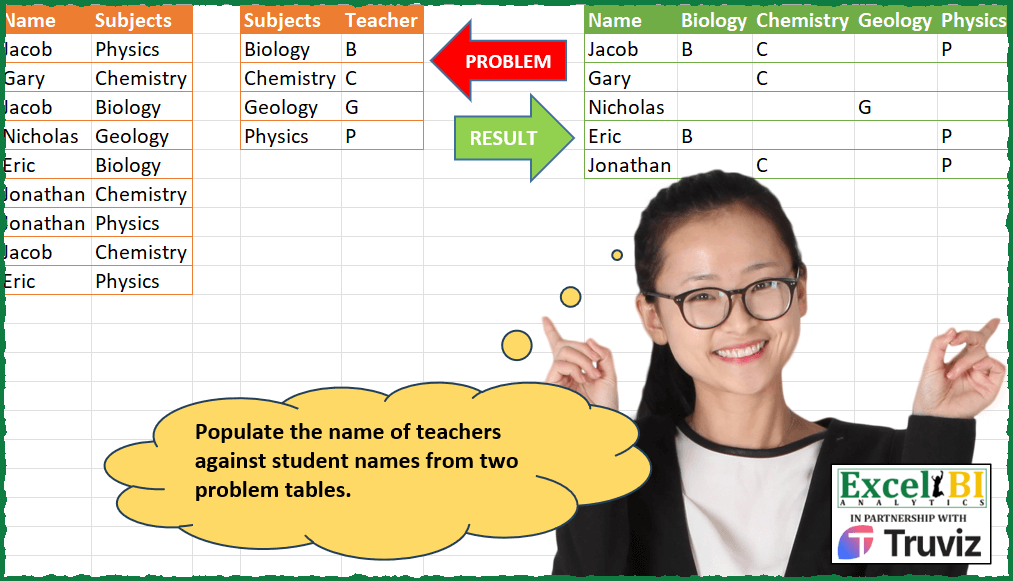
Last Sunday’s challenge was deemed to be super-difficult. This Sunday, I want to go easy. Populate the name of teachers against student names from two problem tables.
📌 Challenge Details and Links
ExcelBI Power Query Challenge Number: 156
Challenge Difficulty: ⭐️⭐️
📥Download Sample File
📥Link to the solutions on LinkedIn
Solving the challenge of Assign Teachers to Students with Power Query
Power Query solution 1 for Assign Teachers to Students, proposed by Zoran Milokanović:
let
  Source = each Excel.CurrentWorkbook(){[Name = _]}[Content],
  T1 = Source("Table1"),
  T2 = Source("Table2"),
  C = each [Subjects],
  S = List.Accumulate(
    C(T2),
    Table.Distinct(T1[[Name]]),
    (s, c) =>
      Table.AddColumn(
        s,
        c,
        each
          let
            r = T1{[Name = [Name], Subjects = c]}?
          in
            if r = null then r else T2{[Subjects = C(r)]}[Teacher]
      )
  )
in
  S
Power Query solution 2 for Assign Teachers to Students, proposed by Zoran Milokanović:
let
  Source = each Excel.CurrentWorkbook(){[Name = _]}[Content],
  T1 = Source("Table1"),
  T2 = Source("Table2"),
  C = each [Subjects],
  S = Table.FromRows(
    List.TransformMany(
      List.Distinct(T1[Name]),
      (x) => {
        {x}
          & List.Transform(
            C(T2),
            each
              let
                r = T1{[Name = x, Subjects = _]}?
              in
                if r = null then r else T2{[Subjects = C(r)]}[Teacher]
          )
      },
      (x, y) => y
    ),
    {"Name"} & C(T2)
  )
in
  S
Power Query solution 3 for Assign Teachers to Students, proposed by Zoran Milokanović:
let
  Source = each Excel.CurrentWorkbook(){[Name = _]}[Content],
  N = each [Name],
  P = Table.ExpandTableColumn(
    Table.NestedJoin(
      Source("Table1"),
      {"Subjects"},
      Source("Table2"),
      {"Subjects"},
      "Table2",
      JoinKind.Inner
    ),
    "Table2",
    {"Teacher"}
  ),
  S = Table.Sort(
    Table.Pivot(P, List.Sort(List.Distinct(P[Subjects])), "Subjects", "Teacher"),
    each List.PositionOf(List.Distinct(N(Source("Table1"))), N(_))
  )
in
  S
Power Query solution 4 for Assign Teachers to Students, proposed by Kris Jaganah:
let
  Source = Excel.CurrentWorkbook(){[Name = "Table1"]}[Content],
  Position = Table.AddColumn(Source, "Custom", each List.PositionOf(Source[Name], [Name])),
  Lookup = Table.AddColumn(
    Position,
    "Teacher",
    each Table2[Teacher]{List.PositionOf(Table2[Subjects], [Subjects])}
  ),
  Sort = Table.Sort(Lookup, {{"Subjects", Order.Ascending}}),
  Pivot = Table.Pivot(Sort, List.Distinct(Sort[Subjects]), "Subjects", "Teacher", List.Max),
  Sort1 = Table.Sort(Pivot, {{"Custom", Order.Ascending}}),
  Remove = Table.RemoveColumns(Sort1, {"Custom"})
in
  Remove
Power Query solution 5 for Assign Teachers to Students, proposed by Alejandro Simón 🇵🇦 🇪🇸:
let
  T1 = Excel.CurrentWorkbook(){[Name = "Tabla1"]}[Content],
  T2 = Excel.CurrentWorkbook(){[Name = "Tabla2"]}[Content],
  Teacher = Table.AddColumn(
    T1,
    "Teacher",
    (x) => Table.SelectRows(T2, each [Subjects] = x[Subjects])[Teacher]{0}
  ),
  Cols = Table.SelectColumns(
    Table.Pivot(Teacher, List.Distinct(Teacher[Subjects]), "Subjects", "Teacher"),
    {"Name"} & T2[Subjects]
  ),
  Sol = Table.Sort(Cols, each List.PositionOf(T1[Name], [Name]))
in
  Sol
Power Query solution 6 for Assign Teachers to Students, proposed by Luan Rodrigues:
let
  Fonte = Tabela1,
  join  = Table.Join(Fonte, {"Subjects"}, Tabela2, {"Subjects"}),
  pv    = Table.Pivot(join, List.Distinct(join[Subjects]), "Subjects", "Teacher"),
  sort  = Table.Sort(pv, each List.PositionOf(join[Name], [Name])),
  reo   = Table.SelectColumns(sort, {"Name"} & Tabela2[Subjects])
in
  reo
Power Query solution 7 for Assign Teachers to Students, proposed by Hussein SATOUR:
let
  Source = Excel.CurrentWorkbook(){[Name = "Table1"]}[Content],
  MergeQ = Table.NestedJoin(
    Source,
    {"Subjects"},
    Table2,
    {"Subjects"},
    "Table2",
    JoinKind.LeftOuter
  ),
  ExpandTeacher = Table.ExpandTableColumn(MergeQ, "Table2", {"Teacher"}, {"Teacher"}),
  PivotSub = Table.Pivot(
    ExpandTeacher,
    List.Distinct(ExpandTeacher[Subjects]),
    "Subjects",
    "Teacher"
  )
in
  PivotSub
Power Query solution 8 for Assign Teachers to Students, proposed by Bhavya Gupta:
let
  Source = Excel.CurrentWorkbook(),
  AddedCol = Table.AddColumn(
    Source{[Name = "Table1"]}[Content],
    "Teacher",
    each Source{[Name = "Table2"]}[Content]{[Subjects = [Subjects]]}[Teacher]
  ),
  Output = Table.ExpandRecordColumn(
    Table.Group(AddedCol, {"Name"}, {{"All", each Record.FromList([Teacher], [Subjects])}}),
    "All",
    List.Sort(List.Distinct(AddedCol[Subjects]))
  )
in
  Output
Power Query solution 9 for Assign Teachers to Students, proposed by Ramiro Ayala Chávez:
let
  t2  = Excel.CurrentWorkbook(){[Name = "Table2"]}[Content],
  t1  = Excel.CurrentWorkbook(){[Name = "Table1"]}[Content],
  a   = Table.AddColumn(t1, "T", each t2[Teacher]{List.PositionOf(t2[Subjects], [Subjects])}),
  b   = Table.Sort(a, {{"Subjects", 0}}),
  c   = Table.Pivot(b, List.Distinct(b[Subjects]), "Subjects", "T"),
  d   = List.Distinct(t1[Name]),
  e   = Table.FromColumns({d, {1 .. List.Count(d)}}),
  f   = Table.AddColumn(c, "I", each e[Column2]{List.PositionOf(e[Column1], [Name])}),
  Sol = Table.RemoveColumns(Table.Sort(f, {{"I", 0}}), "I")
in
  Sol
Power Query solution 10 for Assign Teachers to Students, proposed by Eric Laforce:
let
  Source = Excel.CurrentWorkbook(),
  Teachers = Record.FromTable(
    Table.RenameColumns(
      Source{[Name = "tData156_2"]}[Content],
      {{"Subjects", "Name"}, {"Teacher", "Value"}}
    )
  ),
  Group = Table.Group(
    Source{[Name = "tData156"]}[Content],
    {"Name"},
    {"All", each Record.SelectFields(Teachers, [Subjects])}
  ),
  Expand = Table.ExpandRecordColumn(Group, "All", Record.FieldNames(Teachers))
in
  Expand
Power Query solution 11 for Assign Teachers to Students, proposed by Albert Cid Cañigueral:
let
  Origen = Excel.CurrentWorkbook(),
  a = Table.NestedJoin(
    Origen{0}[Content],
    {"Subjects"},
    Origen{1}[Content],
    {"Subjects"},
    "Combinadas"
  ),
  b = Table.ExpandTableColumn(a, "Combinadas", {"Teacher"}, {"Teacher"}),
  c = Table.Pivot(b, List.Distinct(b[Subjects]), "Subjects", "Teacher")
in
  c
Power Query solution 12 for Assign Teachers to Students, proposed by Nicolas Micot:
let
  Source = Table.NestedJoin(
    Students,
    {"Subjects"},
    Teachers,
    {"Subjects"},
    "Teachers",
    JoinKind.LeftOuter
  ),
  #"Teachers développé" = Table.ExpandTableColumn(Source, "Teachers", {"Teacher"}, {"Teacher"}),
  #"Lignes triées" = Table.Sort(#"Teachers développé", {{"Subjects", Order.Ascending}})
in
  #"Lignes triées"
Power Query solution 13 for Assign Teachers to Students, proposed by Sandeep Marwal:
let
  Source = Excel.CurrentWorkbook(){[Name = "Table2"]}[Content],
  T2 = Excel.CurrentWorkbook(){[Name = "Table1"]}[Content],
  S1 = Table.AddIndexColumn(T2, "Index", 0, 1, Int64.Type),
  S2 = Table.NestedJoin(S1, {"Subjects"}, Source, {"Subjects"}, "Changed Type", JoinKind.LeftOuter),
  S3 = Table.ExpandTableColumn(S2, "Changed Type", {"Teacher"}, {"Teacher"}),
  S4 = Table.RemoveColumns(S3, {"Index"}),
  S5 = Table.Pivot(S4, List.Distinct(S4[Subjects]), "Subjects", "Teacher"),
  S6 = List.Combine({{"Name"}, List.Sort(List.Skip(Table.ColumnNames(S5)))}),
  S7 = Table.ReorderColumns(S5, S6),
  S8 = Table.NestedJoin(S7, {"Name"}, S1, {"Name"}, "Reordered Columns", JoinKind.LeftOuter),
  S9 = Table.ExpandTableColumn(S8, "Reordered Columns", {"Index"}, {"Reordered Columns.Index"}),
  S10 = Table.Sort(S9, {{"Reordered Columns.Index", Order.Ascending}}),
  S11 = Table.Distinct(S10),
  S12 = Table.Distinct(S11, {"Name"}),
  S13 = Table.RemoveColumns(S12, {"Reordered Columns.Index"})
in
  S13
Solving the challenge of Assign Teachers to Students with Excel
Excel solution 1 for Assign Teachers to Students, proposed by Bo Rydobon 🇹🇭:
=LET(a,A1:A10,b,B1:B10,DROP(PIVOTBY(HSTACK(XMATCH(a,a),a),b,VLOOKUP(b,D2:E5,2,),SINGLE,3,0,,0),1,1))Excel solution 2 for Assign Teachers to Students, proposed by Bo Rydobon 🇹🇭:
=LET(s,TOROW(D2:D5),u,UNIQUE(A1:A10),
HSTACK(u,VSTACK(s,REPT(TOROW(E2:E5),COUNTIFS(A2:A10,DROP(u,1),B2:B10,s)))))
Excel solution 3 for Assign Teachers to Students, proposed by محمد حلمي:
=LET(v,A2:A10,u,UNIQUE(v),i,TOROW(D2:D5),
VSTACK(HSTACK(A1,i),HSTACK(u,MAP(i&u,
LAMBDA(a,CONCAT(REPT(LEFT(a),B2:B10&v=a)))))))
Excel solution 4 for Assign Teachers to Students, proposed by محمد حلمي:
=LET(v,A2:A10,b,B2:B10,u,UNIQUE(v),i,TOROW(D2:D5),
VSTACK(HSTACK(A1,i),HSTACK(u,MAP(i&u,
LAMBDA(a,FILTER(LEFT(b),a=b&v,""))))))
Excel solution 5 for Assign Teachers to Students, proposed by 🇰🇷 Taeyong Shin:
=LET(n, A1:A10, s, B1:B10, Identity, LAMBDA(x, @x), DROP(PIVOTBY(HSTACK(XMATCH(n, n), n), s, LOOKUP(s, D2:E5), Identity, 3, 0, , 0), 1, 1))Excel solution 6 for Assign Teachers to Students, proposed by Kris Jaganah:
=PIVOTBY(A2:A10,B2:B10,VLOOKUP(B2:B10,D2:E5,2,0),CONCAT,0,0,,0)Excel solution 7 for Assign Teachers to Students, proposed by Oscar Mendez Roca Farell:
=LET(A,A2:A10,U,UNIQUE(A),S,TOROW(D2:D5),VSTACK(HSTACK(A1,S), HSTACK(U,REPT(TOROW(E2:E5),MMULT(N(U=TOROW(A)),N(B2:B10=S))))))Excel solution 8 for Assign Teachers to Students, proposed by Duy Tùng:
=LET(a,DROP(PIVOTBY(HSTACK(XMATCH(A2:A10,A2:A10),A2:A10),B2:B10,LOOKUP(B2:B10,D2:E5),SINGLE,,0,,0),,1),IF(TAKE(a,1)&TAKE(a,,1)="",A1,a))Excel solution 9 for Assign Teachers to Students, proposed by Sunny Baggu:
=LET(
 _n, UNIQUE(A2:A10),
 _s, TOROW(D2:D5),
 _v, XLOOKUP(_n & _s, A2:A10 & B2:B10, LEFT(B2:B10), ""),
 VSTACK(HSTACK(A1, _s), HSTACK(_n, _v))
)
Excel solution 10 for Assign Teachers to Students, proposed by LEONARD OCHEA 🇷🇴:
=PIVOTBY(A2:A10,B2:B10,B2:B10,LEFT,,0,,0)

with search in table 2

=PIVOTBY(A2:A10,B2:B10,XLOOKUP(B2:B10,D2:D5,E2:E5),CONCAT,,0,,0)

I think that the PIVOTBY & GROUPBY function should have a position 0 in the "Order" argument that leaves the data unordered (just as it appears in the table)
Excel solution 11 for Assign Teachers to Students, proposed by Bhavya Gupta:
=LET(n,A2:A10,s,B2:B10,DROP(PIVOTBY(HSTACK(XMATCH(n,n),n),s,XLOOKUP(s,D2:D5,E2:E5),CONCAT,0,0,1,0),,1))Excel solution 12 for Assign Teachers to Students, proposed by Md. Zohurul Islam:
=LET(u,A2:A10,v,B2:B10,a,D2:D5,b,E2:E5,w,XLOOKUP(v,a,b),z,PIVOTBY(u,v,w,ARRAYTOTEXT,0,0,,0),z)Excel solution 13 for Assign Teachers to Students, proposed by Albert Cid Cañigueral:
=LET(ndN;UNICOS(A2:A10);ndS;ENFILA(D2:D5);
APILARV(APILARH("";ndS);APILARH(ndN;ARCHIVOMAKEARRAY(5;4;LAMBDA(paF;paC;SI.ERROR(INDICE(E2:E5;COINCIDIRX(INDICE(B2:B10;COINCIDIRX(INDICE(ndN;paF)&INDICE(ndS;paC);A2:A10&B2:B10));D2:D5));""))))))
Excel solution 14 for Assign Teachers to Students, proposed by Milan Shrimali:
=IFERROR(XLOOKUP(FILTER(FILTER($A$2:$B$10,($A$2:$A$10=$I2)*($B$2:$B$10=J$1)),{0,1}),$E$2:$E$5,$F$2:$F$5),"")Excel solution 15 for Assign Teachers to Students, proposed by Ziad A.:
=QUERY({A2:B10,ARRAYFORMULA(VLOOKUP(B2:B10,D2:E5,2,))},"select Col1, max(Col3) group by Col1 pivot Col2")Excel solution 16 for Assign Teachers to Students, proposed by Gabriel Raigosa:
=LET(n,A2:A10,m,TOROW(D2:D5),HSTACK(UNIQUE(A1:A10),VSTACK(m,XLOOKUP(IF(ISNUMBER(XMATCH(UNIQUE(n)&m,n&B2:B10)),m,""),D2:D5,E2:E5,""))))

▶️ES:
=LET(n,A2:A10,m,ENFILA(D2:D5),APILARH(UNICOS(A1:A10),APILARV(m,BUSCARX(SI(ESNUMERO(COINCIDIRX(UNICOS(n)&m,n&B2:B10)),m,""),D2:D5,E2:E5,""))))
Excel solution 17 for Assign Teachers to Students, proposed by Anjan Kumar Bose:
=IFERROR(XLOOKUP(1,($A$2:$A$10=$M2)*($B$2:$B$10=N$1),$C$2:$C$10),"")Solving the challenge of Assign Te&achers to Students with Python
Python solution 1 for Assign Teachers to Students, proposed by Chandrasekhar Borra:
print(pd.merge(df1, df2, on='Subject', how='inner').pivot(index="Student_Name", columns="Subject", values="Teacher").fillna(""))Solving the challenge of Assign Teachers to Students with R
R solution 1 for Assign Teachers to Students, proposed by Konrad Gryczan, PhD:
library(tidyverse)
library(readxl)
input1 = read_excel("Power Query/PQ_Challenge_156.xlsx", range = "A1:B10")
input2 = read_excel("Power Query/PQ_Challenge_156.xlsx", range = "D1:E5")
test = read_excel("Power Query/PQ_Challenge_156.xlsx", range = "G1:K6")
result = input1 %>%
 left_join(input2, by = "Subjects") %>%
 pivot_wider(names_from = "Subjects", values_from = "Teacher", values_fill = NA_character_) %>%
 select(Name, Biology, Chemistry, Geology, Physics)
&&