
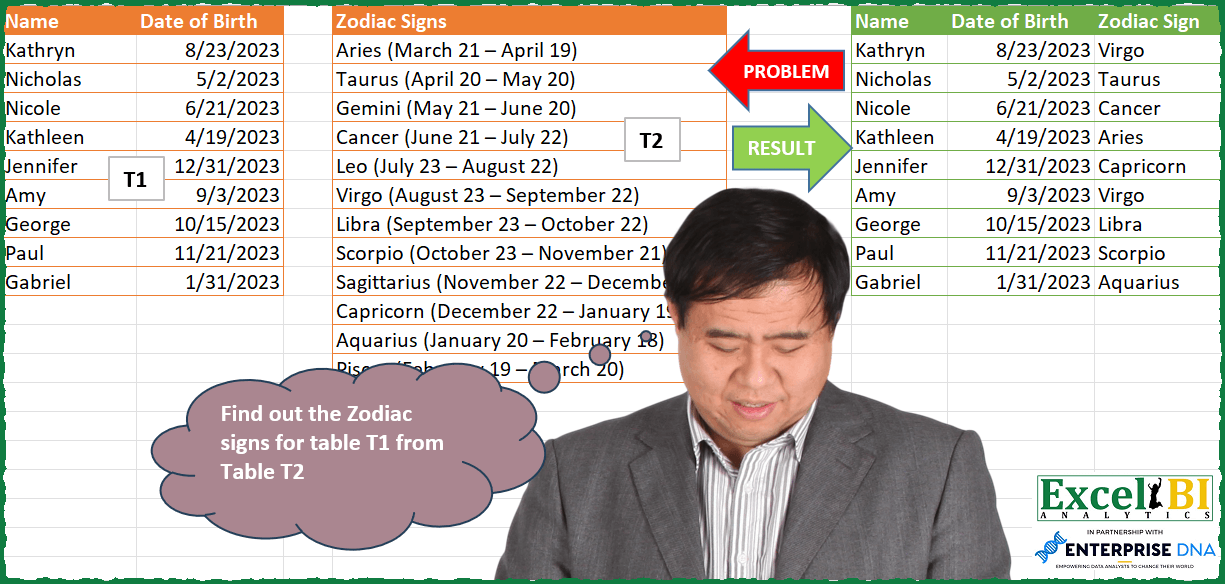
Find out the Zodiac signs for table T1 from Table T2. Note – Dates are in MDY format.
📌 Challenge Details and Links
ExcelBI Power Query Challenge Number: 127
Challenge Difficulty: ⭐️⭐️⭐️
📥Download Sample File
📥Link to the solutions on LinkedIn
Solving the challenge of Get Zodiac from Date Range with Power Query
Power Query solution 1 for Get Zodiac from Date Range, proposed by Zoran Milokanović:
let
  Source = Excel.CurrentWorkbook(){[Name = "Table1"]}[Content],
  S = Table.AddColumn(
    Source,
    "Zodiac Sign",
    each
      let
        b = [Date of Birth],
        z = each [Zodiac Signs],
        p = each Text.PositionOf(z(_), Date.MonthName(b, "en-Us")),
        t2 = Table.Sort(
          Table.SelectRows(Excel.CurrentWorkbook(){[Name = "Table2"]}[Content], each p(_) >= 0),
          each - p(_)
        )
      in
        Text.Split(
          z(t2{Number.From(DateTime.ToText(b, [Format = "dd"]) > Text.End(z(t2{0}), 3))}),
          " "
        ){0}
  )
in
  S
Power Query solution 2 for Get Zodiac from Date Range, proposed by Alejandro Simón 🇵🇦 🇪🇸:
let
  Source = Excel.CurrentWorkbook(){[Name = "Table1"]}[Content],
  T2 = Excel.CurrentWorkbook(){[Name = "Table2"]}[Content],
  Dates = Table.AddColumn(
    T2,
    "Dates",
    each
      let
        a = Text.Split([Zodiac Signs], " "),
        b = a{0},
        c = Text.Split(Text.Remove(Text.Combine(List.RemoveFirstN(a), " "), {"(", ")"}), "– "),
        d = List.Transform(c, each Number.From(Date.FromText(_ & " 2023"))),
        e = {d{0} .. d{1}} & {a{0}}
      in
        e
  )[Dates],
  Sol = Table.AddColumn(
    Source,
    "Zodiac Sign",
    each
      let
        a = Number.From([Date of Birth]),
        b = try List.Last(List.Select(Dates, each List.Contains(_, a)){0}) otherwise "Capricorn"
      in
        b
  )
in
  Sol
Power Query solution 3 for Get Zodiac from Date Range, proposed by Luan Rodrigues:
let
  tab2 = Table.ExpandListColumn(
    Table.AddColumn(
      Tabela2,
      "Date",
      each [
        a = List.Transform(
          Text.Split(Text.Split([Zodiac Signs], "("){1}, "–"),
          (x) =>
            Date.FromText(
              Text.Replace(
                Text.Trim(
                  Text.Combine(List.Reverse(Text.Split(Text.Remove(x, {")"}), " ")), " ") & " 2023"
                ),
                " ",
                " "
              ),
              [Format = "dd MMMM yyyy", Culture = "en-US"]
            )
        ),
        b = List.Transform(
          {
            List.Transform(a, (x) => Number.From(x)){0} .. List.Transform(a, (x) => Number.From(x)){
              1
            }
          },
          Date.From
        )
      ][b]
    ),
    "Date"
  ),
  res = Table.AddColumn(
    Tabela1,
    "Personalizar",
    each try
      Text.Trim(
        Text.Split(
          Table.SelectRows(
            tab2,
            (x) => Date.From([Date of Birth]) >= x[Date] and Date.From([Date of Birth]) <= x[Date]
          )[Zodiac Signs]{0},
          "("
        ){0}
      )
    otherwise
      "Capricorn"
  )
in
  res
Power Query solution 4 for Get Zodiac from Date Range, proposed by Hussein SATOUR:
let
  Source = Excel.CurrentWorkbook(){[Name = "Table1"]}[Content],
  #"Changed Type" = Table.TransformColumnTypes(Source, {{"Date of Birth", type date}}),
  #"Added Custom1" = Table.AddColumn(
    #"Changed Type",
    "Custom.1",
    each
      let
        d      = [Date of Birth],
        result = Table.SelectRows(T2, each [Date] <= d)
      in
        Table.LastN(Table.Sort(result, {{"Date", Order.Ascending}}), 1)
  ),
  #"Expanded Custom.1" = Table.ExpandTableColumn(
    #"Added Custom1",
    "Custom.1",
    {"Zodiac Signs"},
    {"Zodiac Signs"}
  )
in
  #"Expanded Custom.1"
Power Query solution 5 for Get Zodiac from Date Range, proposed by Alexis Olson:
let
 Source = Excel.CurrentWorkbook(){[Name="T2"]}[Content],
 SplitSign = Table.SplitColumn(Source, "Zodiac Signs", Splitter.SplitTextByEachDelimiter({" "}), {"Zodiac Sign", "Date"}),
 TrimParens = Table.TransformColumns(SplitSign,{{"Date", each Text.Remove(_, {"(",")"}), type text}}),
 SplitDates = Table.ExpandListColumn(Table.TransformColumns(TrimParens, {{"Date", Splitter.SplitTextByDelimiter(" – "), type {Text.Type}}}), "Date"),
 ChangeType = Table.TransformColumnTypes(SplitDates,{{"Date", type date}})
in
 ChangeType

Add column to T1:

let
 Source = Excel.CurrentWorkbook(){[Name = "Table1"]}[Content],
 ChangeType = Table.TransformColumnTypes(Source, {{"Name", type text}, {"Date of Birth", type date}}),
 AddColumn = Table.AddColumn(
 ChangeType,
 "Zodiac Sign",
 each Table.Max(
 Table.SelectRows(
 T2, (row) =>
 /*Birthday this year*/
 Date.AddYears(
 [Date of Birth],
 Date.Year(row[Date]) - Date.Year([Date of Birth])
 ) >= row[Date]
 ),
 "Date"
 )[Zodiac Sign],
 type text
 )
in
 AddColumn
Power Query solution 6 for Get Zodiac from Date Range, proposed by Eric Laforce:
let
  TZS =
    let
      _Source = Excel.CurrentWorkbook(){[Name = "tData127_2"]}[Content],
      _Split = Table.SplitColumn(
        _Source,
        "Zodiac Signs",
        Splitter.SplitTextByEachDelimiter({" (", " ", "– ", " ", ")"}),
        {"Sign", "FromM", "FromD", "ToM", "ToD"}
      )
    in
      Table.TransformColumnTypes(_Split, {{"FromD", Int64.Type}, {"ToD", Int64.Type}}),
  Source = Excel.CurrentWorkbook(){[Name = "tData127"]}[Content],
  Add_ZS = Table.AddColumn(
    Source,
    "Zodiac Sign",
    each
      let
        _M = Date.MonthName([Date of Birth], "en-Us"),
        _D = Date.Day([Date of Birth]),
        _S = Table.SelectRows(
          TZS,
          each (([FromM] = _M and _D >= [FromD]) or ([FromM] = _M and _D <= [ToD]))
        )
      in
        _S[Sign]{0}
  )
in
  Add_ZS
Power Query solution 7 for Get Zodiac from Date Range, proposed by Luke Jarych:
let
 Source = Excel.CurrentWorkbook(){[Name="Table4"]}[Content],
 ConvertToDate = Table.TransformColumns(Source, {"Date of Birth", each Date.From(_)})
in
 ConvertToDate

T2 Table:
let
 Source = Excel.CurrentWorkbook(){[Name="Table1"]}[Content],
 SplitColumnsByDelimiter = Table.SplitColumn(Source, "Zodiac Signs", Splitter.SplitTextByEachDelimiter({" (", " – ", ")"}), {"Zodiac","DateFrom","DateTo"}),
 DatesFromText = Table.TransformColumns(SplitColumnsByDelimiter, {{"DateFrom", each Date.FromText(_, "en-Us")}, {"DateTo", each Date.FromText(_, "en-Us")}})
in
 DatesFromText
Power Query solution 8 for Get Zodiac from Date Range, proposed by Luke Jarych:
let
 Source = T2,
 TableAddColumn = Table.AddColumn(Source, "SpecificZodiac", each
 let
 T1 = T1,
 DateMFrom = Date.Month([DateFrom]),
 DateDFrom = Date.Day([DateFrom]),
 DateMTo = Date.Month([DateTo]),
 DateDTo = Date.Day([DateTo]),
 b = Table.SelectRows(T1, each
 (Date.Month([Date of Birth]) = DateMFrom and Date.Day([Date of Birth]) >= DateDFrom) or
 (Date.Month([Date of Birth]) = DateMTo and Date.Day([Date of Birth]) <= DateDTo))
 in b),
 #"Expanded SpecificZodiac" = Table.ExpandTableColumn(TableAddColumn, "SpecificZodiac", {"Name", "Date of Birth"}, {"Name", "Date of Birth"}),
 #"Filtered Rows" = Table.SelectRows(#"Expanded SpecificZodiac", each ([Name] <> null)),
 #"Removed Columns" = Table.RemoveColumns(#"Filtered Rows",{"DateFrom", "DateTo"}),
 #"Reordered Columns" = Table.ReorderColumns(#"Removed Columns",{"Name", "Date of Birth", "Zodiac"})
in
 #"Reordered Columns"
Sorry for last steps that i made them without advanced editor.
I am in hurry before next call :)
If case of any questions: PM
Power Query solution 9 for Get Zodiac from Date Range, proposed by Sandeep Marwal:
let
  Source = Excel.CurrentWorkbook(){[Name = "Table1"]}[Content],
  S1 = Table.AddColumn(
    Source,
    "Text Between Delimiters",
    each Text.BetweenDelimiters([Zodiac Signs], "(", ")")
  ),
  S2 = Table.SplitColumn(
    S1,
    "Text Between Delimiters",
    Splitter.SplitTextByDelimiter("–", QuoteStyle.Csv),
    {"D1", "D2"}
  ),
  S3 = Table.AddColumn(S2, "Custom", each Date.AddYears(Date.FromText([D1], "en-US"), - 1)),
  S4 = Table.AddColumn(S3, "Custom.1", each Date.AddYears(Date.FromText([D2], "en-US"), - 1)),
  S5 = Table.AddColumn(
    S4,
    "Custom.2",
    each
      if List.Count({Number.From([Custom]) .. Number.From([Custom.1])}) <> 0 then
        {Number.From([Custom]) .. Number.From([Custom.1])}
      else
        {Number.From([Custom]) .. 365 + Number.From([Custom.1])}
  ),
  S6 = Table.ExpandListColumn(S5, "Custom.2"),
  S7 = Table.TransformColumnTypes(S6, {{"Custom.2", type date}}),
  S8 = Table.TransformColumns(S7, {{"Zodiac Signs", each Text.BeforeDelimiter(_, "(")}}),
  S9 = Excel.CurrentWorkbook(){[Name = "Table4"]}[Content],
  S10 = Table.TransformColumnTypes(S9, {{"Date of Birth", type date}}),
  S11 = Table.NestedJoin(S10, {"Date of Birth"}, S8, {"Custom.2"}, "Custom1", JoinKind.LeftOuter),
  S12 = Table.ExpandTableColumn(S11, "Custom1", {"Zodiac Signs"})
in
  S12
Power Query solution 10 for Get Zodiac from Date Range, proposed by Obi E, MPH:
let
  Source = Excel.CurrentWorkbook(){[Name = "Table7"]}[Content],
  Custom1 = Table8,
  #"Added Index" = Table.AddIndexColumn(Custom1, "Index", 1, 1, Int64.Type),
  Custom2 = Source,
  #"Added Index1" = Table.AddIndexColumn(Custom2, "Index2", 1, 1, Int64.Type),
  #"Merged Queries" = Table.NestedJoin(
    #"Added Index",
    {"Index"},
    #"Added Index1",
    {"Index2"},
    "Added Index1",
    JoinKind.LeftOuter
  ),
  #"Expanded Added Index1" = Table.ExpandTableColumn(
    #"Merged Queries",
    "Added Index1",
    {"Name", "Date of Birth", "Index2"},
    {"Added Index1.Name", "Added Index1.Date of Birth", "Added Index1.Index2"}
  ),
  #"Changed Type" = Table.TransformColumnTypes(
    #"Expanded Added Index1",
    {{"Added Index1.Date of Birth", type date}}
  ),
  #"Sorted Rows" = Table.Sort(#"Changed Type", {{"Date1", Order.Ascending}}),
  #"Added Custom1" = Table.AddColumn(
    #"Sorted Rows",
    "Custom.1",
    each
      if [Added Index1.Date of Birth] >= [Date1] and [Added Index1.Date of Birth] <= [Date2] then
        [Zodiac Signs.1]
      else
        null
  ),
  #"Removed Columns" = Table.RemoveColumns(
    #"Added Custom1",
    {"Added Index1.Index2", "Index", "Date2", "Date1", "Zodiac Signs.1"}
  )
in
  #"Removed Columns"
Solving the challenge of Get Zodiac from Date Range with Excel
Excel solution 1 for Get Zodiac from Date Range, proposed by Bo Rydobon 🇹🇭:
=LET(z,D2:D13,m,TEXT(SEQUENCE(12)*29,"mmmm"),
d,--(2023&-XMATCH(TEXTBEFORE(TEXTAFTER(z,"(")," "),m)&-TEXTBEFORE(TEXTAFTER(z," ",2)," ")),
XLOOKUP(MOD(B2:B10-MIN(d),365),d-MIN(d),TEXTBEFORE(z," "),,-1))
Excel solution 2 for Get Zodiac from Date Range, proposed by Rick Rothstein:
=LET(e,0+TEXTBEFORE(TEXTAFTER(D2:D13," ",4),")"),MAP(B2:B10,LAMBDA(b,CONCAT(IF((b>=0+TEXTAFTER(TEXTBEFORE(D2:D13," ",3),"("))*(b<=EDATE(e,12*(MONTH(e)=1))),TEXTBEFORE(D2:D13," "),"")))))Excel solution 3 for Get Zodiac from Date Range, proposed by محمد حلمي:
=REDUCE(HSTACK(A1:B1,D1),D2:D13,LAMBDA(a,d,LET(
c,DROP(TEXTSPLIT(d,,{"("," – ",")"},1),1),
e,DATE(2023,XMATCH(TEXTSPLIT(c," "),
TEXT(SEQUENCE(12)*29,"mmmm")),RIGHT(c,2)),
x,TEXTBEFORE(d," "),
n,IFERROR(IFNA(HSTACK(FILTER(A2:B10,(B2:B10>=@e)*(B2:B10<=DROP(e,1))),x),x),0),IF(@n>0,VSTACK(a,n),a))))
Excel solution 4 for Get Zodiac from Date Range, proposed by 🇰🇷 Taeyong Shin:
=HSTACK(A2:B10,TEXTSPLIT(XLOOKUP(B2:B10,--TEXTBEFORE(TEXTAFTER(D2:D13,"("),"–"),D2:D13,,-1)," "))Excel solution 5 for Get Zodiac from Date Range, proposed by Kris Jaganah:
=LET(a,A2:A10,b,B2:B10,c,D2:D13,d,TEXTBEFORE(TEXTAFTER(c,"(")," –"),HSTACK(a,b,XLOOKUP(b,DATE(2023,MONTH(d),RIGHT(d,2)),TEXTBEFORE(c," "),,-1)))Excel solution 6 for Get Zodiac from Date Range, proposed by Sunny Baggu:
=LET(
 _tbl, TEXTSPLIT(TEXTJOIN(",", 1, D2:D13), {"(", " – ", ")"}, ",", 1),
 _sign, INDEX(_tbl, , 1),
 _mm, INDEX(_tbl, , 2),
 _val, MAP(_mm, LAMBDA(a, DATE(2023, MONTH(a), DAY(a)))),
 HSTACK(A2:B10, XLOOKUP(B2:B10, _val, _sign, , -1))
)
Excel solution 7 for Get Zodiac from Date Range, proposed by LEONARD OCHEA 🇷🇴:
=LET(s,D2:D13,x,TEXTBEFORE(TEXTAFTER(s,"(")," – "),y,(RIGHT(x,2)&"-"&TEXTBEFORE(x," "))*1,z,TEXTBEFORE(s," "),HSTACK(A1:B10, VSTACK(D1,XLOOKUP(B2:B10,y,z,,-1))))Excel solution 8 for Get Zodiac from Date Range, proposed by Daniel Garzia:
=LET(d,A2:B10,s,D2:D13,b,1+FIND("(",s),HSTACK(d,XLOOKUP(TAKE(d,,-1),0+MID(s,b,FIND(" –",s)-b),TEXTBEFORE(s," "),,-1)))Excel solution 9 for Get Zodiac from Date Range, proposed by Amardeep Singh:
=LET(_t1,A2:B10,
_t2,D2:D13,
z,TEXTBEFORE(_t2," ("),
s,--TEXTBEFORE(TEXTAFTER(_t2,"(")," – "),
ss,EDATE(s,(s
Excel solution 10 for Get Zodiac from Date Range, proposed by Hazem Hassan:
=LET(a,N2:N13,b,TEXTAFTER(TEXTBEFORE(SUBSTITUTE(a,TEXTBEFORE(a," "),""),"– "),"("),VLOOKUP(B2:B10,SORT(HSTACK(DATE(2023,MONTH(1&TEXTBEFORE(b," ")),TEXTAFTER(b," ")),TEXTBEFORE(a," ")),1),2,1))Excel solution 11 for Get Zodiac from Date Range, proposed by Bruno Rafael Diaz Ysla:
=APILARH(
 A1:A10;
 B1:B10;
 APILARV(
 D1;
 MAP(
 B2:B10;
 LAMBDA(_CELLS;
 LET(
 _DIA; TEXTOANTES(
 TEXTODESPUES(
 $D$2:$D$13;
 "("
 );
 "–"
 );
 _FECHAINICIOSIGNO; FECHA(
 2023;
 MES(_DIA);
 DERECHA(
 _DIA;
 3
 )
 );
 _SIGNO; TEXTOANTES(
 $D$2:$D$13;
 " "
 );
 _SOLUCION; BUSCARX(
 _CELLS;
 _FECHAINICIOSIGNO;
 _SIGNO;
 ;
 -1
 );
 _SOLUCION
 )
 )
 )
 )
)
Solving the challenge of Get Zodiac from Date Range with R
R solution 1 for Get Zodiac from Date Range, propos&ed by Konrad Gryczan, PhD:
library(tidyverse)
library(readxl)
T1 = read_excel("PQ_Challenge_127.xlsx", range = "A1:B10")
T2 = read_excel("PQ_Challenge_127.xlsx", range = "D1:d13")
test = read_excel("PQ_Challenge_127.xlsx", range = "F1:H10")
T2_det = T2 %>%
 rowwise() %>%
 mutate(`Zodiac Sign` = str_extract(`Zodiac Signs`, "\w+"),
 dates = str_extract_all(`Zodiac Signs`, "\b\w+ \d+\b"),
 start_date = paste(pluck(dates, 1), "2023"),
 end_date = paste(pluck(dates, 2), ifelse(`Zodiac Sign` == "Capricorn","2024","2023"))) %>%
 ungroup() %>%
 select(`Zodiac Sign`, start_date, end_date) %>%
 mutate(start_date = mdy(start_date),
 end_date = mdy(end_date))
result = T1 %>%
 cross_join(T2_det) %>%
 filter(`Date of Birth` >= start_date & `Date of Birth` <= end_date) %>%
 select(1:3)
identical(test, result)
R solution 2 for Get Zodiac from Date Range, proposed by Krzysztof Nowak:
 mutate(MonthDay = paste("1990",format(date_of_birth,"%B %d"),sep = "-"),
 MonthDay = as.Date(MonthDay,"%Y-%B %d"))
ZodiakCleaned <- Zodiak |>
 separate_wider_regex(zodiac_signs,c(Sign = "^\w+",
 "\s\(",
 Start = "[[:alpha:]]+\s\d{2}",
 " – ",
 End = "[[:alpha:]]+\s\d{2}")
 ,too_few = "align_start") |>
 mutate(across(!contains("Sign"),(x) paste("1990",x,sep = "-")),
 across(!contains("Sign"),(x) as.Date(x,"%Y-%B %d")))
Answer <- merge(ZodiakCleaned,Names) |>
 filter(MonthDay >= Start & MonthDay <= End) |>
 select(name,date_of_birth,Sign)
Answer
Solving the challenge of Get Zodiac from Date Range with DAX
DAX solution 1 for Get Zodiac from Date Range, proposed by Zoran Milokanović:
Zodiac Sign =
VAR d = FORMAT(Table1[Date of Birth], "DD")
VAR m = FORMAT(Table1[Date of Birth], "MMMM", "en-US")
VAR t = ADDCOLUMNS(FILTER(Table2, FIND(m, Table2[Zodiac Signs], 1, 0) > 0), "Seq", ROWNUMBER(Table2, ORDERBY(FIND(m, Table2[Zodiac Signs], 1, 0), DESC, Table2[Zodiac Signs])))
VAR b = SELECTCOLUMNS(FILTER(t, [Seq] = 1), "C", RIGHT(Table2[Zodiac Signs], 3))
RETURN
 SELECTCOLUMNS(FILTER(t, [Seq] = 1 + INT(d > b)), "C", VAR z = Table2[Zodiac Signs] RETURN LEFT(z, FIND(" ", z) - 1))
&&