
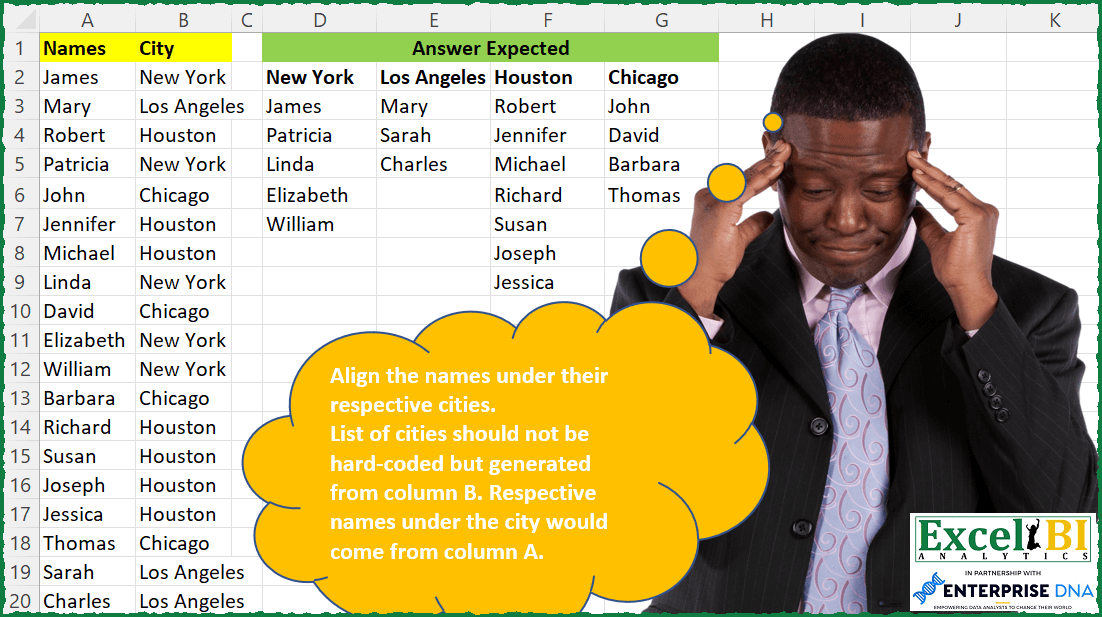
Align the names under their respective cities. List of cities should not be hard-coded but generated from column B. Respective names under the city would come from column A.
📌 Challenge Details and Links
ExcelBI Excel Challenge Number: 86
Challenge Difficulty: ⭐️
📥Download Sample File
📥Link to the solutions on LinkedIn
Solving the challenge of Align Names by Cities with Power Query
Power Query solution 1 for Align Names by Cities, proposed by Alejandro Simón 🇵🇦 🇪🇸:
let
  Source = Excel.CurrentWorkbook(){[Name = "Table1"]}[Content],
  GroupedBy = Table.Group(Source, {"City"}, {{"Count", each _}}),
  ListNames = Table.TransformColumns(
    Table.Group(Source, {"City"}, {{"Count", each _}}),
    {"Count", each Table.RemoveColumns(_, "City")[Names]}
  ),
  Names = Table.TransformColumns(
    ListNames,
    {"Count", each Text.Combine(List.Transform(_, Text.From), ","), type text}
  ),
  Split = Table.SplitColumn(
    Names,
    "Count",
    Splitter.SplitTextByDelimiter(",", QuoteStyle.Csv),
    {"Count.1", "Count.2", "Count.3", "Count.4", "Count.5", "Count.6", "Count.7"}
  ),
  Solution = Table.PromoteHeaders(Table.Transpose(Split), [PromoteAllScalars = true])
in
  Solution
Power Query solution 2 for Align Names by Cities, proposed by Luan Rodrigues:
let
  Fonte = Data,
  a = Table.Group(Fonte, {"City"}, {{"Contagem", each _}}),
  b = Table.Max(
    Table.AddColumn(a, "Personalizar", each List.Count([Contagem][Names])),
    "Personalizar"
  )[Personalizar],
  c = Table.AddColumn(
    a,
    "Personalizar",
    each Text.Combine(List.Transform([Contagem][Names], Text.From), ",")
  )[[City], [Personalizar]],
  d = Table.SplitColumn(c, "Personalizar", Splitter.SplitTextByDelimiter(",", QuoteStyle.None), b),
  Result = Table.PromoteHeaders(Table.Transpose(d))
in
  Result
Power Query solution 3 for Align Names by Cities, proposed by Luan Rodrigues:
Great idea. Table.FromColumns()Power Query solution 4 for Align Names by Cities, proposed by Brian Julius:
let
  Source = Table.AddIndexColumn(CitiesRaw, "Index", 1, 1),
  Pivoted = (
    Table.RemoveColumns(Table.Pivot(Source, List.Distinct(Source[City]), "City", "Names"), "Index")
  ),
  Headers = Table.ColumnNames(Pivoted),
  Break = Table.FromColumns(List.Transform(Table.ToColumns(Pivoted), List.RemoveNulls), Headers)
in
  Break
Power Query solution 5 for Align Names by Cities, proposed by Bhavya Gupta:
let
  Source = Excel.CurrentWorkbook(){[Name = "Table1"]}[Content],
  Grouped = Table.Group(Source, {"City"}, {{"Names", each _}}),
  CustomIndex = Table.AddColumn(Grouped, "Custom", each Table.AddIndexColumn([Names], "Index", 1)),
  RemovedOtherCols = Table.SelectColumns(CustomIndex, {"Custom"}),
  ExpandedCustom = Table.ExpandTableColumn(
    RemovedOtherCols,
    "Custom",
    {"Names", "City", "Index"},
    {"Names", "City", "Index"}
  ),
  Pivot = Table.Pivot(ExpandedCustom, List.Distinct(ExpandedCustom[City]), "City", "Names"),
  ExpectedOutput = Table.RemoveColumns(Pivot, {"Index"})
in
  ExpectedOutput
Power Query solution 6 for Align Names by Cities, proposed by Bhavya Gupta:
let
  Source         = Excel.CurrentWorkbook(){[Name = "Table1"]}[Content],
  Grouped        = Table.Group(Source, {"City"}, {{"Names", each [Names]}}),
  ExpectedOutput = Table.FromColumns(Grouped[Names], Grouped[City])
in
  ExpectedOutput
Power Query solution 7 for Align Names by Cities, proposed by Matthias Friedmann:
let
  Source = Excel.CurrentWorkbook(){[Name = "CityName"]}[Content],
  Grouped = Table.Group(Source, {"City"}, {{"Names", each [Names]}}),
  Extracted = Table.TransformColumns(
    Grouped,
    {"Names", each Text.Combine(List.Transform(_, Text.From), ";"), type text}
  ),
  Split = Table.SplitColumn(
    Extracted,
    "Names",
    Splitter.SplitTextByDelimiter(";", QuoteStyle.Csv),
    10
  ),
  Transposed = Table.Transpose(Split),
  Promoted = Table.PromoteHeaders(Transposed, [PromoteAllScalars = true])
in
  Promoted
Power Query solution 8 for Align Names by Cities, proposed by Antriksh Sharma:
let
  Source = Raw,
  GroupedRows = Table.Group(Source, {"City"}, {{"List", each {_[City]{0}} & _[Names], type list}}),
  ResultTable = Table.PromoteHeaders(Table.FromColumns(GroupedRows[List])),
  DataTypes = List.Transform(
    Table.ColumnNames(ResultTable),
    each {_, Type.Union(List.Transform(Table.Column(ResultTable, _), each Value.Type(_)))}
  ),
  ChangeTypes = Table.TransformColumnTypes(ResultTable, DataTypes)
in
  ChangeTypes
Power Query solution 9 for Align Names by Cities, proposed by Mahmoud Bani Asadi:
let
  Source        = Excel.CurrentWorkbook(){[Name = "Table1"]}[Content],
  Pivot         = Table.Pivot(Source, List.Distinct(Source[City]), "City", "Names", each _),
  DemoteHeaders = Table.DemoteHeaders(Pivot),
  TransposeTbl  = Table.Transpose(DemoteHeaders),
  Final         = Table.FromColumns(TransposeTbl[Column2], TransposeTbl[Column1])
in
  Final
Power Query solution 10 for Align Names by Cities, proposed by Jan Willem Van Holst:
let
  Source = Table.FromRows(
    Json.Document(
      Binary.Decompress(
        Binary.FromText(
          "bZHRCoJAEEV/RfbZnygLQjRCgwjxYdTJHVp3YleL+vpWe2rq9dzh3GGmqlQKA3oVqz0+ojO7q6rjSuXgnoFl7KOV7dGEiRkX3KAbQ7DjyY9sF3iA0VFLIB0paxtYoqmFnj8IraULOmHIqdWARtCMbPcj3cCdOmHdGnpBg6OWwycyhmCQeA2uAQfCUsxLuE4sUU4erGApe7xpCdH7IBP0qHkAL5rKUK7/XDcJ/Wb5xVdSvwE=",
          BinaryEncoding.Base64
        ),
        Compression.Deflate
      )
    ),
    let
      _t = ((type nullable text) meta [Serialized.Text = true])
    in
      type table [Names = _t, City = _t]
  ),
  GroupedRows = Table.Group(Source, {"City"}, {{"data", each [Names]}}),
  colNames = GroupedRows[City],
  createTableFromColumns = Table.FromColumns(GroupedRows[data], colNames),
  #"Replaced Value" = Table.ReplaceValue(
    createTableFromColumns,
    null,
    "",
    Replacer.ReplaceValue,
    {"New York", "Los Angeles", "Houston", "Chicago"}
  )
in
  #"Replaced Value"
Solving the challenge of Align Names by Cities with Excel
Excel solution 1 for Align Names by Cities, proposed by Bo Rydobon 🇹🇭:
=LET(
    n,
    A2:A20,
    b,
    B2:B20,
    DROP(
        REDUCE(
            0,
            UNIQUE(
                b
            ),
            LAMBDA(
                a,
                c,
                IFNA(
                    HSTACK(
                        a,
                        VSTACK(
                            c,
                            FILTER(
                                n,
                                b=c
                            )
                        )
                    ),
                    ""
                )
            )
        ),
        ,
        1
    )
)
Excel solution 2 for Align Names by Cities, proposed by Rick Rothstein:
=LET(
    b,
    B2:B20,
    c,
    TOROW(
        UNIQUE(
            b
        )
    ),
    VSTACK(
        c,
        IFNA(
            DROP(
                REDUCE(
                    "",
                    SEQUENCE(
                        COUNTA(
                            c
                        )
                    ),
                    LAMBDA(
                        a,
                        x,
                        HSTACK(
                            a,
                            FILTER(
                                A2:A20,
                                b=INDEX(
                                    c,
                                    ,
                                    x
                                )
                            )
                        )
                    )
                ),
                ,
                1
            ),
            ""
        )
    )
)
Excel solution 3 for Align Names by Cities, proposed by John V.:
=LET(c,B2:B20,IFNA(DROP(REDUCE(0,UNIQUE(c),LAMBDA(i,x,HSTACK(i,VSTACK(x,FILTER(A2:A20,c=x))))),,1),""))Excel solution 4 for Align Names by Cities, proposed by محمد حلمي:
=LET(

    b,
    B2:B20,

    z,
    TOROW(
        UNIQUE(
            b
        )
    ),

    VSTACK(
        z,

        DROP(
            REDUCE(
                "",
                z,
                LAMBDA(
                    a,
                    d,

                    IFNA(
                        HSTACK(
                            a,
                            TOCOL(
                                IF(
                                    b=d,
                                    A2:A20,
                                    x
                                ),
                                2
                            )
                        ),
                        ""
                    )
                )
            ),
            ,
            1
        )
    )
)
Excel solution 5 for Align Names by Cities, proposed by 🇰🇷 Taeyong Shin:
=LET(s,SORT(A2:B19,2,-1),c,DROP(s,,1),TRANSPOSE(HSTACK(UNIQUE(c),TEXTSPLIT(CONCAT(TAKE(s,,1)&N(c<>DROP(VSTACK(c,0),1))),0,1,1,,""))))Excel solution 6 for Align Names by Cities, proposed by 🇰🇷 Taeyong Shin:
=DROP(
    PIVOTBY(
        MAP(
            B2:B19,
            LAMBDA(
                x,
                COUNTIF(
                    B2:x,
                    x
                )
            )
        ),
        B2:B19,
        A2:A19,
        CONCAT,
        ,
        0,
        ,
        0,
        -1
    ),
    ,
    1
)
Excel solution 7 for Align Names by Cities, proposed by Julian Poeltl:
=LET(
    N,
    A2:A20,
    C,
    B2:B20,
    U,
    UNIQUE(
        C
    ),
    T,
    TRANSPOSE(
        MAP(
            U,
            LAMBDA(
                A,
                TEXTJOIN(
                    ",",
                    ,
                    A,
                    FILTER(
                        N,
                        C=A
                    )
                )
            )
        )
    ),
    IFNA(
        DROP(
            REDUCE(
                TAKE(
                    T,
                    ,
                    1
                ),
                T,
                LAMBDA(
                    A,
                    B,
                    HSTACK(
                        A,
                        TEXTSPLIT(
                            B,
                            ,
                            ","
                        )
                    )
                )
            ),
            ,
            1
        ),
        ""
    )
)
Excel solution 8 for Align Names by Cities, proposed by Aditya Kumar Darak 🇮🇳:
=LET(
 _n, A2:A20,
 _c, B2:B20,
 _uc, UNIQUE(_c),
 _cnt, COUNTIFS(_c, _uc),
 _e, LAMBDA(r, c, INDEX(FILTER(_n, _c = INDEX(_uc, c)), r)),
 _fn, MAKEARRAY(MAX(_cnt), COUNT(_cnt), _e),
 _r, VSTACK(TOROW(_uc), IFERROR(_fn, "")),
 _r
)
Excel solution 9 for Align Names by Cities, proposed by Aditya Kumar Darak 🇮🇳:
=LET(
 _n, A2:A20,
 _c, B2:B20,
 _uc, TOROW(UNIQUE(_c)),
 _e, LAMBDA(a, b, HSTACK(a, FILTER(_n, _c = b))),
 _fn, DROP(REDUCE("", _uc, _e), , 1),
 _r, IFNA(VSTACK(_uc, _fn), ""),
 _r
)
Excel solution 10 for Align Names by Cities, proposed by Timothée BLIOT:
=LET(C,
    B2:B20,
     U,
    TRANSPOSE(
        UNIQUE(
            C
        )
    ),
     N,
    A2:A20,

VSTACK(U,
     IFERROR(TRANSPOSE( TEXTSPLIT( TEXTJOIN("/",
    1,
     BYCOL(U,
    LAMBDA(a,
     TEXTJOIN(",",
    1,
    (FILTER(
        N,
        C=a
    ))) )) ),
    ",",
    "/")),
    "")))
Excel solution 11 for Align Names by Cities, proposed by Bhavya Gupta:
=LET(
    Names,
    A2:A20,
    City,
    B2:B20,
    Ucities,
    TOROW(
        UNIQUE(
            City
        )
    ),
    VSTACK(
        Ucities,
        IFNA(
            DROP(
                REDUCE(
                    "",
                    Ucities,
                    LAMBDA(
                        x,
                        y,
                        HSTACK(
                            x,
                            FILTER(
                                Names,
                                City=y
                            )
                        )
                    )
                ),
                ,
                1
            ),
            ""
        )
    )
)
Excel solution 12 for Align Names by Cities, proposed by Bhavya Gupta:
=LET(Names,A2:A20,City,B2:B20,Ucities,TOROW(UNIQUE(City)),RCnt,MAP(SEQUENCE(ROWS(City)),LAMBDA(x,SUM(--(TAKE(City,x)=CHOOSEROWS(City,x))))),VSTACK(Ucities,XLOOKUP(UNIQUE(RCnt)&Ucities,RCnt&City,Names,"")))Excel solution 13 for Align Names by Cities, proposed by Charles Roldan:
=LET(x,
     A2:A20,
     y,
     B2:B20,
     ys,
     TOROW(
         UNIQUE(
             y
         )
     ),

VSTACK(ys,
     IFERROR(MAKEARRAY(MAX(
         COUNTIF(
             y,
              ys
         )
     ),
     COLUMNS(
         ys
     ),
     LAMBDA(r,
    c,
     INDEX((INDEX(SCAN("",
     ys,

LAMBDA(a,
    b,
     LAMBDA(LAMBDA(k,
     (FILTER(
         x,
          y=k
     )))(b)))),
     c))(),
     r))),
     "")))
Excel solution 14 for Align Names by Cities, proposed by Charles Roldan:
=LET(Names,
     A2:A20,
     Cities,
     B2:B20,

Header,
     TOROW(
         UNIQUE(
             Cities
         )
     ),


getNames,

LAMBDA(MyCity,
     (FILTER(
         Names,
          Cities=MyCity
     ))),


getNamesLAZY,

LAMBDA(
    a,
    NewCity,
     LAMBDA(
         getNames(
             NewCity
         )
     )
),


makeColLAZY,

LAMBDA(
    Col,
     INDEX(
         SCAN(
  &           "",
              Header,
              getNamesLAZY
         ),
          Col
     )
),


VSTACK(
    Header,
     IFERROR(
         MAKEARRAY(

             MAX(
                 COUNTIF(
                     Cities,
                      Header
                 )
             ),
             COLUMNS(
                 Header
             ),

             LAMBDA(
                 n,
                 City,
                  INDEX(
                      makeColLAZY(
                          City
                      )(),
                       n
                  )
             )

         ),
          ""
     )
))
Excel solution 15 for Align Names by Cities, proposed by Antriksh Sharma:
=LET(

     Names,
     A2:A20,

     City,
     B2:B20,

     Rc,
     REDUCE(

          0,

          UNIQUE(
              City
          ),

          LAMBDA(
              s,
               c,
               MAX(
                   s,
                    COUNTA(
                        FILTER(
                            Names,
                             City = c
                        )
                    )
               )
          )

     ),

     Rc_2,
     MAX(
         TAKE(
             GROUPBY(
                 City,
                  Names,
                  COUNTA,
                  0,
                  0
             ),
              ,
              -1
         )
     ),

     Acc,
     REDUCE(

          "",

          UNIQUE(
              City
          ),

          LAMBDA(
              s,
               c,

               HSTACK(
                   s,
                    VSTACK(
                        c,
                         EXPAND(
                             FILTER(
                            Names,
                             City = c
                        ),
                              Rc,
                              ,
                              ""
                         )
                    )
               )

          )

     ),

     Result,
     DROP(
         Acc,
          ,
          1
     ),

     Result

)
Excel solution 16 for Align Names by Cities, proposed by Stefan Olsson:
=LAMBDA(
    _n,
    _c,

     TRANSPOSE(

          ArrayFormula(
              SPLIT(

                   BYROW(
                       UNIQUE(
                           _c
                       ),

                        LAMBDA(
                            _uc,

                             TEXTJOIN(
                                 ",",
                                 TRUE,
                                 _uc,
                                 FILTER(
                                     _n,
                                     _c=_uc
                                 )

                             )

                        )

                   ),
                  ",",
                  TRUE,
                  TRUE
              )

          )

     )

)(A2:A20,
    B2:B20)
Excel solution 17 for Align Names by Cities, proposed by Victor Momoh (MVP, MOS, R.Eng):
=LET(a,TRANSPOSE(UNIQUE(B2:B20)),
VSTACK(a,
DROP(
REDUCE("",a,LAMBDA(b,c,IFNA(HSTACK(b,FILTER(A2:A20,B2:B20=c)),""))),,1)))

or with more variables
=LET(r,A2:A20,
p,B2:B20,
a,TRANSPOSE(UNIQUE(p)),
VSTACK(a,
DROP(
REDUCE("",a,LAMBDA(b,c,IFNA(HSTACK(b,FILTER(r,p=c)),""))),,1)))
Excel solution 18 for Align Names by Cities, proposed by Victor Momoh (MVP, MOS, R.Eng):
=LET(x,A2:A20,
y,B2:B20,
p,UNIQUE(y),
a,TOROW(p),
b,MAX(COUNTIF(y,p)),
VSTACK(a,
IFERROR(MAKEARRAY(b,COUNTA(p),LAMBDA(r,c,INDEX(FILTER(x,y=INDEX(a,c)),r))),"")))

USING CHOOSEROWS/CHOOSECOLS
or
=LET(x,A2:A20,
y,B2:B20,
p,UNIQUE(y),
a,TOROW(p),
b,MAX(COUNTIF(y,p)),
VSTACK(a,
IFERROR(MAKEARRAY(b,COUNTA(p),LAMBDA(r,c,CHOOSEROWS(FILTER(x,y=CHOOSECOLS(a,c)),r))),"")))
Excel solution 19 for Align Names by Cities, proposed by Mahmoud Bani Asadi:
=LET(
un,TOROW(UNIQUE(Table1[City])),
VSTACK(un,DROP(REDUCE("",un,LAMBDA(a,c,IFNA(HSTACK(a,TOCOL(IF(Table1[City]=c,Table1[Names],NA()),2)),""))),,1)))
Excel solution 20 for Align Names by Cities, proposed by RIJESH T.:
=LET(
    u,
    UNIQUE(
        B2:B20
    ),
    IFNA(
        VSTACK(
            TOROW(
                u
            ),
            DROP(
                REDUCE(
                    "",
                    u,
                    LAMBDA(
                        a,
                        b,
                        HSTACK(
                            a,
                            FILTER(
                                A2:A20,
                                B2:B20=b
                            )
                        )
                    )
                ),
                ,
                1
            )
        ),
        ""
    )
)
Excel solution 21 for Align Names by Cities, proposed by Fábio Gatti:
=LAMBDA(Arr,
 LET(
 xData,CHOOSECOLS(Arr,1),
 xHeaders,CHOOSECOLS(Arr,2),
 xUniqueHeaders,TRANSPOSE(SORT(UNIQUE(xHeaders))),
 fxFilter,LAMBDA(a,vHeader,HSTACK(a,FILTER(xData,xHeaders=vHeader))),
 xDataByHeader,DROP(REDUCE("",xUniqueHeaders,fxFilter),,1),
 xArray,VSTACK(xUniqueHeaders,xDataByHeader),
 xResult,IFNA(xArray,""),

 xResult
 )
)(A2:B20)
Excel solution 22 for Align Names by Cities, proposed by Michael D. Newby:
=LET(b,B2:B20,c,TOROW(SORT(UNIQUE(b),,1)),VSTACK(c,IFNA(DROP(REDUCE("",SEQUENCE(COUNTA(c)),LAMBDA(a,x,HSTACK(a,SORT(FILTER(A2:A20,b=INDEX(c,,x)),1,1,)))),,1),"")))Excel solution 23 for Align Names by Cities, proposed by Orlando Dizon:
=INDEX($A$2:$A$20,MATCH(SEQUENCE(K1)&" "&K$2,$D$2:$D$20,0))