
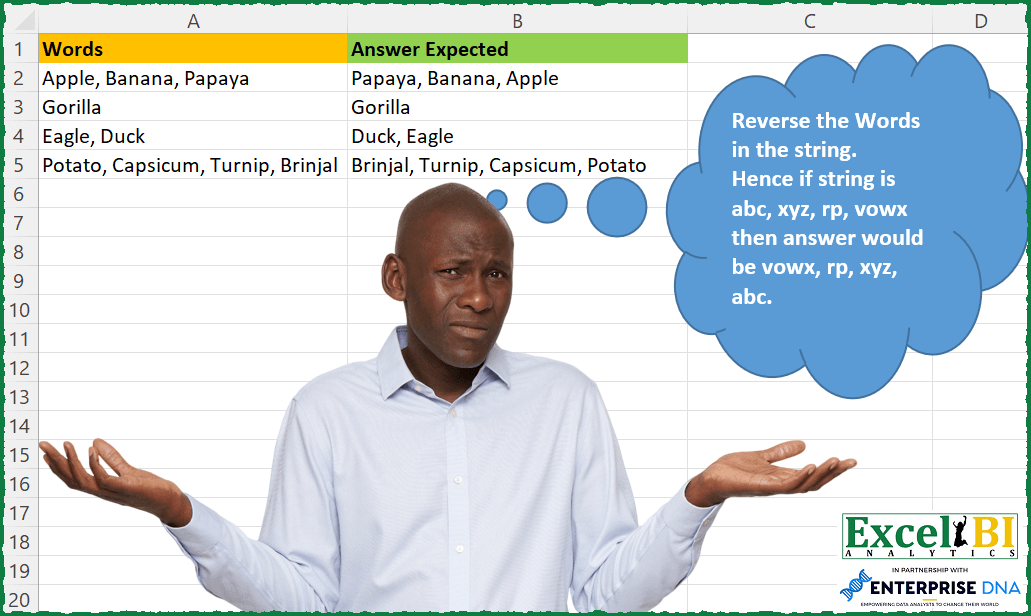
Reverse the Words in the string. Hence if string is abc, xyz, rp, vowx then answer would be vowx, rp, xyz, abc.
📌 Challenge Details and Links
ExcelBI Excel Challenge Number: 82
Challenge Difficulty: ⭐️
📥Download Sample File
📥Link to the solutions on LinkedIn
Solving the challenge of Reverse Words in String with Power Query
Power Query solution 1 for Reverse Words in String, proposed by Kris Jaganah:
let
  Source = Excel.CurrentWorkbook(){[Name = "Table1"]}[Content],
  #"Changed Type" = Table.TransformColumnTypes(Source, {{"Words", type text}}),
  #"Split Column by Delimiter" = Table.SplitColumn(
    #"Changed Type",
    "Words",
    Splitter.SplitTextByDelimiter(",", QuoteStyle.Csv),
    {"Words.1", "Words.2", "Words.3", "Words.4"}
  ),
  #"Changed Type1" = Table.TransformColumnTypes(
    #"Split Column by Delimiter",
    {{"Words.1", type text}, {"Words.2", type text}, {"Words.3", type text}, {"Words.4", type text}}
  ),
  #"Added Custom" = Table.AddColumn(
    #"Changed Type1",
    "Custom",
    each Text.Combine(
      List.Select({[Words.4], [Words.3], [Words.2], [Words.1]}, each _ <> "" and _ <> null),
      ", "
    )
  ),
  #"Removed Other Columns" = Table.SelectColumns(#"Added Custom", {"Custom"})
in
  #"Removed Other Columns"
Power Query solution 2 for Reverse Words in String, proposed by Alejandro Simón 🇵🇦 🇪🇸:
let
  Source = Excel.CurrentWorkbook(){[Name = "Table1"]}[Content],
  #"Split Column by Delimiter" = Table.AddColumn(
    Source,
    "Words1",
    each Table.FromColumns({Splitter.SplitTextByDelimiter(", ", QuoteStyle.Csv)([Words])})
  ),
  #"Added Custom" = Table.AddColumn(
    #"Split Column by Delimiter",
    "Answer Expected",
    each Text.Combine(
      Table.Sort(Table.AddIndexColumn([Words1], "Index", 1, 1), {{"Index", Order.Descending}})[
        Column1
      ],
      ", "
    )
  )[[Words], [Answer Expected]]
in
  #"Added Custom"
Power Query solution 3 for Reverse Words in String, proposed by Luan Rodrigues:
let
 Fonte = Data,
 a = Table.AddColumn(Fonte, "Personalizar", each Text.Split([Words],",")),
 b = Table.ExpandListColumn(a, "Personalizar"),
 c = Table.Group(b, {"Words"},
 {{"Contagem", each Table.Sort(Table.AddIndexColumn(_,"Rank",1,1),
 {"Rank",Order.Descending})}
 }),
 d = Table.AddColumn(c, "Personalizar", each [Contagem][Personalizar])[[Personalizar]],
 Result = Table.TransformColumns(d, {"Personalizar", each
 Text.Trim(Text.Combine(
 List.Transform(_, Text.From), ",")), type text})
in
 Result

Excel's VIP Team
Brazil 🇧🇷
Power Query solution 4 for Reverse Words in String, proposed by Brian Julius:
let
  Source = Table.TransformColumns(
    FlipWordsRaw,
    {
      {
        "Words",
        Splitter.SplitTextByDelimiter(",", QuoteStyle.Csv),
        let
          itemType = (type nullable text) meta [Serialized.Text = true]
        in
          type {itemType}
      }
    }
  ),
  ReverseList = Table.TransformColumns(
    Source,
    {"Words", each Text.Combine(List.Reverse(List.Transform(_, Text.From)), ", "), type text}
  )
in
  ReverseList
Power Query solution 5 for Reverse Words in String, proposed by Bhavya Gupta:
let
  Source = Excel.CurrentWorkbook(){[Name = "Table1"]}[Content][Words],
  Custom1 = List.Transform(
    Source,
    each Text.Combine(List.Reverse(Splitter.SplitTextByDelimiter(", ", QuoteStyle.Csv)(_)), ", ")
  )
in
  Custom1
Power Query solution 6 for Reverse Words in String, proposed by Matthias Friedmann:
let
  Source = Excel.CurrentWorkbook(){[Name = "ReverseOrder"]}[Content],
  #"Replaced Value" = Table.ReplaceValue(
    Source,
    each [Words],
    each Text.Combine(List.Reverse(Text.Split([Words], ", ")), ", "),
    Replacer.ReplaceValue,
    {"Words"}
  )
in
  #"Replaced Value"
Power Query solution 8 for Reverse Words in String, proposed by Victor Momoh (MVP, MOS, R.Eng):
let
  Source = Excel.CurrentWorkbook(){[Name = "MyTab"]}[Content],
  Final = Table.AddColumn(
    Source,
    "Newtext",
    each Text.Combine(List.Reverse(Text.Split([Words], ", ")), ", ")
  )
in
  Final
Power Query solution 9 for Reverse Words in String, proposed by Mahmoud Bani Asadi:
let
  Source = Excel.CurrentWorkbook(){[Name = "Table1"]}[Content],
  Rev = Table.TransformColumns(
    Source,
    {{"Words", each Text.Combine(List.Reverse(Text.Split(_, ", ")), ", "), type text}}
  )
in
  Rev
Power Query solution 10 for Reverse Words in String, proposed by Fábio Gatti:
let
  //Table Source with all data
  Source = Table,
  //Function to use on each table data
  fxReverse = (Data as text, Delimiter as text) as text =>
    let
      lsSplit   = Text.Split(Data, Delimiter),
      lsTrim    = List.Transform(lsSplit, Text.Trim),
      lsReverse = List.Reverse(lsTrim),
      Result    = Text.Combine(lsReverse, Delimiter)
    in
      Result,
  //Final Table
  FinalTable = Table.TransformColumns(
    Source,
    {{Table.ColumnNames(Source){0}, each fxReverse(_, ", "), type text}}
  )
in
  FinalTable
Solving the challenge of Reverse Words in String with Excel
Excel solution 1 for Reverse Words in String, proposed by Rick Rothstein:
=MAP(
    A2:A5,
    LAMBDA(
        x,
        LET(
            a,
            TEXTSPLIT(
                x,
                ", "
            ),
            c,
            COUNTA(
                a
            ),
            TEXTJOIN(
                ", ",
                ,
                INDEX(
                    a,
                    ,
                    SEQUENCE(
                        ,
                        c,
                        c,
                        -1
                    )
                )
            )
        )
    )
)
Excel solution 2 for Reverse Words in String, proposed by Rick Rothstein:
=MAP(
    A2:A5,
    LAMBDA(
        z,
        LEFT(
            REDUCE(
                "",
                TEXTSPLIT(
                    z,
                    ", "
                ),
                LAMBDA(
                    a,
                    x,
                    x&", "&a
                )
            ),
            LEN(
                z
            )
        )
    )
)
Excel solution 3 for Reverse Words in String, proposed by John V.:
=MAP(
    A2:A5,
    LAMBDA(
        x,
        LET(
            b,
            TEXTSPLIT(
                x,
                ,
                ", "
            ),
            TEXTJOIN(
                ", ",
                ,
                SORTBY(
                    b,
                    SEQUENCE(
                        ROWS(
                            b
                        )
                    ),
                    -1
                )
            )
        )
    )
)

Or just:
=MAP(
    A2:A5,
    LAMBDA(
        x,
        LET(
            b,
            TEXTSPLIT(
                x,
                ,
                ", "
            ),
            ARRAYTOTEXT(
                SORTBY(
                    b,
                    SEQUENCE(
                        ROWS(
                            b
                        )
                    ),
                    -1
                )
            )
        )
    )
)

Or (shorter):
=MAP(
    A2:A5,
    LAMBDA(
        x,
        ARRAYTOTEXT(
            TOCOL(
                INDEX(
                    TEXTSPLIT(
                        x,
                        ", "
                    ),
                    9-ROW(
                        1:8
                    )
                ),
                3
            )
        )
    )
)
Excel solution 4 for Reverse Words in String, proposed by محمد حلمي:
=MAP(
    A2:A5,
    LAMBDA(
        a,
        LET(
            a,
            TEXTSPLIT(
                a,
                ", "
            ),

            ARRAYTOTEXT(

                SORTBY(
                    a,
                    SEQUENCE(
                        ,
                        COUNTA(
                            a
                        )
                    ),
                    -1
                )
            )
        )
    )
)

2-
=MAP(
    A2:A5,
    LAMBDA(
        a,
        LET(
            a,
            TEXTSPLIT(
                a,
                ", "
            ),
            v,
            COUNTA(
                            a
                        ),
            ARRAYTOTEXT(
                INDEX(
                    a,
                    1+v-SEQUENCE(
                        ,
                        COUNTA(
                            a
                        )
                    )
                )
            )
        )
    )
)
Excel solution 5 for Reverse Words in String, proposed by 🇰🇷 Taeyong Shin:
=MAP(
    A2:A5,
     LAMBDA(
         m,

          LET(

               Split,
               TEXTSPLIT(
                   m,
                    ,
                    ", "
               ),

               Rev,
               SORTBY(
                   Split,
                    SEQUENCE(
                        ROWS(
                            Split
                        )
                    ),
                    -1
               ),

               ARRAYTOTEXT(
                   Rev
               )

          )

     )
)

2. =LET(

     Split,
     TEXTSPLIT(
         TEXTJOIN(
             ";",
              ,
              A2:A5
         ),
          ", ",
          ";"
     ),

     BYROW(

          SORTBY(
              Split,
               SEQUENCE(
                   ,
                    COLUMNS(
                            Split
                        )
               ),
               -1
          ),

          LAMBDA(
              br,
               ARRAYTOTEXT(
                   TOROW(
                       br,
                        2
                   )
               )
          )

     )

)
Excel solution 6 for Reverse Words in String, proposed by Julian Poeltl:
=MAP(A2:A5,LAMBDA(W,LET(SP,TEXTSPLIT(W,", "),TEXTJOIN(", ",,SORTBY(SP,SEQUENCE(,COLUMNS(SP)),-1)))))Excel solution 7 for Reverse Words in String, proposed by Aditya Kumar Darak 🇮🇳:
=MAP(

     A2:A5,

     LAMBDA(
         a,

          LET(

               s,
               TEXTSPLIT(
                   a,
                    ,
                    ", "
               ),

               rw,
               ROWS(
                   s
               ),

               rs,
               INDEX(
                   s,
                    SEQUENCE(
                        rw,
                         ,
                         rw,
                         -1
                    )
               ),

               r,
               TEXTJOIN(
                   ", ",
                    TRUE,
                    rs
               ),

               r

          )

     )

)
Excel solution 8 for Reverse Words in String, proposed by Timothée BLIOT:
=LET(
    Words,
     TEXTSPLIT(
         TEXTJOIN(
             "/",
             1,
             A2:A5
         ),
         ", ",
         "/",
         1
     ),

    Reversed,
     IFERROR(
         SORTBY(
             Words,
             SEQUENCE(
                 ,
                 COLUMNS(
                     Words
                 )
             ),
             -1
         ),
         ""
     ),

    MAP(
        SEQUENCE(
            ROWS(
                Reversed
            )
        ),
         LAMBDA(
             a,
              TEXTJOIN(
                  ", ",
                  1,
                  INDEX(
                      Reversed,
                      a
                  )
              )
         )
    )
)
Excel solution 9 for Reverse Words in String, proposed by Duy Tùng:
=MAP(
    A2:A5,
    LAMBDA(
        x,
        LET(
            a,
            TEXTSPLIT(
                x,
                ,
                ", "
            ),
            ARRAYTOTEXT(
                SORTBY(
                    a,
                    -SEQUENCE(
                        ROWS(
                            a
                        )
                    )
                )
            )
        )
    )
)
Excel solution 10 for Reverse Words in String, proposed by Bhavya Gupta:
=MAP(A2:A5,LAMBDA(w,LET(split,TEXTSPLIT(w,,", "),ARRAYTOTEXT(SORTBY(split,SEQUENCE(ROWS(split)),-1)))))Excel solution 11 for Reverse Words in String, proposed by Gerson Pineda:
=MAP(
    A2:A5,
    LAMBDA(
        f,
        LET(
            w,
            TEXTSPLIT(
                f,
                ,
                ", "
            ),
            r,
            ROWS(
                w
            ),
            TEXTJOIN(
                ", ",
                ,
                TAKE(
                    SORT(
                        HSTACK(
                            w,
                            SEQUENCE(
                                r,
                                ,
                                r,
                                -1
                            )
                        ),
                        2
                    ),
                    ,
                    1
                )
            )
        )
    )
)
Excel solution 12 for Reverse Words in String, proposed by Oscar Javier Rosero Jiménez:
=MAP(
    A2:A5,
    LAMBDA(
        x,
        ARRAYTOTEXT(
            SORTBY(
                TEXTSPLIT(
                    x,
                    ","
                ),
                SEQUENCE(
                    ,
                    COUNTA(
                        TEXTSPLIT(
                            x,
                            ","
                        )
                    ),
                    ,
                    -1
                )
            )
        )
    )
)
Excel solution 13 for Reverse Words in String, proposed by Jardiel& Euflázio:
=MAP(
    A2:A5,
    LAMBDA(
        a,
        LET(
            b,
            TEXTSPLIT(
                a,
                ", "
            ),
            c,
            COUNTA(
                b
            ),
            TEXTJOIN(
                ", ",
                ,
                INDEX(
                    b,
                    SEQUENCE(
                        ,
                        c,
                        c,
                        -1
                    )
                )
            )
        )
    )
)
Excel solution 14 for Reverse Words in String, proposed by Victor Momoh (MVP, MOS, R.Eng):
=MAP(A1:A4,LAMBDA(x,LET(p,TEXTSPLIT(x,", "),q,COUNTA(p),TEXTJOIN(",
",1,INDEX(p,SEQUENCE(q,,q,-1))))))
Excel solution 15 for Reverse Words in String, proposed by El Badlis Mohd Marzudin:
=MAP(B2:B5,
 LAMBDA(a,
 LET(
 _split,TEXTSPLIT(a,", "),

 SORTBY(a,SEQUENCE(,COLUMNS(_split)),-1))))

Correction Formula:
=MAP(A2:A5,
LAMBDA(a,
LET(
_split,TEXTSPLIT(a,", "),

TEXTJOIN(", ",1,
 SORTBY(_split,SEQUENCE(,COLUMNS(_split)),-1)))))
Excel solution 16 for Reverse Words in String, proposed by Mahmoud Bani Asadi:
=BYROW(Table1[Words],LAMBDA(x,LET(
a,TEXTSPLIT(x,", "),
b,COUNTA(a),
c,INDEX(a,SEQUENCE(b,,b,-1)),
d,ARRAYTOTEXT(c),
d)))
Excel solution 17 for Reverse Words in String, proposed by Sergei Baklan:
= LAMBDA(
    hVector,

     LET(

          n,
          COLUMNS(
              hVector
          ),

          IF(

               n = 1,

               hVector,

               LET(

                    a,
                    TAKE(
                        hVector,
                         ,
                         1
                    ),

                    HSTACK(
                        reverseH(
                            DROP(
                        hVector,
                         ,
                         1
                    )
                        ),
                         a
                    )

               )

          )

     )

);

reverseWords = LAMBDA(
    str,

     TRIM(
         ARRAYTOTEXT(
             reverseH(
                 TEXTSPLIT(
                     str,
                      ","
                 )
             )
         )
     )

);

transformColumn = LAMBDA(
    col,
     BYROW(
         col,
          reverseWords
     )
)
Excel solution 18 for Reverse Words in String, proposed by RIJESH T.:
=LET(
    r,
    IFNA(
        DROP(
            REDUCE(
                "",
                A2:A5,
                LAMBDA(
                    a,
                    b,
                    VSTACK(
                        a,
                        TEXTSPLIT(
                            b,
                            ", "
                        )
                    )
                )
            ),
            1
        ),
        ""
    ),
    s,
    SORTBY(
        r,
        SEQUENCE(
            ,
            4
        ),
        -1
    ),
    BYROW(
        s,
        LAMBDA(
            a,
            TEXTJOIN(
                ", ",
                1,
                a
            )
        )
    )
)
Excel solution 19 for Reverse Words in String, proposed by Fábio Gatti:
=LAMBDA(Arr,Delimiter,
 LET(
 fxRev,LAMBDA(Cel,
 LET(
 Split,TEXTSPLIT(Cel,,Delimiter),
 Trim,TRIM(Split),
 Itens,ROWS(Trim),
 Seq,SEQUENCE(Itens,,Itens,-1),
 Rev,INDEX(Trim,Seq),
 Result,TEXTJOIN(Delimiter,1,Rev),
 Result
 )
 ),
 Result,BYROW(Arr,fxRev),
 Result
 )
)(A2:A5,", ")
Excel solution 20 for Reverse Words in String, proposed by Morteza Rahmani:
=RegEx(
    A2,
    "[A-z]+",
    ,
    ,
    ", ",
    ,
    ,
    ,
    TRUE
)
Excel solution 21 for Reverse Words in String, proposed by Olukunle Babajide MOS, MCT:
=MAP(A2:A5,LAMBDA(t,TEXTJOIN(", ",TRUE,SORTBY(TEXTSPLIT(t,", "),SEQUENCE(,COUNTA(TEXTSPLIT(t,", "))),-1))))Solving the challenge of Reverse Words in String with SQL
SQL solution 1 for Reverse Words in String, proposed by Zoran Milokanović:
WITH
DATA_PREPARATION
AS
(
 SELECT
 ROW_NUMBER() OVER () AS ORDINAL_NUMBER
 ,LENGTH(REGEXP_REPLACE(D.WORDS, '[^,]+', '')) /*NO_OF_DELIMITERS*/ + 1 AS NO_OF_WORDS
 ,D.WORDS
 FROM DATA D
)
SELECT
 F.WORDS
,REPLACE(F.ANSWER_EXPECTED, ',', ', ') AS ANSWER_EXPECTED
FROM
(
 SELECT
 T.INPUT_ORDER
 ,T.WORDS
 FROM
 (
 SELECT
 DP.ORDINAL_NUMBER AS INPUT_ORDER
 ,DP.WORDS
 ,H.ORDINAL_NUMBER AS WORD_ORDER
 ,TRIM(SPLIT_PART(DP.WORDS, ',', H.ORDINAL_NUMBER)) AS WORD
 FROM DATA_PREPARATION DP
 JOIN DATA_PREPARATION H ON H.ORDINAL_NUMBER <= DP.NO_OF_WORDS
 ORDER BY
 ) T
 GROUP BY
 T.INPUT_ORDER
 ,T.WORDS
) F
ORDER BY
 F.INPUT_ORDER
;