
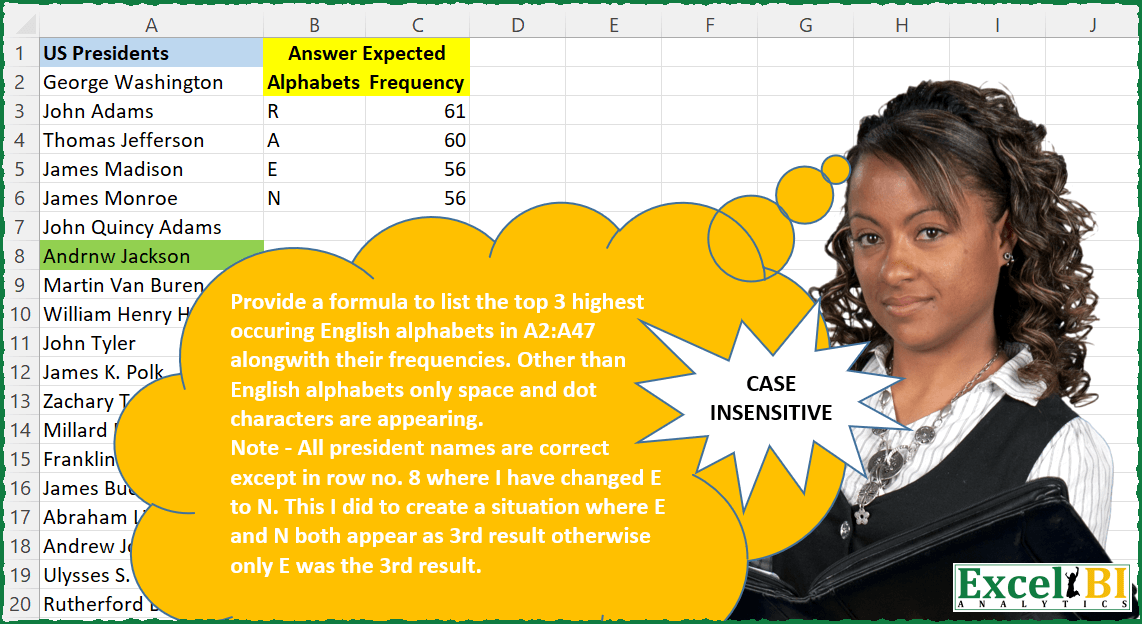
Provide a formula to list the top 3 highest occurring English alphabets in A2:A47 along with their frequencies. Other than English alphabets only space and dot characters are appearing. Note – All president names are correct except in row no. 8 where I have changed E to N. This I did to create a situation where E and N both appear as 3rd result otherwise only E was the 3rd result. Your formula need not be different from others as long as you have worked out your formula independently)
📌 Challenge Details and Links
ExcelBI Excel Challenge Number: 63
Challenge Difficulty: ⭐️⭐️⭐️
📥Download Sample File
📥Link to the solutions on LinkedIn
Solving the challenge of Top Three Frequent Alphabets with Power Query
Power Query solution 1 for Top Three Frequent Alphabets, proposed by Aditya Kumar Darak 🇮🇳:
let
  Source = Excel.CurrentWorkbook(){[Name = "data"]}[Content],
  TopN = 3,
  Alphabets = Table.AddColumn(
    Source,
    "Alphabets",
    each Text.ToList(Text.Select(Text.Upper([US Presidents]), {"A" .. "Z"}))
  )[[Alphabets]],
  Expand = Table.ExpandListColumn(Alphabets, "Alphabets"),
  Group1 = Table.Group(Expand, "Alphabets", {"Count", Table.RowCount}),
  Group2 = Table.Group(Group1, "Count", {"All", each _}),
  FTopN = Table.MaxN(Group2, "Count", TopN),
  Return = Table.Combine(FTopN[All])
in
  Return
Power Query solution 2 for Top Three Frequent Alphabets, proposed by Luan Rodrigues:
let
  Fonte = Excel.CurrentWorkbook(){[Name = "Tabela1"]}[Content],
  List = Table.AddColumn(
    Fonte,
    "Alphabets",
    each Text.ToList(Text.Select(Text.Upper([US Presidents]), {"A" .. "Z"}))
  )[[Alphabets]],
  Exp = Table.ExpandListColumn(List, "Alphabets"),
  gp1 = Table.Group(Exp, {"Alphabets"}, {{"Frequency", each Table.RowCount(_), Int64.Type}}),
  gp2 = Table.FirstN(
    Table.Sort(
      Table.Group(
        gp1,
        {"Frequency"},
        {{"Frequency.1", each _, type table [Alphabets = text, Frequency = number]}}
      ),
      {"Frequency", Order.Descending}
    ),
    3
  )[[Frequency.1]],
  Result = Table.ExpandTableColumn(
    gp2,
    "Frequency.1",
    {"Alphabets", "Frequency"},
    {"Alphabets", "Frequency"}
  )
in
  Result
Power Query solution 3 for Top Three Frequent Alphabets, proposed by Brian Julius:
let
  Source = PresidentsRaw,
  Upper = Table.TransformColumns(Source, {{"US Presidents", Text.Upper, type text}}),
  Letters = Table.RenameColumns(
    Table.FromList(
      Text.ToList(Text.Select(Lines.ToText(Upper[US Presidents]), {"A" .. "Z"})),
      Splitter.SplitByNothing(),
      null,
      null,
      ExtraValues.Error
    ),
    {"Column1", "Alphabets"}
  ),
  Group = Table.Sort(
    Table.Group(Letters, {"Alphabets"}, {{"Frequency", each Table.RowCount(_), Int64.Type}}),
    {"Frequency", Order.Descending}
  ),
  RankAndFilter = Table.RemoveColumns(
    Table.SelectRows(
      Table.AddRankColumn(
        Group,
        "CountRank",
        {"Frequency", Order.Descending},
        [RankKind = RankKind.Dense]
      ),
      each [CountRank] <= 3
    ),
    "CountRank"
  )
in
  RankAndFilter
Power Query solution 4 for Top Three Frequent Alphabets, proposed by Matthias Friedmann:
let
 Source = Excel.CurrentWorkbook(){[Name = "Table"]}[Content],
 #"Split Column by Position" = Table.ExpandListColumn(
 Table.TransformColumns(
 Source,
 {
 {
 "US Presidents",
 Splitter.SplitTextByRepeatedLengths(1),
 let
 itemType = (type nullable text) meta [Serialized.Text = true]
 in
 type {itemType}
 }
 }
 ),
 "US Presidents"
 ),
 #"Uppercased Text" = Table.TransformColumns(
 #"Split Column by Position",
 {{"US Presidents", Text.Upper, type text}}
 ),
 #"Filtered Rows" = Table.SelectRows(
 #"Uppercased Text",
 each List.Contains({"A" .. "Z"}, [US Presidents])
 ),
 #"Grouped Rows" = Table.Group(
 #"Filtered Rows",
 {"US Presidents"},
 {{"Frequency", each Table.RowCount(_), Int64.Type}}
 ),
 Top3 = Table.MaxN(
 Table.Group(#"Grouped Rows", {"Frequency"}, {{"Letters", each _[US Presidents]}}),
 "Frequency",
 3
 )[[Letters], [Frequency]],
 #"Expanded Letters" = Table.ExpandListColumn(Top3, "Letters")
in
 #"Expanded Letters"

Explanations and a shorter alternative:
https://www.linkedin.com/feed/update/urn:li:activity:6996851458323152896/
Power Query solution 5 for Top Three Frequent Alphabets, proposed by Matthias Friedmann:
= Table.FromColumns(
{Text.ToList( Text.Select( Text.Upper( Lines.ToText( Source[US Presidents] ) ), {"A".."Z"} ) )},
{"Letters"}
)
Power Query solution 6 for Top Three Frequent Alphabets, proposed by Mahmoud Bani Asadi:
let
  Source = Excel.CurrentWorkbook(){[Name = "Table2"]}[Content],
  #"Split Column by Position" = Table.ExpandListColumn(
    Table.TransformColumns(
      Source,
      {
        {
          "US Presidents",
          Splitter.SplitTextByRepeatedLengths(1),
          let
            itemType = (type nullable text) meta [Serialized.Text = true]
          in
            type {itemType}
        }
      }
    ),
    "US Presidents"
  ),
  #"Changed Type" = Table.TransformColumnTypes(
    #"Split Column by Position",
    {{"US Presidents", type text}}
  ),
  #"Uppercased Text" = Table.TransformColumns(
    #"Changed Type",
    {{"US Presidents", Text.Upper, type text}}
  ),
  #"Filtered Rows" = Table.SelectRows(
    #"Uppercased Text",
    each ([US Presidents] <> " " and [US Presidents] <> ".")
  ),
  #"Grouped Rows" = Table.Group(
    #"Filtered Rows",
    {"US Presidents"},
    {{"Frequency", each Table.RowCount(_), Int64.Type}}
  ),
  #"Sorted Rows" = Table.Sort(#"Grouped Rows", {{"Frequency", Order.Descending}}),
  #"Removed Duplicates" = Table.Distinct(#"Sorted Rows", {"Frequency"}),
  #"Kept First Rows" = Table.FirstN(#"Removed Duplicates", 3),
  Frequency = #"Kept First Rows"[Frequency],
  #"Calculated Minimum" = List.Min(Frequency),
  Custom1 = #"Sorted Rows",
  #"Filtered Rows1" = Table.SelectRows(Custom1, each [Frequency] >= #"Calculated Minimum")
in
  #"Filtered Rows1"
Solving the challenge of Top Three Frequent Alphabets with Excel
Excel solution 1 for Top Three Frequent Alphabets, proposed by Rick Rothstein:
=LET(n,CONCAT(UPPER(A2:A47)),c,CHAR(ROW(65:90)),a,MAP(c,LAMBDA(x,LEN(n)-LEN(SUBSTITUTE(n,x,)))),SORT(FILTER(HSTACK(c,a),a>=LARGE(a,3)),2,-1))Excel solution 2 for Top Three Frequent Alphabets, proposed by John V.:
=LET(
    c,
    CHAR(
        64+SEQUENCE(
            26
        )
    ),
    p,
    UPPER(
        A2:A47
    ),
    f,
    MAP(
        c,
        LAMBDA(
            x,
            SUM(
                LEN(
                    p
                )-LEN(
                    SUBSTITUTE(
                        p,
                        x,

                    )
                )
            )
        )
    ),
    SORT(
        FILTER(
            HSTACK(
                c,
                f
            ),
            f>=LARGE(
                f,
                3
            )
        ),
        2,
        -1
    )
)
Excel solution 3 for Top Three Frequent Alphabets, proposed by محمد حلمي:
=LET(
c,
    CONCAT(
        SUBSTITUTE(
            A2:A47,
            " ",
            ""
        )
    ),

a,
    MID(
        c,
        SEQUENCE(
            LEN(
                c
            )
        ),
        1
    ),

v,
    TOROW(
        UNIQUE(
            a
        )
    ),

n,
    MMULT(SEQUENCE(
        ,
        LEN(
                c
            ),
        ,
        0
    ),
    --(v=a)),

s,
    VSTACK(
        PROPER(
            v
        ),
        n
    ),

d,
    SORT(
        s,
        2,
        -1,
        1
    ),

TRANSPOSE(
    TAKE(
        d,
        ,
        4
    )
))
Excel solution 4 for Top Three Frequent Alphabets, proposed by محمد حلمي:
=LET(
c,CONCAT(A2:A47),
a,MID(c,SEQUENCE(LEN(c)),1),
v,TOROW(UNIQUE(a)),
TRANSPOSE(TAKE(DROP(SORT(VSTACK(PROPER(v),
MMULT(SEQUENCE(,LEN(c),,0),--(v=a))),2,-1,1),,1),,4)))
Excel solution 5 for Top Three Frequent Alphabets, proposed by 🇰🇷 Taeyong Shin:
=LET(
    name,
     UPPER(
         A2:A47
     ),

    txt,
     CONCAT(
         REDUCE(
             name,
              {" ";"."},
              LAMBDA(
                  a,
                  b,
                   SUBSTITUTE(
                       a,
                        b,

                   )
              )
         )
     ),

    cha,
     MID(
         txt,
          SEQUENCE(
              LEN(
                  txt
              )
          ),
          1
     ),

    nums,
     XMATCH(
         cha,
          cha
     ),

    Fre,
     FREQUENCY(
         nums,
          UNIQUE(
              nums
          )
     ),

    SORT(
        FILTER(
            HSTACK(
                UNIQUE(
                    cha
                ),
                 Fre
            ),
             Fre>=LARGE(
                 Fre,
                  3
             )
        ),
         2,
         -1
    )

)
Excel solution 6 for Top Three Frequent Alphabets, proposed by 🇰🇷 Taeyong Shin:
=LET(
    a,
    TOCOL(
        REGEXEXTRACT(
            CONCAT(
                A2:A47
            ),
            "[a-z]",
            1,
            1
        )
    ),
    g,
    GROUPBY(
        a,
        a,
        ROWS,
        ,
        0,
        -2
    ),
    UPPER(
        FILTER(
            g,
            DROP(
                g,
                ,
                1
            )>=LARGE(
                g,
                3
            )
        )
    )
)
Excel solution 7 for Top Three Frequent Alphabets, proposed by Kris Jaganah:
=LET(a,A2:A47,b,CHAR(SEQUENCE(26,,65)),c,BYROW(IF(UPPER(MID(CONCAT(a),SEQUENCE(,LEN(CONCAT(a))),1))=b=TRUE,1,0),LAMBDA(x,SUM(x))),e,HSTACK(b,c),SORT(FILTER(e,c>=LARGE(c,3)),2,-1))Excel solution 8 for Top Three Frequent Alphabets, proposed by Julian Poeltl:
=LET(C,CONCAT(A2:A47),SP,MID(C,SEQUENCE(LEN(C)),1),A,CHAR(64+SEQUENCE(,26)),N,BYCOL(SP=A,LAMBDA(A,SUM(--A))),SORT(TRANSPOSE(FILTER(VSTACK(A,N),N>=LARGE(N,3))),2,-1))Excel solution 9 for Top Three Frequent Alphabets, proposed by Aditya Kumar Darak 🇮🇳:
= LET(
 _p,
 A2:A47,
 _char,
 CHAR(SEQUENCE(26, , 65)),
 _calc,
 REDUCE(
 0,
 _p,
 LAMBDA(
 a,
 b,
 a
 + FREQUENCY(
 IFNA(XMATCH(MID(b, SEQUENCE(LEN(b)), 1), _char), ""),
 SEQUENCE(25)))),
 SORT(
 FILTER(HSTACK(_char, _calc), _calc >= LARGE(_calc, 3)),
 2,
 -1))
Excel solution 10 for Top Three Frequent Alphabets, proposed by Timothée BLIOT:
=LET(Presidents,A2:A47,
Merged,UPPER(SUBSTITUTE(SUBSTITUTE(TEXTJOIN("",1,Presidents)," ",""),".","")),
Letters,SORT(MID(Merged,SEQUENCE(LEN(Merged)),1)),
Counted,BYROW(Letters,LAMBDA(a,SUMPRODUCT(1*(a=Letters)))),
Ordered,SORT(UNIQUE(HSTACK(Letters,Counted)),2,-1),
FILTER(Ordered,IF(INDEX(Ordered,3,2)<=INDEX(Ordered,,2),1,0),))
Excel solution 11 for Top Three Frequent Alphabets, proposed by Sergei Baklan:
=LET(
 chars, CHAR( SEQUENCE(26,,65) )
 TAKE(
 SORT(
 HSTACK(
 chars,
 SUM( LEN(data) ) -
 SCAN(0, chars,
 LAMBDA(a,v, SUM( LEN( SUBSTITUTE( UPPER(data), v, "") ) ) )
 )
 ),
 2,-1),
 5) )
Excel solution 12 for Top Three Frequent Alphabets, proposed by RIJESH T.:
=LET(
    s,
    SUBSTITUTE(
        CONCAT(
            UPPER(
                A2:A47
            )
        ),
        " ",

    ),
    m,
    MID(
        s,
        SEQUENCE(
            LEN(
                s
            )
        ),
        1
    ),
    x,
    XMATCH(
        m,
        m
    ),
    f,
    FREQUENCY(
        x,
        UNIQUE(
            x
        )
    ),
    TAKE(
        SORTBY(
            HSTACK(
                UNIQUE(
                    m
                ),
                f
            ),
            -f
        ),
        4
    )
)