
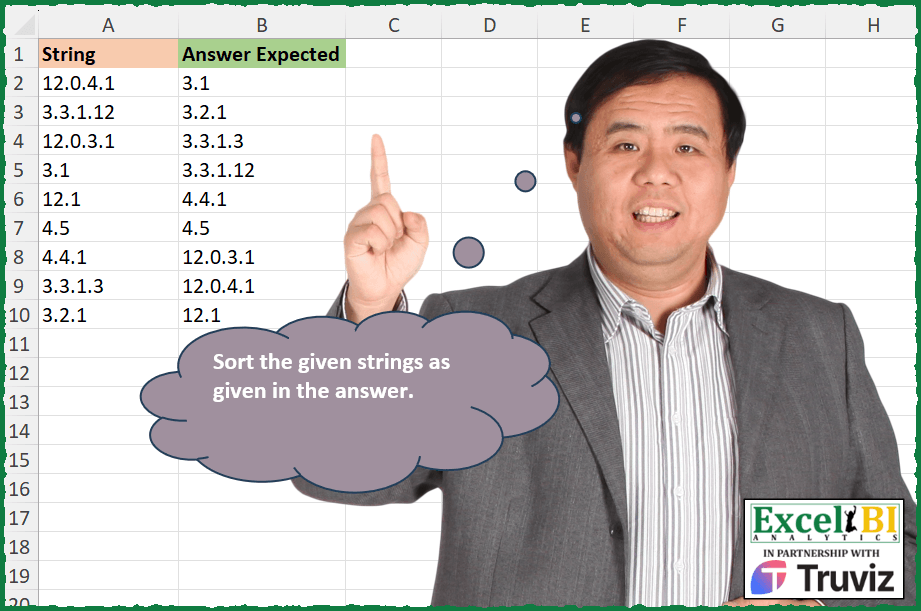
Sort the given strings as given in the answer.
📌 Challenge Details and Links
ExcelBI Excel Challenge Number: 461
Challenge Difficulty: ⭐️
📥Download Sample File
📥Link to the solutions on LinkedIn
Solving the challenge of Custom String Sorting with Power Query
Power Query solution 1 for Custom String Sorting, proposed by Bo Rydobon 🇹🇭:
let
  Source = Excel.CurrentWorkbook(){[Name = "Table1"]}[Content],
  Sort = Table.Sort(
    Source,
    each Text.Combine(List.Transform(Text.Split([String], "."), each Text.PadStart(_, 4, "0")))
  )
in
  Sort
Power Query solution 2 for Custom String Sorting, proposed by Zoran Milokanović:
let
  Source = Excel.CurrentWorkbook(){[Name = "Input"]}[Content],
  S = Table.Sort(
    Source,
    each
      let
        s = Text.Split([String], ".")
      in
        List.Sum(
          List.TransformMany(
            List.Positions(s),
            each {1 / Number.Power(10, _)},
            (i, _) => Number.From(s{i}) * _
          )
        )
  )
in
  S
Power Query solution 3 for Custom String Sorting, proposed by Aditya Kumar Darak 🇮🇳:
lete dynamic one

let
 Source = Excel.CurrentWorkbook(){[ Name = "data" ]}[Content],
 Base  = Number.Power (
 10,
 List.Max (
 List.TransformMany (
 Source[String],
 ( x ) => Text.Split ( x, "." ),
 ( x, y ) => Text.Length ( y )
 )
 )
 ),
 Return = Table.Sort (
 Source,
 each [
 S = Text.Split ( [String], "." ),
 C = List.Count ( S ) - 1,
 T = List.Transform (
 { 0 .. C },
 ( f ) => Number.From ( S{f} ) * Number.Power ( Base, - f )
 ),
 R = List.Sum ( T )
 ][R]
 )
in
 Return
Power Query solution 4 for Custom String Sorting, proposed by Aditya Kumar Darak 🇮🇳:
let
  Source = Excel.CurrentWorkbook(){[Name = "data"]}[Content],
  Return = Table.Sort(
    Source,
    each [
      S = Text.Split([String], "."),
      C = List.Count(S) - 1,
      T = List.Transform({0 .. C}, (f) => Number.From(S{f}) * Number.Power(100, - f)),
      R = List.Sum(T)
    ][R]
  )
in
  Return
Power Query solution 5 for Custom String Sorting, proposed by Alejandro Simón 🇵🇦 🇪🇸:
let
  Source = Excel.CurrentWorkbook(){[Name = "Table1"]}[Content],
  Col = Table.AddColumn(
    Source,
    "A",
    each
      let
        a = Text.Split([String], "."),
        b = List.Transform(a, Number.From)
      in
        b
  )[A],
  Max = List.Max(List.Transform(Col, List.Count)),
  Order = List.Transform(
    List.Transform(Col, each _ & List.Repeat({0}, Max - List.Count(_))),
    each List.Sum(List.Transform({0 .. Max - 1}, (x) => _{x} / Number.Power(100, x)))
  ),
  Sol = List.Transform(List.Sort(List.Zip({Source[String], Order}), each _{1}), each _{0})
in
  Sol
Power Query solution 6 for Custom String Sorting, proposed by Alexis Olson:
let
  Source  = Excel.CurrentWorkbook(){[Name = "Table1"]}[Content],
  ToHex   = Table.ReplaceValue(Source, "12", "a", Replacer.ReplaceText, {"String"}),
  Sort    = Table.Sort(ToHex, {{"String", Order.Ascending}}),
  FromHex = Table.ReplaceValue(Sort, "a", "12", Replacer.ReplaceText, {"String"})
in
  FromHex
Power Query solution 7 for Custom String Sorting, proposed by Brian Julius:
let
  Source = Table.DuplicateColumn(DataRaw, "String", "Sort"),
  SplitByDot = Table.SplitColumn(Source, "Sort", Splitter.SplitTextByDelimiter(".")),
  Unpivot = Table.TransformColumnTypes(
    Table.UnpivotOtherColumns(SplitByDot, {"String"}, "Attribute", "Value"),
    {"Value", Int64.Type}
  ),
  Pivot = Table.Pivot(Unpivot, List.Distinct(Unpivot[Attribute]), "Attribute", "Value"),
  Sort = Table.SelectColumns(Table.Sort(Pivot, List.Skip(Table.ColumnNames(Pivot), 1)), "String")
in
  Sort
Power Query solution 8 for Custom String Sorting, proposed by Ramiro Ayala Chávez:
let
  S = Excel.CurrentWorkbook(){[Name = "Table1"]}[Content],
  T = List.Transform,
  a = Table.TransformColumnTypes(S, {"String", type text}),
  b = Table.SplitColumn(a, "String", Splitter.SplitTextByDelimiter("."), {"S1", "S2", "S3", "S4"}),
  c = Table.TransformColumnTypes(
    b,
    {{"S1", Int64.Type}, {"S2", Int64.Type}, {"S3", Int64.Type}, {"S4", Int64.Type}}
  ),
  d = Table.Sort(c, {{"S1", 0}, {"S2", 0}, {"S3", 0}, {"S4", 0}}),
  e = T(Table.ToRows(d), each List.Select(_, each _ <> null)),
  f = T(e, each T(_, Text.From)),
  Sol = Table.FromColumns({T(f, each Text.Combine(_, "."))}, {"Answer Expected"})
in
  Sol
Power Query solution 9 for Custom String Sorting, proposed by Rafael González B.:
let
  Source = Excel.CurrentWorkbook(){0}[Content],
  FC = Table.AddColumn(Source, "First Number", each Text.BeforeDelimiter([String], ".")),
  Group = Table.Group(FC, {"First Number"}, {{"TBL", each _}}),
  Sorting = Table.Sort(Group, each Number.From([First Number])),
  SortingTbl = Table.TransformColumns(
    Sorting,
    {
      "TBL",
      each
        let
          Split = Table.SplitColumn(
            _,
            "String",
            Splitter.SplitTextByDelimiter("."),
            {"A", "B", "C", "D"}
          ),
          Chg = Table.TransformColumnTypes(
            Split,
            {{"A", Int64.Type}, {"B", Int64.Type}, {"C", Int64.Type}, {"D", Int64.Type}}
          ),
          Srt = Table.Sort(Chg, {{"B", 0}, {"C", 0}, {"D", 0}}),
          Comb = Table.CombineColumns(
            Table.TransformColumnTypes(
              Srt,
              {{"A", type text}, {"B", type text}, {"C", type text}, {"D", type text}}
            ),
            {"A", "B", "C", "D"},
            Combiner.CombineTextByDelimiter("."),
            "Answer Expected"
          )[[Answer Expected]],
          Final = Table.TransformColumns(Comb, {"Answer Expected", each Text.TrimEnd(_, ".")})
        in
          Final
    }
  )[TBL]
in
  Table.Combine(SortingTbl)
Solving the challenge of Custom String Sorting with Excel
Excel solution 1 for Custom String Sorting, proposed by Bo Rydobon 🇹🇭:
=LET(
    a,
    A2:A10,
    SORTBY(
        a,
        MAP(
            a,
            LAMBDA(
                x,
                CONCAT(
                    TEXT(
                        TEXTSPLIT(
                            x,
                            "."
                        ),
                        "00"
                    )
                )
            )
        )
    )
)
Excel solution 2 for Custom String Sorting, proposed by Bo Rydobon 🇹🇭:
=SORTBY(
    A2:A10,
    REGEXREPLACE(
        A2:A10,
        "b(d)b",
        "0$0"
    )
)

d  capture 1 digit number
(d) create group
b capture word boundary that is not number or alphabet will be ignore.

$0  or $1  is call group   from (d)
Excel solution 3 for Custom String Sorting, proposed by Bo Rydobon 🇹🇭:
=LET(
    a,
    A2:A10,
    SORTBY(
        a,
        MMULT(
            IFNA(
                --TEXTSPLIT(
                    TEXTAFTER(
                        "."&a,
                        ".",
                        {1,
                        2,
                        3,
                        4}
                    ),
                    "."
                ),
                0
            ),
            1%^{0;1;2;3}
        )
    )
)
Excel solution 4 for Custom String Sorting, proposed by Rick Rothstein:
=SORTBY(
    A2:A10,
    MAP(
        A2:A10,
        LAMBDA(
            r,
            TEXTJOIN(
                ".",
                ,
                TEXT(
                    TEXTSPLIT(
                        r,
                        "."
                    ),
                    "00"
                )
            )
        )
    )
)

Note: If more than two digits are possible between dots,
     then just add more zeros for the TEXT function's format pattern (you can literally add as many as you want,
     well,
     within reason of course)
Excel solution 5 for Custom String Sorting, proposed by Rick Rothstein:
=SORTBY(
    A2:A10,
    MAP(
        A2:A10,
        LAMBDA(
            r,
            CONCAT(
                TEXT(
                    TEXTSPLIT(
                        r,
                        "."
                    ),
                    "00"
                )
            )
        )
    )
)
Excel solution 6 for Custom String Sorting, proposed by John V.:
=SORTBY(
    A2:A10,
    MAP(
        A2:A10,
        LAMBDA(
            x,
            CONCAT(
                TEXT(
                    TEXTSPLIT(
                        x,
                        "."
                    ),
                    "00"
                )
            )
        )
    )
)
Excel solution 7 for Custom String Sorting, proposed by محمد حلمي:
=LET(
    a,
    A2:A10,
    i,
    LAMBDA(
        x,
        --TEXTSPLIT(

            TEXTAFTER(
                "."&a,
                ".",
                x
            ),
            "."
        )
    ),
    SORTBY(
        a,
        i(
            1
        ),
        ,
        i(
            2
        ),
        ,
        i(
            3
        ),
        ,
        i(
            4
        ),

    )
)
Excel solution 8 for Custom String Sorting, proposed by محمد حلمي:
=LET(
    a,
    A2:A10,
    s,
    SEQUENCE(
        4
    ),
    SORTBY(
        a,
        MMULT(
            --TEXTSPLIT(
                TEXTAFTER(
                    "."&a,
                    ".",
                    TOROW(
                        s
                    ),
                    ,
                    ,
                    0
                ),
                "."
            ),
            1/10^s
        )
    )
)
Excel solution 9 for Custom String Sorting, proposed by Kris Jaganah:
=LET(
    a,
    --TEXTSPLIT(
        ARRAYTOTEXT(
            A2:A10
        ),
        ".",
        ", ",
        ,
        ,
        -1
    ),
    b,
    SORT(
        a,
        SEQUENCE(
            ,
            COLUMNS(
                a
            )
        )
    ),
    BYROW(
        IF(
            b=-1,
            "",
            b
        ),
        LAMBDA(
            x,
            TEXTJOIN(
                ".",
                ,
                x
            )
        )
    )
)
Excel solution 10 for Custom String Sorting, proposed by Julian Poeltl:
=LET(S,
    A2:A10,
    So,
    MAP(S,
    (LAMBDA(
        A,
        CONCAT(
            LET(
                SP,
                TEXTSPLIT(
                    A,
                    "."
                ),
                IF(
                    LEN(
                        SP
                    )=1,
                    0&SP,
                    SP
                )
            )
        )
    ))),
    SORTBY(
        S,
        So
    ))
Excel solution 11 for Custom String Sorting, proposed by Julian Poeltl:
=LET(S,
    A2:A10,
    So,
    MAP(S,
    (LAMBDA(A,
    CONCAT(TEXT((TEXTSPLIT(
        A,
        "."
    )),
    "00"))))),
    SORTBY(
        S,
        So
    ))
Excel solution 12 for Custom String Sorting, proposed by Timothée BLIOT:
=TAKE(
    SORT(
        HSTACK(
            A2:A10,
            --TEXTSPLIT(
                TEXTJOIN(
                    "|",
                    ,
                    A2:A10
                ),
                ".",
                "|"
            )
        ),
        {2,
        3,
        4,
        5}
    ),
    ,
    1
)
Excel solution 13 for Custom String Sorting, proposed by Nikola Z Grujicic – Nikola Ž Grujičić:
=LET(
    a,
     A2:A10,
     b,
     MAP(
         A2:A10,
         LAMBDA(
             n,
              TEXTJOIN(
                  ".",
                  ,
                  UNICHAR(
                      TEXTSPLIT(
                          n,
                          ,
                          "."
                      )+65
                  )
              )
         )
     ),
     SORTBY(
         a,
          b
     )
)
Excel solution 14 for Custom String Sorting, proposed by Oscar Mendez Roca Farell:
=LET(
    d,
     A2:A10,
     s,
     --SUBSTITUTE(
         SUBSTITUTE(
             d,
              ".",
              ,
             2
         ),
          ".",
          ,
         2
     ),
     SORTBY(
         d,
          s
     )
)
Excel solution 15 for Custom String Sorting, proposed by Sunny Baggu:
=LET(

     s,
     A2:A10,

     a,
     BYROW(

          MAKEARRAY(

               ROWS(
                   s
               ),

               10,

               LAMBDA(
                   r,
                    c,
                    IFERROR(
                        INDEX(
                            TEXTSPLIT(
                                INDEX(
                                    s,
                                     r,

                                ),
                                 "."
                            ),
                             c
                        ),
                         0
                    )
               )

          ),

          LAMBDA(
              a,
               CONCAT(
                   a
               )
          )

     ) + 0,

     SORTBY(
         s,
          TEXTBEFORE(
              s,
               "."
          ) + 0,
          1,
          a,
          1
     )

)
Excel solution 16 for Custom String Sorting, proposed by Abdallah Ally:
=LET(
    a,
    A2:A10,
    SORTBY(
        a,
        MAP(
            a,
            LAMBDA(
                x,
                CONCAT(
                    TEXT(
                         TEXTSPLIT(
                             x,
                             "."
                         ),
                        "00"
                    )
                )
            )
        )
    )
)
Excel solution 17 for Custom String Sorting, proposed by 🇵🇪 Ned Navarrete C.:
=SORTBY(
    A2:A10,
    MAP(
        A2:A10,
        LAMBDA(
            r,
            CONCAT(
                CHAR(
                    65+TEXTSPLIT(
                        r,
                        "."
                    )
                )
            )
        )
    )
)
Actualizado:
=SORTBY(
    A2:A10,
    MAP(
        A2:A10,
        LAMBDA(
            r,
            LET(
                i,
                --TEXTSPLIT(
                    r,
                    "."
                ),
                CONCAT(
                    IF(
                        i<27,
                        CHAR(
                            i+64
                        ),
                        REPT(
                            "Z",
                            i-26+1
                        )
                    )
                )
            )
        )
    )
)
Excel solution 18 for Custom String Sorting, proposed by Andy Heybruch:
=SORTBY(
    A2:A10,
    MAP(
        A2:A10,
        LAMBDA(
            _x,
            SUM(
                IFERROR(
                    TEXTSPLIT(
                        _x,
                        "."
                    )*{1000,
                    100,
                    10,
                    1},
                    0
                )
            )
        )
    )
)
Excel solution 19 for Custom String Sorting, proposed by Meganathan Elumalai:
=LET(Rng,
    $G$4:$G$12,
    Mx,
    MAX(
        LEN(
            Rng
        )-LEN(
            SUBSTITUTE(
                Rng,
                ".",
                ""
            )
        )+1
    ),
    SORTBY(Rng,
    MMULT(IFERROR(MID(SUBSTITUTE(
        Rng,
        ".",
        REPT(
            " ",
            LEN(
            Rng
        )
        )
    ),
    (SEQUENCE(
        ,
        Mx
    )-1)*LEN(
            Rng
        )+1,
    LEN(
            Rng
        ))*10^((Mx-SEQUENCE(
        ,
        Mx
    ))+1),
    0),
    SEQUENCE(
        Mx
    )^0)))
Excel solution 20 for Custom String Sorting, proposed by Mey Tithveasna:
=SORTBY(
    A2:A10,
    MAP(
        A2:A10,
        LAMBDA(
            d,
            CONCAT(
                TEXT(
                    TEXTSPLIT(
                        d,
                        "."
                    ),
                    "##"
                )
            )
        )
    )
)
Excel solution 21 for Custom String Sorting, proposed by Sandeep Marwal:
=LET(
    range,
    A2:A10,

    spl,
    DROP(
        --TEXTSPLIT(
            CONCAT(
                range&"|"
            ),
            ".",
            "|",
            ,
            ,
            0
        ),
        -1
    ),

    TAKE(
        SORT(
            HSTACK(
                range,
                spl
            ),
            SEQUENCE(
                COLUMNS(
                    spl
                ),
                ,
                2
            )
        ),
        ,
        1
    )
)
Excel solution 22 for Custom String Sorting, proposed by Burhan Cesur:
=LET(
    a,
    A2:A10,
    b,
    MAP(
        a,
        LAMBDA(
            x,
            CONCAT(
                TEXT(
                    TEXTSPLIT(
                        x,
                        "."
                    ),
                    "00"
                )
            )
        )
    ),
    SORTBY(
        a,
        b
    )
)
Excel solution 23 for Custom String Sorting, proposed by Josh Brodrick:
=SORTBY(
    A2:A10,
    MAP(
        A2:A10,
        LAMBDA(
            x,
            TEXTJOIN(
                ".",
                ,
                IF(
                    LEN(
                        TEXTSPLIT(
                            x,
                            "."
                        )
                    )>1,
                    9,
                    TEXTSPLIT(
                        x,
                        "."
                    )
                )
            )
        )
    )
)
Excel solution 24 for Custom String Sorting, proposed by Bevon Clarke:
=LET(
    a;
    TEXTJOIN(
        "|";
        1;
        A2:A10
    );
    b;
    IFNA(
        --TEXTSPLIT(
            a;
            ".";
            "|";
            TRUE
        );
        ""
    );
    _c;
    SORT(
        b;
        SEQUENCE(
            ;
            MAX(
                BYROW(
                    A2:A10;
                    LAMBDA(
                        q;
                        LEN(
                            q
                        )-LEN(
                            SUBSTITUTE(
                                q;
                                ".";
                                ""
                            )
                        )
                    )
                )
            )
        )
    );
    BYROW(
        _c;
        LAMBDA(
            _c;
            TEXTJOIN(
                ".";
                TRUE;
                _c
            )
        )
    )
)
Excel solution 25 for Custom String Sorting, proposed by Tyler Cameron:
=LET(
    a,
    IFNA(
        --TEXTSPLIT(
            ARRAYTOTEXT(
                A2:A10
            ),
            ".",
            ","
        ),
        ""
    ),
    z,
    LAMBDA(
        y,
        CHOOSECOLS(
            a,
            y
        )
    ),
    BYROW(
        SORTBY(
            a,
            z(
                1
            ),
            ,
            z(
                2
            ),
            ,
            z(
                3
            ),
            ,
            z(
                4
            ),

        ),
        LAMBDA(
            x,
            TEXTJOIN(
                ".",
                TRUE,
                x
            )
        )
    )
)
Excel solution 26 for Custom String Sorting, proposed by Alexandra Popoff:
= Lambda(
    z_Input,

    LET(

        z_n,
         MAX(
             BYROW(
                 z_Input,
                  LAMBDA(
                      z_i,
                       ROWS(
                           TEXTSPLIT(
                               z_i,
                                ,
                                "."
                           )
                       )
                  )
             )
         ),

        z_Arr,
         MAKEARRAY(
             ROWS(
                 z_Input
             ),
              z_n,
              LAMBDA(
                  z_y,
                   z_x,
                   IFERROR(
                       INDEX(
                           TEXTSPLIT(
                               INDEX(
                                   z_Input,
                                    z_y
                               ),
                                "."
                           ),
                            1,
                            z_x
                       ),
                        "0"
                   )
              )
         ),

        z_Power,
         POWER(
             POWER(
                 10,
                  MAX(
                      LEN(
                          z_Arr
                      )
                  )
             ),
              SEQUENCE(
                  z_n,
                   1,
                   z_n - 1,
                   -1
              )
         ),

        z_Idx,
         BYROW(
             VALUE(
                          z_Arr
                      ),
              LAMBDA(
                  z_i,
                   SUMPRODUCT(
                       TRANSPOSE(
                           z_i
                       ),
                        z_Power
                   )
              )
         ),

        SORTBY(
            z_Input,
             z_Idx,
             1
        )

    )
)
Excel solution 27 for Custom String Sorting, proposed by Ben Gutscher:
=LET(
    array,
    IFERROR(
        TEXTSPLIT(
            TEXTJOIN(
                ",",
                1,
                A2:A10
            ),
            ".",
            ","
        )*1,
        ""
    ),
    BYROW(
        SORT(
            SORT(
                SORT(
                    SORT(
                        array,
                        4
                    ),
                    3
                ),
                2
            ),
            1
        ),
        LAMBDA(
            r,
            TEXTJOIN(
                ".",
                1,
                r
            )
        )
    )
)
Solving the challenge of Custom String Sorting with Python
Python solution 1 for Custom String Sorting, proposed by Konrad Gryczan, PhD:
import pandas as pd
input[["A","B","C","D"]] = input["String"].str.split(".", expand=True).apply(pd.to_numeric)
input = input.sort_values(by=["A","B","C","D"])
result = input["String"].reset_index(drop=True)
print(result.equals(test["Answer Expected"])) # True
Python solution 2 for Custom String Sorting, proposed by Luan Rodrigues:
import pandas as pd
df = pd.read_excel(file,usecols="A")
df['String2'] = df['String'].str.split('.')
df['String2'] = df['String2'].apply(lambda x: ''.join([i.rjust(5, "0") for i in x]))
df = df.sort_values(by=['String2'])
df = df[['String']]
print(df)
Solving the challenge of Custom String Sorting with Python in Excel
Python in Excel solution 1 for Custom String Sorting, proposed by Abdallah Ally:
# I love regular expressions
import pandas as pd
import re
df = pd.read_excel(file_path)
# Perform data manipulation
df['My Answer'] = sorted(df['String'], key=lambda x: re.sub('d+', lambda y: y.group().zfill(2), x))
df['Check'] = df.iloc[:, 1] == df.iloc[:, 2]
df
Python in Excel solution 2 for Custom String Sorting, proposed by Abdallah Ally:
iimport pandas as pd
df = pd.read_excel(file_path)
# Perform data manipulation
items = [(a, '.'.join([x.zfill(2) for x in a.split('.')])) for a in df['String']]
items.sort(key=lambda x: x[1])
df['My Answer'] = [x[0] for x in items]
df['Check'] = df.iloc[:, 1] == df.iloc[:, 2]
df
Solving the challenge of Custom String Sorting with R
R solution 1 for Custom String Sorting, proposed by Konrad Gryczan, PhD:
library(tidyverse)
library(readxl)
result = input %>%
 separate(String, into = c("A", "B", "C", "D"), sep = "\.", remove = FALSE) %>%
 mutate(across(A:D, as.numeric)) %>%
 arrange(A, B, C, D) %>%
 select(String)
identical(result$String, test$`Answer Expected`)
# [1] TRUE
Solving the challenge of Custom String Sorting with Excel VBA
Excel VBA solution 1 for Custom String Sorting, proposed by Rushikesh K.:
Sub SortTextNumbers()
 Dim ws As Worksheet
 Dim lR As Long
 Dim rng As Range
 Dim i As Long
 Dim arr() As Variant
 Dim oA() As String

 Set ws = ThisWorkbook.Sheets("Sheet1")

 lR = ws.Cells(ws.Rows.Count, "A").End(xlUp).Row

 Set rng = ws.Range("A1:A" & lR)

 ReDim arr(1 To lR)
 ReDim oA(1 To lR)

 For i = 1 To lR
 oA(i) = ws.Cells(i, 1).Value
 arr(i) = Val(ws.Cells(i, 1).Value)
 Next i

 Call QS(arr, oA, 1, lR)

 For i = 1 To lR
 ws.Cells(i, 2).Value = oA(i)
 Next i

End Sub
Sub QS(arr As Variant, oA As Variant, l As Long, h As Long)
 Dim i As Long, j As Long
 Dim pivot As Variant, temp As Variant
 Dim tempOriginal As String
 i = l
 j = h
 pivot = arr((l + h)  2)
 Do While i <= j
 Do While arr(i) < pivot
 i = i + 1
 Loop
 Do While arr(j) > pivot
 j = j - 1
 Loop
 If i <= j Then
 temp = arr(i)
 arr(i) = arr(j)
 arr(j) = temp
 tempOriginal = oA(i)
 oA(i) = oA(j)
 oA(j) = tempOriginal
 i = i + 1
 j = j - 1
 End If
 Loop
 If l < j Then Call QS(arr, oA, l, j)
 If i < h Then Call QS(arr, oA, i, h)
End Sub
&&