
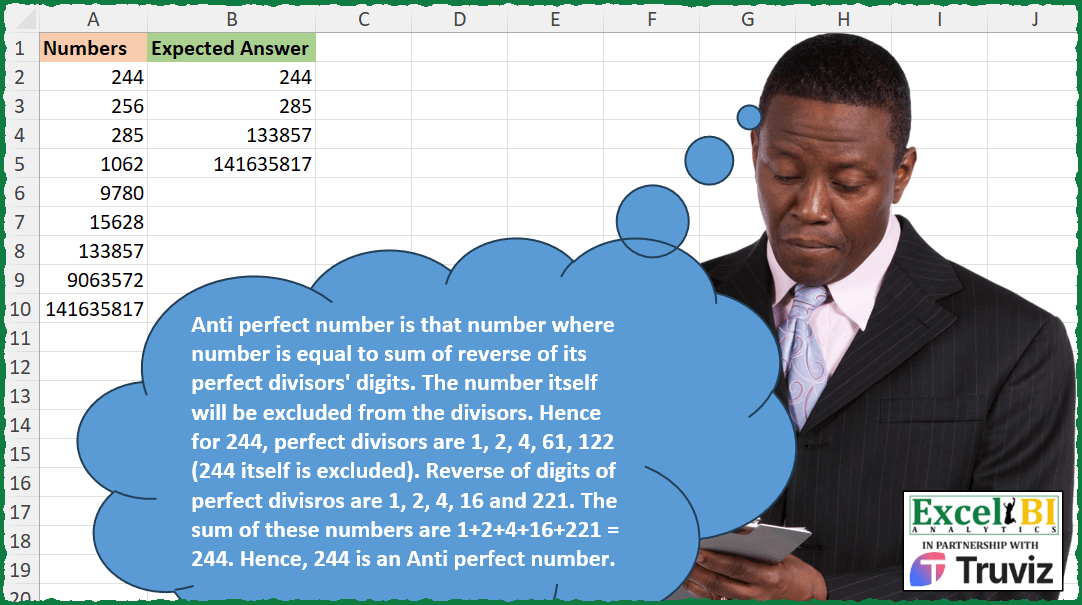
Anti perfect number is that number where number is equal to sum of reverse of its perfect divisors’ digits. The number itself will be excluded from the divisors. Hence for 244, perfect divisors are 1, 2, 4, 61, 122 (244 itself is excluded). Reverse of digits of perfect divisors are 1, 2, 4, 16 and 221. The sum of these numbers are 1+2+4+16+221 = 244. Hence, 244 is an Anti perfect number. List all anti perfect numbers from column A.
📌 Challenge Details and Links
ExcelBI Excel Challenge Number: 455
Challenge Difficulty: ⭐️⭐️
📥Download Sample File
📥Link to the solutions on LinkedIn
Solving the challenge of Identify Anti-Perfect Numbers with Power Query
Power Query solution 1 for Identify Anti-Perfect Numbers, proposed by Bo Rydobon 🇹🇭:
let
  Source = Excel.CurrentWorkbook(){[Name = "Table1"]}[Content],
  Ans = Table.SelectRows(
    Source,
    each
      let
        n = [Numbers]
      in
        List.Sum(
          List.Combine(
            List.Transform(
              {2 .. Number.IntegerDivide(Number.Sqrt(n), 1)},
              (m) =>
                let
                  o = n / m
                in
                  if Number.Mod(o, 1) = 0 then
                    List.Transform({o, m}, each Number.From(Text.Reverse(Text.From(_))))
                  else
                    {}
            )
          )
        )
          + 1 = n
  )
in
  Ans
Power Query solution 2 for Identify Anti-Perfect Numbers, proposed by Aditya Kumar Darak 🇮🇳:
let
  Source = Excel.CurrentWorkbook(){[Name = "data"]}[Content],
  Return = Table.SelectRows(
    Source,
    each [
      D = Int64.From(Number.Power([Numbers], 0.5)),
      L = List.TransformMany(
        {2 .. D},
        (x) => if Number.Mod([Numbers], x) = 0 then {x, [Numbers] / x} else {},
        (x, y) => Number.From(Text.Reverse(Text.From(y)))
      ),
      R = List.Sum(L) + 1 = [Numbers]
    ][R]
  )
in
  Return
Power Query solution 3 for Identify Anti-Perfect Numbers, proposed by Aditya Kumar Darak 🇮🇳:
let
  Source = Excel.CurrentWorkbook(){[Name = "data"]}[Content],
  Return = Table.SelectRows(
    Source,
    each [
      D = Int64.From(Number.Power([Numbers], 0.5)),
      L = List.Transform(
        {2 .. D},
        (f) =>
          if Number.Mod([Numbers], f) = 0 then
            [
              t = List.Transform({f, [Numbers] / f}, (x) => Number.From(Text.Reverse(Text.From(x)))),
              r = List.Sum(t)
            ][r]
          else
            0
      ),
      R = List.Sum(L) + 1 = [Numbers]
    ][R]
  )
in
  Return
Power Query solution 4 for Identify Anti-Perfect Numbers, proposed by Alejandro Simón 🇵🇦 🇪🇸:
let
  Source = Excel.CurrentWorkbook(){[Name = "Table1"]}[Content],
  Sol = Table.SelectRows(
    Source,
    (x) =>
      let
        a = {2 .. Number.RoundDown(Number.Sqrt(x[Numbers]))},
        b = List.Select(a, each Number.Mod(x[Numbers], _) = 0),
        c = b & List.Transform(b, each x[Numbers] / _),
        d = List.Sum(List.Transform(c, each Number.From(Text.Reverse(Text.From(_))))) + 1
      in
        d = x[Numbers]
  )
in
  Sol
Power Query solution 5 for Identify Anti-Perfect Numbers, proposed by Luan Rodrigues:
let
  Fonte = Tabela1,
  res = Table.SelectRows(
    Fonte,
    each [
      n = List.Select(
        {2 .. Number.RoundDown(Number.Sqrt([Numbers]))},
        (x) => Int64.From([Numbers] / x) = [Numbers] / x
      ),
      seq = n & List.Transform(n, (x) => _[Numbers] / x),
      rev = List.Transform(seq, each Number.From(Text.Reverse(Text.From(_)))),
      soma = List.Sum(rev) + 1 = [Numbers]
    ][soma]
  )
in
  res
Power Query solution 6 for Identify Anti-Perfect Numbers, proposed by Ramiro Ayala Chávez:
let
  S = Excel.CurrentWorkbook(){[Name = "Table1"]}[Content],
  L = List.Transform,
  A = Table.AddColumn(
    S,
    "Expected Answer",
    each
      let
        a = [Numbers],
        b = List.Generate(
          () => [i = 2],
          each [i] <= Number.RoundDown(a / 2),
          each [i = [i] + 1],
          each a / [i]
        ),
        c = List.Select(b, each Number.Mod(_, 1) = 0),
        d = L(L(L(c, Text.From), each Text.Reverse(_)), Number.From),
        e = if List.Sum(d) + 1 = a then a else null
      in
        e
  )[[Expected Answer]],
  Sol = Table.SelectRows(A, each [Expected Answer] <> null)
in
  Sol
Solving the challenge of Identify Anti-Perfect Numbers with Excel
Excel solution 1 for Identify Anti-Perfect Numbers, proposed by Bo Rydobon 🇹🇭:
=TOCOL(MAP(A2:A10,
    LAMBDA(n,
    LET(m,
    SEQUENCE(
        n^0.5
    )+1,
    o,
    n/m,
    n/(n=SUM(
        1,
        --BYROW(
            MID(
                TOCOL(
                    IFS(
                        INT(
                            o
                        )=o,
                        HSTACK(
                            m,
                            o
                        )
                    ),
                    3
                ),
                9-SEQUENCE(
                    ,
                    8
                ),
                1
            ),
            CONCAT
        )
    ))))),
    3)
Excel solution 2 for Identify Anti-Perfect Numbers, proposed by John V.:
=TOCOL(MAP(A2:A10,
    LAMBDA(x,
    LET(s,
    1+SEQUENCE(
        x^0.5
    ),
    x/(x=SUM(1,
    --BYROW(MID(TOCOL(HSTACK(
        s,
        x/s
    )/(MOD(
        x/s,
        1
    )=0),
    2),
    9-COLUMN(
        A:H
    ),
    1),
    CONCAT)))))),
    2)
Excel solution 3 for Identify Anti-Perfect Numbers, proposed by محمد حلمي:
=TOCOL(MAP(A2:A10,
    LAMBDA(x,
    x/LET(s,
    SEQUENCE(
        700
    ),
    v,
    x/s,
    x=SUM(MAP(DROP(UNIQUE(TOCOL(HSTACK(
        v,
        s
    )/(INT(
        v
    )=v),
    2)),
    1),
    LAMBDA(
        n,
        --CONCAT(
            MID(
                n,
                701-s,
                1
            )
        )
    )))))),
    2)
Excel solution 4 for Identify Anti-Perfect Numbers, proposed by Kris Jaganah:
=LET(a,
    A2:A10,
    TOCOL(a/(MAP(
        a,
        LAMBDA(
            y,
            LET(
                b,
                SEQUENCE(
                    y^0.5
                ),
                c,
                y/b,
                d,
                DROP(
                    SORT(
                        TOCOL(
                            FILTER(
                                HSTACK(
                                    b,
                                    c
                                ),
                                INT(
                                    c
                                )=c
                            )
                        )
                    ),
                    -1
                ),
                SUM(
                    MAP(
                        d,
                        LAMBDA(
                            x,
                            --CONCAT(
                                MID(
                                    x,
                                    SEQUENCE(
                                        LEN(
                                            x
                                        ),
                                        ,
                                        LEN(
                                            x
                                        ),
                                        -1
                                    ),
                                    1
                                )
                            )
                        )
                    )
                )
            )
        )
    )=a),
    3))
Excel solution 5 for Identify Anti-Perfect Numbers, proposed by Julian Poeltl:
=LET(
    N,
    A2:A10,
    FILTER(
        N,
        N=MAP(
            A2:A10,
            LAMBDA(
                N,
                LET(
                    S,
                    SEQUENCE(
                        SQRT(
                            N
                        ),
                        ,
                        2
                    ),
                    D,
                    N/S,
                    R,
                    VSTACK(
                        FILTER(
                            D,
                            INT(
                                D
                            )=D
                        ),
                        FILTER(
                            S,
                            INT(
                                D
                            )=D
                        )
                    ),
                    C,
                    MAP(
                        R,
                        LAMBDA(
                            A,
                            CONCAT(
                                MID(
                                    A,
                                    SEQUENCE(
                                        LEN(
                                            A
                                        ),
                                        ,
                                        LEN(
                                            A
                                        ),
                                        -1
                                    ),
                                    1
                                )
                            )
                        )
                    ),
                    SUM(
                        C*1
                    )+1
                )
            )
        )
    )
)
Excel solution 6 for Identify Anti-Perfect Numbers, proposed by Timothée BLIOT:
=FILTER(
    A2:A10,
    MAP(
        A2:A10,
        LAMBDA(
            z,
            LET(
                A,
                z/SEQUENCE(
                    INT(
                        z^0.5
                    )
                ),
                B,
                FILTER(
                    A,
                    INT(
                        A
                    )=A
                ),
                SUM(
                    MAP(
                        DROP(
                            SORT(
                                VSTACK(
                                    z/B,
                                    B
                                )
                            ),
                            -1
                        ),
                        LAMBDA(
                            x,
                            --CONCAT(
                                MID(
                                    x,
                                    LEN(
                                        x
                                    )+1-SEQUENCE(
                                        LEN(
                                        x
                                    )
                                    ),
                                    1
                                )
                            )
                        )
                    )
                )=z
            )
        )
    )
)
Excel solution 7 for Identify Anti-Perfect Numbers, proposed by Hussein SATOUR:
=FILTER(
    A2:A10,
    MAP(
        A2:A10,
        LAMBDA(
            y,
            LET(
                a,
                SEQUENCE(
                    SQRT(
                        y
                    )-1,
                    ,
                    2
                ),
                b,
                y/a,
                SUM(
                    1,
                    --MAP(
                        FILTER(
                            HSTACK(
                                a,
                                b
                            ),
                            b=INT(
                                b
                            )
                        ),
                        LAMBDA(
                            x,
                            CONCAT(
                                MID(
                                    x,
                                    SEQUENCE(
                                        LEN(
                                            x
                                        ),
                                        ,
                                        LEN(
                                            x
                                        ),
                                        -1
                                    ),
                                    1
                                )
                            )
                        )
                    )
                )
            )=y
        )
    )
)
Excel solution 8 for Identify Anti-Perfect Numbers, proposed by Sunny Baggu:
=FILTER(

     A2:A10,

     MAP(

          A2:A10,

          LAMBDA(
              n,

               LET(

                    _s,
                    SEQUENCE(
                        SQRT(
                            n
                        )
                    ),

                    _a,
                    n / _s,

                    _b,
                    FILTER(
                        HSTACK(
                            _s,
                             _a
                        ),
                         INT(
                             _a
                         ) = _a
                    ),

                    _c,
                    DROP(
                        SORT(
                            TOCOL(
                                _b
                            ),
                             ,
                             -1
                        ),
                         1
                    ),

                    _d,
                    MAP(

                         _c,

                         LAMBDA(
                             a,
                              CONCAT(
                                  MID(
                                      a,
                                       LEN(
                                           a
                                       ) + 1 - SEQUENCE(
                                           LEN(
                                           a
                                       )
                                       ),
                                       1
                                  )
                              ) + 0
                         )

                    ),

                    SUM(
                        _d
                    ) = n

               )

          )

     )

)
Excel solution 9 for Identify Anti-Perfect Numbers, proposed by LEONARD OCHEA 🇷🇴:
=TOCOL(MAP(A2:A10,
    LAMBDA(a,
    LET(s,
    SEQUENCE(
        a^0.5
    ),
    i,
    TOCOL(
        IF(
            MOD(
                a,
                s
            ),
            z,
            s
        ),
        2
    ),
    j,
    DROP(
        VSTACK(
            a/i,
            i
        ),
        1
    ),
    a/(a=SUM(
        --BYROW(
            MID(
                j,
                10-SEQUENCE(
                    ,
                    9
                ),
                1
            ),
            CONCAT
        )
    ))))),
    2)
Excel solution 10 for Identify Anti-Perfect Numbers, proposed by Abda&llah Ally:
=TOCOL(
    MAP(
        A2:A10,
        LAMBDA(
            x,
            x/LET(
                a,
                x,
                b,
                SEQUENCE(
                    a^0.5-1
                ),
                 f,
                LAMBDA(
                    x,
                    CONCAT(
                        MID(
                            x,
                             SORT(
                                 SEQUENCE(
                                     LEN(
                                         x
                                     )
                                 ),
                                 ,
                                 -1
                             ),
                            1
                        )
                    )
                ),
                a+f(
                    a
                )= REDUCE(
                    0,
                    b,
                    LAMBDA(
                        x,
                        y,
                        IF(
                            a/y=INT(
                                a/y
                            ),
                            x+f(
                                y
                            )+f(
                                a/y
                            ),
                            x
                        )
                    )
                )
            )
        )
    ),
    2
)
Excel solution 11 for Identify Anti-Perfect Numbers, proposed by 🇵🇪 Ned Navarrete C.:
=ENCOL(MAP(A2:A10,
    LAMBDA(r,
    LET(s,
    SEQUENCE(
        r^0.5
    )+1,
    f,
    FILTER(
        s,
        MOD(
            r,
            s
        )=0
    ),
    d,
    VSTACK(
        f,
        r/f
    ),
    r/(r=1+SUM(
        --BYROW(
            d,
            LAMBDA(
                i,
                CONCAT(
                    MID(
                        i,
                        9-SEQUENCE(
                            8
                        ),
                        1
                    )
                )
            )
        )
    ))))),
    2)
Excel solution 12 for Identify Anti-Perfect Numbers, proposed by ferhat CK:
=LET(
    a,
    A2:A10,
    b,
    MAP(
        a,
        LAMBDA(
            n,
            SUM(
                --MAP(
                    FILTER(
                        MAP(
                            MAKEARRAY(
                                n-1,
                                1,
                                LAMBDA(
                                    x,
                                    y,
                                    x+y
                                )
                            ),
                            LAMBDA(
                                x,
                                n/x
                            )
                        ),
                        MAP(
                            MAKEARRAY(
                                n-1,
                                1,
                                LAMBDA(
                                    x,
                                    y,
                                    x+y
                                )
                            ),
                            LAMBDA(
                                x,
                                MOD(
                                    n,
                                    x
                                )
                            )
                        )=0
                    ),
                    LAMBDA(
                        x,
                        TEXTJOIN(
                            "",
                            1,
                            MID(
                                x,
                                {9;8;7;6;5;4;3;2;1},
                                1
                            )
                        )
                    )
                )
            )
        )
    ),
    FILTER(
        a,
        a=b
    )
)
Excel solution 13 for Identify Anti-Perfect Numbers, proposed by Pieter de Bruijn:
=LET(a,
    A2:A10,
    FILTER(a,
    MAP(a,
    LAMBDA(b,
    LET(s,
    b/SEQUENCE(10^(LEN(
        b
    )/2),
    ,
    2),
    x,
    TOCOL(
        IFS(
            MOD(
                s,
                1
            )=0,
            s
        ),
        2
    ),
    SUM(
        1,
        MAP(
            UNIQUE(
                VSTACK(
                    x,
                    b/x
                )
            ),
            LAMBDA(
                y,
                --CONCAT(
                    MID(
                        y,
                        16-SEQUENCE(
                            ,
                            15
                        ),
                        1
                    )
                )
            )
        )
    ))))=a))
Excel solution 14 for Identify Anti-Perfect Numbers, proposed by Edwin Tisnado:
=TOCOL(MAP(A2:A10,
    LAMBDA(u,
    LET(a,
    SEQUENCE(
        u^0.5
    ),
    b,
    u/a,
    r,
    MOD(
        u,
        a
    ),
    f,
    FILTER(
        b,
        r=0
    ),
    t,
    FILTER(
        a,
        r=0
    ),
    m,
    SUM(MAP(DROP((VSTACK(
        f,
        t
    )),
    1),
    LAMBDA(
        x,
        --CONCAT(
            MID(
                x,
                20-ROW(
                    1:19
                ),
                1
            )
        )
    ))),
    IF(
        m=u,
        m,
        1/0
    )))),
    2)
Solving the challenge of Identify Anti-Perfect Numbers with Python
Python solution 1 for Identify Anti-Perfect Numbers, proposed by Konrad Gryczan, PhD:
import pandas as pd
import numpy as np
input = pd.read_excel("455 Anti perfect numbers.xlsx", sheet_name="Sheet1", usecols="A")
test = pd.read_excel("455 Anti perfect numbers.xlsx", sheet_name="Sheet1", usecols="B", nrows = 4)
def is_antiperfect(number):
 divisors = [i for i in range(1, number) if number % i == 0]
 reversed_divisors = [int(str(i)[::-1]) for i in divisors]
 sum_rev_div = sum(reversed_divisors)
 return sum_rev_div == number
input["is_antiperfect"] = input["Numbers"].apply(is_antiperfect)
result = input[input["is_antiperfect"]]["Numbers"].rename("Expected Answer").astype("int64").reset_index(drop=True)
print(result.equals(test["Expected Answer"])) # True
Python solution 2 for Identify Anti-Perfect Numbers, proposed by Abdallah Ally:
import pandas as pd
file_path = 'Excel_Challenge_455 - Anti perfect numbers.xlsx'
df = pd.read_excel(file_path, usecols ='A')
df1 = pd.read_excel(file_path, usecols ='B', nrows=4)
# Perform data transformation and cleansing
def is_anti_perfect_number(number):
 total = 0
 for i in range(2, int(number ** 0.5)):
 if number % i == 0:
 total += int(str(i)[::-1]) + int(str(number // i)[::-1])
 return number == total + 1
df['My Answer'] = df['Numbers'][df['Numbers'].apply(is_anti_perfect_number)]
df2 = df['My Answer'].dropna(ignore_index=True).astype(int)
df = pd.concat([df1, df2], axis=1)
# Display Final Results
df
Solving the challenge of Identify Anti-Perfect Numbers with Python in Excel
Python in Excel solution 1 for Identify Anti-Perfect Numbers, proposed by Abdallah Ally:
import pandas as pd
file_path = 'Excel_Challenge_455 - Anti perfect numbers.xlsx'
df = pd.read_excel(file_path, usecols ='A')
df1 = pd.read_excel(file_path, usecols ='B', nrows=4)
# Perform data transformation and cleansing
def is_anti_perfect_number(number):
 total = 0
 for i in range(2, int(number ** 0.5) + 1):
 if number % i == 0:
 if i == number / i:
 total += int(str(i)[::-1])
 else:
 total += (int(str(i)[::-1]) + int(str(number // i)[::-1]))
 return number == total + 1
df['My Answer'] = df['Numbers'][df['Numbers'].apply(is_anti_perfect_number)]
df2 = df['My Answer'].dropna(ignore_index=True).astype(int)
df = pd.concat([df1, df2], axis=1)
# Display Final Results
df
Python in Excel solution 2 for Identify Anti-Perfect Numbers, proposed by Owen Price:
3. Define a function that:
https://gist.github.com/ncalm/63f4baa3e2f2223e605cf05e8d7a002d
Solving the challenge of Identify Anti-Perfect Numbers with R
R solution 1 for Identify Anti-Perfect Numbers, proposed by Konrad Gryczan, PhD:
library(tidyverse)
library(readxl)
library(numbers)
input = read_excel("Excel/455 Anti perfect numbers.xlsx", range = "A1:A10")
test = read_excel("Excel/455 Anti perfect numbers.xlsx", range = "B1:B5")
is_antiperfect = function(number) {
 divisors = divisors(number)
 divisors = divisors[-length(divisors)]
 reversed_divisors = map(divisors, ~str_c(rev(str_split(.x, "")[[1]]), collapse = "")) %>%
 as.numeric()
 sum_rev_div = sum(reversed_divisors)
 return(sum_rev_div == number)
}
result = input %>%
 mutate(is_antiperfect = map_lgl(Numbers, is_antiperfect)) %>%
 filter(is_antiperfect) %>%
 select(`Expected Answer` = Numbers)
identical(result, test)
# [1] TRUE
Solving the challenge of Identify Anti-Perfect Numbers with Excel VBA
Excel VBA solution 1 for Identify Anti-Perfect Numbers, proposed by Nicolas Micot:
Function f_anti_perfect_number(Plage As Range) As Variant
Dim Anti_numbers As New Collection
Dim resultat As Variant, nombres As Variant
nombres = Plage.Value
For lig = 1 To UBound(nombres, 1)
 somme = 0
 For nombre = 1 To nombres(lig, 1)  2 + 1
 If nombres(lig, 1) Mod nombre = 0 Then somme = somme + StrReverse(nombre)
 Next nombre
 If somme = nombres(lig, 1) Then Anti_numbers.Add nombres(lig, 1)
Next lig
ReDim resultat(1 To Anti_numbers.Count, 1 To 1)
For lig = 1 To UBound(resultat, 1)
 resultat(lig, 1) = Anti_numbers(lig)
Next lig
f_anti_perfect_number = resultat
End Function
&&