
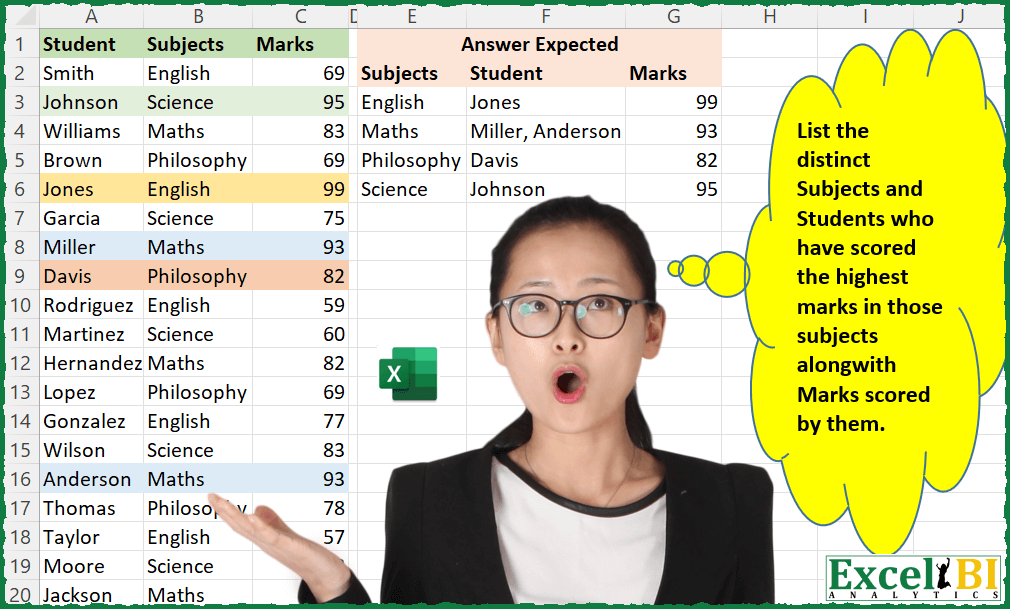
List the distinct Subjects and Students who have scored the highest marks in those subjects along with Marks scored by them. Two students have scored highest marks in Maths. Hence, for Maths, there will be two students.
📌 Challenge Details and Links
ExcelBI Excel Challenge Number: 20
Challenge Difficulty: ⭐️⭐️
📥Download Sample File
📥Link to the solutions on LinkedIn
Solving the challenge of Top Scorers by Subject with Power Query
Power Query solution 1 for Top Scorers by Subject, proposed by Aditya Kumar Darak 🇮🇳:
let
  Source = Excel.CurrentWorkbook(){[Name = "data"]}[Content],
  Result = Table.Group(
    Source,
    {"Subjects"},
    {
      {
        "Students",
        each [
          a = List.Max([Marks]),
          b = Table.SelectRows(_, (f) => f[Marks] = a),
          c = Text.Combine(b[Student], ", ")
        ][c]
      },
      {"Marks", each List.Max([Marks])}
    }
  )
in
  Result
Power Query solution 2 for Top Scorers by Subject, proposed by Luan Rodrigues:
let
  Fonte = Excel.CurrentWorkbook(){[Name = "Tabela1"]}[Content],
  Group = Table.Group(
    Fonte,
    {"Subjects"},
    {{"Tabela", each _, type table [Student = text, Subjects = text, Marks = number]}}
  ),
  List = Table.AddColumn(Group, "Marks", each List.MaxN([Tabela][Marks], 1)),
  Ext = Table.TransformColumns(
    List,
    {"Marks", each Number.FromText(Text.Combine(List.Transform(_, Text.From))), type number}
  ),
  Mesc = Table.NestedJoin(
    Ext,
    {"Subjects", "Marks"},
    Fonte,
    {"Subjects", "Marks"},
    "Valores Extraídos",
    JoinKind.LeftOuter
  ),
  List2 = Table.AddColumn(Mesc, "Student", each [Valores Extraídos][Student]),
  Result = Table.TransformColumns(
    List2,
    {"Student", each Text.Combine(List.Transform(_, Text.From), ","), type text}
  )[[Subjects], [Student], [Marks]]
in
  Result
Power Query solution 3 for Top Scorers by Subject, proposed by Brian Julius:
let
  Source = Table.TransformColumnTypes(#"Subjects Raw", {{"Marks", Int64.Type}}),
  GroupedRows = Table.Group(
    Source,
    {"Subjects"},
    {
      {
        "AllData",
        each _,
        type table [Student = nullable text, Subjects = nullable text, Marks = nullable number]
      },
      {"MaxMarks", each List.Max([Marks]), type nullable number}
    }
  ),
  #"Expand&Filter" = Table.SelectRows(
    Table.ExpandTableColumn(GroupedRows, "AllData", {"Student", "Marks"}, {"Student", "Marks"}),
    each [Marks] = [MaxMarks]
  ),
  GroupedRows2 = Table.AddColumn(
    Table.Group(
      #"Expand&Filter",
      {"Subjects"},
      {
        {
          "AllData",
          each _,
          type table [
            Subjects = nullable text,
            Student = nullable text,
            Marks = nullable number,
            MaxMarks = nullable number
          ]
        },
        {"CountRows", each Table.RowCount(_), Int64.Type}
      }
    ),
    "Students",
    each [AllData][Student]
  ),
  ConcatStudents = Table.RemoveColumns(
    Table.TransformColumns(
      GroupedRows2,
      {"Students", each Text.Combine(List.Transform(_, Text.From), ", "), type text}
    ),
    "CountRows"
  ),
  #"Expanded&Clean" = Table.Sort(
    Table.Distinct(Table.ExpandTableColumn(ConcatStudents, "AllData", {"Marks"}, {"Marks"})),
    {"Subjects", Order.Ascending}
  )
in
  #"Expanded&Clean"
Power Query solution 4 for Top Scorers by Subject, proposed by Matthias Friedmann:
let
  Source = Excel.CurrentWorkbook(){[Name = "Subjects"]}[Content],
  #"Grouped Rows" = Table.Group(
    Source,
    {"Subjects"},
    {
      {"Marks", each List.Max([Marks]), type number},
      {"Data", each _, type table [Student = text, Subjects = text, Marks = number]}
    }
  ),
  #"Added Custom" = Table.AddColumn(
    #"Grouped Rows",
    "Students",
    each Table.ToList(
      Table.Transpose(
        Table.SelectRows(
          Table.AddColumn(Table.SelectColumns([Data], {"Student", "Marks"}), "Max", (x) => [Marks]),
          each [Marks] = [Max]
        )[[Student]]
      ),
      Combiner.CombineTextByDelimiter(", ")
    )
  )[[Subjects], [Students], [Marks]],
  #"Extracted Values" = Table.TransformColumns(
    #"Added Custom",
    {"Students", each Text.Combine(List.Transform(_, Text.From)), type text}
  )
in
  #"Extracted Values"
Power Query solution 5 for Top Scorers by Subject, proposed by Venkata Rajesh:
let
  Source = Data,
  HighestMarks = Table.Group(
    Source,
    {"Subjects"},
    {{"Marks", each List.Max([Marks]), type nullable number}}
  ),
  StudentNames = Table.AddColumn(
    HighestMarks,
    "Student",
    each
      let
        _Marks = [Marks],
        _Subjects = [Subjects],
        _List = Table.SelectRows(Source, each ([Subjects] = _Subjects and [Marks] = _Marks))[
          Student
        ]
      in
        Text.Combine(_List, ", ")
  )
in
  StudentNames
Power Query solution 6 for Top Scorers by Subject, proposed by Mahmoud Bani Asadi:
let
  Source = Excel.CurrentWorkbook(){[Name = "Table1"]}[Content],
  #"Grouped Rows" = Table.Group(
    Source,
    {"Subjects"},
    {
      {
        "Students",
        each [
          max          = List.Max(_[Marks]),
          StudentNames = Table.MaxN(_, "Marks", each [Marks] = max),
          CombinedText = Text.Combine(StudentNames[Student], ", ")
        ][CombinedText]
      },
      {"Marks", each List.Max(_[Marks])}
    }
  )
in
  #"Grouped Rows"
Power Query solution 7 for Top Scorers by Subject, proposed by Melissa de Korte:
let
  Source = Excel.CurrentWorkbook(){[Name = "Table1"]}[Content],
  GroupRows = Table.Group(
    Source,
    {"Subjects"},
    {
      {
        "AllRows",
        each
          let
            t = Table.SelectRows(
              Table.AddRankColumn(_, "Rank", {{"Marks", Order.Descending}}),
              each [Rank] = 1
            )
          in
            [Student = Text.Combine(t[Student], ", "), Marks = t[Marks]{0}]
      }
    }
  ),
  ExpandRecord = Table.ExpandRecordColumn(
    GroupRows,
    "AllRows",
    {"Student", "Marks"},
    {"Student", "Marks"}
  )
in
  ExpandRecord
Power Query solution 8 for Top Scorers by Subject, proposed by Thomas DUCROQUETZ:
let
  Source = Excel.CurrentWorkbook(){[Name = "Tableau1"]}[Content],
  ModifType = Table.TransformColumnTypes(
    Source,
    {{"Student", type text}, {"Subjects", type text}, {"Marks", Int64.Type}}
  ),
  Grouped = Table.Group(
    ModifType,
    {"Subjects"},
    {
      {
        "Student With Mark",
        each
          let
            MaxMark = List.Max([Marks]),
            Select  = Table.SelectRows(_, each [Marks] = MaxMark)[Student]
          in
            [Students = Text.Combine(Select, ", "), Mark = MaxMark]
      }
    }
  ),
  #"Student With Mark développé" = Table.ExpandRecordColumn(
    Grouped,
    "Student With Mark",
    {"Students", "Mark"},
    {"Students", "Mark"}
  ),
  #"Type modifié" = Table.TransformColumnTypes(
    #"Student With Mark développé",
    {{"Students", type text}, {"Mark", Int64.Type}}
  )
in
  #"Type modifié"
Power Query solution 9 for Top Scorers by Subject, proposed by Hristo Tsenov:
let
  Source = Excel.CurrentWorkbook(){[Name = "Table1"]}[Content],
  #"Grouped Rows" = Table.Group(
    Source,
    {"Subjects", "Marks"},
    {
      {"Students", each _, type table [Student = text, Subjects = text, Marks = number]},
      {"Student", each Text.Combine([Student], ","), type text}
    }
  ),
  #"Removed Columns" = Table.RemoveColumns(#"Grouped Rows", {"Students"}),
  #"Sorted Rows" = Table.Sort(
    #"Removed Columns",
    {{"Subjects", Order.Ascending}, {"Marks", Order.Descending}}
  ),
  #"Added Index" = Table.AddIndexColumn(#"Sorted Rows", "Index", 1, 1, Int64.Type),
  #"Removed Duplicates" = Table.Distinct(#"Added Index", {"Subjects"}),
  #"Removed Other Columns" = Table.SelectColumns(
    #"Removed Duplicates",
    {"Subjects", "Student", "Marks"}
  )
in
  #"Removed Other Columns"
Power Query solution 10 for Top Scorers by Subject, proposed by Khawar Malik:
let
  Source = Excel.CurrentWorkbook(){[Name = "Table1"]}[Content],
  #"Grouped Rows" = Table.Group(
    Source,
    {"Subjects"},
    {{"Marks", each List.Max([Marks]), type number}}
  ),
  TableMergingwithSource = Table.NestedJoin(
    Source,
    {"Subjects", "Marks"},
    #"Grouped Rows",
    {"Subjects", "Marks"},
    "Table1",
    JoinKind.LeftOuter
  ),
  #"Expanded Table1" = Table.ExpandTableColumn(
    TableMergingwithSource,
    "Table1",
    {"Subjects", "Marks"},
    {"Subjects.1", "Marks.1"}
  ),
  #"Removed Columns" = Table.RemoveColumns(#"Expanded Table1", {"Marks", "Subjects.1"}),
  #"Filtered Rows" = Table.SelectRows(#"Removed Columns", each ([Marks.1] <> null)),
  #"Grouped Rows1" = Table.Group(
    #"Filtered Rows",
    {"Subjects"},
    {
      {"Student", each Text.Combine([Student], ", "), type text},
      {"Marks", each List.Average([Marks.1]), type nullable number}
    }
  )
in
  #"Grouped Rows1"
Power Query solution 11 for Top Scorers by Subject, proposed by Chandeep Chhabra:
let
  Source = Excel.CurrentWorkbook(){[Name = "Table1"]}[Content],
  #"Grouped Rows" = Table.Group(
    Source,
    {"Subjects"},
    {
      {
        "TopStudents",
        each
          let
            maxmarks         = List.Max(_[Marks]),
            MaxMarksStudents = Table.MaxN(_, "Marks", each [Marks] = maxmarks)[Student]
          in
            Text.Combine(MaxMarksStudents, ", ")
      },
      {"Marks", each List.Max(_[Marks])}
    }
  )
in
  #"Grouped Rows"
Solving the challenge of Top Scorers by Subject with Excel
Excel solution 1 for Top Scorers by Subject, proposed by Rick Rothstein:
=LET(A,A2:A20,B,B2:B20,C,C2:C20,U,UNIQUE(B),HSTACK(SORT(U),BYROW(SORT(U),LAMBDA(x,TEXTJOIN(", ",,IF((C=MAX(IF(B=x,C)))*(B=x),A,"")))),BYROW(SORT(U),LAMBDA(z,MAX(IF(B=z,C))))))Excel solution 2 for Top Scorers by Subject, proposed by Rick Rothstein:
Excel solution 3 for Top Scorers by Subject, proposed by John V.:
=LET(a,A2:A20,b,B2:B20,c,C2:C20,u,SORT(UNIQUE(b)),m,MAXIFS(c,b,u),s,MAP(u,m,LAMBDA(s,v,TEXTJOIN(", ",,FILTER(a,b&c=s&v)))),HSTACK(u,s,m))Excel solution 4 for Top Scorers by Subject, proposed by محمد حلمي:
=LET(b,B2:B20,c,C2:C20,REDUCE(A1:C1,SORT(UNIQUE(b)),
LAMBDA(a,d,LET(m,MAXIFS(c,b,d),VSTACK(a,HSTACK(d,
ARRAYTOTEXT(FILTER(A2:A20,(b=d)*(c=m))),m))))))
Excel solution 5 for Top Scorers by Subject, proposed by 🇰🇷 Taeyong Shin:
=LET(s,B1:B20,m,C1:C20,c,BYROW(GROUPBY(s,m,MAX),CONCAT),GROUPBY(s,HSTACK(A1:A20,m),HSTACK(ARRAYTOTEXT,SINGLE),3,0,,REGEXTEST(s&m,TEXTJOIN("|",,c))))

=LET(s,B2:B20,m,C2:C20,GROUPBY(s,HSTACK(A2:A20,m),HSTACK(ARRAYTOTEXT,SINGLE),,0,,s&MAXIFS(m,s,s)=s&m))
Excel solution 6 for Top Scorers by Subject, proposed by Julian Poeltl:
=LET(T,A1:C20,TT,DROP(T,1),S,CHOOSECOLS(TT,2),M,TAKE(TT,,-1),U,SORT(UNIQUE(S)),MA,MAP(U,LAMBDA(A,MAX(FILTER(M,S=A)))),SC,U&MA,VSTACK(TAKE(T,1),HSTACK(U,MAP(SC,LAMBDA(A,TEXTJOIN(", ",,FILTER(TAKE(TT,,1),S&M=A)))),MA)))Excel solution 7 for Top Scorers by Subject, proposed by Aditya Kumar Darak 🇮🇳:
= LET(
 _sub,
 SORT(UNIQUE(B2:B20)),
 _mrks,
 MAXIFS(C2:C20, B2:B20, _sub),
 _stnd,
 BYROW(
 _sub & _mrks,
 LAMBDA(a,
 TEXTJOIN(", ", TRUE, FILTER(A2:A20, B2:B20 & C2:C20 = a)))),
 VSTACK({"Subjects","Student","Marks"}, HSTACK(_sub, _stnd, _mrks)))
Excel solution 8 for Top Scorers by Subject, proposed by Bhavya Gupta:
=LET(Stud, A2:A20, Sub, B2:B20, Marks, C2:C20,
 a, SORT(UNIQUE(Sub)),
 b, MAP(a, LAMBDA(m, MAX(FILTER(Marks, Sub=m)))),
 c, MAP(a, b, LAMBDA(s, r, TEXTJOIN(", " ,TRUE, FILTER(Stud, (Sub=s)*(Marks=r))))),
 HSTACK(a,c,b))
Excel solution 9 for Top Scorers by Subject, proposed by Charles Roldan:
=LET(Student, A2:A20, Subjects, B2:B20, Marks, C2:C20, Headers, A1:C1, CHOOSECOLS(REDUCE(Headers, SORT(UNIQUE(Subjects)), LAMBDA(a,b, VSTACK(a, LET(m, MAX(FILTER(Marks, Subjects = b)), s, ARRAYTOTEXT(FILTER(Student, Subjects & Marks = b & m)), HSTACK(s, b, m))))), 2, 1, 3))Excel solution 10 for Top Scorers by Subject, proposed by Tolga Demirci, PMP, PMI-ACP, MOS-Expert:
=UNIQUE(B2:B20)

Column F; =TEXTJOIN(", ";;IFERROR(INDEX(A:A;IF(G2=IFERROR(INDEX($C$2:$C$20;IF(E2=($B$2:$B$20);ROW($A$1:$A$20);""));"");ROW($A$2:$A$20);""));""))

Column G; =MAXIFS(C:C;B:B;E2)
Excel solution 11 for Top Scorers by Subject, proposed by Sergei Baklan:
=IFNA( LOOKUP(2, 1/(COUNTIF($P$2:P2, Subjects)=0), Subjects ), "" )
R3:
=IF( MAXIFS(Marks, Subjects, P3) = 0, "", MAXIFS(Marks, Subjects, P3) )
Q3: (requires CSE)
=TEXTJOIN(", ",,IF( (Subjects=P3)*(Marks=R3), Student, "") )
Excel solution 12 for Top Scorers by Subject, proposed by Cary Ballard, DML:
=LET(
 stu, A2:A20,
 sub, B2:B20,
 mrk, C2:C20,
 a, SORT(UNIQUE(sub)),
 b, MAXIFS(mrk, sub, a),
 HSTACK(a, XLOOKUP(BYROW(HSTACK(a, b), LAMBDA(x, CONCAT(x))), sub & mrk, stu), b)
)
Excel solution 13 for Top Scorers by Subject, proposed by RIJESH T.:
=LET(s,SORT(UNIQUE(B2:B20)),m,MAP(s,LAMBDA(a,MAX(IF(B2:B20=a,C2:C20)))),
su,MAP(s,m,LAMBDA(x,y,TEXTJOIN("", "",TRUE,IF((C2:C20=y)*(B2:B20=x),A2:A20,"""")))),
HSTACK(s,su,m)
Excel solution 14 for Top Scorers by Subject, proposed by Nazmul Islam Jobair:
=LET(
_subs,B2:B20,
_nums,C2:C20,
_stu,A2:A20,
_subU,UNIQUE(_subs),
_maxs,MAXIFS(_nums,_subs,_subU),
_arr,_sub&s&_nums,
_con,_subU&_maxs,
BYROW(_con,LAMBDA(r,TEXTJOIN(", ",TRUE,FILTER(_stu,_arr=r)))))
Excel solution 15 for Top Scorers by Subject, proposed by Riley Johnson:
=LET(
 data, tblData[hashtag#Data],
 headers, tblData[hashtag#Headers],
 subjects, SORT( UNIQUE( tblData[Subjects] ) ),

 top, LAMBDA(subject,
 LET(
 subject_results, FILTER( data, ( INDEX( data, , 2) = subject ), ""),
 top_students, FILTER( subject_results, INDEX( subject_results,,3 ) = MAX( INDEX( subject_results,,3 ) ), "" ),
 output, IF( ROWS( top_students ) > 1,
 HSTACK(
 ARRAYTOTEXT( INDEX( top_students, , 1 )),
 subject,
 MAX( INDEX( top_students, , 3))
 ),
 top_students
 ),
 output
 )
 ),

 firstrow, top( TAKE(subjects, 1)),
 stacker, LAMBDA(acc,subject, VSTACK( acc, top(subject) ) ),
 build_array, REDUCE( firstrow, DROP( subjects, 1 ),
 stacker
 ),
 SORT( VSTACK( headers, build_array ),, -1, TRUE )
)
Excel solution 16 for Top Scorers by Subject, proposed by Joseph Szczesniak:
=SUMIFS($L$3:$L$6,$J$3:$J$6,$B2)
E2 -> (Copy+Paste through to H2) =IFERROR(IF(AND(E$1=$B2,$D2=$C2),COUNTIFS($B$2:$B2,"="&"*"&E$1&"*",$C$2:$C2,"="&$D2),0),"")
J3 =SORT(UNIQUE($B$2:$B$20))
K3 =M3&IF(N3="","",",")&IF(N3="",""," "&N3&IF(O3="","",", ")&IF(O3="",""," "&O3&", "))
L3=MAXIFS($C$2:$C$20,$B$2:$B$20,$J3)
M3 -> (Copy & Paste through to O3) =IFERROR(INDEX($A$2:$A$20,MATCH(M$2,INDIRECT(LEFT($P3,1)&LEFT($Q$1,3)&""&":"&LEFT($P3,1)&LEFT($Q$2,3)),0)),"")

References:
E1 =TRANSPOSE(SORT(UNIQUE($B$2:$B$20)))
Excel solution 17 for Top Scorers by Subject, proposed by Daniela Munteanu:
=TEXTJOIN(",",TRUE,CHOOSECOLS(FILTER(Table1,(Table1[Subjects]=E3)*(Table1[Marks]=G3)),1))
Column G: =MAXIFS($C$2:$C$20,$B$2:$B$20,E3)
Solving the challenge of Top Scorers by Subject with Python in Excel
Python in Excel solution 1 for Top Scorers by Subject, proposed by Aditya Kumar Darak 🇮🇳:
df = xl("A1:C20", True)
df = df.groupby(["Subjects", "Marks"], as_index=False)["Student"].apply(
 lambda x: ", ".join(x)
)
result = (
 df.groupby("Subjects")
 .apply(lambda x: x.nlargest(1, "Marks"))
 .reset_index(drop=True)
)
result
Solving the challenge of Top Scorers by Subject with DAX
DAX solution 1 for Top Scorers by Subject, proposed by Zoran Milokanović:
DEFINE
MEASURE Input[M] = MAX('Input'[Marks])
EVALUATE
ADDCOLUMNS(
 VALUES('Input'[Subjects]),
 "Student", VAR M = [M] RETURN CONCATENATEX(CALCULATETABLE('Input', 'Input'[Marks] = M), 'Input'[Student], ", "),
 "Marks", [M]
)
ORDER BY 'Input'[Subjects]