
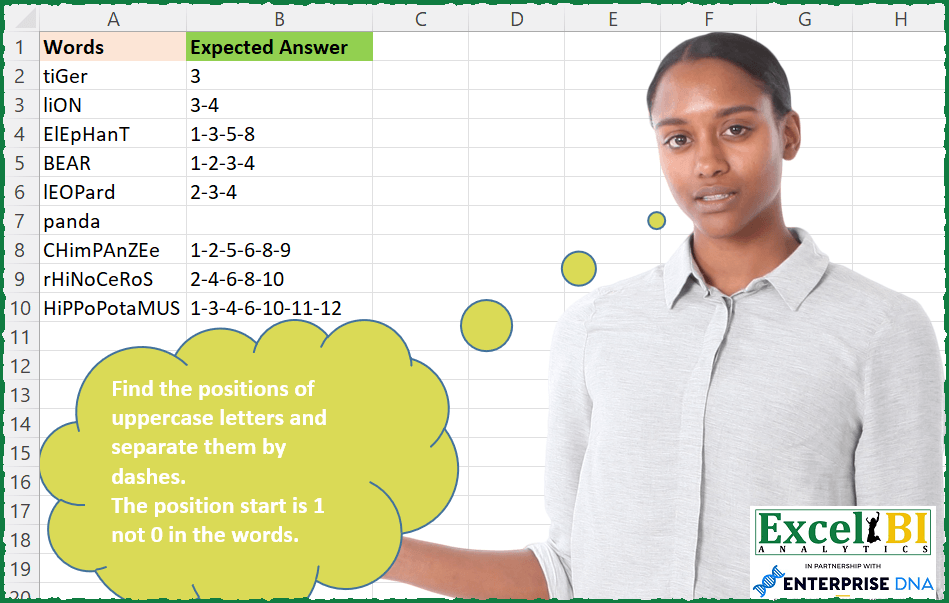
Find the positions of uppercase letters and separate them by dashes. The position start is 1 not 0 in the words.
📌 Challenge Details and Links
ExcelBI Excel Challenge Number: 168
Challenge Difficulty: ⭐️
📥Download Sample File
📥Link to the solutions on LinkedIn
Solving the challenge of Uppercase Position Finder with Power Query
Power Query solution 1 for Uppercase Position Finder, proposed by Bo Rydobon 🇹🇭:
let
  Source = Excel.CurrentWorkbook(){[Name = "Table1"]}[Content],
  Res = Table.TransformRows(
    Source,
    each Text.Combine(
      List.Transform(
        {1 .. Text.Length([Words])},
        (n) => if Character.ToNumber(Text.Range([Words], n - 1, 1)) < 97 then Text.From(n) else null
      ),
      "-"
    )
  )
in
  Res
Power Query solution 2 for Uppercase Position Finder, proposed by Zoran Milokanović:
let
  Source = Excel.CurrentWorkbook(){[Name = "Input"]}[Content],
  ReplacedValue = Table.ReplaceValue(
    Source,
    null,
    each Text.Combine(
      List.TransformMany(
        List.PositionOfAny(Text.ToList([Words]), {"A" .. "Z"}, 2),
        each {_ + 1},
        (x, y) => Text.From(y)
      ),
      "-"
    ),
    (x, y, z) => z,
    {"Words"}
  ),
  Solution = ReplacedValue[Words]
in
  Solution
Power Query solution 3 for Uppercase Position Finder, proposed by Zoran Milokanović:
let
  Source = Excel.CurrentWorkbook(){[Name = "Input"]}[Content],
  Words = List.Transform(
    Source[Words],
    each
      let
        w = Text.ToList(_)
      in
        List.Accumulate(
          List.Positions(w),
          "",
          (s, d) =>
            s
              & (
                if List.Contains({"A" .. "Z"}, w{d}) then
                  (if s = "" then s else "-") & Text.From(d + 1)
                else
                  ""
              )
        )
  )
in
  Words
Power Query solution 4 for Uppercase Position Finder, proposed by Aditya Kumar Darak 🇮🇳:
let
  Source = Excel.CurrentWorkbook(){[Name = "data"]}[Content],
  Return = Table.AddColumn(
    Source,
    "Answer",
    each [
      Positions = Text.PositionOfAny(" " & [Words], {"A" .. "Z"}, Occurrence.All),
      ToText    = List.Transform(Positions, Text.From),
      Combine   = Text.Combine(ToText, "-")
    ][Combine]
  )
in
  Return
Power Query solution 5 for Uppercase Position Finder, proposed by Aditya Kumar Darak 🇮🇳:
(f) => List.Transform(Positions, Text.From(f + 1)).
Power Query solution 6 for Uppercase Position Finder, proposed by Alejandro Simón 🇵🇦 🇪🇸:
let
  Source = Excel.CurrentWorkbook(){[Name = "Table1"]}[Content],
  Sol = Table.AddColumn(
    Source,
    "Answer",
    each
      let
        a = Text.ToList([Words]),
        b = List.PositionOfAny(a, {"A" .. "Z"}, Occurrence.All),
        c = Text.Combine(List.Transform(b, each Text.From(_ + 1)), "-")
      in
        c
  )[[Answer]]
in
  Sol
Power Query solution 7 for Uppercase Position Finder, proposed by Luan Rodrigues:
let
  Fonte = Tabela1,
  res = Table.AddColumn(
    Fonte,
    "Personalizar",
    each [
      a = Text.Select([Words], {"A" .. "Z"}),
      b = List.Transform(
        List.PositionOfAny(Text.ToList([Words]), Text.ToList(a), Occurrence.All),
        each _ + 1
      ),
      c = Text.Combine(List.Transform(b, Text.From), "-")
    ][c]
  )
in
  res
Power Query solution 8 for Uppercase Position Finder, proposed by Brian Julius:
let
  Source = Excel.CurrentWorkbook(){[Name = "Table1"]}[Content],
  Caps = {"A" .. "Z"},
  AddToList = Table.AddColumn(Source, "ToList", each Text.ToList([Words])),
  AddPositions = Table.RemoveColumns(
    Table.AddColumn(AddToList, "Answer", each List.PositionOfAny([ToList], Caps, Occurrence.All)),
    "ToList"
  ),
  PlusOne = Table.RemoveColumns(
    Table.AddColumn(AddPositions, "PlusOne", each List.Transform([Answer], each _ + 1)),
    "Answer"
  ),
  Extract = Table.RenameColumns(
    Table.TransformColumns(
      PlusOne,
      {"PlusOne", each Text.Combine(List.Transform(_, Text.From), "-"), type text}
    ),
    {"PlusOne", "Answer"}
  )
in
  Extract
Power Query solution 9 for Uppercase Position Finder, proposed by Rafael González B.:
let
  Source = Excel.CurrentWorkbook(){[Name = "Table1"]}[Content],
  GetPositionOf = Table.AddColumn(
    Source,
    "Answer",
    each List.Transform(List.PositionOfAny(Text.ToList([Words]), {"A" .. "Z"}, 2), each _ + 1)
  ),
  CombineText = Table.TransformColumns(
    GetPositionOf,
    {"Answer", each Text.Combine(List.Transform(_, Text.From), "-"), type text}
  ),
  Result = Table.RemoveColumns(CombineText, {"Words"})
in
  Result
Power Query solution 10 for Uppercase Position Finder, proposed by Guillermo Arroyo:
let
  Origen = Excel.CurrentWorkbook(){[Name = "Tabla1"]}[Content],
  a = Table.TransformColumns(Origen, {"Words", Text.ToList}),
  b = List.Transform(
    a[Words],
    each
      let
        o = {"A" .. "Z"},
        p = List.PositionOfAny(_, o, 20),
        q = List.Transform(p, each Text.From(_ + 1)),
        r = Text.Combine(q, "-")
      in
        r
  )
in
  b
Solving the challenge of Uppercase Position Finder with Excel
Excel solution 1 for Uppercase Position Finder, proposed by Bo Rydobon 🇹🇭:
=MAP(A2:A10,LAMBDA(a,LET(s,SEQUENCE(LEN(a)),TEXTJOIN("-",,REPT(s,CODE(MID(a,s,1))<97)))))Excel solution 2 for Uppercase Position Finder, proposed by Rick Rothstein:
=MAP(A2:A10,LAMBDA(a,LET(s,SEQUENCE(LEN(a)),TEXTJOIN("-",,IF(CODE(MID(a,s,1))<91,s,"")))))Excel solution 3 for Uppercase Position Finder, proposed by John V.:
=MAP(A2:A10,LAMBDA(x,LET(s,SEQUENCE(LEN(x)),c,MID(x,s,1),TEXTJOIN("-",,REPT(s,EXACT(c,UPPER(c)))))))
✅=MAP(A2:A10,LAMBDA(x,LET(s,SEQUENCE(LEN(x)),TEXTJOIN("-",,REPT(s,CODE(MID(x,s,1))<91)))))
Excel solution 4 for Uppercase Position Finder, proposed by محمد حلمي:
=MAP(A2:A10,LAMBDA(a,LET(
v,MID(a,SEQUENCE(LEN(a)),1),
TEXTJOIN("-",, IF(EXACT(v,UPPER(v)),
SEQUENCE(ROWS(v)),"")))))
Excel solution 5 for Uppercase Position Finder, proposed by Kris Jaganah:
=MAP(A2:A10,LAMBDA(x,LET(a,SEQUENCE(LEN(x)),b,MID(x,a,1),TEXTJOIN("-",1,IF(--EXACT(UPPER(b),b),a,"")))))Excel solution 6 for Uppercase Position Finder, proposed by Kris Jaganah:
=MAP(A2:A10,LAMBDA(x,LET(a,MID(x,SEQUENCE(LEN(x)),1),TEXTJOIN("-",1,FILTER(SEQUENCE(ROWS(a)),--EXACT(a,UPPER(a)),"")))))Excel solution 7 for Uppercase Position Finder, proposed by Aditya Kumar Darak 🇮🇳:
=MAP(
 A2:A10,
 LAMBDA(a,
 LET(
 sq, SEQUENCE(LEN(a)),
 s, MID(a, sq, 1),
 c, EXACT(s, UPPER(s)),
 r, TEXTJOIN("-", TRUE, IF(c, sq, "")),
 r
 )
 )
)
Excel solution 8 for Uppercase Position Finder, proposed by Timothée BLIOT:
=MAP(A2:A10, LAMBDA(a, TEXTJOIN("-",, MAP(SEQUENCE(LEN(a)), LAMBDA(x, LET(T, MID(a,x,1), IF(EXACT(T,UPPER(T)),x,"") ) )) ) ))Excel solution 9 for Uppercase Position Finder, proposed by Hussein SATOUR:
=MAP(A2:A10, LAMBDA(x, LET(a, LEN(x), b, MID(x, SEQUENCE(a),1), TEXTJOIN("-",,IF(EXACT(b,UPPER(b)), SEQUENCE(a),"")))))Excel solution 10 for Uppercase Position Finder, proposed by Oscar Mendez Roca Farell:
=BYROW(A2:A10, LAMBDA(r, LET(s, SEQUENCE(20), TEXTJOIN("-", , TOROW(IF(ABS( 77,5-CODE(MID(r, s, 1)))<=12,5, s, ""), 2))))Excel solution 11 for Uppercase Position Finder, proposed by Sunny Baggu:
=MAP(A2:A10,LAMBDA(a,
LET(_m,MID(a,SEQUENCE(LEN(a)),1),
_cri,EXACT(_m,UPPER(_m)),_r,SEQUENCE(ROWS(_m)),IFERROR(TEXTJOIN("-",,FILTER(_r,_cri)),""))))
Excel solution 12 for Uppercase Position Finder, proposed by Md. Zohurul Islam:
=MAP(A2:A10,LAMBDA(x,LET(
sq,SEQUENCE(LEN(x)),
b,CODE(MID(x,sq,1)),
c,ISNUMBER(XMATCH(b,SEQUENCE(26,,65))),
d,IFERROR(TEXTJOIN("-",,FILTER(sq,c)),""),
d)))
Excel solution 13 for Uppercase Position Finder, proposed by Tolga Demirci, PMP, PMI-ACP, MOS-Expert:
MAP(A2:A10;LAMBDA(b;LET(a;MID(b;SEQUENCE(LEN(b));1);TEXTJOIN("-";;LET(x;IF(ISNUMBER(FIND(a;UPPER(a);1));SEQUENCE(LEN(b));"");FILTER(x;x<>""))))))Excel solution 14 for Uppercase Position Finder, proposed by Peter Bartholomew:
= MAP(Words, LocateUCλ)
LocateUCλ expresses the intent of the formula and 'Words' identifies the precedents.  The controversial bit is the belief that the end-user has no reason to look at the details of any calculation; their job is just to check the formula does what is required of it.
For the present purposes, though, the formula is
= LAMBDA(s,
 LET(
 n, LEN(s),
 k, SEQUENCE(1, n),
 codes, CODE(MID(s, k, 1)),
 located, FILTER(k, codes < 96, ""),
 TEXTJOIN("-", , located)
 )
)
Excel solution 15 for Uppercase Position Finder, proposed by Guillermo Arroyo:
=MAP(A2:A10,LAMBDA(a,LET(b,SEQUENCE(LEN(a)),TEXTJOIN("-",,FILTER(b,CODE(MID(a,b,1))<91,"")))))Excel solution 16 for Uppercase Position Finder, proposed by Daniel Garzia:
=MAP(A2:A10,LAMBDA(w,LET(s,SEQUENCE(LEN(w)),IFERROR(TEXTJOIN("-",,FILTER(s,ISNUMBER(XMATCH(CODE(MID(w,s,1)),SEQUENCE(26,,65))))),""))))Excel solution 17 for Uppercase Position Finder, proposed by Quadri Olayinka Atharu:
=BYROW(A2:A10,LAMBDA(x,LET(y,MID(x,SEQUENCE(LEN(x)),1),u,UPPER(y),s,SEQUENCE(LEN(x)),IFERROR(TEXTJOIN("-",1,FILTER(s,EXACT(y,u))),""))))Excel solution 18 for Uppercase Position Finder, proposed by Anup Kumar:
=BYROW(A2:A10,LAMBDA(a,LET(
txt,a,
k,SEQUENCE(LEN(txt)),
chrCodeArr,CODE(MID(txt,k,1)),
matchArr,XMATCH(chrCodeArr,SEQUENCE(26,,CODE("A"))),
IFERROR(TEXTJOIN("-",,FILTER(k,ISNUMBER(matchArr))),"")
)))
Excel solution 19 for Uppercase Position Finder, proposed by Viswanathan M B:
=LET(
 Fn, LAMBDA(txt,
 LET(
 x, SEQUENCE(1, LEN(txt)),
 cd, CODE(MID(txt, x, 1),
 Pos, (cd< 91) * (cd>64)* x,
 Ns, TEXTJOIN("-", TRUE, Filter(Pos, Pos>0)),
 Ns
 )
 ),
 MAP(A2:A10, Fn)
)
Excel solution 20 for Uppercase Position Finder, proposed by Gabriel Raigosa:
=MAP(A2:A10,LAMDA(x,LET(S,SECUENCIA(LARGO(x)),UNIRCADENAS("-",,SI(ESNUMERO(COINCIDIRX(CODIGO(EXTRAE(x,S,1)),SECUENCIA(26,,65))),S,"")))))

 =MAP(A2:A10,LAMBDA(x,LET(S,SECUENCIA(99),UNIRCADENAS("-",,SI(ESNUMERO(COINCIDIRX(CODIGO(EXTRAE(x,S,1)),SECUENCIA(26,,65))),S,"")))))


▶️EN:
=MAP(A2:A10,LAMBDA(x,LET(S,SEQUENCE(LEN(x)),TEXTJOIN("-",,IF(ISNUMBER(XMATCH(CODE(MID(x,S,1)),SEQUENCE(26,,65))),S,"")))))

 =MAP(A2:A10,LAMBDA(x,LET(S,SEQUENCE(99),TEXTJOIN("-",,IF(ISNUMBER(XMATCH(CODE(MID(x,S,1)),SEQUENCE(26,,65))),S,"")))))
Excel solution 21 for Uppercase Position Finder, proposed by Gabriel Raigosa:
=BYROW(A2:A10,LAMBDA(x,LET(L,LEN(x),TEXTJOIN("-",,IF(CODE(MID(x,SEQUENCE(L),1))<97,SEQUENCE(L),"")))))
▶️ES:
 =BYROW(A2:A10,LAMBDA(x,LET(L,LARGO(x),UNIRCADENAS("-",,SI(CODIGO(EXTRAE(x,SECUENCIA(L),1))<97,SECUENCIA(L),"")))))
Excel solution 22 for Uppercase Position Finder, proposed by Gabriel Raigosa:
=MAP(A2:A10,LAMBDA(x,LET(S,SECUENCIA(99),UNIRCADENAS("-",,SI(ESNUMERO(COINCIDIRX(CODIGO(EXTRAE(x,S,1)),SECUENCIA(26,,65))),S,"")))))


▶️EN:
=MAP(A2:A10,LAMBDA(x,LET(S,SEQUENCE(99),TEXTJOIN("-",,IF(ISNUMBER(XMATCH(CODE(MID(x,S,1)),SEQUENCE(26,,65))),S,"")))))
Excel solution 23 for Uppercase Position Finder, proposed by Miguel Angel Franco García:
=UNIRCADENAS("-"; VERDADERO; BYROW(APILARH(CODIGO(EXTRAE(A2; SECUENCIA(LARGO(A2));1)); SECUENCIA(LARGO(A2))); LAMBDA(a;SI(Y(INDICE(a;; 1)>=65;INDICE(a;; 1)<=87);INDICE(a;; 2);""))))Excel solution 24 for Uppercase Position Finder, proposed by Ricardo Alexis Domínguez Hernández&:
=BYROW(A2:A10,
LAMBDA(x,TEXTJOIN("-",TRUE,IF(CODE(MID(x,SEQUENCE(,LEN(x)),1))>=97,"",
SEQUENCE(,LEN(x))))))
Excel solution 25 for Uppercase Position Finder, proposed by Ben Gutscher:
=LET(pos,SEQUENCE(LEN(A2)),letter,MID(A2,pos,1),TEXTJOIN("-",TRUE,IF(CODE(letter)<=90,pos,"")))Excel solution 26 for Uppercase Position Finder, proposed by Andres Abad, CFA:
=IFERROR(MAP(A2:A10,LAMBDA(a,LET(_word,a,
_lenght,SEQUENCE(,LEN(_word)),
_letters,MID(_word,_lenght,1),
_code,CODE(_letters),
_capLetter,_code<91,
_filter,FILTER(_lenght,_capLetter=TRUE),
TEXTJOIN("-",TRUE,_filter)))),"")
Excel solution 27 for Uppercase Position Finder, proposed by Hedi GHRIBI:
=TEXTJOIN("-",1,SUBSTITUTE((--EXACT(UPPER(MID(G2, SEQUENCE(,LEN(G2)),1)),MID(G2, SEQUENCE(,LEN(G2)),1)))*(SEQUENCE(,LEN(G2))),0,""))Solving the challenge of Uppercase Position Finder with Excel VBA
Excel VBA solution 1 for Uppercase Position Finder, proposed by Rick Rothstein:
Sub PositionOfUpper()
 Dim X As Long, N As Long, S As String, Arr As Variant
 Arr = Range("A2", Cells(Rows.Count, "A").End(xlUp))
 For X = 1 To UBound(Arr)
 S = ""
 For N = 1 To Len(Arr(X, 1))
 If Mid(Arr(X, 1), N, 1) Like "[A-Z]" Then S = S & "-" & N
 Next
 Arr(X, 1) = Mid(S, 2)
 Next
 With Range("C2").Resize(UBound(Arr))
 .NumberFormat = "@"
 .Value = Arr
 End With
End Sub
Excel VBA solution 2 for Uppercase Position Finder, proposed by Vasin Nilyok:
Sub PositionofUppercase()
Dim AnsCollection As New Collection
LastRow = Cells(Rows.Count, 1).End(xlUp).Row
For r = 2 To LastRow
 For c = 1 To LenWord
 Cells(r, c + 4) = Mid(iWord, c, 1)
 Next c
 For Each cell In rngWord
 iAns = cell.Column - 4
 If cell.Value = UCase(cell.Value) Then
 AnsCollection.Add iAns
 End If
 Next cell
 nUCase = AnsCollection.Count
 If nUCase > 0 Then
 For n = 1 To nUCase
 If n = 1 Then
 Ans = AnsCollection(n)
 Else
 Added = AnsCollection(n)
 Ans = Ans & "-" & Added
 End If
 Next n
 Else
 GoTo skip
 End If
 Cells(r, 3).NumberFormat = "@"
 Cells(r, 3) = Ans
 Set AnsCollection = New Collection
 Ans = Empty
skip:
Next r
Set LastCol = Cells.SpecialCells(xlCellTypeLastCell)
Set rngAlpha = Range(Cells(2, 5), LastCol)
rngAlpha.ClearContents
End Sub
&&