
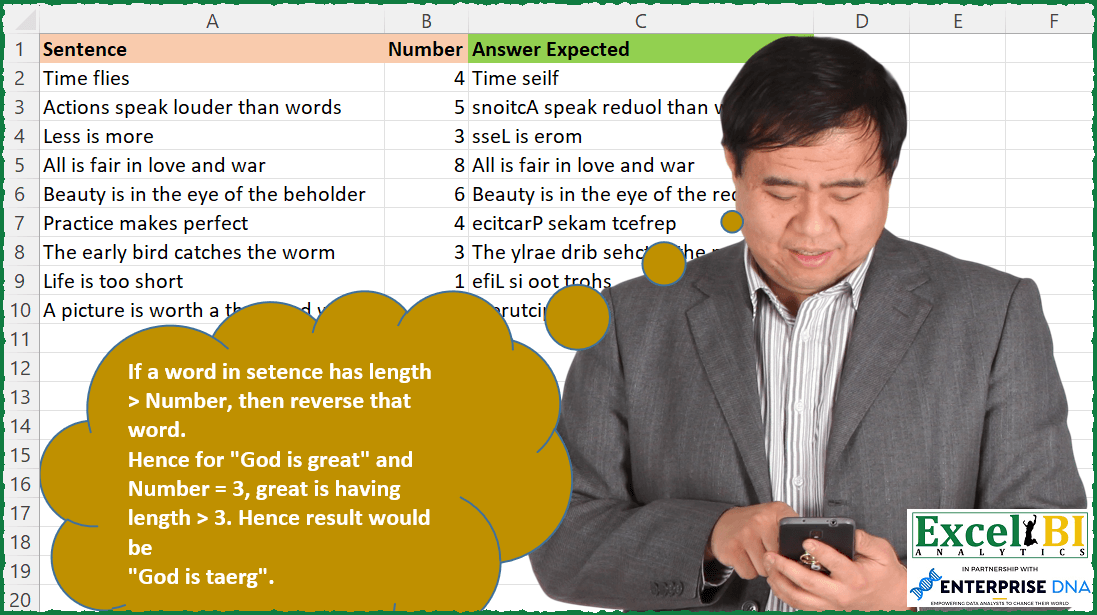
If a word in sentence has length > Number, then reverse that word. Hence for “God is great” and Number = 3, great is having length > 3. Hence result would be “God is taerg”.
📌 Challenge Details and Links
ExcelBI Excel Challenge Number: 161
Challenge Difficulty: ⭐️⭐️
📥Download Sample File
📥Link to the solutions on LinkedIn
Solving the challenge of Reverse Long Words with Power Query
Power Query solution 1 for Reverse Long Words, proposed by Bo Rydobon 🇹🇭:
let
  Source = Excel.CurrentWorkbook(){[Name = "Table1"]}[Content],
  Ans = Table.TransformRows(
    Source,
    each Text.Combine(
      List.Transform(
        Text.Split([Sentence], " "),
        (s) => if Text.Length(s) > [Number] then Text.Reverse(s) else s
      ),
      " "
    )
  )
in
  Ans
Power Query solution 2 for Reverse Long Words, proposed by Zoran Milokanović:
let
  Source = Excel.CurrentWorkbook(){[Name = "Input"]}[Content],
  AddedAnswerExpected = Table.AddColumn(
    Source,
    "Answer Expected",
    each
      let
        num = [Number]
      in
        Text.Combine(
          List.Transform(
            Text.Split([Sentence], " "),
            each if Text.Length(_) > num then Text.Reverse(_) else _
          ),
          " "
        )
  ),
  Solution = AddedAnswerExpected[[Answer Expected]]
in
  Solution
Power Query solution 3 for Reverse Long Words, proposed by 🇰🇷 Taeyong Shin:
let
 Source = Excel.CurrentWorkbook(){[ Name = "tblData" ]}[Content],
 Result = Table.AddColumn ( Source,
 "Answer",
 each
 let
 split = Text.Split ( [Sentence], " " )
 in
 Text.Combine ( List.Transform ( split,
 ( x ) => if Text.Length ( x ) > [Number] then Text.Reverse ( x ) else x
 ), " "),
 type text
 )
in
 Result


let
 Source = Excel.CurrentWorkbook(){[ Name = "tblData" ]}[Content],
 Duplicated = Table.DuplicateColumn ( Source, "Sentence", "Dup" ),
 Split = Table.ExpandListColumn (
 Table.TransformColumns ( Duplicated,
 {{ "Dup", Splitter.SplitTextByDelimiter ( " ", QuoteStyle.Csv ),
 let itemType = ( type nullable text ) meta [ Serialized.Text = true ]
 in type { itemType }
 }}
 ), "Dup"
 ),
 Length = Table.AddColumn ( Split, "Len", each Text.Length ( [Dup] ), Int64.Type ),
 AddReverse = Table.AddColumn ( Length,
 "Custom",
 each if [Len] > [Number] then Text.Reverse ( [Dup] ) else [Dup]
 ),
 Group = Table.Group ( AddReverse,
 { "Sentence", "Number" },
 { "Answer", each Text.Combine ( [Custom], " " ), type text }
 )
in
 Group
Power Query solution 4 for Reverse Long Words, proposed by Aditya Kumar Darak 🇮🇳:
let
  Source = Excel.CurrentWorkbook(){[Name = "data"]}[Content],
  Return = Table.AddColumn(
    Source,
    "Answer",
    each [
      Split = Text.Split([Sentence], " "),
      Transform = List.Transform(
        Split,
        (f) => if Text.Length(f) > [Number] then Text.Reverse(f) else f
      ),
      Combine = Text.Combine(Transform, " ")
    ][Combine]
  )
in
  Return
Power Query solution 5 for Reverse Long Words, proposed by Alejandro Simón 🇵🇦 🇪🇸:
let
  Source = Excel.CurrentWorkbook(){[Name = "Table1"]}[Content],
  Sol = Table.AddColumn(
    Source,
    "Answer",
    each
      let
        a = Text.ToList,
        b = List.Transform(
          Text.Split([Sentence], " "),
          (x) => if List.Count(a(x)) > [Number] then List.Reverse(a(x)) else a(x)
        ),
        c = List.Transform(b, Text.Combine)
      in
        Text.Combine(c, " ")
  )[[Answer]]
in
  Sol
Power Query solution 6 for Reverse Long Words, proposed by Luan Rodrigues:
let
  Fonte = Tabela1,
  res = Table.AddColumn(
    Fonte,
    "Personalizar",
    each [
      a = Text.Split([Sentence], " "),
      b = Text.Combine(
        List.Transform(
          a,
          (x) => if Text.Length(x) > [Number] then Text.Combine(List.Reverse(Text.ToList(x))) else x
        ),
        " "
      )
    ][b]
  )[Personalizar]
in
  res
Power Query solution 7 for Reverse Long Words, proposed by Brian Julius:
let
  Source = Table.DuplicateColumn(
    Excel.CurrentWorkbook(){[Name = "Table1"]}[Content],
    "Sentence",
    "Words"
  ),
  SplitBySpaces = Table.ExpandListColumn(
    Table.TransformColumns(
      Source,
      {
        {
          "Words",
          Splitter.SplitTextByDelimiter(" ", QuoteStyle.Csv),
          let
            itemType = (type nullable text) meta [Serialized.Text = true]
          in
            type {itemType}
        }
      }
    ),
    "Words"
  ),
  Trim = Table.TransformColumns(SplitBySpaces, {{"Words", Text.Trim, type text}}),
  ReverseWords = Table.RemoveColumns(
    Table.AddColumn(
      Trim,
      "Reversed",
      each if Text.Length([Words]) > [Number] then Text.Reverse([Words]) else [Words]
    ),
    {"Number", "Words"}
  ),
  Group = Table.Group(ReverseWords, {"Sentence"}, {{"Answer", each [Reversed]}}),
  Extract = Table.RemoveColumns(
    Table.TransformColumns(
      Group,
      {"Answer", each Text.Combine(List.Transform(_, Text.From), " "), type text}
    ),
    "Sentence"
  )
in
  Extract
Power Query solution 8 for Reverse Long Words, proposed by Matthias Friedmann:
let
  Source = Excel.CurrentWorkbook(){[Name = "revWords"]}[Content],
  #"Added Custom" = Table.AddColumn(
    Source,
    "Answer",
    each
      let
        num = [Number]
      in
        Text.Combine(
          List.Transform(
            Text.Split([Sentence], " "),
            each if Text.Length(_) > num then Text.Reverse(_) else _
          ),
          " "
        )
  )
in
  #"Added Custom"
Solving the challenge of Reverse Long Words with Excel
Excel solution 1 for Reverse Long Words, proposed by Bo Rydobon 🇹🇭:
=MAP(A2:A10,B2:B10,LAMBDA(a,b,TEXTJOIN(" ",,MAP(TEXTSPLIT(a," "),LAMBDA(c,IF(LEN(c)>b,CONCAT(MID(c,21-SEQUENCE(20),1)),c))))))Excel solution 2 for Reverse Long Words, proposed by Rick Rothstein:
=MAP(A2:A10,B2:B10,LAMBDA(a,b,TEXTJOIN(" ",,MAP(TEXTSPLIT(a," "),LAMBDA(c,IF(LEN(c)>b,CONCAT(MID(c,SEQUENCE(LEN(c),,LEN(c),-1),1)),c))))))Excel solution 3 for Reverse Long Words, proposed by John V.:
=MAP(A2:A10,B2:B10,LAMBDA(s,n,TEXTJOIN(" ",,MAP(TEXTSPLIT(s," "),LAMBDA(x,IF(LEN(x)>n,CONCAT(MID(x,9-ROW(1:8),1)),x))))))Excel solution 4 for Reverse Long Words, proposed by محمد حلمي:
=MAP(A2:A10,B2:B10,LAMBDA(C,V,LET(
R,TEXTSPLIT(C," "),TEXTJOIN(" ",, IF(LEN(R)>V,
MAP(R,LAMBDA(A,CONCAT(MID(A,LEN(A)-SEQUENCE(LEN(A))+1,1)))),R)))))
Excel solution 5 for Reverse Long Words, proposed by 🇰🇷 Taeyong Shin:
=MAP(A2:A10, B2:B10, LAMBDA(s,n,
 LET(
 s, TEXTSPLIT(s, " "),
 TEXTJOIN( " ", , MAP(s, LAMBDA(m,
 IF(LEN(m) > n,
 CONCAT(MID(m, 1 - SEQUENCE(LEN(m)) + LEN(m), 1)), m)
 )) )
 )
))
Excel solution 6 for Reverse Long Words, proposed by Kris Jaganah:
=MAP(A2:A10,
    B2:B10,
    LAMBDA(x,
    y,
    (LET(
        a,
        TEXTSPLIT(
            x,
             ,
            " "
        ),
        b,
        LEN(
            a
        ),
        TEXTJOIN(
            " ",
            1,
            MAP(
                a,
                b,
                LAMBDA(
                    v,
                    w,
                    IF(
                        w>y,
                        CONCAT(
                            MID(
                                v,
                                SEQUENCE(
                                    w,
                                    ,
                                    w,
                                    -1
                                ),
                                1
                            )
                        ),
                        v
                    )
                )
            )
        )
    ))))
Excel solution 7 for Reverse Long Words, proposed by Julian Poeltl:
=MAP(A2:A10,B2:B10,LAMBDA(S,N,LET(SP,TEXTSPLIT(S," "),L,LEN(SP),TEXTJOIN(" ",,MAP(SP,L,LAMBDA(S,A,IF(A>N,CONCAT(MID(S,SEQUENCE(A,,A,-1),1)),S)))))))Excel solution 8 for Reverse Long Words, proposed by Timothée BLIOT:
=LET(A,TEXTSPLIT(TEXTJOIN("/",,A2:A10)," ","/",,,""), N,B2:B10,
BYROW(MAKEARRAY(ROWS(A),COLUMNS(A), LAMBDA(x,y, IF(INDEX(N,x)
Excel solution 9 for Reverse Long Words, proposed by Hussein SATOUR:
=MAP(A2:A10, B2:B10, LAMBDA(x,y, TEXTJOIN(" ",, MAP(TEXTSPLIT(x," "), LAMBDA(z, IF(LEN(z)>y, CONCAT(MID(z, SEQUENCE(LEN(z),,LEN(z), -1), 1)), z))))))Excel solution 10 for Reverse Long Words, proposed by Oscar Mendez Roca Farell:
=LET(_f, LAMBDA(i, CONCAT(MID(i, SEQUENCE(LEN(i),,LEN(i),-1),1))),_m, DROP(REDUCE("",A2:A10,LAMBDA(i, x, VSTACK(i, TEXTSPLIT(x," ")))),1), BYROW(IFNA(MAP(_m, IF(_m>"",B2:B10), LAMBDA(a, b, SI(LEN(a)>b, _f(a),a))),""), LAMBDA(r, TEXTJOIN(" ", ,r))))Excel solution 11 for Reverse Long Words, proposed by Sunny Baggu:
=LET(_A,IFNA(DROP(REDUCE("",A2:A10,LAMBDA(a,v,VSTACK(a,TEXTSPLIT(v," ",,TRUE)))),1),""),
 _B,MAP(_A,LAMBDA(a,CONCAT(MID(a,SEQUENCE(LEN(a),,LEN(a),-1),1)))),
 _cri,LEN(_A)>B2:B10,
 BYROW(IF(_cri,_B,_A),LAMBDA(x,TEXTJOIN(" ",TRUE,x))))
Excel solution 12 for Reverse Long Words, proposed by Sunny Baggu:
=MAP(A2:A10,B2:B10,LAMBDA(x,y,
LET(_sp,TEXTSPLIT(x,," "),
_len,LEN(_sp),
_rsp,MAP(_sp,LAMBDA(a,CONCAT(MID(a,SEQUENCE(LEN(a),,LEN(a),-1),1)))),
_cri,N(_len>y),
TEXTJOIN(" ",TRUE,IF(_cri=0,_sp,_rsp)))))
Excel solution 13 for Reverse Long Words, proposed by Md. Zohurul Islam:
=LET(u,A2:A10,v,B2:B10,
w,MAP(u,v,LAMBDA(j,n,LET(
 p,TEXTSPLIT(j," "),
 q,MAP(p,LAMBDA(x,LET(a,LEN(x),sq,SEQUENCE(a),IF(a>n,CONCAT(SORTBY(MID(x,sq,1),sq,-1)),x)))),
 s,TEXTJOIN(" ",,q),
 s))),
w)
Excel solution 14 for Reverse Long Words, proposed by Guillermo Arroyo:
=MAP(A2:A10;B2:B10;LAMBDA(s;n;LET(g;LAMBDA(a;b;IF(b>n;CONCAT(MID(a;SEQUENCE(b;;b;-1);1));a));TEXTJOIN(" ";;MAP(TEXTSPLIT(s;" ");LAMBDA(u;g(u;LEN(u))))))))&&&