
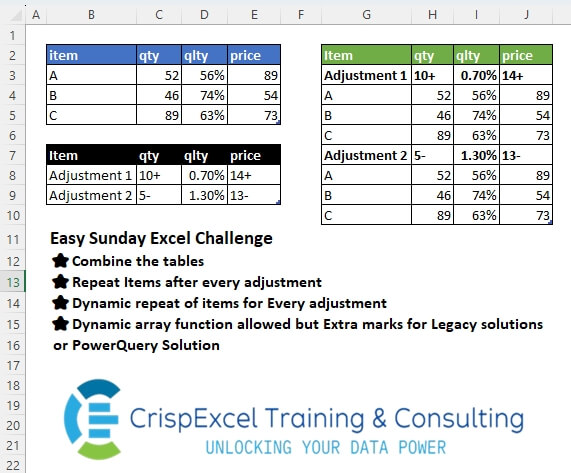
Combine the tables Repeat Items after every adjustment Dynamic repeat of items for Every adjustment Dynamic array function allowed but Extra marks for Legacy solutions or PowerQuery Solution
📌 Challenge Details and Links
Challenge Number: 54
Challenge Difficulty: ⭐⭐
📥Link to the solutions on LinkedIn
Solving the challenge of Combining Tables with Power Query
Power Query solution 1 for Combining Tables, proposed by Zoran Milokanović:
let
  Source = each Excel.CurrentWorkbook(){[Name = _]}[Content],
  A = Source("adjustments"),
  S = Table.FromRows(
    List.TransformMany(Table.ToRows(A), each {_} & Table.ToRows(Source("Items")), (i, _) => _),
    Table.ColumnNames(A)
  )
in
  S
Power Query solution 2 for Combining Tables, proposed by Kris Jaganah:
let
  A = (x) => Excel.CurrentWorkbook(){[Name = x]}[Content],
  B = A("adjustments"),
  C = Table.Combine(
    List.Transform(
      List.Positions(B[Item]),
      each Table.FromRecords(
        List.Combine({{B{_}}, Table.ToRecords(Table.RenameColumns(A("Items"), {"item", "Item"}))})
      )
    )
  )
in
  C
Power Query solution 3 for Combining Tables, proposed by Aditya Kumar Darak 🇮🇳:
let
  Items     = Excel.CurrentWorkbook(){[Name = "Items"]}[Content],
  Rename    = Table.RenameColumns(Items, {{"item", "Item"}}),
  Adjust    = Excel.CurrentWorkbook(){[Name = "adjustments"]}[Content],
  Split     = Table.Split(Adjust, 1),
  Transform = List.Transform(Split, each _ & Rename),
  Return    = Table.Combine(Transform)
in
  Return
Power Query solution 4 for Combining Tables, proposed by Alejandro Simón 🇵🇦 🇪🇸:
let
  Tbl1 = Excel.CurrentWorkbook(){[Name = "Items"]}[Content],
  Tbl2 = Excel.CurrentWorkbook(){[Name = "adjustments"]}[Content],
  Join = List.Combine(List.Transform(Table.ToRows(Tbl2), (x) => {x} & Table.ToRows(Tbl1))),
  Sol  = Table.FromRows(Join, Table.ColumnNames(Tbl2))
in
  Sol
Power Query solution 5 for Combining Tables, proposed by Luan Rodrigues:
let
  Fonte = Table.Combine(
    List.Transform(
      {0 .. Table.RowCount(adjustments) - 1},
      each Table.FromRecords({adjustments{_}}) & Table.RenameColumns(Items, {"item", "Item"})
    )
  )
in
  rst
Power Query solution 6 for Combining Tables, proposed by Brian Julius:
let
  Items = Table.RenameColumns(Excel.CurrentWorkbook(){[Name = "Items"]}[Content], {"item", "Item"}),
  Adjusts = Excel.CurrentWorkbook(){[Name = "adjustments"]}[Content],
  Head = Table.ColumnNames(Adjusts),
  Split = List.Transform(Table.Split(Adjusts, 1), each _ & Items),
  Assemble = Table.ExpandTableColumn(
    Table.FromList(Split, Splitter.SplitByNothing(), {"X"}),
    "X",
    Head,
    Head
  )
in
  Assemble
Power Query solution 7 for Combining Tables, proposed by Bhavya Gupta:
let
  Source = Excel.CurrentWorkbook(),
  Output = Table.Combine(
    Table.TransformRows(
      Table.TransformColumnNames(Source{[Name = "adjustments"]}[Content], Text.Proper),
      each Table.FromRecords(
        {_}
          & Table.ToRecords(
            Table.TransformColumnNames(Source{[Name = "Items"]}[Content], Text.Proper)
          )
      )
    )
  )
in
  Output
Power Query solution 8 for Combining Tables, proposed by 🇮🇷 Navid Esmaeilzadeh اسماعیل زاده:
let
  S2 = Excel.CurrentWorkbook(){[Name = "Items"]}[Content],
  S21 = Table.RenameColumns(S2, {{"item", "Item"}}),
  S1 = Excel.CurrentWorkbook(){[Name = "adjustments"]}[Content],
  A = Table.FromColumns(
    {
      List.Accumulate(
        {0 .. Table.RowCount(S1) - 1},
        {},
        (S, C) =>
          S
            & {
              Table.PromoteHeaders(
                Table.Transpose(Record.ToTable(S1{C})),
                [PromoteAllScalars = true]
              )
            }
      )
    }
  ),
  B = Table.AddColumn(A, "T", each Table.Combine({[Column1], S21})),
  C = Table.Combine(B[T]),
  D = Table.TransformColumnTypes(C, {{"qlty", Percentage.Type}})
in
  D
Power Query solution 9 for Combining Tables, proposed by Ahmed Ariem:
let
  A = Excel.CurrentWorkbook(){[Name = "adjustments"]}[Content],
  B = Table.RenameColumns(Excel.CurrentWorkbook(){[Name = "Items"]}[Content], {{"item", "Item"}}),
  Combine = Table.InsertRows(A, 1, Table.ToRecords(B)) & B
in
  Combine
Power Query solution 10 for Combining Tables, proposed by Ahmed Ariem:
let
  A = Excel.CurrentWorkbook(){[Name = "adjustments"]}[Content],
  B = Table.RenameColumns(Excel.CurrentWorkbook(){[Name = "Items"]}[Content], {{"item", "Item"}}),
  Combine = Table.Combine(List.Transform(Table.Split(A, 1), (x) => x & B))
in
  Combine
Power Query solution 11 for Combining Tables, proposed by Krzysztof Kominiak:
let
  Source = Table.RenameColumns(
    Excel.CurrentWorkbook(){[Name = "Items"]}[Content],
    {{"item", "Item"}}
  ),
  Source2 = Excel.CurrentWorkbook(){[Name = "adjustments"]}[Content],
  Result = Table.Skip(
    List.Accumulate(
      {0 .. Table.RowCount(Source2) - 1},
      Source2,
      (s, c) => s & Table.FirstN(Table.Skip(s, c), 1) & Source
    ),
    Table.RowCount(Source2)
  )
in
  Result
Solving the challenge of Combining Tables with Excel
Excel solution 1 for Combining Tables, proposed by Rick Rothstein:
=LET(
   h,
   B2:E2,
   g,
   B3:E5,
   a,
   B8:E9,
   REDUCE(
       h,
       SEQUENCE(
           ROWS(
               a)),
       LAMBDA(
           w,
           x,
           VSTACK(
               w,
               INDEX(
                   a,
                   x,
                   {1,
                   2,
                   3,
                   4}),
               g))))

If you want the output to be self-adjusting,
    make the two "tables" into real tables (name the top one Data and the bottom one Adjust and then use this formula...

=LET(
   h,
   Data[
   hashtag
   #Headers],
   g,
   Data,
   a,
   Adjust,
   REDUCE(
       h,
       SEQUENCE(
           ROWS(
               a)),
       LAMBDA(
           w,
           x,
           VSTACK(
               w,
               INDEX(
                   a,
                   x,
                   {1,
                   2,
                   3,
                   4}),
               g))))
Excel solution 2 for Combining Tables, proposed by Kris Jaganah:
=REDUCE(
   Items[
   hashtag
   #Headers],
   SEQUENCE(
       ROWS(
           adjustments)),
   LAMBDA(
       x,
       y,
       VSTACK(
           x,
           VSTACK(
               INDEX(
                   adjustments,
                   y,
                   ),
               Items))))
Excel solution 3 for Combining Tables, proposed by Julian Poeltl:
=LET(
   T,
   Items,
   TT,
   adjustments,
   REDUCE(
       adjustments[
       hashtag
       #Headers],
       SEQUENCE(
           ROWS(
               TT)),
       LAMBDA(
           A,
           B,
           VSTACK(
               A,
               CHOOSEROWS(
                   TT,
                   B),
               T))))
Excel solution 4 for Combining Tables, proposed by Aditya Kumar Darak 🇮🇳:
=REDUCE(

    Items[
   hashtag
   #Headers],

    SEQUENCE(
        ROWS(
            adjustments)),

    LAMBDA(
        a,
         b,
         VSTACK(
             a,
              CHOOSEROWS(
                  adjustments,
                   b),
              Items))
   )
Excel solution 5 for Combining Tables, proposed by Oscar Mendez Roca Farell:
=LET(
   a,
    adjustments,
    REDUCE(
        B2:E2,
         SEQUENCE(
             ROWS(
                 a)),
         LAMBDA(
             i,
              x,
              VSTACK(
                  i,
                   INDEX(
                       a,
                        x,
                       ),
                   Items))))

Legacy:
=IF(MOD(
   ROW(
       A1)+3,
   4),
   INDEX(
       Items,
       MOD(
   ROW(
       A1)+3,
   4),
       COLUMNS(
           $G$3:G$3)),
   INDEX(adjustments,
   INT((ROW(
       A1)-1)/4)+1,
   COLUMNS(
           $G$3:G$3)))
Excel solution 6 for Combining Tables, proposed by Sunny Baggu:
=REDUCE(

    Items[
   hashtag
   #Headers],

    SEQUENCE(
        ROWS(
            adjustments)),

    LAMBDA(
        a,
         v,

         VSTACK(
             a,
              VSTACK(
                  INDEX(
                      adjustments,
                       v,
                       ),
                   Items))
         )
   )
Excel solution 7 for Combining Tables, proposed by Hamidi Hamid:
=VSTACK(
   B2:E2,
   VSTACK(
       VSTACK(
           B8:E8,
           B3:E5),
       VSTACK(
           B9:E9,
           B3:E5)))
Excel solution 8 for Combining Tables, proposed by Asheesh Pahwa:
=LET(
   I,
   B3:E5,
   REDUCE(
       B2:E2,
       SEQUENCE(
           2),
       LAMBDA(
           x,
           y,
           VSTACK(
               x,

               VSTACK(
                   INDEX(
                       B8:E9,
                       y,
                       ),
                   I)))))
Excel solution 9 for Combining Tables, proposed by Ankur Sharma:
=LET(
   TJ,
    TEXTJOIN,

   i,
    TJ(
        "; ",
         ,
         BYROW(
             Items,
              LAMBDA(
                  z,
                   TJ(
                       ", ",
                        ,
                        z)))),

   o,
    BYROW(
       adjustments,
        LAMBDA(
            z,
             TJ(
                 ", ",
                  ,
                  z))),

   a,
    TEXTSPLIT(
        TJ(
            "; ",
             ,
             MAP(
                 o,
                  LAMBDA(
                      z,
                       z & "; " & i))),
         ", ",
         ";"),

   IFERROR(
       a * 1,
        a))
Excel solution 10 for Combining Tables, proposed by Peter Bartholomew:
=VSTACK(

    CHOOSEROWS(
        adjustments,
         1),
    Items,

    CHOOSEROWS(
        adjustments,
         2),
    Items
   )
For a moderate number of adjustments I would use REDUCE/VSTACK.

The next solution tests a module I published to
https://gist.github.com/pbartxl/a14b250985da31be843ce9ff35d888fc
I converted each row from 'adjustments' and the 'item' table to functions. I then used EXPAND to append the table to each adjustment and TOCOL to rearrange it.

Then close ones eyes,
    call EVALTHUNKARRλ and the magic happens.
=LET(
adjustmentsϑ,
    BYROW(
        adjustments,
         THUNK),

itemsϑ,
    THUNK(
        Items),

listϑ,
    TOCOL(
        EXPAND(
            adjustmentsϑ,
             ,
             2,
             itemsϑ)),

EVALTHUNKARRλ(listϑ))
Solving the challenge of Combining Tables with Python
Python solution 1 for Combining Tables, proposed by Luan Rodrigues:
PY Solution!
import pandas as pd
file = "Excel Challenge Dec 1st.xlsx"
items = pd.read_excel(file,usecols='B:E',skiprows=1,nrows=3)
adjustments = pd.read_excel(file,usecols='B:E',skiprows=6,nrows=2)
for i in range(len(adjustments)):
 result = pd.concat([adjustments.iloc[[i]], items.rename(columns={"item":"Item"})], ignore_index=True)
 print(result)
Solving the challenge of Combining Tables with Python in Excel
Python in Excel solution 1 for Combining Tables, proposed by Aditya Kumar Darak 🇮🇳:
#PythonInExcel
data1 = xl("Items[
#All]", headers=True)
data1 = data1.rename(columns={"item": "Item"})
data2 = xl("adjustments[
#All]", headers=True)
Split = np.array_split(data2, len(data2))
Append = [pd.concat([i, data1], ignore_index=True) for i in Split]
Result = pd.concat(Append, ignore_index=True)
Result