
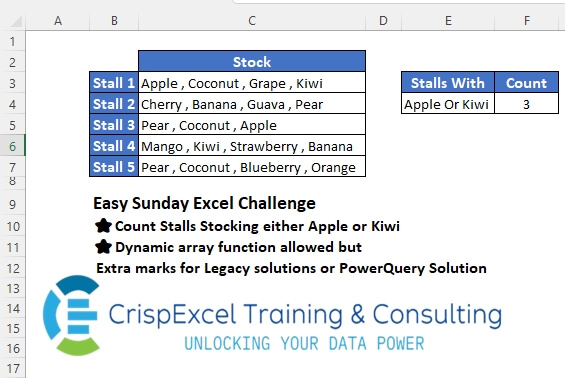
Count Stalls Stocking either Apple or Kiwi Dynamic array function allowed, but Extra marks for Legacy solutions or PowerQuery Solution
📌 Challenge Details and Links
Challenge Number: 42
Challenge Difficulty: ⭐
📥Link to the solutions on LinkedIn
Solving the challenge of Counting TextString with Power Query
Power Query solution 1 for Counting TextString, proposed by Zoran Milokanović:
let
  Source = Excel.CurrentWorkbook(){[Name = "Input"]}[Content],
  L = {"Apple", "Kiwi"},
  S = Table.Group(
    Source,
    {},
    {
      {"Stalls With", each Text.Combine(L, " Or ")},
      {
        "Count",
        each Table.RowCount(
          Table.SelectRows(_, each List.ContainsAny(Text.Split([Stock], " , "), L))
        )
      }
    }
  )
in
  S
Power Query solution 2 for Counting TextString, proposed by Zoran Milokanović:
let
  Source = Excel.CurrentWorkbook(){[Name = "Input"]}[Content],
  S = Table.FromRows(
    List.TransformMany(
      {{"Apple", "Kiwi"}},
      each {
        List.Count(
          List.Select(Table.ToRows(Source), (s) => List.ContainsAny(Text.Split(s{1}, " , "), _))
        )
      },
      (i, _) => {Text.Combine(i, " Or "), _}
    ),
    {"Stalls With", "Count"}
  )
in
  S
Power Query solution 3 for Counting TextString, proposed by Kris Jaganah:
let
  Source = Excel.CurrentWorkbook(){[Name = "Table1"]}[Content],
  Filter = List.Count(
    Table.SelectRows(Source, each Text.Contains([Stock], "Apple") or Text.Contains([Stock], "Kiwi"))[
      Stock
    ]
  )
in
  Filter
Power Query solution 4 for Counting TextString, proposed by Kris Jaganah:
let
  S = (x) => Excel.CurrentWorkbook(){[Name = x]}[Content],
  B = Table.TransformColumns(S("Table2"), {"Stalls With", each Text.Split(_, " Or ")})[Stalls With]{
    0
  },
  C = Table.RowCount(
    Table.SelectRows(S("Table1"), each List.ContainsAny(B, Text.Split([Stock], " , ")))
  )
in
  C
Power Query solution 5 for Counting TextString, proposed by Alejandro Simón 🇵🇦 🇪🇸:
let
  T1 = Excel.CurrentWorkbook(){[Name = "Table1"]}[Content],
  Stalls = List.Transform(T1[Stock], each List.Transform(Text.Split(_, ", "), Text.Trim)),
  T2 = Excel.CurrentWorkbook(){[Name = "Table2"]}[Content],
  Sel = Table.TransformColumns(T2, {"Stalls With", each Text.Split(_, " Or ")})[Stalls With]{0},
  Sol = List.Count(
    List.Distinct(
      List.Combine(List.Transform(Sel, (x) => List.Select(Stalls, each List.Contains(_, x))))
    )
  )
in
  Sol
Power Query solution 6 for Counting TextString, proposed by Brian Julius:
let
  Source = Excel.CurrentWorkbook(){[Name = "Table2"]}[Content],
  FruitList = List.Transform(Source[Stalls With], each Text.Split(_, " Or ")),
  Main = Excel.CurrentWorkbook(){[Name = "Table1"]}[Content],
  Contains = Table.AddColumn(
    Main,
    "AnyIn",
    each [
      a = Text.Split([Stock], " , "),
      b = FruitList{0},
      c = if List.ContainsAny(a, b) then 1 else 0
    ][c]
  ),
  Group = Table.Group(
    Contains,
    {},
    {{"Stalls With", each List.Max(Source[Stalls With])}, {"Count", each List.Sum([AnyIn])}}
  )
in
  Group
Power Query solution 7 for Counting TextString, proposed by Abdallah Ally:
let
 Source = Excel.CurrentWorkbook(){[Name = "Table1"]}[Content],
 Select = List.Select(
 Source[Stock],
 each List.ContainsAny(Text.Split(_, " , "), {"Apple", "Kiwi"})
 ),
 Result =
hashtag
#table(
 type table [#"Stalls With" = text, Count = number],
 {{"Apple or Kiwi", List.Count(Select)}}
 )
in
 Result
Power Query solution 8 for Counting TextString, proposed by Md. Shah Alam, Microsoft Certified Trainer:
let
  Source = Excel.CurrentWorkbook(){[Name = "Table1"]}[Content],
  #"Changed Type" = Table.TransformColumnTypes(
    Source,
    {{"Stall Name", type text}, {"Stock", type text}}
  ),
  #"Added Custom" = Table.AddColumn(
    #"Changed Type",
    "Custom",
    each if Text.Contains([Stock], "Apple") or Text.Contains([Stock], "Kiwi") then 1 else 0
  ),
  #"Filtered Rows" = Table.SelectRows(#"Added Custom", each ([Custom] = 1)),
  #"Counted Rows" = Table.RowCount(#"Filtered Rows")
in
  #"Counted Rows"
Power Query solution 9 for Counting TextString, proposed by Pavel Adam:
let
 lItems = {"Kiwi", "Apple"},
 PQ_magic_here = List.Transform(
 inputData[Stock],
 each [
 actStock = _,
 actStockList = Text.Split(actStock, " , "),
 out =
 if List.AnyTrue(List.Transform(actStockList, each List.Contains(lItems, _))) then
 1
 else
 null
 ][out]
 ),
 out =
hashtag
#table(
 type table [#"Stalls with" = Text.Type, Count = Int64.Type],
 {{Text.Combine(lItems, " or "), List.Sum(PQ_magic_here)}}
 )
in
 out
Power Query solution 10 for Counting TextString, proposed by N’rele Ferdinand Attobra:
let
  tab = (x) => Excel.CurrentWorkbook(){[Name = x]}[Content],
  fruit_list = Table.ExpandListColumn(
    Table.TransformColumns(
      tab("Table1"),
      {
        {
          "Stalls With",
          Splitter.SplitTextByDelimiter(" Or ", QuoteStyle.Csv),
          let
            itemType = (type nullable text) meta [Serialized.Text = true]
          in
            type {itemType}
        }
      }
    ),
    "Stalls With"
  )[Stalls With],
  Sum = List.Sum(
    Table.AddColumn(
      tab("Table2"),
      "Count",
      each
        if List.AnyTrue(List.Transform(fruit_list, (x) => Text.Contains([Stock], x))) then
          1
        else
          0
    )[Count]
  )
in
  Sum
Power Query solution 11 for Counting TextString, proposed by Nelson Mwangi:
let
  Criteria = List.Transform(
    Text.Split(Excel.CurrentWorkbook(){[Name = "Criteria"]}[Content]{0}[Column1], "Or"),
    each Text.Trim(_)
  ),
  Source = Excel.CurrentWorkbook(){[Name = "Table1"]}[Content],
  SplitToRows = Table.ExpandListColumn(
    Table.TransformColumns(Source, {"Stock", Splitter.SplitTextByDelimiter(",")}),
    "Stock"
  ),
  Trim = Table.TransformColumns(SplitToRows, {{"Stock", Text.Trim, type text}}),
  FilterCriteria = Table.SelectRows(Trim, each [Stock] = Criteria{0} or [Stock] = Criteria{1}),
  RowCount = Table.RowCount(Table.Distinct(FilterCriteria, {"Column1"}))
in
  RowCount
Power Query solution 12 for Counting TextString, proposed by Chiyesu K.:
let
  Source = Excel.CurrentWorkbook(){[Name = "Table2"]}[Content],
  #"Changed Type" = Table.TransformColumnTypes(Source, {{"Fruits", type text}}),
  #"Added Custom" = Table.AddColumn(
    #"Changed Type",
    "ContainsAppleKiwi",
    each if Text.Contains([Fruits], "Apple") or Text.Contains([Fruits], "Kiwi") then 1 else 0
  ),
  #"Filtered Rows" = Table.SelectRows(#"Added Custom", each ([ContainsAppleKiwi] = 1)),
  #"Counted Rows" = Table.RowCount(#"Filtered Rows")
in
  #"Counted Rows"
Solving the challenge of Counting TextString with Excel
Excel solution 1 for Counting TextString, proposed by Rick Rothstein:
=SUM(0+(LEN(
   SUBSTITUTE(
       SUBSTITUTE(
           C3:C7,
           "Apple",
           ""),
       "Kiwi",
       ""))
Excel solution 2 for Counting TextString, proposed by محمد حلمي:
=SUM(
   N(
       MMULT(
           1-ISERR(
               FIND(
                   TEXTSPLIT(
                       E4,
                       " Or "),
                   C3:C7)),
           {1;1})>0))
Excel solution 3 for Counting TextString, proposed by 🇰🇷 Taeyong Shin:
=SUM(
   --REGEXTEST(
       C3:C7,
        "Apple|Kiwi"))
=COUNT(1 / (TEXTSPLIT(
   C3:C7,
    {"Apple",
   "Kiwi"},
    ,
    1) < C3:C7))
Legacy
=COUNT(
   1 / MMULT(
       --ISNUMBER(
           SEARCH(
               {"Apple",
               "Kiwi"},
                C3:C7)),
        {1;1}))
Excel solution 4 for Counting TextString, proposed by Kris Jaganah:
=SUM(
   N(
       MAP(
           C3:C7,
           LAMBDA(
               x,
               SUM(
                   N(
                       IFERROR(
                           FIND(
                               TEXTSPLIT(
                                   E4,
                                   " Or "),
                               x),
                           0)>0))))>0))
Excel solution 5 for Counting TextString, proposed by Julian Poeltl:
=SUM(--((ISNUMBER(
   SEARCH(
       TEXTBEFORE(
           E4,
           " Or"),
       C3:C7))+ISNUMBER(
   SEARCH(
       TEXTAFTER(
           E4,
           "Or "),
       C3:C7)))>0))
Excel solution 6 for Counting TextString, proposed by Aditya Kumar Darak 🇮🇳:
=SUM(
   COUNTIFS(
       C3:C7,
        {"*Apple*",
        "*Kiwi*"})) -
COUNTIFS(
    C3:C7,
     "*Apple*",
     C3:C7,
     "*Kiwi*")
Excel solution 7 for Counting TextString, proposed by Hussein SATOUR:
=SUM((ISERR(
   FIND(
       "Apple",
       C3:C7))+ISERR(
   FIND(
       "Kiwi",
       C3:C7))<2)*1)
Excel solution 8 for Counting TextString, proposed by Oscar Mendez Roca Farell:
=COUNT(
   MMULT(
       IFERROR(
           FIND(
               MID(
                   E4,
                    {1,
                    9},
                    5),
                C3:C7),
            ),
        {1; 1})^0)
Excel solution 9 for Counting TextString, proposed by Sunny Baggu:
=SUM(

    N(

         MAP(

              C3:C7,

              LAMBDA(
                  a,

                   SUM(

                        N(

                             TEXTSPLIT(
                                 a,
                                  " , ") =
                             TEXTSPLIT(
                                 E4,
                                  ,
                                  " or ",
                                  ,
                                  1)
                             )
                        )
                   )
              ) > 0
         )
   )
Excel solution 10 for Counting TextString, proposed by Sunny Baggu:
=SUM(

    SIGN(

         BYROW(

              --ISNUMBER(
                  SEARCH(
                      TEXTSPLIT(
                          E4,
                           " or ",
                           ,
                           ,
                           1),
                       C3:C7)),

              LAMBDA(
                  a,
                   SUM(
                       a))
              )
         )
   )
Excel solution 11 for Counting TextString, proposed by Pieter de B.:
=SUM(1-(MMULT(
   1-ISERR(
       FIND(
           ", "&{"Apple",
           "Kiwi"}&" ,",
           ", "&C3:C7&" ,")),
   {1;1})=0))
Or more dynamic:
=SUM(
   N(
       BYROW(
           1-ISERR(
               FIND(
                   ", "&TEXTSPLIT(
                       E4,
                       " Or ")&" ,",
                   ", "&C3:C7&" ,")),
           SUM)))
Excel solution 12 for Counting TextString, proposed by Hamidi Hamid:
=LET(
   x,
   IFERROR(
       DROP(
           REDUCE(
               "",
               C3:C7,
               LAMBDA(
                   a,
                   b,
                   VSTACK(
                       IFNA(
                           a,
                           ""),
                       TEXTSPLIT(
                           b,
                           ",",
                           1,
                           )))),
           1),
       0),
   SUM(
       BYROW(
           TRIM(
               x),
           LAMBDA(
               a,
               SUM(
                   IF(
                       OR(
                           a="Apple",
                           a="kiwi"),
                       1,
                       0))))))
Excel solution 13 for Counting TextString, proposed by Asheesh Pahwa:
=LET(
   d,
   DROP(
       REDUCE(
           "",
           C3:C7,
           LAMBDA(
               x,
               y,

               VSTACK(
                   x,
                   LET(
                       t,
                       TEXTSPLIT(
                           y,
                           ,
                           ", "),
                       SUM(
                           MAP(
                               {"Apple";"Kiwi"},
                               LAMBDA(
                                   z,

                                   SUM(
                                       --ISNUMBER(
                                           FIND(
                                               z,
                                               t)))))))))),
       1),
   SUM(
       N(
           d>0)))
Excel solution 14 for Counting TextString, proposed by Asheesh Pahwa:
=LET(
   s,
   C3:C7,
   _f,
   ISNUMBER(
       FIND(
           "Apple",
           s)),

   _f1,
   ISNUMBER(
       FIND(
           "Kiwi",
           s)),
   b,
   BYROW(
       HSTACK(
           _f,
           _f1),
       LAMBDA(
           x,
           OR(
               x))),
   SUM(
       N(
           b)))
Excel solution 15 for Counting TextString, proposed by Ankur Sharma:
=LET(
   a,
    TEXTSPLIT(
        E4,
         " Or "),
    SUM(
        MAP(
            C3:C7,
             LAMBDA(
                 z,
                  MIN(
                      1,
                       COUNT(
                           MAP(
                               a,
                                LAMBDA(
                                    y,
                                     SEARCH(
                                         y,
                                          z)))))))))
Excel solution 16 for Counting TextString, proposed by JvdV -:
=SUM(
   N(
       REGEXTEST(
           C3:C7,
           "Kiwi|Apple")))
Excel solution 17 for Counting TextString, proposed by Eddy Wijaya:
=SUM(
   BYROW(
       C3:C7,
       LAMBDA(
           r,
           MAX(
               IF(
                   ISERR(
                       SEARCH(
                           {"Apple",
                           "Kiwi"},
                           r)),
                   0,
                   1)))))
Excel solution 18 for Counting TextString, proposed by Gerson Pineda:
=SUM(
   --MAP(
       C3:C7,
       LAMBDA(
           x,
           COUNT(
               1/FIND(
                   {"apple",
                   "kiwi"},
                   x))>0)))
Excel solution 19 for Counting TextString, proposed by Mey Tithveasna:
=SUM(--(ISNUMBER(
   SEARCH(
       "Apple",
        C3:C7)) + ISNUMBER(
   SEARCH(
       "Kiwi",
        C3:C7)) > 0))
Excel solution 20 for Counting TextString, proposed by Milan Shrimali:
=a)+(x=b)),
   "-"))),

sum(
   BYROW(
       final,
       lambda(
           x,
           countif(
               len(
                   x)>1,
               true)))))
Excel solution 21 for Counting TextString, proposed by El Badlis Mohd Marzudin:
=SUM(
   N(
       BYROW(
           IFERROR(
               SEARCH(
                   {"Apple",
                   "Kiwi"},
                   C3:C7),
               0),
           SUM)>0))
Excel solution 22 for Counting TextString, proposed by Md. Shah Alam, Microsoft Certified Trainer:
=LET(
   y,
   MAP(
       C3:C7,
       LAMBDA(
           x,
           SUM(
               N(
                   ISNUMBER(
                       SEARCH(
                           {"Apple",
                           "Kiwi"},
                           x)))))),
   COUNT(
       FILTER(
           y,
           y>0)))
Excel solution 23 for Counting TextString, proposed by Philip Kinuthia:
=SUM(((ISNUMBER(
   SEARCH(
       "apple",
       C3:C7))+ISNUMBER(
   SEARCH(
       "kiwi",
       C3:C7)))>0)+0)
2. =SUMPRODUCT(((ISNUMBER(
   SEARCH(
       "apple",
       C3:C7))+ISNUMBER(
   SEARCH(
       "kiwi",
       C3:C7)))>0)+0,
   ISNUMBER(
       SEARCH(
           "stall",
           B3:B7))+0)
Excel solution 24 for Counting TextString, proposed by Petya Koleva:
=COUNTA(FILTER(B3:B7,
   (IFERROR(
       FIND(
           "Apple",
           C3:C7),
       0)>0)+(IFERROR(
       FIND(
           "Kiwi",
           C3:C7),
       0)>0)))
Excel solution 25 for Counting TextString, proposed by N'rele Ferdinand Attobra:
=SUM(
   N(
       BYROW(
           --ISNUMBER(
               SEARCH(
                   TEXTSPLIT(
                       E4,
                       " Or "),
                   C3:C7)),
           SUM)>=1))
Solving the challenge of Counting TextString with Python
Python solution 1 for Counting TextString, proposed by Konrad Gryczan, PhD:
import pandas as pd
path = "files/Excel Challenge September 8th.xlsx"
input = pd.read_excel(path, usecols = "B:C", skiprows = 1, nrows = 5, names = ["Stall","Stock"])
search_vec = ["Apple", "Kiwi"]
result = input
result["Stock"] = result["Stock"].str.replace(" ", "").str.split(",")
result = result.explode("Stock")
result = result[result["Stock"].isin(search_vec)]["Stall"].nunique()
print(result) # 3
# True
Solving the challenge of Counting TextString with Python in Excel
Python in Excel solution 1 for Counting TextString, proposed by Ümit Barış Köse, MSc:
My
df=xl("C2:C7", headers=True)
col_name = 'Stock'
count = df[col_name].apply(lambda x: 'Kiwi' in str(x) or 'Apple' in str(x)).sum()
Python in Excel solution 2 for Counting TextString, proposed by George Mount:
# Import
df = xl("B2:C7", headers=True)
# Split into list
df['Stock'] = df['Stock'].apply(lambda x: x.split(' , '))
df
# Check if Apple or Kiwi in fruits
has_apple_kiwi = df['Stock'].apply(lambda fruits: 'Apple' in fruits or 'Kiwi' in fruits)
count_apple_kiwi_booths = has_apple_kiwi.sum()
Solving the challenge of Counting TextString with R
R solution 1 for Counting TextString, proposed by Konrad Gryczan, PhD:
library(tidyverse)
library(readxl)
path = "files/Excel Challenge September 8th.xlsx"
input = read_excel(path, range = "B2:C7")
search_vec = list("Apple", "Kiwi")
result = input %>%
 mutate(Stock = str_remove_all(Stock, "\s") %>% str_split(",")) %>%
 mutate(Found = map_lgl(Stock, ~any(search_vec %in% .x))) %>%
 summarise(Count = sum(Found))
result
#  3
#
#  True
Solving the challenge of Counting TextString with DAX
DAX solution 1 for Counting TextString, proposed by Ümit Barış Köse, MSc:
My
#DAX Solution
Count =
CALCULATE(
 COUNTROWS(Table1),
 FILTER(
 Table1,
 CONTAINSSTRING(Table1[Stock], "Kiwi") || CONTAINSSTRING(Table1[Stock], "Apple")
 )
)