
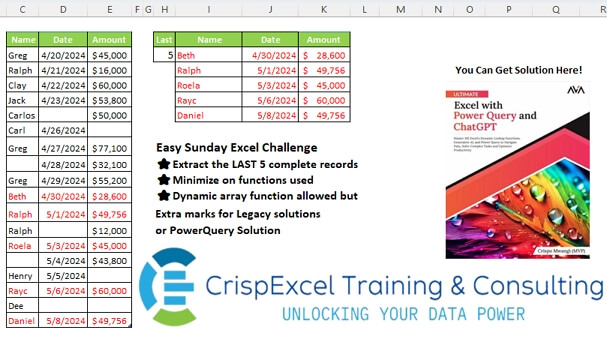
Extract the LAST 5 complete records Minimize on functions used Dynamic array function allowed, but Extra marks for Legacy solutions or PowerQuery Solution
📌 Challenge Details and Links
Challenge Number: 28
Challenge Difficulty: ⭐
📥Link to the solutions on LinkedIn
Solving the challenge of Extract Complete Data with Power Query
Power Query solution 1 for Extract Complete Data, proposed by Aditya Kumar Darak 🇮🇳:
let
  Source = Excel.CurrentWorkbook(){[Name = "tblSales"]}[Content],
  N = 5,
  RemoveBlanks = Table.SelectRows(
    Source,
    each not List.ContainsAny(Record.FieldValues(_), {null, ""})
  ),
  Return = Table.LastN(RemoveBlanks, N)
in
  Return
Power Query solution 2 for Extract Complete Data, proposed by Alejandro Simón 🇵🇦 🇪🇸:
let
  Source = Excel.CurrentWorkbook(){[Name = "tblSales"]}[Content],
  Sol = Table.LastN(
    Table.SelectRows(
      Source,
      each List.Count(List.RemoveNulls(Record.ToList(_))) = List.Count(Table.ColumnNames(Source))
    ),
    5
  )
in
  Sol
Power Query solution 3 for Extract Complete Data, proposed by Brian Julius:
let
  Source = Table.TransformColumnTypes(Excel.CurrentWorkbook()[Content]{0}, {"Date", Date.Type}),
  NumBotRows = 5,
  Clean = Table.LastN(
    Table.RemoveRowsWithErrors(
      Table.FromRows(
        List.Transform(Table.ToRows(Source), each if List.Contains(_, null) then null else _),
        Table.ColumnNames(Source)
      )
    ),
    5
  )
in
  Clean
Power Query solution 4 for Extract Complete Data, proposed by Ramiro Ayala Chávez:
let
  S    = Excel.CurrentWorkbook(){[Name = "Table1"]}[Content],
  Last = 5,
  a    = List.LastN(List.Select(Table.ToRows(S), each not List.Contains(_, null)), Last),
  b    = {Last} & List.Repeat({null}, List.Count(a) - 1),
  c    = List.InsertRange(List.Zip(a), 0, {b}),
  Sol  = Table.FromColumns(c, {"Last"} & Table.ColumnNames(S))
in
  Sol
Power Query solution 5 for Extract Complete Data, proposed by Ankur Sharma:
let
 Source = Excel.CurrentWorkbook(){[Name="tblSales"]}[Content],
 #"Changed Type" = Table.TransformColumnTypes(Source,{{" Name", type text}, {"Date", type date}, {"Amount", Int64.Type}}),

#"Remove Null Rows" = Table.SelectRows(#"Changed Type", each [#" Name"] <> null and [Date] <> null and [Amount] <> null),
 #"Get Last N Rows" = Table.LastN(#"Remove Null Rows", 5)
in
 #"Get Last N Rows"
Best Wishes!
Power Query solution 6 for Extract Complete Data, proposed by Nelson Mwangi:
let
  Source = Excel.CurrentWorkbook(){[Name = "tblSales"]}[Content],
  NonNullCols = Table.AddColumn(
    Source,
    "Count",
    each List.NonNullCount({[#" Name"], [Date], [Amount]})
  ),
  Last5Cols = Table.RemoveColumns(
    Table.LastN(Table.SelectRows(NonNullCols, each [Count] = 3), 5),
    "Count"
  )
in
  Last5Cols
Solving the challenge of Extract Complete Data with Excel
Excel solution 1 for Extract Complete Data, proposed by Rick Rothstein:
=TAKE(FILTER(C3:E20,
   (C3:C20<>"")*(D3:D20<>"")*(E3:E20<>"")),
   -H3)
Excel solution 2 for Extract Complete Data, proposed by محمد حلمي:
=TAKE(
FILTER(C3:E20,
   (C3:C20>0)*D3:D20*E3:E20),
   -5)
Excel solution 3 for Extract Complete Data, proposed by Kris Jaganah:
=TAKE(
   FILTER(
       tblSales3,
       BYROW(
           tblSales3,
           COUNTA)=3),
   -5)
Excel solution 4 for Extract Complete Data, proposed by Julian Poeltl:
=TAKE(FILTER(C3:E20,
   (C3:C20<>"")*D3:D20*E3:E20>0),
   -5)
Excel solution 5 for Extract Complete Data, proposed by Sunny Baggu:
=TAKE(

    FILTER(

         tblSales3,

         3 = MMULT(
             N(
                 tblSales3 <> ""),
              SEQUENCE(
                  3,
                   ,
                   1,
                   0))
         ),

    -5
   )
Excel solution 6 for Extract Complete Data, proposed by Sunny Baggu:
=TAKE(

    FILTER(

         tblSales3,

         BYROW(
             tblSales3 <> "",
              LAMBDA(
                  a,
                   AND(
                       a)))
         ),

    -5
   )
Excel solution 7 for Extract Complete Data, proposed by Sunny Baggu:
=CHOOSEROWS(

    FILTER(

         tblSales3,

         BYROW(
             tblSales3 <> "",
              LAMBDA(
                  a,
                   AND(
                       a)))
         ),

    -SEQUENCE(
        5,
         ,
         5,
         -1)
   )
Excel solution 8 for Extract Complete Data, proposed by Abdallah Ally:
=LET(
   a,
   C3:E20,
   TAKE(
       FILTER(
           a,
           BYROW(
               a,
               LAMBDA(
                   x,
                   AND(
                       x<>"")))),
       -5))
Excel solution 9 for Extract Complete Data, proposed by 🇵🇪 Ned Navarrete C.:
=TAKE(
   FILTER(
       tblSales,
       BYROW(
           tblSales,
           LAMBDA(
               r,
               NOT(
                   OR(
                       r=""))))),
   -H3)
Excel solution 10 for Extract Complete Data, proposed by Asheesh Pahwa:
=LET(
   d,
   DROP(
       REDUCE(
           "",
           SEQUENCE(
               ROWS(
                   C3:C20)),
           LAMBDA(
               x,
               y,
               VSTACK(
                   x,
                   LET(
                       I,
                       INDEX(
                           tblSales,
                           y,
                           ),

                       c,
                       COUNTA(
                           I)=3,
                       c)))),
       1),

   TAKE(
       FILTER(
           tblSales,
           d),
       -H3))
Excel solution 11 for Extract Complete Data, proposed by Asheesh Pahwa:
=LET(
   b,
   BYROW(
       tblSales,
       LAMBDA(
           x,
           AND(
               x<>""))),

   TAKE(
       FILTER(
           tblSales,
           b),
       -H3))
Excel solution 12 for Extract Complete Data, proposed by Ankur Sharma:
=LET(
   a,
    tblSales,
    b,
    BYROW(
        a,
         LAMBDA(
             z,
              COUNTA(
                  z) = 3)),
    TAKE(
        FILTER(
            a,
             b),
         -H3))
Excel solution 13 for Extract Complete Data, proposed by Meganathan Elumalai:
=INDEX($B$4:$D$21,
   LARGE(MODE.MULT(IFERROR(MATCH((ROW(
       $B$4:$D$21)-ROW(
       $B$4)+1),
   (MMULT(($B$4:$D$21<>"")*1,
   {1;1;1})=3)*(ROW(
       $B$4:$D$21)-ROW(
       $B$4)+1),
   {0,
   0}),
   "")),
   ($G$4-ROW(
       INDIRECT(
           "1:"&$G$4)))+1),
   {1,
   2,
   3})
Excel solution 14 for Extract Complete Data, proposed by Owen Price:
=TAKE(
   FILTER(
       C3:E20,
       BYROW(
           C3:E20<>"",
           AND)),
   -5)
Excel solution 15 for Extract Complete Data, proposed by Mey Tithveasna:
=TAKE(FILTER(C3:E20,
   (C3:C20<>"")*(D3:D20<>"")*(E3:E20<>"")),
   -H3)
Excel solution 16 for Extract Complete Data, proposed by Milan Shrimali:
=TAKE
(
FILTER($C$2:$E$19,

($C$2:$C$19<>"")*($D$2:$D$19<>"")*($E$2:$E$19<>"")),

-$H$5)
Excel solution 17 for Extract Complete Data, proposed by Mahmoud Bani Asadi:
=TAKE(FILTER(C3:E20,
   MMULT(--(C3:E20<>""),
   {1;1;1})=3),
   -H3)
Excel solution 18 for Extract Complete Data, proposed by Mahmoud Bani Asadi:
=INDEX(C1:E20,LARGE(ROW(
   C3:C20)*(MMULT(--(C3:E20<>""),{1;
   1;
   1})=3),{5;
   4;
   3;
   2;
   1}),{1,2,3})
Excel solution 19 for Extract Complete Data, proposed by Mohit Rawat:
=TAKE(FILTER(IF(
   ISBLANK(
       C3:E20)=FALSE,
   C3:E20,
   ""),
   (ISBLANK(
       C3:C20)=FALSE)*(ISBLANK(
       D3:D20)=FALSE)*(ISBLANK(
       E3:E20)=FALSE)),
   -5,
   3)
Solving the challenge of Extract Complete Data with Python
Python solution 1 for Extract Complete Data, proposed by Konrad Gryczan, PhD:
import pandas as pd
input = pd.read_excel("files/Excel Challenge 26th May.xlsx", usecols="C:E", skiprows = 1, nrows = 18)
test  = pd.read_excel("files/Excel Challenge 26th May.xlsx", usecols="I:K", skiprows = 1, nrows = 5)
result = input.dropna().tail(5).reset_index(drop=True)
result["Amount"] = result["Amount"].astype("int64")
test.columns = input.columns
print(result.equals(test)) # True
Solving the challenge of Extract Complete Data with Python in Excel
Python in Excel solution 1 for Extract Complete Data, proposed by Abdallah Ally:
import pandas as pd
file_path = 'Easy Excel Challenge 26th May.xlsx'
df = pd.read_excel(file_path, usecols='C:E', skiprows=1)
# Perform data wrangling
df = df.dropna().tail(5).reset_index(drop=True)
df['Date'] = df['Date'].dt.strftime('%d/%m/%Y')
df['Amount'] = df['Amount'].map(lambda x: f'${x:,.0f}')
df