
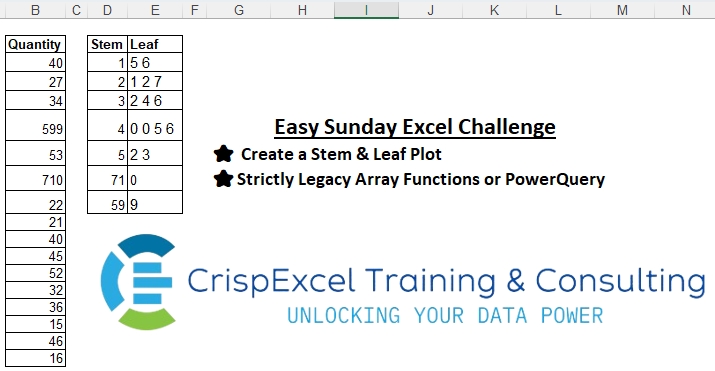
Create a Stem & Leaf Plot Strictly Legacy Array Functions or PowerQuery NB: A Stem and Leaf Plot is a special table where each data value is split into a “stem” (the first digit or digits) and a “leaf” (usually the last digit).
📌 Challenge Details and Links
Challenge Number: 1
Challenge Difficulty: ⭐⭐⭐
📥Download Sample File
📥Link to the solutions on LinkedIn
Solving the challenge of Creating the Stem & Leaf Report with Power Query
Power Query solution 1 for Creating the Stem & Leaf Report, proposed by Alejandro Simón 🇵🇦 🇪🇸:
let
  Source = Excel.CurrentWorkbook(){[Name = "Table1"]}[Content],
  Col = Table.Combine(
    Table.TransformColumns(
      Source,
      {
        "Quantity",
        each
          let
            a = Text.ToList(Text.From(_)),
            b = Table.FromColumns(
              {{Text.Combine(List.RemoveLastN(a))}, {List.Last(a)}},
              {"Stem", "A"}
            )
          in
            b
      }
    )[Quantity]
  ),
  Sol = Table.Sort(
    Table.Group(Col, {"Stem"}, {{"Leaf", each Text.Combine(List.Sort([A]), " ")}}),
    each List.Sum(List.Transform(Text.ToList([Stem]), Number.From))
  )
in
  Sol
Power Query solution 2 for Creating the Stem & Leaf Report, proposed by Nelson Mwangi:
let
  Source = Excel.CurrentWorkbook(){[Name = "Table1"]}[Content],
  Sort = Table.Sort(Source, {{"Quantity", Order.Ascending}}),
  Stem = Table.AddColumn(Sort, "Stem", each Number.RoundDown([Quantity] / 10)),
  Leaf = Table.AddColumn(Stem, "Leaf", each Number.Mod([Quantity], 10)),
  GroupedRows = Table.Group(
    Leaf,
    {"Stem"},
    {{"Leaf", each Text.Combine(List.Transform([Leaf], Text.From), " "), type text}}
  )
in
  GroupedRows
Solving the challenge of Creating the Stem & Leaf Report with Excel
Excel solution 1 for Creating the Stem & Leaf Report, proposed by محمد حلمي:
=IF(
   COLUMN(
       A1)=1,
   W,
   TRIM(

       INDEX(
           x,
           1)&INDEX(
           x,
           2)&INDEX(
           x,
           3)&INDEX(
           x,
           4)&
       INDEX(
           x,
           5)&INDEX(
           x,
           6)&INDEX(
           x,
           7)&INDEX(
           x,
           8)&
       INDEX(
           x,
           9)&INDEX(
           x,
           10)&INDEX(
           x,
           11)&INDEX(
           x,
           12)&
       INDEX(
           x,
           13)&INDEX(
           x,
           14)&INDEX(
           x,
           15)&INDEX(
           x,
           16)))

e refer to

=SMALL(
   --LEFT(
       Sheet1!$B$3:$B$18,
       LEN(
           Sheet1!$B$3:$B$18)-1),

   ROW(
           Sheet1!$B$3:$B$18)-2)


x refer to

=IFERROR(
   SMALL(
       IF(
           --LEFT(
               Sheet1!$B$3:$B$18,

               LEN(
                    Sheet1!$B$3:$B$18)-1)=W,
           --RIGHT(
           Sheet1!$B$3:$B$18),
           ""),

       ROW(
           Sheet1!$B$3:$B$18)-2),
   "")&" "

W refer to

=IFERROR(
   INDEX(
       e,
       SMALL(
           IF(
               FREQUENCY(
                   e,
                   e),

               ROW(
           Sheet1!$B$3:$B$18)-2),
           ROW(
               Sheet1!A1))),
   "")
Excel solution 2 for Creating the Stem & Leaf Report, proposed by Abdallah Ally:
=TRIM(
   SUBSTITUTE(
       TEXTJOIN(
           " ",
           ,
           IFERROR(
               INDEX(
                   IFERROR(
                       IF(
                           FIND(
                               D3,
                               $B$3:$B$18)=1,
                           --MID(
                               $B$3:$B$18,
                               LEN(
                                   D3)+1,
                               LEN(
                                   $B$3:$B$18)-LEN(
                                   D3)),
                           ""),
                       -1),
                   MATCH(
                       SMALL(
                           IFERROR(
                               IF(
                                   FIND(
                               D3,
                               $B$3:$B$18)=1,
                                   --MID(
                               $B$3:$B$18,
                               LEN(
                                   D3)+1,
                               LEN(
                                   $B$3:$B$18)-LEN(
                                   D3)),
                                   ""),
                               -1),
                           ROW(
                               1:16)),
                       IFERROR(
                           IF(
                               FIND(
                               D3,
                               $B$3:$B$18)=1,
                               --MID(
                               $B$3:$B$18,
                               LEN(
                                   D3)+1,
                               LEN(
                                   $B$3:$B$18)-LEN(
                                   D3)),
                               ""),
                           -1),
                       0)),
               "")),
       "-1",
       ""))
Excel solution 3 for Creating the Stem & Leaf Report, proposed by Abdallah Ally:
=MAP(
   D3:D9,
   LAMBDA(
       x,
       LET(
           a,
           B3:B18,
           b,
           IFERROR(
               IF(
                   FIND(
                       x,
                       a)=1,
                    RIGHT(
                        a,
                        LEN(
                            a)-LEN(
                            x)),
                   ""),
               -1),
           TEXTJOIN(
               " ",
               ,
               SORT(
                   FILTER(
                       b,
                       b>-1))))))
Excel solution 4 for Creating the Stem & Leaf Report, proposed by JvdV –:
=IF(
   COLUMN()=4,
   SMALL(
       FILTERXML(
           "<t><s>"&TEXTJOIN(
               "</s><s>",
               ,
               LEFT(
                   $B$3:$B$18,
                   LEN(
                       $B$3:$B$18)-1))&"</s></t>",
           "//s[not(preceding::*=.)]"),
       ROW()-2),
   TRIM(
       CONCAT(
           REPT(
               ROW(
                   $1:$10)-1&" ",
               COUNTIF(
                   $B$3:$B$18,
                   INDEX(
                       $D:$D,
                       ROW())&ROW(
                   $1:$10)-1)))))
Excel solution 5 for Creating the Stem & Leaf Report, proposed by Crispo Mwangi:
=REPT(
   "0 ",
   COUNTIF(
       $B$3:$B$16,
       D3*10))&
REPT(
   "1 ",
   COUNTIF(
       $B$3:$B$16,
       D3*10+1))&
REPT(
   "2 ",
   COUNTIF(
       $B$3:$B$16,
       D3*10+2))&
REPT(
   "3 ",
   COUNTIF(
       $B$3:$B$16,
       D3*10+3))&
REPT(
   "4 ",
   COUNTIF(
       $B$3:$B$16,
       D3*10+4))&
REPT(
   "5 ",
   COUNTIF(
       $B$3:$B$16,
       D3*10+5))&
REPT(
   "6 ",
   COUNTIF(
       $B$3:$B$16,
       D3*10+6))&
REPT(
   "7 ",
   COUNTIF(
       $B$3:$B$16,
       D3*10+7))&
REPT(
   "8 ",
   COUNTIF(
       $B$3:$B$16,
       D3*10+8))&
REPT(
   "9 ",
   COUNTIF(
       $B$3:$B$16,
       D3*10+9))
Solving the challenge of Creating the Stem & Leaf Report with Excel VBA
Excel VBA solution 1 for Creating the Stem & Leaf Report, proposed by محمد حلمي:
=IF(COLUMN(A1)=1,W,TEXTJOIN(" ",0,x))
W refer to
=IFERROR(INDEX(e,SMALL(IF(FREQUENCY(e,e),
ROW(Sheet1!$B$3:$B$18)-2),ROW(Sheet1!A1))),"")
e refer to
=SMALL(--LEFT(Sheet1!$B$3:$B$18,LEN(Sheet1!$B$3:$B$18)-1),
ROW(Sheet1!$B$3:$B$18)-2)
x refer to
=IFERROR(SMALL(IF(--LEFT(Sheet1!$B$3:$B$18,LEN( Sheet1!$B$3:$B$18)-1)=W,--RIGHT(Sheet1!$B$3:$B$18),""),
ROW(Sheet1!$B$3:$B$18)-2),"")
TEXTJOIN Custom Function
Code:
Function TEXTJOIN(delimiter As String, ignore_empty As Boolean, ParamArray textn() As Variant) As String
 Dim i
 Dim rng
 For Each rng In textn
 If IsObject(rng) Or IsArray(rng) Then
 For Each i In rng
 If Len(i) = 0 Then
 If Not ignore_empty Then
 TEXTJOIN = TEXTJOIN & i & delimiter
 End If
 Else
 TEXTJOIN = TEXTJOIN & i & delimiter
 End If
 Next
 Else
 If Len(rng) = 0 Then
 If Not ignore_empty Then
 TEXTJOIN = TEXTJOIN & rng & delimiter
 End If
 Else
 TEXTJOIN = TEXTJOIN & rng & delimiter
 End If
 End If
 Next
 TEXTJOIN = Left(TEXTJOIN, Len(TEXTJOIN) - 1)
End Function