
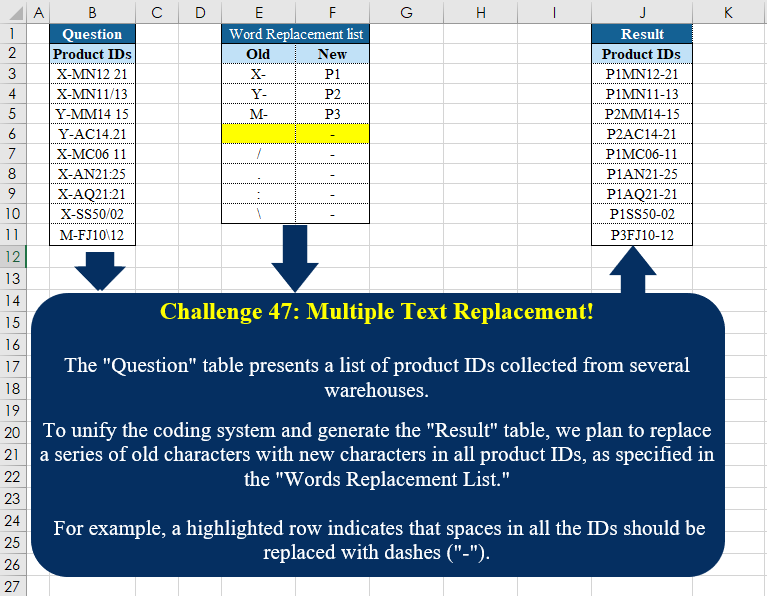
The “Question” table presents a list of product IDs collected from several warehouses. To unify the coding system and generate the “Result” table, we plan to replace a series of old characters with new characters in all product IDs, as specified in the “Words Replacement List.” For example, a highlighted row indicates that spaces in all the IDs should be replaced with dashes (“-“).
📌 Challenge Details and Links
Challenge Number: 47
Challenge Difficulty: ⭐⭐⭐
📥Download Sample File
📥Link to the solutions on LinkedIn
📥Link to the solution on YouTube
Solving the challenge of Multiple Text Replacement! with Power Query
Power Query solution 1 for Multiple Text Replacement!, proposed by Zoran Milokanović:
let
  Source = each Excel.CurrentWorkbook(){[Name = _]}[Content],
  S = Table.TransformRows(
    Source("Table1"),
    each List.Accumulate(
      Table.ToRows(Source("Table2")),
      [Product IDs],
      (s, c) => Text.Replace(s, c{0}, c{1})
    )
  )
in
  S
Power Query solution 2 for Multiple Text Replacement!, proposed by Zoran Milokanović:
let
  Source = each Excel.CurrentWorkbook(){[Name = _]}[Content],
  T = Source("Table2"),
  S = Table.TransformRows(
    Source("Table1"),
    each List.Last(
      List.Generate(
        () => [p = [Product IDs], i = 0],
        each [i] <= Table.RowCount(T),
        each [p = Text.Replace([p], T{[i]}[Old], T{[i]}[New]), i = [i] + 1],
        each [p]
      )
    )
  )
in
  S
Power Query solution 3 for Multiple Text Replacement!, proposed by Zoran Milokanović:
let
  Source = each Excel.CurrentWorkbook(){[Name = _]}[Content],
  T = Source("Table2"),
  R = (p, i) => {p, @R(Text.Replace(p, T{i}[Old], T{i}[New]), i + 1)}{Number.From(T{i}? <> null)},
  S = Table.TransformRows(Source("Table1"), each R([Product IDs], 0))
in
  S
Power Query solution 4 for Multiple Text Replacement!, proposed by Luan Rodrigues:
let
  Fonte = Tabela1,
  tab2 = Tabela2,
  res = Table.AddColumn(
    Fonte,
    "Personalizar",
    each List.Accumulate(
      {0 .. Table.RowCount(tab2) - 1},
      [Product IDs],
      (s, c) => Text.Replace(s, tab2[Old]{c}, tab2[New]{c})
    )
  )
in
  res
Power Query solution 5 for Multiple Text Replacement!, proposed by Ramiro Ayala Chávez:
let
t1 = Excel.CurrentWorkbook(){[Name="Table1"]}[Content],
t2 = Excel.CurrentWorkbook(){[Name="Table2"]}[Content],
o = List.ReplaceValue(t2[Old],null," ",Replacer.ReplaceValue),
n = t2[New],
Sol = List.Accumulate(List.Positions(n),t1,(s,c)=>Table.ReplaceValue(s,o{c},n{c},Replacer.ReplaceText,{"Product IDs"}))
in
Sol
Power Query solution 6 for Multiple Text Replacement!, proposed by Aditya Kumar Darak 🇮🇳:
let
  Data = Excel.CurrentWorkbook(){[Name = "data"]}[Content],
  Replace = Excel.CurrentWorkbook(){[Name = "replace"]}[Content],
  Return = Table.TransformColumns(
    Data,
    {
      "Product IDs",
      each List.Accumulate(Table.ToRows(Replace), _, (x, y) => Text.Replace(x, y{0}, y{1}))
    }
  )
in
  Return
Power Query solution 7 for Multiple Text Replacement!, proposed by Aditya Kumar Darak 🇮🇳:
let
  Data = Excel.CurrentWorkbook(){[Name = "data"]}[Content],
  Replace = Excel.CurrentWorkbook(){[Name = "replace"]}[Content],
  MyFun = (Word) =>
    let
      Count = Table.RowCount(Replace),
      Rplc = List.Generate(
        () => [a = - 1, b = Word],
        each [a] < Count,
        each [a = [a] + 1, b = Text.Replace([b], Replace{a}[Old], Replace{a}[New])],
        each [b]
      ),
      Ans = List.Last(Rplc)
    in
      Ans,
  Return = Table.TransformColumns(Data, {"Product IDs", MyFun})
in
  Return
Power Query solution 8 for Multiple Text Replacement!, proposed by Alejandro Simón 🇵🇦 🇪🇸:
let
  Source = Excel.CurrentWorkbook(){[Name = "Table1"]}[Content],
  WR = Table.ToRows(Excel.CurrentWorkbook(){[Name = "Table2"]}[Content]),
  LAcc = List.Accumulate(
    WR,
    Source[Product IDs],
    (s, c) => List.Transform(s, each Text.Replace(_, c{0}, c{1}))
  ),
  Sol = Table.FromColumns({LAcc}, Table.ColumnNames(Source))
in
  Sol
Power Query solution 9 for Multiple Text Replacement!, proposed by Alexis Olson:
let
  Source = Excel.CurrentWorkbook(){[Name = "Table1"]}[Content],
  Subs = Excel.CurrentWorkbook(){[Name = "Table2"]}[Content],
  Result = Table.TransformColumns(
    Source,
    {{"Product IDs", each TextReplaceMany(_, Table.ToRows(Subs))}}
  )
in
  Result
Power Query solution 10 for Multiple Text Replacement!, proposed by Kris Jaganah:
let
  Result = Table.TransformColumns(
    Excel.CurrentWorkbook(){[Name = "Table1"]}[Content],
    {
      "Product IDs",
      each List.Accumulate(
        Table.ToRecords(Excel.CurrentWorkbook(){[Name = "Table2"]}[Content]),
        _,
        (x, y) => Text.Replace(x, y[Old], y[New])
      )
    }
  )
in
  Result
Power Query solution 11 for Multiple Text Replacement!, proposed by 🇮🇷 Navid Esmaeilzadeh اسماعیل زاده:
let
  S = Excel.CurrentWorkbook(){[Name = "T_1"]}[Content],
  F = Excel.CurrentWorkbook(){[Name = "T_2"]}[Content],
  A = Table.TransformColumnTypes(S, {{"Product IDs", type text}}),
  B = Table.AddColumn(A, "P1", each Text.Start([Product IDs], 2)),
  C = Table.AddColumn(B, "Op", each List.Skip(Text.ToList([Product IDs]), 2)),
  D = Table.Join(C, {"P1"}, F, {"Old"}),
  E = Table.SelectColumns(D, {"Product IDs", "Op", "New"}),
  G = Table.ExpandListColumn(E, "Op"),
  H = Table.AddColumn(
    G,
    "OpN",
    each try Table.SelectRows(F, (N) => N[Old] = [Op])[New]{0} otherwise [Op]
  ),
  I = Table.Group(
    H,
    {"Product IDs"},
    {{"L1", each List.Max([New]), type text}, {"OL", each Text.Combine([OpN]), type text}}
  ),
  J = Table.CombineColumns(
    I,
    {"L1", "OL"},
    Combiner.CombineTextByDelimiter("", QuoteStyle.None),
    "Product IDs.1"
  ),
  K = Table.SelectColumns(J, {"Product IDs.1"})
in
  K
Power Query solution 12 for Multiple Text Replacement!, proposed by Ernesto Vega Castillo:
let
 Source = Excel.Workbook(File.Contents("C:UsersErnestoDesktopLinkedIn ChallengesCH-047 Multiple text replaces.xlsm"), null, true),
 Product_ID_Table = Source{[Item="Product_ID",Kind="Table"]}[Data],
 #"Changed Type" = Table.TransformColumnTypes(Product_ID_Table,{{"Product IDs", type text}}),
 Custom1 = List.Accumulate(
 {0..List.Count(OldNew[Old])-1},
 #"Changed Type",
 (state, current) => Table.ReplaceValue(state,OldNew[Old]{current},OldNew[New]{current},Replacer.ReplaceText,{"Product IDs"})
)
in
 Custom1
Solving the challenge of Multiple Text Replacement! with Excel
Excel solution 1 for Multiple Text Replacement!, proposed by Bo Rydobon 🇹🇭:
=REDUCE(
    B3:B11,
    F3:F10,
    LAMBDA(
        a,
        v,
        SUBSTITUTE(
            a,
            @+E10:v,
            v
        )
    )
)
Excel solution 2 for Multiple Text Replacement!, proposed by محمد حلمي:
=REDUCE(
    B3:B11,
    E3:E10,
    LAMBDA(
        a,
        d,        SUBSTITUTE(
            a,
            d,
            OFFSET(
                d,
                ,
                1
            )
        )
    )
)
Excel solution 3 for Multiple Text Replacement!, proposed by Oscar Mendez Roca Farell:
=LET(
    m,
     MID(
         B3:B11,
          {1,
         3,
         7,
         8},
          {2,
         4,
         1,
         3}
     ),
     BYROW(
         IFNA(
             XLOOKUP(
                 m,
                  E3:E10,
                  F3:F10
             ),
              m
         ),
          LAMBDA(
              r,
               CONCAT(
                   r
               )
          )
     )
)
Excel solution 4 for Multiple Text Replacement!, proposed by Julian Poeltl:
=LET(ID,B3:B11,Old,E3,New,F3,Rep,LAMBDA(R,T,O,N,IF(O="",T,R(R,SUBSTITUTE(T,O,N),OFFSET(O,1,0),OFFSET(N,1,0)))),Rep(Rep,ID,Old,New))Excel solution 5 for Multiple Text Replacement!, proposed by Julian Poeltl:
=LET(
    ID,
    B3:B11,
    Old,
    E3:E10,
    New,
    F3:F10,
    REDUCE(
        ID,
        Old&","&New,
        LAMBDA(
            A,
            B,
            SUBSTITUTE(
                A,
                TEXTBEFORE(
                    B,
                    ","
                ),
                TEXTAFTER(
                    B,
                    ","
                )
            )
        )
    )
)
Excel solution 6 for Multiple Text Replacement!, proposed by Julian Poeltl:
=L_ReplaceMultipleValuesatOnce(
    B3:B11,
    E3,
    F3
)

Pre-Programmed Lambda (recursive):
=LAMBDA(
    Text,
    StartCell_ArrayOLDValues,
    StartCell_ArrayNEWValues,
    IF(
        StartCell_ArrayOLDValues="",
        Text,
        L_ReplaceMultipleValuesatOnce(
            SUBSTITUTE(
                Text,
                StartCell_ArrayOLDValues,
                StartCell_ArrayNEWValues
            ),
            OFFSET(
                StartCell_ArrayOLDValues,
                1,
                0
            ),
            OFFSET(
                StartCell_ArrayNEWValues,
                1,
                0
            )
        )
    )
)
Excel solution 7 for Multiple Text Replacement!, proposed by Abdallah Ally:
=MAP(
    B3:B11,
    LAMBDA(
        x,
        REDUCE(
            x,
            E2:E10,
            LAMBDA(
                u,
                v,
                SUBSTITUTE(
                     u,
                     v,
                    OFFSET(
                        v,
                        ,
                        1
                    )
                )
            )
        )
    )
)
Excel solution 8 for Multiple Text Replacement!, proposed by Kris Jaganah:
=REDUCE(
    B3:B11,
    E3:E10,
    LAMBDA(
        x,
        y,
        SUBSTITUTE(
            x,
            y,
            VLOOKUP(
                y,
                E3:F10,
                2,
                0
            )
        )
    )
)
Excel solution 9 for Multiple Text Replacement!, proposed by John Jairo Vergara Domínguez:
=REDUCE(
    B3:B11,
    F3:F10,
    LAMBDA(
        a,
        v,
        SUBSTITUTE(
            a,
            @+TAKE(
                E3:v,
                -1
            ),
            v
        )
    )
)
✅=REDUCE(
    B3:B11,
    F3:F10,
    LAMBDA(
        a,
        v,
        SUBSTITUTE(
            a,
            @+E10:v,
            v
        )
    )
)
Excel solution 10 for Multiple Text Replacement!, proposed by Mehmet Çiçek:
=LET(
    i,
    B3:B11,
    o,
    E3:E10,
    n,
    F3:F10,
    REDUCE(
        i,
        SEQUENCE(
            ROWS(
                o
            )
        ),
        LAMBDA(
            a,
            b,
            SUBSTITUTE(
                a,
                INDEX(
                    o,
                    b
                ),
                INDEX(
                    n,
                    b
                )
            )
        )
    )
)
Excel solution 11 for Multiple Text Replacement!, proposed by Sunny Baggu:
=LET(
 o, E3:E10,
 n, F3:F10,
 REDUCE(
 B3:B11,
 SEQUENCE(ROWS(o)),
 LAMBDA(a, v, SUBSTITUTE(a, INDEX(o, v), INDEX(n, v)))
 )
)
Excel solution 12 for Multiple Text Replacement!, proposed by Andy Heybruch:
=LET(    _ProdID,
    B3:B11,    _old,
    E3:E10,    _new,
    F3:F10,    REDUCE(
        _ProdID,
        _old,
        LAMBDA(
            a,
            v,
            SUBSTITUTE(
                a,
                v,
                XLOOKUP(
                    v,
                    _old,
                    _new
                )
            )
        )
    )
)
Excel solution 13 for Multiple Text Replacement!, proposed by Cary Ballard, DML:
=REDUCE(
    B3:B11,
     SEQUENCE(
         ROWS(
             E3:E10
         )
     ),
     LAMBDA(
         a,
         i,
          SUBSTITUTE(
              a,
               INDEX(
                   E3:E10,
                    i
               ),
               INDEX(
                   F3:F10,
                    i
               )
          )
     )
)
Excel solution 14 for Multiple Text Replacement!, proposed by ferhat CK:
=LET(
    a,
    B3:B11,
    b,
    MAP(
        a,
        LAMBDA(
            x,
            MATCH(
                1,
                FIND(
                    {"X-",
                    "Y-",
                    "M-"},
                    x,
                    1
                ),
                0
            )
        )
    ),
    MAP(
        B3:B11,
        b,
        LAMBDA(
            x,
            y,
            INDEX(
                {"P1",
                "P2",
                "P3"},
                ,
                y
            )&FILTER(
                TEXTSPLİT(
                    x,
                    {"X-",
                    "Y-",
                    "M-"}
                ),
                TEXTSPLIT(
                    x,
                    {"X-",
                    "Y-",
                    "M-"}
                )<>""
            )
        )
    )
)
Excel solution 15 for Multiple Text Replacement!, proposed by Hussein SATOUR:
=MAP(
    B3:B11,
    LAMBDA(
        x,
        LET(
            a,
            E3:E10,
            b,
            F3:F10,
            c,
            MID(
                RIGHT(
                    x,
                    7
                ),
                ROW(
                    1:7
                ),
                1
            ),
            CONCAT(
                XLOOKUP(
                    LEFT(
                        x,
                        2
                    ),
                    a,
                    b
                ),
                IFNA(
                    XLOOKUP(
                        c,
                        a,
                        b
                    ),
                    c
                )
            )
        )
    )
)
Excel solution 16 for Multiple Text Replacement!, proposed by Jonathan R.:
=REDUCE(
    B3:B11,
     E3:E10,
     LAMBDA(
         x,
          y,
          SUBSTITUTE(
              x,
               y,
               XLOOKUP(
                   y,
                    E3:E10,
                    F3:F10
               )
          )
     )
)
Excel solution 17 for Multiple Text Replacement!, proposed by LEONARD OCHEA 🇷🇴:
=REDUCE(
    B3:B11,
    E3:E10,
    LAMBDA(
        a,
        b,
        SUBSTITUTE(
            a,
            b,
            OFFSET(
                b,
                ,
                1
            )
        )
    )
)
Excel solution 18 for Multiple Text Replacement!, proposed by Oscar Javier Rosero Jiménez:
=MAP(
    B3:B11,
     LAMBDA(
         z,
          REDUCE(
              z,
              E3:E10,
               LAMBDA(
                   i,
                   x,
                    SUBSTITUTE(
                        i,
                        x,
                         VLOOKUP(
                             x,
                             E3:F10,
                             2,
                             0
                         )
                    )
               )
          )
     )
)
Excel solution 19 for Multiple Text Replacement!, proposed by Rayan Saud:
=LAMBDA(
    p,
    o,
    n,
    IF(
        o="",
        p,
        rep(
            SUBSTITUTE(
                p,
                o,
                n
            ),
            OFFSET(
                o,
                1,
                0
            ),
            OFFSET(
                n,
                1,
                0
            )
        )
    )
)(B3:B11,
    E3,
    F3)
Solving the challenge of Multiple Text Replacement! with Python
Python solution 1 for Multiple Text Replacement!, proposed by Konrad Gryczan, PhD:
import pandas as pd

input = pd.read_excel("CH-047 Multiple text replaces.xlsx", sheet_name="Sheet1", usecols="B", skiprows=1)
dict = pd.read_excel("CH-047 Multiple text replaces.xlsx", sheet_name="Sheet1", usecols="E:F", skiprows=1).fillna(" ")
test = pd.read_excel("CH-047 Multiple text replaces.xlsx", sheet_name="Sheet1", usecols="J", skiprows=1)
test.columns = input.columns

for index, row in dict.iterrows():
 input["Product IDs"] = input["Product IDs"].str.replace(row[0], row[1])

print(input.equals(test)) # True
Python solution 2 for Multiple Text Replacement!, proposed by Luan Rodrigues:
import pandas as pd

tab1 = pd.read_excel('CH-047 Multiple text replaces.xlsx',usecols='B',skiprows=1)
tab2 = pd.read_excel('CH-047 Multiple text replaces.xlsx',usecols='E:F',skiprows=1)

for i in range(len(tab2)-1):
 tab1['Product IDs'] = tab1['Product IDs'].apply(lambda x: x.replace(tab2.at[i, 'Old'],tab2.at[i, 'New']))

print(tab1)
Python solution 3 for Multiple Text Replacement!, proposed by Abdallah Ally:
import pandas as pd

# Read the Excel file
file_path = 'CH-047 Multiple text replaces.xlsx'
df = pd.read_excel(file_path, usecols='B', skiprows=1)
df1 = pd.read_excel(file_path, usecols='E:F', skiprows=1, nrows=8)

# Perform data transformation and cleansing
for i in df.index:
 for j in df1.index:
 df.iat[i, 0] = df.iat[i, 0].replace(df1.iat[j, 0], df1.iat[j, 1])

# Display the output
df
Python solution 4 for Multiple Text Replacement!, proposed by Rayan Saud:
import pandas as pd
df = pd.read_csv(r'c:\Excel\CH-047 Multiple text replaces - OM.csv')

df.columns = df.iloc[0]
df = df[1:]

# Ensure columns are all strings
df['Product IDs'] = df['Product IDs'].astype(str).fillna('')
df['Old'] = df['Old'].astype(str).fillna('')
df['New'] = df['New'].astype(str).fillna('')

# replacement
replacement_dict = dict(zip(df['Old'], df['New']))

# Function to replace values in 'Product IDs'
def replace_ids(product_id):
 if isinstance(product_id, str):
 for old, new in replacement_dict.items():
 if old in product_id:
 product_id = product_id.replace(old, new)
 return product_id

# Apply to the 'Product IDs' column
df['Updated Product IDs'] = df['Product IDs'].apply(replace_ids)
Solving the challenge of Multiple Text Replacement! with Python in Excel
Python in Excel solution 1 for Multiple Text Replacement!, proposed by Owen Price:
import re
df = xl("E2:F10",True)
repl = dict(zip(df['Old'].apply(re.escape),df['New']))
xl("B2:B11",True)['Product IDs'].replace(repl, regex=True)

Importantly, we escape the 'Old' values as keys of the dictionary so they can be interpreted as literals by Series.replace with regex=True.
Solving the challenge of Multiple Text Replacement! with R
R solution 1 for Multiple Text Replacement!, proposed by Konrad Gryczan, PhD:
library(tidyverse)
library(readxl)

input = read_excel("files/CH-047 Multiple text replaces.xlsx", range = "B2:B11")
dict = read_excel("files/CH-047 Multiple text replaces.xlsx", range = "E2:F10") %>%
 replace_na(list(Old = " "))
test = read_excel("files/CH-047 Multiple text replaces.xlsx", range = "J2:J11")

result = input$`Product IDs` %>%
 reduce(dict$Old, ~ str_replace_all(.x, fixed(.y), dict$New[dict$Old == .y]), .init = .) %>%
 tibble(`Product IDs` = .)