
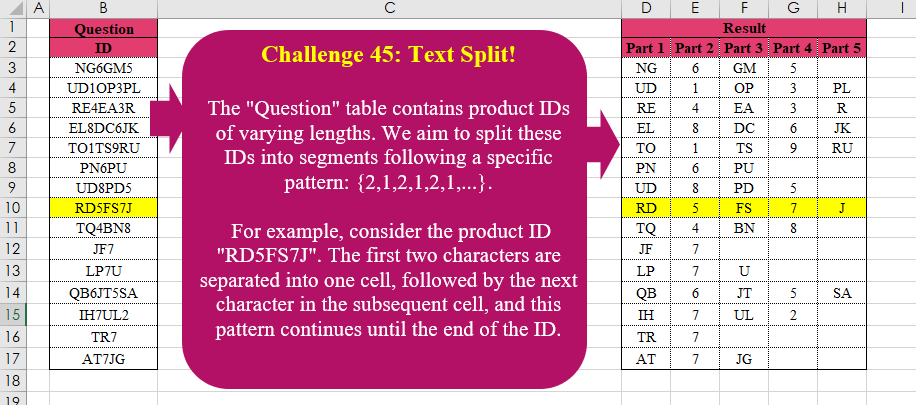
The “Question” table contains product IDs of varying lengths. We aim to split these IDs into segments following a specific pattern: {2,1,2,1,2,1,…}. For example, consider the product ID “RD5FS7J”. The first two characters are separated into one cell, followed by the next character in the subsequent cell, and this pattern continues until the end of the ID.
📌 Challenge Details and Links
Challenge Number: 45
Challenge Difficulty: ⭐⭐⭐
📥Download Sample File
📥Link to the solutions on LinkedIn
Solving the challenge of Text Split! with Power Query
Power Query solution 1 for Text Split!, proposed by Omid Motamedisedeh:
let
  Source = Excel.CurrentWorkbook(){[Name = "Table1"]}[Content],
  Split  = Table.SplitColumn(Source, "ID", each Splitter.SplitTextByLengths({2, 1, 2, 1, 2})(_))
in
  Split
Power Query solution 2 for Text Split!, proposed by Brian Julius:
let
  Source = Excel.CurrentWorkbook(){[Name = "Table1"]}[Content],
  Gen = Table.ExpandListColumn(
    Table.AddColumn(
      Source,
      "Part",
      each [
        a = [ID],
        b = Text.ToList(a),
        c = Number.RoundUp(List.Count(b) / 3, 0),
        d = List.Repeat({2, 1}, c),
        e = List.Transform({a}, Splitter.SplitTextByLengths(d))
      ][e]
    ),
    "Part"
  ),
  Extract = Table.TransformColumns(
    Gen,
    {"Part", each Text.Trim(Text.Combine(List.Transform(_, Text.From), ","), ",")}
  ),
  SplitToRows = Table.ExpandListColumn(
    Table.TransformColumns(Extract, {"Part", Splitter.SplitTextByDelimiter(",")}),
    "Part"
  ),
  Group = Table.Group(SplitToRows, {"ID"}, {{"All", each Table.AddIndexColumn(_, "Index", 1, 1)}}),
  Expand = Table.RemoveColumns(
    Table.AddColumn(
      Table.ExpandTableColumn(Group, "All", {"Part", "Index"}),
      "Piv",
      each "Part" & Text.From([Index])
    ),
    "Index"
  ),
  Pivot = Table.Pivot(Expand, List.Distinct(Expand[Piv]), "Piv", "Part")
in
  Pivot
Power Query solution 3 for Text Split!, proposed by Cristobal Salcedo Beltran:
let
  Source = Excel.CurrentWorkbook(){[Name = "Table1"]}[Content],
  SplitIDIntoParts = Table.SplitColumn(
    Source,
    "ID",
    Splitter.SplitTextByCharacterTransition({"0" .. "9"}, (c) => not List.Contains({"0" .. "9"}, c)),
    {"ID_Part1", "ID_Part2", "ID_Part3"}
  ),
  FurtherSplitID_Part1 = Table.SplitColumn(
    SplitIDIntoParts,
    "ID_Part1",
    Splitter.SplitTextByCharacterTransition((c) => not List.Contains({"0" .. "9"}, c), {"0" .. "9"}),
    {"ID_Part1_Segment1", "ID_Part1_Segment2"}
  ),
  FurtherSplitID_Part2 = Table.SplitColumn(
    FurtherSplitID_Part1,
    "ID_Part2",
    Splitter.SplitTextByCharacterTransition((c) => not List.Contains({"0" .. "9"}, c), {"0" .. "9"}),
    {"ID_Part2_Segment1", "ID_Part2_Segment2"}
  ),
  RenameColumnsToParts = Table.RenameColumns(
    FurtherSplitID_Part2,
    List.Zip(
      {Table.ColumnNames(FurtherSplitID_Part2), List.Transform({"1" .. "5"}, each "Part" & _)}
    )
  )
in
  RenameColumnsToParts
Power Query solution 4 for Text Split!, proposed by Eric Laforce:
let
 Source = Excel.CurrentWorkbook(){[Name="Table1"]}[Content],
 Transform = List.Transform(Source[ID], each let
 n = Text.Length(_),
 SplitList = List.Repeat({2,1}, Number.RoundUp(n/3)),
 Split = List.RemoveLastN(Splitter.SplitTextByLengths(SplitList)(_), Number.From(Number.Mod(n,3)>0)),
 CN = List.Transform({1..List.Count(Split)}, each "Part" & Text.From(_))
 in Table.FromRows({Split}, CN) ),
 Combine = Table.Combine(Transform)
in
 Combine

🙏 Wish we coud have in PQ a future extended option in Table.FromRow so it can handle different number of items in each ListValues.
Perhaps already included in
hashtag
#table Generator, but I didn't know it well yet
Power Query solution 5 for Text Split!, proposed by Luan Rodrigues:
let
  Fonte = Tabela1,
  tab = Table.Combine(
    Table.AddColumn(
      Fonte,
      "Personalizar",
      each Table.FromRows(
        {
          List.TransformMany(
            Splitter.SplitTextByCharacterTransition({"A" .. "Z"}, {"0" .. "9"})([ID]),
            (x) => Splitter.SplitTextByCharacterTransition({"0" .. "9"}, {"A" .. "Z"})(x),
            (a, b) => b
          )
        }
      )
    )[Personalizar]
  ),
  res = Table.RenameColumns(
    tab,
    List.Zip(
      {
        Table.ColumnNames(tab),
        List.Transform(Table.ColumnNames(tab), each Text.Replace(_, "Column", "Part "))
      }
    )
  )
in
  res
Power Query solution 6 for Text Split!, proposed by Ramiro Ayala Chávez:
let
S = Excel.CurrentWorkbook(){[Name="Table1"]}[Content],
T = Table.TransformColumns,
I = Text.Insert,
a = T(S,{"ID", each I(_,2,",")}),
b = T(a,{"ID", each I(_,4,",")}),
c = T(b,{"ID", each try I(_,7,",") otherwise _}),
d = T(c,{"ID", each try I(_,9,",") otherwise _}),
Sol = Table.SplitColumn(d,"ID", Splitter.SplitTextByDelimiter(",", QuoteStyle.Csv),{"Part 1","Part 2","Part 3","Part 4","Part 5"})
in
Sol
Power Query solution 7 for Text Split!, proposed by Alejandro Simón 🇵🇦 🇪🇸:
let
  Source = Excel.CurrentWorkbook(){[Name = "Table1"]}[Content],
  Lt = List.Transform,
  Num = List.Max(Lt(Source[ID], each Text.Length(_))),
  Tbl = Table.Combine(
    Lt(
      Source[ID],
      each Table.FromRows(
        {List.Select(Splitter.SplitTextByLengths(List.Repeat({2, 1}, Num))(_), each _ <> "")}
      )
    )
  ),
  Col = Table.ColumnNames(Tbl),
  Sol = Table.RenameColumns(Tbl, List.Zip({Col, Lt(Col, each Text.Replace(_, "Column", "Part"))}))
in
  Sol
Power Query solution 8 for Text Split!, proposed by Alexis Olson:
let
  Source = Excel.CurrentWorkbook(){[Name = "Table1"]}[Content],
  Parts = Table.AddColumn(
    Source,
    "Parts",
    each [
      Split3   = List.Split(Text.ToList([ID]), 3),
      Split2   = List.Transform(Split3, each List.Split(_, 2)),
      Combine  = List.Transform(List.Combine(Split2), Text.Combine),
      ColNames = List.Transform(List.Positions(Combine), each "Part " & Number.ToText(_ + 1)),
      ToRecord = Record.FromList(Combine, ColNames)
    ][ToRecord]
  ),
  Result = Table.ExpandRecordColumn(Parts, "Parts", Record.FieldNames(Record.Combine(Parts[Parts])))
in
  Result
Power Query solution 9 for Text Split!, proposed by Kris Jaganah:
let
  Source = Excel.CurrentWorkbook(){[Name = "Table1"]}[Content],
  Split = Table.TransformColumns(
    Source,
    {"ID", each Splitter.SplitTextByLengths({2, 1, 2, 1, 2})(_)}
  ),
  ToRow = Table.FromRows(Split[ID]),
  ColName = Table.TransformColumnNames(ToRow, each Text.Replace(_, "Column", "Part "))
in
  ColName
Power Query solution 10 for Text Split!, proposed by 🇮🇷 Navid Esmaeilzadeh اسماعیل زاده:
let
  S = Excel.CurrentWorkbook(){[Name = "Table1"]}[Content],
  Z = Table.TransformColumnTypes(S, {{"ID", type text}}),
  X = Table.AddColumn(Z, "S", each {1 .. Number.From(Text.Length([ID]))}),
  W = Table.ExpandListColumn(X, "S"),
  Y = Table.AddColumn(W, "T", each if Number.IsOdd([S]) then 2 else 1),
  Q = Table.Group(
    Y,
    {"ID"},
    {{"Tbl", each _, type table [ID = nullable text, S = number, T = number]}}
  ),
  F = (X) =>
    let
      A = Table.AddIndexColumn(X, "Index", 0, 1, Int64.Type),
      B = Table.AddColumn(A, "St", each try A[T]{[Index] - 1} otherwise 0),
      C = Table.AddColumn(B, "P", each List.Sum(List.FirstN(B[St], [Index] + 1))),
      D = Table.AddColumn(C, "Sp", each Text.Middle([ID], [P], [T])),
      E = Table.SelectRows(D, each ([Sp] <> "")),
      F = Table.AddColumn(E, "Part", each "Part " & Text.From([Index] + 1)),
      G = Table.SelectColumns(F, {"ID", "Part", "Sp"})
    in
      G,
  P = Table.AddColumn(Q, "F", each F([Tbl])),
  O = Table.SelectColumns(P, {"F"}),
  R = Table.ExpandTableColumn(O, "F", {"ID", "Part", "Sp"}, {"ID", "Part", "Sp"}),
  U = Table.Pivot(R, List.Distinct(R[Part]), "Part", "Sp"),
  Sol = Table.RemoveColumns(U, {"ID"})
in
  Sol
Power Query solution 11 for Text Split!, proposed by Daniel Madhadha:
let
  Source = Excel.CurrentWorkbook(){[Name = "Table1"]}[Content],
  TextSplit = Table.SplitColumn(
    Source,
    "ID",
    Splitter.SplitTextByLengths({2, 1, 2, 1, 2}),
    {"Part1", "Part2", "Part3", "Part4", "Part5"}
  )
in
  TextSplit
Power Query solution 12 for Text Split!, proposed by Peter Tholstrup:
let
  Source = Excel.CurrentWorkbook(){[Name = "Table1"]}[Content],
  f_split = (_) =>
    [
      a      = Text.ToList(_),
      b      = List.Split(List.Alternate(a, 1, 2, 2), 2),
      c      = List.Split(List.Alternate(a, 2, 1), 1),
      d      = List.RemoveNulls(List.Combine(List.Zip({b, c}))),
      result = List.Transform(d, Text.Combine)
    ][result],
  transform = List.Transform(Source[ID], f_split),
  to_table = Table.FromRows(List.Zip(List.Zip(transform))),
  f_rename = (l, t) => List.Zip({l, List.Transform(l, each Text.Replace(_, "Column", t))}),
  result = Table.RenameColumns(to_table, f_rename(Table.ColumnNames(to_table), "Part "))
in
  result
Power Query solution 13 for Text Split!, proposed by Theerapun Maneethap:
let
  Source = Excel.CurrentWorkbook(){[Name = "Table1"]}[Content],
  #"Changed Type" = Table.TransformColumnTypes(Source, {{"ID", type text}}),
  #"Split Column by Character Transition" = Table.SplitColumn(
    #"Changed Type",
    "ID",
    Splitter.SplitTextByCharacterTransition({"0" .. "9"}, (c) => not List.Contains({"0" .. "9"}, c)),
    {"ID.1", "ID.2", "ID.3"}
  ),
  #"Split Column by Position" = Table.SplitColumn(
    #"Split Column by Character Transition",
    "ID.1",
    Splitter.SplitTextByRepeatedLengths(2),
    {"ID.1.1", "ID.1.2"}
  ),
  #"Changed Type1" = Table.TransformColumnTypes(
    #"Split Column by Position",
    {{"ID.1.1", type text}, {"ID.1.2", type text}, {"ID.2", type text}, {"ID.3", type text}}
  ),
  #"Split Column by Position1" = Table.SplitColumn(
    #"Changed Type1",
    "ID.2",
    Splitter.SplitTextByRepeatedLengths(2),
    {"ID.2.1", "ID.2.2"}
  ),
  #"Changed Type2" = Table.TransformColumnTypes(
    #"Split Column by Position1",
    {{"ID.2.1", type text}, {"ID.2.2", Int64.Type}}
  ),
  #"Renamed Columns" = Table.RenameColumns(
    #"Changed Type2",
    {
      {"ID.1.1", "Part 1"},
      {"ID.1.2", "Part 2"},
      {"ID.2.1", "Part 3"},
      {"ID.2.2", "Part 4"},
      {"ID.3", "Part 5"}
    }
  )
in
  #"Renamed Columns"
Solving the challenge of Text Split! with Excel
Excel solution 1 for Text Split!, proposed by محمد حلمي:
=REDUCE(
    D2:H2,
    B3:B17,
    LAMBDA(
        a,
        v,        VSTACK(
            a,
            MID(
                v,
                {1,
                3,
                4,
                6,
                7},
                {2,
                1,
                2,
                1,
                2}
            )
        )
    )
)
Excel solution 2 for Text Split!, proposed by 🇵🇪 Ned Navarrete C.:
=LET(
    s,
    SEQUENCE(
        ,
        5
    ),
    p,
    SCAN(
        ,
        s^0+ISEVEN(
            s
        ),
        LAMBDA(
            c,
            v,
            c+v
        )
    ),
    n,
    s^0+ISODD(
            s
        ),
    REDUCE(
        "Part "&s,
        B3:B17,
        LAMBDA(
            c,
            v,
            VSTACK(
                c,
                MID(
                    v,
                    p,
                    n
                )
            )
        )
    )
)

=REDUCE(
    "Part "&{1,
    2,
    3,
    4,
    5},
    B3:B17,
    LAMBDA(
        c,
        v,
        VSTACK(
            c,
            MID(
                v,
                {1,
                3,
                4,
                6,
                7},
                {2,
                1,
                2,
                1,
                2}
            )
        )
    )
)
Excel solution 3 for Text Split!, proposed by Oscar Mendez Roca Farell:
=LET(
    c,
     COLUMN(
         A:E
     ),
     MID(
         B3:B17,
          c+INT(
              c/2
          ),
          1+MOD(
              c,
               2
          )
     )
)
Excel solution 4 for Text Split!, proposed by Julian Poeltl:
=LET(
    I,
    B3:B17,
    HSTACK(
        MID(
            I,
            1,
            2
        ),
        MID(
            I,
            3,
            1
        )*1,
        MID(
            I,
            4,
            2
        ),
        IFERROR(
            MID(
                I,
                6,
                1
            )*1,
            ""
        ),
        MID(
            I,
            7,
            2
        )
    )
)
Excel solution 5 for Text Split!, proposed by Julian Poeltl:
=LET(
    I,
    B3:B17,
    HSTACK(
        MID(
            I,
            1,
            2
        ),
        MID(
            I,
            3,
            1
        ),
        MID(
            I,
            4,
            2
        ),
        MID(
            I,
            6,
            1
        ),
        MID(
            I,
            7,
            2
        )
    )
)
Excel solution 6 for Text Split!, proposed by John Jairo Vergara Domínguez:
=LET(i,
    MAX(
        LEN(
            B3:B17
        )
    ),
    s,
    2-ISODD(SEQUENCE(,
    i-INT((1+i)/3))),
    MID(
        B3:B17,
        SCAN(
            ,
            s,
            SUM
        ),
        3-s
    ))
Excel solution 7 for Text Split!, proposed by Mahmoud Bani Asadi:
=MID(
    B3:B17,
    {1,
    3,
    4,
    6,
    7},
    {2,
    1,
    2,
    1,
    2}
)
Excel solution 8 for Text Split!, proposed by Sunny Baggu:
=IFERROR(     MAKEARRAY(          ROWS(
              B3:B17
          ),          5,          LAMBDA(
              r,
               c,

               INDEX(

                    LET(

                         c,
                         INDEX(
                             B3:B17,
                              r,

                         ),

                         a,
                         TEXTSPLIT(
                             c,
                              ,
                              SEQUENCE(
                                  10,
                                   ,
                                   0
                              ),
                              1
                         ),

                         b,
                         TEXTSPLIT(
                             c,
                              ,
                              a,
                              1
                         ),

                         TOROW(
                             HSTACK(
                                 a,
                                  b
                             )
                         )

                    ),

                    c

               )

          )     ),     "")
Excel solution 9 for Text Split!, proposed by Sunny Baggu:
=CHOOSECOLS(     HSTACK(
         MID(
             B3:B17,
              {1,
              4,
              7},
              2
         ),
          MID(
              B3:B17,
               {3,
               6},
               1
          )
     ),     1,     4,     2,     5,     3)
Excel solution 10 for Text Split!, proposed by Andy Heybruch:
=LET(
    _a,
    MOD(
        SEQUENCE(
            ,
            6
        ),
        2
    )+1,
    IFERROR(
        MID(
            B3:B17,
            SCAN(
                0,
                DROP(
                    _a,
                    ,
                    1
                ),
                LAMBDA(
                    a,
                    v,
                    a+v
                )
            ),
            _a
        ),
        ""
    )
)
Excel solution 11 for Text Split!, proposed by Bilal Mahmoud kh.:
=IFERROR(
    TEXTSPLIT(
        TEXTJOIN(
            "|",
            ,
            BYROW(
                A2:A16,
                LAMBDA(
                    n,
                    TEXTJOIN(
                        "-",
                        ,
                        MAP(
                            {1,
                            3,
                            4,
                            6,
                            7},
                            LAMBDA(
                                x,
                                LET(
                                    a,
                                    MID(
                                        n,
                                        x,
                                        1
                                    ),
                                    b,
                                    IF(
                                        ISNUMBER(
                                            --a
                                        ),
                                        MID(
                                        n,
                                        x,
                                        1
                                    ),
                                        MID(
                                            n,
                                            x,
                                            2
                                        )
                                    ),
                                    b
                                )
                            )
                        )
                    )
                )
            )
        ),
        "-",
        "|"
    ),
    ""
)
Excel solution 12 for Text Split!, proposed by Hussein SATOUR:
=MID(
    B3:B17,
    {1,
    3,
    4,
    6,
    7},
    {2,
    1,
    2,
    1,
    2}
)
Excel solution 13 for Text Split!, proposed by Rick Rothstein:
=IFNA(
    DROP(
        TEXTSPLIT(
            REDUCE(
                "",
                B3:B17,
                LAMBDA(
                    a,
                    x,
                    a&"|"&TEXTJOIN(
                        {"",
                        " ",
                        " "},
                        ,
                        MID(
                            x,
                            SEQUENCE(
                                LEN(
                                    x
                                )
                            ),
                            1
                        )
                    )
                )
            ),
            " ",
            "|"
        ),
        1
    ),
    ""
)
Excel solution 14 for Text Split!, proposed by Tyler Cameron:
=DROP(
    REDUCE(
        "",
        B3:B17,
        LAMBDA(
            x,
            y,
            VSTACK(
                x,
                MID(
                    y,
                    {1,
                    3,
                    4,
                    6,
                    7},
                    {2,
                    1,
                    2,
                    1,
                    2}
                )
            )
        )
    ),
    1
)
Solving the challenge of Text Split! with Python
Python solution 1 for Text Split!, proposed by Luan Rodrigues:
import pandas as pd
import re

df = pd.read_excel('CH-045 Text SplitCH-045 Text Split.xlsx',usecols='B',skiprows=1)

def split_case(text):
 chars = re.findall('[A-Z]+|[0-9]+',text)
 return ', '.join(chars)

df['ID'] = list(df['ID'].apply(split_case))
df['ID'] = df['ID'].apply(lambda x: x.split(", "))

df_res = pd.DataFrame(df['ID'].to_list(),columns=['Part 1','Part 2','Part 3','Part 4','Part 5'])

print(df_res)
Python solution 2 for Text Split!, proposed by Abdallah Ally:
import pandas as pd
import re

# Read the Excel file
file_path = 'CH-045 Text Split.xlsx'
df = pd.read_excel(file_path, usecols='B', skiprows=1)

# Perform data transformation and cleansing
def text_split(col):
 pattern = '([A-Z]+)(d+)([A-Z]*)(d*)([A-Z]*)'
 return re.search(pattern, col).groups()

columns = ['Part ' + str(x) for x in range(1, 6)]
df[columns] = df['ID'].apply(text_split).tolist()
df = df.iloc[ :, 1:]

# Display the output
print(f'nFinal Results: nn{df}')
Solving the challenge of Text Split! with R
R solution 1 for Text Split!, proposed by Konrad Gryczan, PhD:
library(tidyverse)
library(readxl)

input = read_excel("files/CH-045 Text Split.xlsx", range = "B2:B17")
test = read_excel("files/CH-045 Text Split.xlsx", range = "D2:H17")


split = function(text) {
 pattern = "(\D+|\d+)"
 result = str_extract_all(text, pattern, simplify = TRUE) %>%
 as_tibble()
 return(result)
}

result = input$ID %>%
 map_dfr(split) %>%
 mutate(across(c(2,4), as.numeric))

colnames(result) = colnames(test)