
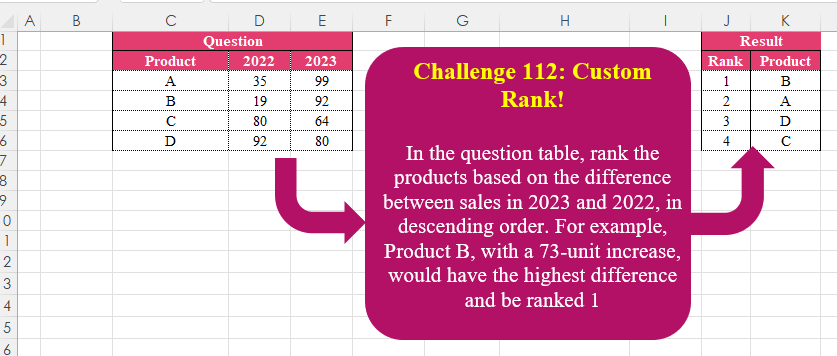
In the question table, rank the products based on the difference between sales in 2023 and 2022, in descending order. For example, Product B, with a 73-unit increase, would have the highest difference and be ranked 1
📌 Challenge Details and Links
Challenge Number: 112
Challenge Difficulty: ⭐
📥Download Sample File
📥Link to the solutions on LinkedIn
Solving the challenge of Custom Rank! Part 2 with Power Query
Power Query solution 1 for Custom Rank! Part 2, proposed by Zoran Milokanović:
let
  Source = Table.Sort(Excel.CurrentWorkbook(){[Name = "Input"]}[Content], each [2022] - [2023]),
  S      = Table.AddIndexColumn(Source, "Rank", 1)[[Rank], [Product]]
in
  S
Power Query solution 2 for Custom Rank! Part 2, proposed by Brian Julius:
let
  Source = Table.AddColumn(
    Excel.CurrentWorkbook(){[Name = "Table1"]}[Content],
    "Diff",
    each [2023] - [2022]
  ),
  AddRank = Table.SelectColumns(
    Table.AddRankColumn(
      Source,
      "Rank",
      {"Diff", Order.Descending},
      [RankKind = RankKind.Competition]
    ),
    {"Rank", "Product"}
  )
in
  AddRank
Power Query solution 3 for Custom Rank! Part 2, proposed by Ramiro Ayala Chávez:
let
S = Excel.CurrentWorkbook(){[Name="Table1"]}[Content],
a = Table.AddColumn(S,"Dif", each [2023]-[2022]),
b = Table.Sort(a,{"Dif",1}),
c = Table.AddIndexColumn(b,"Rank",1),
Sol = Table.SelectColumns(c,{"Rank","Product"})
in
Sol
Power Query solution 4 for Custom Rank! Part 2, proposed by Alejandro Simón 🇵🇦 🇪🇸:
let
Source = Excel.CurrentWorkbook(){[Name="Table1"]}[Content],
Sort = Table.Sort(Source, {each [2023]-[2022], 1}),
Sol = Table.FromColumns({{1..Table.RowCount(Sort)}, Sort[Product]},
 {"Rank","Product"})
in
Sol
Power Query solution 5 for Custom Rank! Part 2, proposed by Kris Jaganah:
let
  S = Excel.CurrentWorkbook(){[Name = "Table1"]}[Content],
  A = Table.Sort(S, {each [2023] - [2022], 1}),
  B = Table.AddIndexColumn(A, "Rank", 1)[[Rank], [Product]]
in
  B
Power Query solution 6 for Custom Rank! Part 2, proposed by Kris Jaganah:
let
  S = Excel.CurrentWorkbook(){[Name = "Table1"]}[Content],
  A = Table.AddColumn(S, "A", each [2023] - [2022]),
  B = Table.AddRankColumn(A, "Rank", {"A", 1})[[Rank], [Product]]
in
  B
Power Query solution 7 for Custom Rank! Part 2, proposed by Abdallah Ally:
let
  Source = Excel.CurrentWorkbook(){[Name = "Table1"]}[Content],
  Sort   = Table.Sort(Source, each [2022] - [2023]),
  Result = Table.AddIndexColumn(Sort, "Rank", 1)[[Rank], [Product]]
in
  Result
Power Query solution 8 for Custom Rank! Part 2, proposed by Yaroslav Drohomyretskyi:
let
  Source = Table.AddIndexColumn(
    Table.Sort(Excel.CurrentWorkbook(){[Name = "Table1"]}[Content], {each _[2023] - _[2022], 1}),
    "Rank",
    1,
    1
  )[[Rank], [Product]]
in
  Source
Power Query solution 9 for Custom Rank! Part 2, proposed by CA Raghunath Gundi:
let
  Source = Excel.CurrentWorkbook(){[Name = "Question"]}[Content],
  Result = Table.SelectColumns(
    Table.AddRankColumn(
      Table.SelectColumns(
        Table.Sort(
          Table.AddColumn(Source, "Difference", each [2023] - [2022]),
          {"Difference", Order.Descending}
        ),
        {"Product", "Difference"}
      ),
      "Rank",
      {"Difference", 1}
    ),
    {"Rank", "Product"}
  )
in
  Result
Power Query solution 10 for Custom Rank! Part 2, proposed by Md. Shah Alam, Microsoft Certified Trainer:
let
  Source      = Excel.CurrentWorkbook(){[Name = "Table1"]}[Content],
  Subtraction = Table.AddColumn(Source, "Subtraction", each [2023] - [2022], type number),
  Sorting     = Table.Sort(Subtraction, {{"Subtraction", Order.Descending}}),
  Rank        = Table.AddIndexColumn(Sorting, "Rank", 1, 1, Int64.Type)[[Rank], [Product]]
in
  Rank
Solving the challenge of Custom Rank! Part 2 with Excel
Excel solution 1 for Custom Rank! Part 2, proposed by محمد حلمي:
=HSTACK(    SEQUENCE(
        ROWS(
            C3:C6
        )
    ),    SORTBY(
        C3:C6,
        D3:D6-E3:E6
    )
)
Excel solution 2 for Custom Rank! Part 2, proposed by Oscar Mendez Roca Farell:
=IF(
    {1,
     0},
     ROW(
         1:4
     ),
     SORTBY(
         C3:C6,
          D3:D6-E3:E6
     )
)
Excel solution 3 for Custom Rank! Part 2, proposed by Julian Poeltl:
=LET(
    P,
    C3:C6,
    HSTACK(
        SEQUENCE(
            ROWS(
                P
            )
        ),
        SORTBY(
            P,
            D3:D6-E3:E6
        )
    )
)
Excel solution 4 for Custom Rank! Part 2, proposed by Abdallah Ally:
=LET(
    a,
    E3:E6-D3:D6,
    HSTACK(
        SEQUENCE(
            COUNT(
                a
            )
        ),
        SORTBY(
            C3:C6,
            -a
        )
    )
)
Excel solution 5 for Custom Rank! Part 2, proposed by Kris Jaganah:
=HSTACK(
    XMATCH(
        C3:C6,
        C3:C6
    ),
    SORTBY(
        C3:C6,
        E3:E6-D3:D6,
        -1
    )
)
Excel solution 6 for Custom Rank! Part 2, proposed by Imam Hambali:
=HSTACK(
    SEQUENCE(
        ROWS(
            C3:C6
        )
    ),
    SORTBY(
        C3:C6,
        E3:E6-D3:D6,
        -1
    )
)
Excel solution 7 for Custom Rank! Part 2, proposed by Sunny Baggu:
=HSTACK(     SEQUENCE(
         ROWS(
             C3:C6
         )
     ),     SORTBY(
         C3:C6,
          E3:E6 - D3:D6,
          -1
     ))
Excel solution 8 for Custom Rank! Part 2, proposed by Alejandro Campos:
=LET(
 p, C3:E6,
 HSTACK(
 SEQUENCE(ROWS(p)),
 TAKE(SORTBY(p, E3:E6 - D3:D6, -1), , 1)))

#2
=HSTACK(
 SEQUENCE(ROWS(C3:C6)),
 DROP(SORT(HSTACK(C3:C6, BYROW(D3:E6, LAMBDA(x, INDEX(x, , 2) - INDEX(x, , 1)))), 2, -1), , -1))
Excel solution 9 for Custom Rank! Part 2, proposed by Andy Heybruch:
=HSTACK(
    SEQUENCE(
        4
    ),
    SORTBY(
        C3:C6,
        E3:E6-D3:D6,
        -1
    )
)
Excel solution 10 for Custom Rank! Part 2, proposed by CA Raghunath Gundi:
=LET(
    Rank,
    SEQUENCE(
        ROWS(
            Question[Product]
        )
    ),    Product,
    SORTBY(
        Question[Product],
        Question[2023]-Question[2022],
        -1
    ),    HSTACK(
        Rank,
        Product
    )
)
Excel solution 11 for Custom Rank! Part 2, proposed by Eddy Wijaya:
=LET(    diff,
    E3:E6-D3:D6,    res,
    SORT(
        HSTACK(
            C3:C6,
            diff
        ),
        2,
        -1
    ),    VSTACK(
        J2:K2,
        HSTACK(
            SEQUENCE(
                ROWS(
                    res
                )
            ),
            DROP(
                res,
                ,
                -1
            )
        )
    )
)
Excel solution 12 for Custom Rank! Part 2, proposed by ferhat CK:
=LET(
    i,
    SORT(
        E3:E6-D3:D6,
        ,
        -1
    ),
    n,
    XMATCH(
        i,
        i
    ),
    HSTACK(
        n,
        XLOOKUP(
            E3:E6-D3:D6,
            i,
            C3:C6
        )
    )
)
Excel solution 13 for Custom Rank! Part 2, proposed by Gerson Pineda:
=HSTACK(
    ROW(
        1:4
    ),
    SORTBY(
        C3:C6,
        D3:D6-E3:E6
    )
)
Excel solution 14 for Custom Rank! Part 2, proposed by Hamidi Hamid:
=LET(
    x,
    C3:C6,
    HSTACK(
        SEQUENCE(
            COUNTA(
                x
            )
        ),
        DROP(
            SORTBY(
                HSTACK(
                    x,
                    E3:E6-D3:D6
                ),
                E3:E6-D3:D6,
                -1
            ),
            ,
            -1
        )
    )
)
Excel solution 15 for Custom Rank! Part 2, proposed by Md. Shah Alam, Microsoft Certified Trainer:
=HSTACK(
    SEQUENCE(
        COUNTA(
            C3:C6
        )
    ),
    SORTBY(
        C3:C6,
        E3:E6-D3:D6,
        -1
    )
)
Excel solution 16 for Custom Rank! Part 2, proposed by Md. Zohurul Islam:
=LET(     header,
     {"Rank",
     "Product"},     prd,
     C3:C6,     A,
     D3:D6,     B,
     E3:E6,     D,
     B - A,     E,
     SORTBY(
         prd,
          D,
          -1
     ),     F,
     SEQUENCE(
         COUNTA(
             E
         )
     ),     ans,
     HSTACK(
         F,
          E
     ),     result,
     VSTACK(
         header,
          ans
     ),     result)
Excel solution 17 for Custom Rank! Part 2, proposed by Mey Tithveasna:
=LET(var,
    E3:E6-D3:D6,
    HSTACK(
        ROW(
            C3:C6
        )-2,
        SORTBY(
            C3:C6,
            var,
            -1
        )
    )
Excel solution 18 for Custom Rank! Part 2, proposed by Nicolas Micot:
=LET(
    _product;
    C3:C6;    _delta;
    E3:E6-D3:D6;    ASSEMB.H(
        SEQUENCE(
            LIGNES(
                _product
            )
        );
        TRIERPAR(
            _product;
            _delta;
            -1
        )
    )
)
Excel solution 19 for Custom Rank! Part 2, proposed by Pierluigi Stallone:
=WRAPROWS(
    TEXTSPLIT(
        TEXTJOIN(
            " ",
            TRUE,
            SEQUENCE(
                4
            )&" "&SORTBY(
                C2:C5,
                E2:E5-D2:D5,
                -1
            )
        ),
        " "
    ),
    2
)
Excel solution 20 for Custom Rank! Part 2, proposed by Pieter de B.:
=LET(d,
    (D3:D6-E3:E6),
    HSTACK(
        SEQUENCE(
            ROWS(
                d
            )
        ),
        SORTBY(
            C3:C6,
            d
        )
    ))
Or
=HSTACK(
    ROW(
        C3:C6
    )-2,
    SORTBY(
        C3:C6,
        D3:D6-E3:E6
    )
)
Excel solution 21 for Custom Rank! Part 2, proposed by Rick Rothstein:
=HSTACK(
    SEQUENCE(
        ROWS(
            C3:C6
        )
    ),
    SORTBY(
        C3:C6,
        E3:E6-D3:D6,
        -1
    )
)
Excel solution 22 for Custom Rank! Part 2, proposed by Songglod Petchamras:
=LET(p,SORTBY(C3:C6,E3:E6-D3:D6,-1),HSTACK(SEQUENCE(ROWS(p)),p))Solving the challenge of Custom Rank! Part 2 with Python
Python solution 1 for Custom Rank! Part 2, proposed by Konrad Gryczan, PhD:
import pandas as pd

path = "CH-112 Custom Rank.xlsx"
input = pd.read_excel(path, usecols="C:E", skiprows=1)
input.columns = ["Product", "Y2022", "Y2023"]
test  = pd.read_excel(path, usecols="J:K", skiprows=1)
test.columns = ["Rank", "Product"]

result = input.copy()
result = input.assign(diff=input["Y2023"] - input["Y2022"])
 .assign(Rank=lambda x: x["diff"]
 .rank(ascending=False).astype(int))
 .sort_values("Rank")[["Rank", "Product"]]
 .reset_index(drop=True)

print(all(result == test)) # True
Solving the challenge of Custom Rank! Part 2 with Python in Excel
Python in Excel solution 1 for Custom Rank! Part 2, proposed by Abdallah Ally:
df = xl("C2:E6", headers=True)

# Perform data manipulation
df['Diff'] = df[2023] -df[2022]
df = df.sort_values(
 by='Diff',
 ascending=False,
 ignore_index=True
)
df['Rank'] = df.index + 1
df = df[['Rank', 'Product']]

# Display the final results
df
Python in Excel solution 2 for Custom Rank! Part 2, proposed by Alejandro Campos:
df = xl("B2:D6", headers=True)
 .assign(Difference=lambda df: df[2023] - df[2022]).sort_values(by='Difference', ascending=False)
 .assign(Rank=lambda df: range(1, len(df) + 1))[['Rank', 'Product']].reset_index(drop=True)
Solving the challenge of Custom Rank! Part 2 with R
R solution 1 for Custom Rank! Part 2, proposed by Konrad Gryczan, PhD:
library(tidyverse)
library(readxl)

path = "files/CH-112 Custom Rank.xlsx"

input = read_excel(path, range = "C2:E6")
test = read_excel(path, range = "J2:K6")

result = input %>%
 mutate(Rank = rank(desc(`2023` - `2022`))) %>%
 arrange(Rank) %>%
 select(Rank, Product)

identical(result, test)
# [1] TRUE
Solving the challenge of Custom Rank! Part 2 with Google Sheets
Google Sheets solution 1 for Custom Rank! Part 2, proposed by Peter Krkos:
PowerQuery Solution:
https://docs.google.com/spreadsheets/d/1zR5IZLz8OT76vhaPEHfsPrw8-RDKnLyyqS49IJjdhFk/edit?gid=1562823236#gid=1562823236