
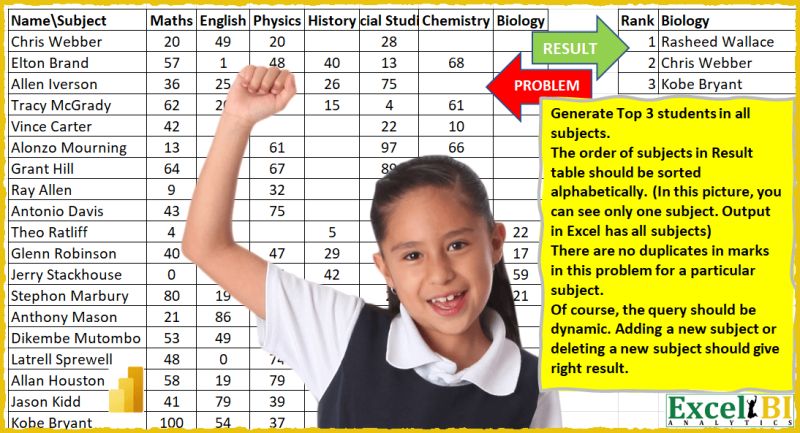
(Excel formulas also welcome) Generate Top 3 students in all subjects. The order of subjects in Result table should be sorted alphabetically. (In this picture, you can see only one subject. Output in Excel has all subjects) There are no duplicates in marks in this problem for a particular subject. Of course, the query should be dynamic. Adding a new subject or deleting a new subject should give right result. For Excel formulas – Dynamism is not a requirement
📌 Challenge Details and Links
ExcelBI Power Query Challenge Number: 15
Challenge Difficulty: ⭐️⭐️⭐️
📥Download Sample File
📥Link to the solutions on LinkedIn
Solving the challenge of Top Three Students Report with Power Query
Power Query solution 1 for Top Three Students Report, proposed by Rick de Groot:
let
 Source = Table1,
 #"Unpivoted Other Columns" = Table.UnpivotOtherColumns(Source, {"NameSubject"}, "Class", "Value"),
 #"Changed Type" = Table.TransformColumnTypes(#"Unpivoted Other Columns",{{"Value", Int64.Type}}),
 #"Grouped Rows" = Table.Group(#"Changed Type", {"Class"},
{{"Details", each Table.AddIndexColumn( Table.MaxN(_, "Value", 3),"Rank", 1, 1 ), type table [#"NameSubject"=nullable text, Class=text, Value=text]}}),
 #"Expanded Details" = Table.ExpandTableColumn(#"Grouped Rows", "Details", {"NameSubject", "Rank"}, {"NameSubject", "Rank"}),
 #"Pivoted Column" = Table.Pivot(#"Expanded Details", List.Sort(List.Distinct(#"Expanded Details"[Class]) ), "Class", "NameSubject")
in
 #"Pivoted Column"
Power Query solution 2 for Top Three Students Report, proposed by Alejandro Simón 🇵🇦 🇪🇸:
let
 Source = Excel.CurrentWorkbook(){[Name="Table1"]}[Content],
 Unpivoted = Table.UnpivotOtherColumns(Source, {"NameSubject"}, "Attribute", "Value"),
 Grouped = Table.Combine ( Table.Group(Unpivoted, {"Attribute"}, {{"Count", each
 let
 a = Table.FirstN (Table.Sort(_, {"Value", Order.Descending}), 3),
 b = Table.AddIndexColumn(a, "Rank", 1,1)
 in
 b
 }})[Count]),
 Removed = Table.Sort(Table.RemoveColumns(Grouped,{"Value"}),{{"Attribute", Order.Ascending}}),
 Pivoted = Table.Pivot(Removed, List.Distinct(Removed[Attribute]), "Attribute", "NameSubject")
in
 Pivoted
Power Query solution 3 for Top Three Students Report, proposed by Brian Julius:
let
 UnpivotOther = Table.TransformColumnTypes( Table.UnpivotOtherColumns(ScoresRaw, {"NameSubject"}, "Subject", "Score"), {"Score", Int16.Type}),
 GroupSubj = Table.Group(UnpivotOther, {"Subject"}, {{"AllData", each _, type table [#"NameSubject"=nullable text, Subject=text, Score=text]}}),
 Top3 = Table.RemoveColumns( Table.AddColumn(GroupSubj, "Top3", each Table.FirstN( Table.Sort( [AllData], {"Score", Order.Descending}), 3)),"AllData"),
 AddRank = Table.RemoveColumns( Table.AddColumn(Top3, "Rankx", each Table.AddIndexColumn([Top3], "Rank", 1, 1)), "Top3"),
 Expand = Table.Sort( Table.ReorderColumns( Table.ExpandTableColumn(AddRank, "Rankx", {"NameSubject", "Rank"}, {"Name", "Rank"}), {"Rank", "Subject", "Name"}, null), {"Subject", Order.Ascending}),
 PivotSubj = Table.Pivot(Expand, List.Distinct(Expand[Subject]), "Subject", "Name")
in
 PivotSubj
Power Query solution 4 for Top Three Students Report, proposed by 🇮🇷 Navid Esmaeilzadeh اسماعیل زاده:
Part2:
 #"Expanded Ind" = Table.ExpandTableColumn(#"Removed Other Columns", "Ind", {"NameSubject", "Attribute", "Value", "Index", "Index."}, {"NameSubject", "Attribute", "Value", "Index", "Index."}),
 #"Filtered Rows" = Table.SelectRows(#"Expanded Ind", each [#"Index."] <= 3),
 #"Removed Other Columns1" = Table.SelectColumns(#"Filtered Rows",{"NameSubject", "Attribute", "Index."}),
 #"Pivoted Column" = Table.Pivot(#"Removed Other Columns1", List.Distinct(#"Removed Other Columns1"[Attribute]), "Attribute", "NameSubject"),
 #"Removed Columns" = Table.RemoveColumns(#"Pivoted Column",{"Index."})
in
 #"Removed Columns"
Power Query solution 5 for Top Three Students Report, proposed by 🇮🇷 Navid Esmaeilzadeh اسماعیل زاده:
let
 Source = Excel.CurrentWorkbook(){[Name="Table1"]}[Content],
 #"Changed Type" = Table.TransformColumnTypes(Source,{{"NameSubject", type text}, {"Maths", Int64.Type}, {"English", Int64.Type}, {"Physics", Int64.Type}, {"History", Int64.Type}, {"Social Studies", Int64.Type}, {"Chemistry", Int64.Type}, {"Biology", Int64.Type}}),
 #"Unpivoted Other Columns" = Table.UnpivotOtherColumns(#"Changed Type", {"NameSubject"}, "Attribute", "Value"),
 #"Sorted Rows" = Table.Sort(#"Unpivoted Other Columns",{{"Attribute", Order.Ascending}, {"Value", Order.Descending}}),
 #"Added Index" = Table.AddIndexColumn(#"Sorted Rows", "Index", 1, 1, Int64.Type),
 #"Grouped Rows" = Table.Group(#"Added Index", {"Attribute"}, {{"All", each _, type table [#"NameSubject"=nullable text, Attribute=text, Value=number]}}),
 #"Added Custom" = Table.AddColumn(#"Grouped Rows", "Ind", each Table.AddIndexColumn([All],"Index.",1,1)),
 #"Removed Other Columns" = Table.SelectColumns(#"Added Custom",{"Ind"}),
Power Query solution 6 for Top Three Students Report, proposed by Matthias Friedmann:
let
 Source = Excel.CurrentWorkbook(){[Name="TopStudents"]}[Content],
 Subjects = List.Sort(
 List.RemoveFirstN(
 Table.ColumnNames(Source),
 1),
 Order.Ascending ),
 Create = List.Accumulate(
 Subjects,
 Table.FromColumns({{1..3}}, {"Rank"} ),
 (a,b)=>Table.FromColumns(
 Table.ToColumns(a) & {List.FirstN(Table.Sort(Source,{{b, Order.Descending}})[#"NameSubject"],3)},
 Table.ColumnNames(a) & {b}
 )
 )
in
 Create
Power Query solution 7 for Top Three Students Report, proposed by Antriksh Sharma:
let
  Source = DataSource,
  Subjects = List.Sort(List.RemoveFirstN(Table.ColumnNames(Source), 1)),
  N = 3,
  Transformation = List.Transform(
    Subjects,
    (CurrentSubject) =>
      let
        SubjectAndStudents = Table.SelectColumns(Source, {"Student", CurrentSubject}),
        ChangeType = Table.TransformColumnTypes(SubjectAndStudents, {CurrentSubject, type number}),
        SortDescending = Table.Sort(ChangeType, {CurrentSubject, Order.Descending}),
        Top3 = Table.FirstN(SortDescending, N),
        RenameCols = {CurrentSubject} & Top3[Student]
      in
        RenameCols
  ),
  RankAndValues = Table.FromColumns({{"Rank", 1 .. N}} & Transformation),
  PromotedHeaders = Table.PromoteHeaders(RankAndValues, [PromoteAllScalars = true]),
  ChangedType = Table.TransformColumnTypes(
    PromotedHeaders,
    {
      {"Rank", Int64.Type},
      {"Biology", type text},
      {"Chemistry", type text},
      {"English", type text},
      {"History", type text},
      {"Maths", type text},
      {"Physics", type text},
      {"Social Studies", type text}
    }
  )
in
  ChangedType
Power Query solution 8 for Top Three Students Report, proposed by Victor Wang:
let
 Source = Excel.CurrentWorkbook(){[Name="Grades"]}[Content],
 Subjects = List.Sort(List.RemoveFirstN(Table.ColumnNames(Source),1)),
 Result = Table.FromColumns({{1,2,3}}&List.Transform( Subjects, each Table.MaxN( Table.SelectColumns(Source,{"NameSubject", _}), _, 3)[#"NameSubject"]), {"Rank"} & Subjects)
in
 Result
Power Query solution 9 for Top Three Students Report, proposed by Sandeep Marwal:
let
 Source = Excel.CurrentWorkbook(){[Name="Table1"]}[Content],
 #"Unpivoted Other Columns" = Table.UnpivotOtherColumns(Source, {"NameSubject"}, "Attribute", "Value"),
 #"Renamed Columns" = Table.RenameColumns(#"Unpivoted Other Columns",{{"NameSubject", "Name"}}),
 #"Grouped Rows" = Table.Group(#"Renamed Columns", {"Attribute"}, {{"Count", each Table.AddIndexColumn(Table.MaxN(_,"Value",3),"Rank",1)[[Rank],[Name]]}}),
 #"Expanded Count" = Table.ExpandTableColumn(#"Grouped Rows", "Count", {"Rank", "Name"}, {"Rank", "Name"}),
 #"Sorted Rows" = Table.Sort(#"Expanded Count",{{"Attribute", Order.Ascending}}),
 #"Pivoted Column" = Table.Pivot(#"Sorted Rows", List.Distinct(#"Sorted Rows"[Attribute]), "Attribute", "Name", each _{0})
in
 #"Pivoted Column"
Power Query solution 10 for Top Three Students Report, proposed by Sue Bayes:
let
 Source = Data,
 Unpivot = Table.UnpivotOtherColumns(Source, {"NameSubject"}, "Attribute", "Value"),
 Group = Table.Group(Unpivot, {"Attribute"}, {{"AllRows", each _, type table [#"NameSubject"=text, Attribute=text, Value=number]}}),
 AddCustom = Table.AddColumn(Group, "Custom", each
 let
 Sort = Table.Sort([AllRows],{{"Value", Order.Descending}}),
 KeepTop3Rows = Table.FirstN(Sort,3),
 Index = Table.AddIndexColumn(KeepTop3Rows, "Index", 1, 1, Int64.Type)
 in
 Index
 ),
 Expand = Table.RemoveColumns(Table.ExpandTableColumn(AddCustom, "Custom", {"NameSubject", "Index"}, {"Name", "Rank"}), "AllRows"),
 Sort = Table.Sort(Expand,{{"Attribute", Order.Ascending}}),
 Type = Table.TransformColumnTypes(Sort,{{"Name", type text}, {"Rank", Int64.Type}}),
 Pivot = Table.Pivot(Type, List.Distinct(Type[Attribute]), "Attribute", "Name")
in
 Pivot

woop woop Melissa de Korte 😁 😁 😁
Power Query solution 11 for Top Three Students Report, proposed by Chandeep Chhabra:
let
 Source = Excel.CurrentWorkbook(){[Name="Table1"]}[Content],
 Subs = List.Sort(List.Skip(Table.ColumnNames(Source),1), Order.Ascending),
 Final = Table.FromColumns(List.Accumulate(Subs, {}, (s,c)=> s & {Table.MaxN(Table.SelectColumns(Source, {"NameSubject", c}), c, 3)[#"NameSubject"]}), Subs)
in
 Final
Solving the challenge of Top Three Students Report with Excel
Excel solution 1 for Top Three Students Report, proposed by Rick Rothstein:
=LET(B,B3:B32,HSTACK({"Rank";1;2;3},SORT(VSTACK(C2:I2,BYCOL(C3:I32,LAMBDA(c,INDEX(B,MATCH(MAX(c),c,0)))),BYCOL(C3:I32,LAMBDA(c,INDEX(B,MATCH(LARGE(c,2),c,0)))),BYCOL(C3:I32,LAMBDA(c,INDEX(B,MATCH(LARGE(c,3),c,0))))),1,,1)))Excel solution 2 for Top Three Students Report, proposed by John V.:
=HSTACK({"Rank";1;2;3},SORT(VSTACK(C2:I2,MAKEARRAY(3,7,LAMBDA(r,c,INDEX(SORTBY(B3:B32,INDEX(C3:I32,,c),-1),r)))),,,1))Excel solution 3 for Top Three Students Report, proposed by محمد حلمي:
=HSTACK({"Rank";1;2;3},
SORT(VSTACK(C2:I2,
MAKEARRAY(3,7,
LAMBDA(r,c,LET(e,INDEX(C3:I30,,c),
XLOOKUP(LARGE(e,r),e,B3:B30))))),,,1))
Excel solution 4 for Top Three Students Report, proposed by محمد حلمي:
=HSTACK({"Rank";1;2;3},SORT(VSTACK(C2:I2,MAKEARRAY(3,7,LAMBDA(r,c,LET(e,N(OFFSET(C3,ROW(1:30)-1,c-1)),XLOOKUP(LARGE(e,r),e,B3:B32))))),,,1))Excel solution 5 for Top Three Students Report, proposed by 🇰🇷 Taeyong Shin:
=LET(d,C3:I32,s,C2:I2,L,LAMBDA(x,TOCOL(IFS(d,x),2)),r,TOCOL(MAP(d,IFNA(s,d),LAMBDA(x,y,IFS(x,RANK(x,XLOOKUP(y,s,d))))),2),PIVOTBY(r,L(s),L(B3:B32),SINGLE,,0,,0,,r<4))Excel solution 6 for Top Three Students Report, proposed by 🇰🇷 Taeyong Shin:
=LET(Subj, SORT(C2:I2, , , 1),
 Thk, LAMBDA(m, LAMBDA( SORTBY(B3:B32, XLOOKUP(m, C2:I2, C3:I32), -1) )),
 Expr, MAP(Subj, Thk),
 Body, TAKE(REDUCE( , Expr, LAMBDA(a,b, HSTACK(IFERROR(a(), a), b() ) )), 3),
 HSTACK( VSTACK("Rank", SEQUENCE(3)), VSTACK(Subj, Body) )
)
Excel solution 7 for Top Three Students Report, proposed by Aditya Kumar Darak 🇮🇳:
= LET(
 _data,
 fMarks,
 _name,
 TAKE(_data, , 1),
 _marks,
 DROP(_data, 0, 1),
 _head,
 DROP(fMarks[hashtag#Headers], 0, 1),
 _calc,
 DROP(
 REDUCE(
 "",
 SEQUENCE(1, COLUMNS(_head)),
 LAMBDA(
 a,
 b,
 HSTACK(
 a,
 TAKE(SORTBY(_name, CHOOSECOLS(_marks, b), -1), 3)))),
 ,
 1),
 HSTACK(
 VSTACK("Rank", SEQUENCE(3)),
 SORT(VSTACK(_head, _calc), 1, 1, TRUE)))
Excel solution 8 for Top Three Students Report, proposed by Duy Tùng:
=REDUCE({"Rank";1;2;3},SORT(C2:I2,,,1),LAMBDA(x,y,HSTACK(x,VSTACK(y,TAKE(SORTBY(B3:B32,-FILTER(C3:I32,C2:I2=y)),3)))))Excel solution 9 for Top Three Students Report, proposed by Bhavya Gupta:
=LET(N,B3:B32,S,C2:I2,M,C3:I32,c,3,HSTACK(VSTACK("Rank",SEQUENCE(c)),VSTACK(SORT(S,,,TRUE),TAKE(DROP(REDUCE(0,SEQUENCE(COLUMNS(S)),LAMBDA(x,y,HSTACK(x,SORTBY(N,CHOOSECOLS(SORTBY(M,S,1),y),-1)))),,1),c))))

2.
=HSTACK(VSTACK("Rank",SEQUENCE(3)),LET(S,SORT(C2:I2,,1,TRUE),VSTACK(S,DROP(REDUCE(0,S,LAMBDA(x,y,HSTACK(x,LET(la,XLOOKUP(y,C2:I2,C3:I32),XLOOKUP(TAKE(SORT(la,,-1),3),la,B3:B32))))),,1))))

3.
=LET(N,A3:A32,S,B2:H2,M,B3:H32,l,3, r,ROWS(N),c,COLUMNS(S),r_1,TOCOL(SORTBY(M,S),,TRUE),r_2,SEQUENCE(ROWS(r_1)), r_3,TAKE(WRAPCOLS(INDEX(N,SORTBY(MOD(r_2-1,r)+1,ROUNDUP(r_2/r,0),1,r_1,-1)),r),l), HSTACK(VSTACK("Rank",SEQUENCE(l)),VSTACK(SORT(S,,,TRUE),r_3)))

4.
=LET(N,A3:A32,S,B2:H2,M,B3:H32,l,3,f,TAKE(MAKEARRAY(ROWS(N),COLUMNS(S),LAMBDA(r,c,LET(a,CHOOSECOLS(SORTBY(M,S),c),INDEX(N,MATCH(LARGE(a,r),a,0))))),l), HSTACK(VSTACK("Rank",SEQUENCE(l)),VSTACK(SORT(S,,,TRUE),f)))
Excel solution 10 for Top Three Students Report, proposed by Bhavya Gupta:
=LET(N,B3:B32,S,C2:I2,M,C3:I32,c,3,HSTACK(VSTACK("Rank",SEQUENCE(c)),VSTACK(SORT(S,,,TRUE),TAKE(DROP(REDUCE(0,SEQUENCE(COLUMNS(S)),LAMBDA(x,y,HSTACK(x,SORTBY(N,CHOOSECOLS(SORTBY(M,S,1),y),-1)))),,1),c))))Excel solution 11 for Top Three Students Report, proposed by Bhavya Gupta:
=HSTACK(VSTACK("Rank",SEQUENCE(3)),LET(S,SORT(C2:I2,,1,TRUE),VSTACK(S,DROP(REDUCE(0,S,LAMBDA(x,y,HSTACK(x,LET(la,XLOOKUP(y,C2:I2,C3:I32),XLOOKUP(TAKE(SORT(la,,-1),3),la,B3:B32))))),,1))))Excel solution 12 for Top Three Students Report, proposed by Oscar Javier Rosero Jiménez:
=LET(N,B3:B32,S,C2:I2,M,C3:I32,c,3,
_1,"Numero de Colunas",
_numcol,COLUMNS(S),

_2,"Apilar: El encabezado rank con el Orden del encabezado",
_oEnc,HSTACK("Rank",SORT(S,,,TRUE)),

_3,"Secuencia de 3 primeros",
_rank,SEQUENCE(c),

_4,"Ordenar los va&lores en las columnas que corresponda",
_O1,SORTBY(M,S,1),

_5,"Ordena los nombres, de acuerdo al orden los valores asignado por columna",
_red,REDUCE(0,SEQUENCE(_numcol),LAMBDA(x,y,HSTACK(x,SORTBY(N,CHOOSECOLS(_O1,y),-1)))),

_6,"Excluir la primera columna",
_E, DROP(_red,,1),

_7,"Tomar las 3 primeras filas",
_T,TAKE(_E,c),

_8,"Apilar el rank con la matriz de 3 filas",
_AH,HSTACK(_rank,_T),

_9,"Apilar verticalemente",
_AV,VSTACK(_oEnc,_AH),

_AV)
&&