
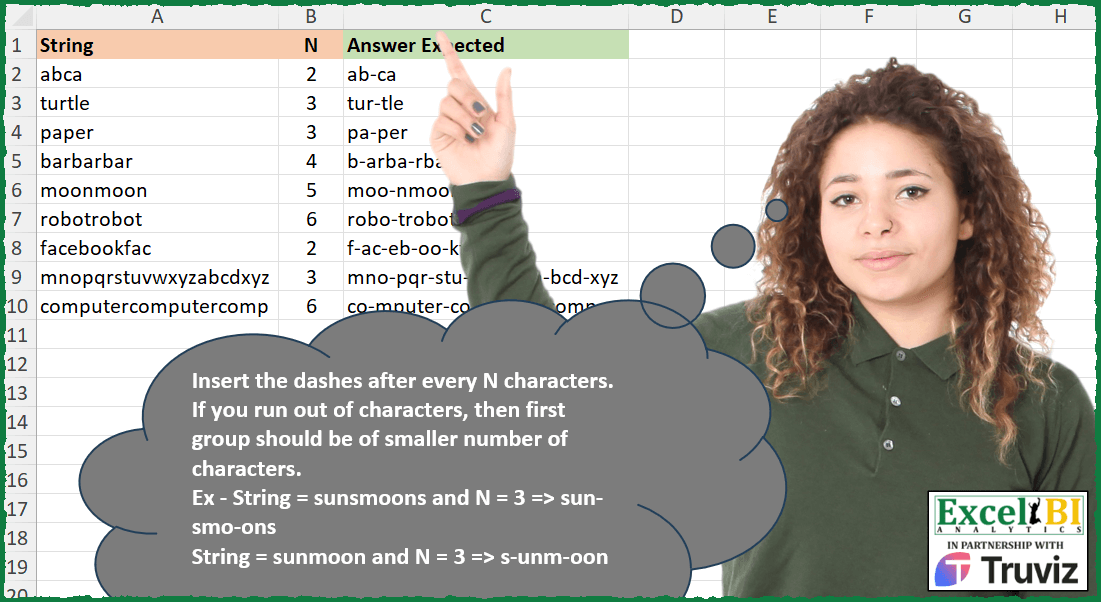
Insert the dashes after every N characters. If you run out of characters, then first group should be of smaller number of characters. Ex – String = sunsmoons and N = 3 => sun-smo-ons String = sunmoon and N = 3 => s-unm-oon
📌 Challenge Details and Links
ExcelBI Excel Challenge Number: 460
Challenge Difficulty: ⭐️
📥Download Sample File
📥Link to the solutions on LinkedIn
Solving the challenge of Insert Dashes After N Characters with Power Query
Power Query solution 1 for Insert Dashes After N Characters, proposed by Aditya Kumar Darak 🇮🇳:
let
  Source = Excel.CurrentWorkbook(){[Name = "data"]}[Content],
  Return = Table.AddColumn(
    Source,
    "Answer",
    each [S = Splitter.SplitTextByRepeatedLengths([N], true)([String]), R = Text.Combine(S, "-")][R]
  )
in
  Return
Power Query solution 2 for Insert Dashes After N Characters, proposed by Alejandro Simón 🇵🇦 🇪🇸:
let
  Source = Excel.CurrentWorkbook(){[Name = "Table1"]}[Content],
  Sol = Table.AddColumn(
    Source,
    "Answer",
    each Text.Combine(Splitter.SplitTextByRepeatedLengths([N], true)([String]), "-")
  )
in
  Sol
Power Query solution 3 for Insert Dashes After N Characters, proposed by Alejandro Simón 🇵🇦 🇪🇸:
let
  Source = Excel.CurrentWorkbook(){[Name = "Table1"]}[Content],
  Sol = Table.AddColumn(
    Source,
    "Answer",
    each Text.Reverse(
      Text.Combine(
        List.Transform(List.Split(List.Reverse(Text.ToList([String])), [N]), each Text.Combine(_)),
        "-"
      )
    )
  )[[Answer]]
in
  Sol
Power Query solution 4 for Insert Dashes After N Characters, proposed by Luan Rodrigues:
let
  Fonte = Tabela1,
  res = Table.AddColumn(
    Fonte,
    "Personalizar",
    each [
      a = Text.ToList([String]),
      b = List.Reverse(List.Transform(List.Split(a, [N]), List.Count)),
      c = List.Last(
        List.Transform(b, (x) => Splitter.SplitTextByRepeatedLengths(x)(Text.Reverse([String])))
      ),
      d = Text.Combine(List.Reverse(List.Transform(c, each Text.Reverse(_))), "-")
    ][d]
  )
in
  res
Power Query solution 5 for Insert Dashes After N Characters, proposed by Brian Julius:
let
  Source = RawData,
  AddAnswer = Table.AddColumn(
    Source,
    "Answer",
    each [
      a = [String],
      n = [N],
      b = Text.Length([String]),
      c = Number.Mod(b, n),
      e = Text.ToList(a),
      f =
        if c = 0 then
          List.Split(e, n)
        else
          List.FirstN(List.Split(e, c), 1) & List.Split(List.RemoveFirstN(e, c), n),
      g = List.Transform(f, each Text.Combine(_, "")),
      h = Text.Combine(g, "-")
    ][h]
  )
in
  AddAnswer
Power Query solution 6 for Insert Dashes After N Characters, proposed by Ramiro Ayala Chávez:
let
  S = Excel.CurrentWorkbook(){[Name = "Table1"]}[Content],
  Fx = (x, y) =>
    let
      T = x,
      N = y,
      A = List.Reverse(Text.ToList(T)),
      B = List.Split(A, N),
      C = List.Transform(B, each if List.Count(_) < N then _ else List.InsertRange(_, N, {"-"})),
      D = List.Reverse(List.Combine(C)),
      E = Text.Combine(if List.First(D) = "-" then List.Skip(D) else D)
    in
      E,
  Sol = Table.AddColumn(S, "Answer Expected", each Fx([String], [N]))
in
  Sol
Solving the challenge of Insert Dashes After N Characters with Excel
Excel solution 1 for Insert Dashes After N Characters, proposed by Bo Rydobon 🇹🇭:
=MAP(
    A2:A10,
    B2:B10,
    LAMBDA(
        a,
        n,
        LET(
            m,
            MOD(
                LEN(
                    a
                ),
                n
            ),
            TEXTJOIN(
                "-",
                ,
                LEFT(
                    a,
                    m
                ),
                MID(
                    a,
                    SEQUENCE(
                        9,
                        ,
                        ,
                        n
                    )+m,
                    n
                )
            )
        )
    )
)
=REDUCE(
    A2:A10,
    SEQUENCE(
        9
    ),
    LAMBDA(
        a,
        i,
        LET(
            f,
            FIND(
                "-",
                a&"-"
            )-B2:B10,
            IF(
                f<2,
                a,
                REPLACE(
                    a,
                    f,
                    ,
                    "-"
                )
            )
        )
    )
)
Excel solution 2 for Insert Dashes After N Characters, proposed by Rick Rothstein:
=MAP(A2:A10,
    B2:B10,
    LAMBDA(a,
    b,
    REDUCE(a,
    SEQUENCE(,
    (LEN(
        a
    )-1)/b,
    LEN(
        a
    )-b+1,
    -b),
    LAMBDA(
        a,
        x,
        REPLACE(
            a,
            x,
            0,
            "-"
        )
    ))))
Excel solution 3 for Insert Dashes After N Characters, proposed by Rick Rothstein:
=MAP(
    A2:A10,
    B2:B10,
    LAMBDA(
        a,
        b,
        TRIM(
            TEXTJOIN(
                "-",
                ,
                MID(
                    REPT(
                        " ",
                        MOD(
                            b-LEN(
                                a
                            ),
                            b
                        )
                    )&a,
                    SEQUENCE(
                        ,
                        9,
                        ,
                        b
                    ),
                    b
                )
            )
        )
    )
)
Excel solution 4 for Insert Dashes After N Characters, proposed by John V.:
=MAP(
    A2:A10,
    B2:B10,
    LAMBDA(
        s,
        n,
        LET(
            r,
            MOD(
                LEN(
                    s
                ),
                n
            ),
            TEXTJOIN(
                "-",
                ,
                LEFT(
                    s,
                    r
                ),
                MID(
                    s,
                    r+SEQUENCE(
                        ,
                        9,
                        ,
                        n
                    ),
                    n
                )
            )
        )
    )
)
Excel solution 5 for Insert Dashes After N Characters, proposed by محمد حلمي:
=MAP(
    A2:A10,
    B2:B10,
    LAMBDA(
        a,
        b,
        LET(
            i,
            MOD(
                LEN(
                    a
                ),
                b
            ),

            TEXTJOIN(
                "-",
                ,
                LEFT(
                    a,
                    i
                ),
                MID(
                    a,
                    i+SEQUENCE(
                        9,
                        ,
                        ,
                        b
                    ),
                    b
                )
            )
        )
    )
)
Excel solution 6 for Insert Dashes After N Characters, proposed by Kris Jaganah:
=MAP(
    A2:A10,
    B2:B10,
    LAMBDA(
        x,
        y,
        LET(
            a,
            SEQUENCE(
                LEN(
                    x
                )
            ),
            b,
            MOD(
                a,
                y
            ),
            c,
            XLOOKUP(
                -SORT(
                    -a
                ),
                a+1,
                IF(
                    b=0,
                    "-",
                    ""
                ),
                ""
            ),
            CONCAT(
                HSTACK(
                    MID(
                        x,
                        a,
                        1
                    ),
                    c
                )
            )
        )
    )
)
Excel solution 7 for Insert Dashes After N Characters, proposed by Julian Poeltl:
=MAP(A2:A10,
    B2:B10,
    LAMBDA(S,
    N,
    LET(L,
    LEN(
        S
    ),
    FC,
    MOD(
        L,
        N
    ),
    TEXTJOIN("-",
    ,
    VSTACK(LEFT(
        S,
        FC
    ),
    MID(S,
    SEQUENCE((L-FC)/N,
    ,
    FC+1,
    N),
    N))))))
Excel solution 8 for Insert Dashes After N Characters, proposed by Timothée BLIOT:
=MAP(
    A2:A10,
    B2:B10,
    LAMBDA(
        x,
        y,
        LET(
            A,
            LEN(
                x
            ),
            B,
            INT(
                A/y
            ),
            C,
            A-B*y,
            TEXTJOIN(
                "-",
                ,
                VSTACK(
                    MID(
                        x,
                        1,
                        C
                    ),
                    MID(
                        MID(
                            x,
                            C+1,
                            A-C
                        ),
                        SEQUENCE(
                            B,
                            ,
                            ,
                            y
                        ),
                        y
                    )
                )
            )
        )
    )
)
Excel solution 9 for Insert Dashes After N Characters, proposed by Nikola Z Grujicic - Nikola Ž Grujičić:
=MAP(
    A2:A10,
     B2:B10,
     LAMBDA(
         a,
          b,
          LET(
              d,
               MOD(
                   LEN(
                       a
                   ),
                    b
               ),
               e,
               INT(
                   LEN(
                       a
                   )/b
               ),
               f,
               TEXTJOIN(
                   "-",
                   TRUE,
                    MID(
                        a,
                         SEQUENCE(
                             LEN(
                       a
                   ),
                             ,
                              d+1,
                              b
                         ),
                         b
                    )
               ),
               IF(
                   d=0,
                    f,
                    LEFT(
                        a,
                         d
                    )&"-"&f
               )
          )
     )
)
Excel solution 10 for Insert Dashes After N Characters, proposed by Duy Tùng:
=MAP(
    A2:A10,
    B2:B10,
    LAMBDA(
        x,
        v,
        LET(
            a,
            SEQUENCE(
                LEN(
                    x
                )
            ),
            CONCAT(
                VSTACK(
                    "",
                    DROP(
                        IF(
                            SORTBY(
                                MOD(
                                    a,
                                    v
                                ),
                                -a
                            ),
                            "",
                            "-"
                        ),
                        1
                    )
                )&MID(
                    x,
                    a,
                    1
                )
            )
        )
    )
)
Excel solution 11 for Insert Dashes After N Characters, proposed by Sunny Baggu:
=MAP(
 A2:A10,

 B2:B10,

 LAMBDA(x,
     y,

 LET(
 l,
     LEN(
         x
     ),

 m,
     MOD(
         l,
          y
     ),

 n,
     IF(
 m,

 UNIQUE(VSTACK(m + 1,
     IFERROR(DROP(SEQUENCE(
         l / y
     ) * (y + 1),
     -1),
     0) + m + 1)),

 DROP(SEQUENCE(
     l / y,
      ,
      0
 ) * (y + 1),
     1)
 ),

 REDUCE(
     x,
      n,
      LAMBDA(
          a,
           v,
           REPLACE(
               a,
                v,
                0,
                "-"
           )
      )
 )
 )
 )
)
Excel solution 12 for Insert Dashes After N Characters, proposed by Sunny Baggu:
=MAP(

     A2:A10,

     B2:B10,

     LAMBDA(
         x,
          y,

          TEXTJOIN(

               "-",

               ,

               VSTACK(

                    MID(
                        x,
                         1,
                         MOD(
                             LEN(
                                 x
                             ),
                              y
                         )
                    ),

                    MID(
                        x,
                         SEQUENCE(
                             9,
                              ,
                              ,
                              y
                         ) + MOD(
                             LEN(
                                 x
                             ),
                              y
                         ),
                         y
                    )

               )

          )

     )

)
Excel solution 13 for Insert Dashes After N Characters, proposed by Abdallah Ally:
=MAP(A2:A10,
    B2:B10,
    LAMBDA(x,
    y,
    LET(a,
    x,
    b,
    y,
    c,
    LEN(
        a
    ),
    d,
    MOD(
        c,
        b
    ),
     TEXTJOIN("-",
    ,
    LEFT(
        a,
        d
    ),
    MID(a,
    SEQUENCE(,
    (c-d)/b,
    d+1,
    b),
    b)))))
Excel solution 14 for Insert Dashes After N Characters, proposed by 🇵🇪 Ned Navarrete C.:
=MAP(A2:A10,
    B2:B10,
    LAMBDA(a,
    b,
    LET(l,
    LEN(
        a
    ),
    s,
    SEQUENCE(
        l
    ),
    m,
    MID(
        a,
        l+1-s,
        1
    ),
    CONCAT(MID(CONCAT(m&REPT("-",
    (s<>MAX(
        s
    ))*NOT(
        MOD(
            s,
            b
        )
    ))),
    31-ROW(
        1:30
    ),
    1)))))
Excel solution 15 for Insert Dashes After N Characters, proposed by Asheesh Pahwa:
=MAP(
    A2:A10,
    B2:B10,
    LAMBDA(
        x,
        y,
        LET(

            md,
            MOD(
                LEN(
                    x
                ),
                y
            ),
            m,
            MID(
                x,
                1,
                md
            ),
      &
            mm,
            MID(
                x,
                SEQUENCE(
                    9,
                    ,
                    ,
                    y
                )+md,
                y
            ),

            v,
            VSTACK(
                m,
                mm
            ),
            TEXTJOIN(
                "-",
                1,
                v
            )
        )
    )
)
Excel solution 16 for Insert Dashes After N Characters, proposed by Andy Heybruch:
=MAP(
    A2:A10,
    B2:B10,
    LAMBDA(
        _string,
        _n,

        LET(

            _m,
            MOD(
                LEN(
                    _string
                ),
                _n
            ),

            _1stgrp,
            LEFT(
                _string,
                _m
            ),

            _othergrps,
            MID(
                _string,
                SEQUENCE(
                    ROUNDDOWN(
                        LEN(
                    _string
                )/_n,
                        0
                    ),
                    ,
                    _m,
                    _n
                )+1,
                _n
            ),

            TEXTJOIN(
                "-",
                1,
                VSTACK(
                    _1stgrp,
                    _othergrps
                )
            )
        )
    )
)
Excel solution 17 for Insert Dashes After N Characters, proposed by Bilal Mahmoud kh.:
=MAP(
    A2:A10,
    B2:B10,
    LAMBDA(
        x,
        y,
        IF(
            MOD(
                LEN(
                    x
                ),
                y
            )=0,
            TEXTJOIN(
                "-",
                TRUE,
                MID(
                    x,
                    SEQUENCE(
                        LEN(
                    x
                )/y,
                        ,
                        1,
                        y
                    ),
                    y
                )
            ),
            MID(
                x,
                1,
                MOD(
                LEN(
                    x
                ),
                y
            )
            )&"-"&LET(
                a,
                MID(
                    x,
                    MOD(
                LEN(
                    x
                ),
                y
            )+1,
                    LEN(
                    x
                )-MOD(
                LEN(
                    x
                ),
                y
            )
                ),
                b,
                TEXTJOIN(
                    "-",
                    TRUE,
                    MID(
                        a,
                        SEQUENCE(
                            LEN(
                                a
                            )/y,
                            ,
                            1,
                            y
                        ),
                        y
                    )
                ),
                b
            )
        )
    )
)
Excel solution 18 for Insert Dashes After N Characters, proposed by Sandeep Marwal:
=MAP(
    A2:A10,

    LAMBDA(
        a,

        LET(

            r,
            LAMBDA(
                p,
                CONCAT(
                    MID(
                        p,
                        SEQUENCE(
                            LEN(
                                p
                            ),
                            ,
                            LEN(
                                p
                            ),
                            -1
                        ),
                        1
                    )
                )
            ),

            x,
            r(
                a
            ),

            t,
            TEXTJOIN(
                "-",
                ,
                MID(
                    x,
                    SEQUENCE(
                        ROUNDUP(
                            LEN(
                                x
                            )/OFFSET(
                                a,
                                ,
                                1
                            ),
                            0
                        ),
                        ,
                        1,
                        OFFSET(
                                a,
                                ,
                                1
                            )
                    ),
                    OFFSET(
                                a,
                                ,
                                1
                            )
                )
            ),

            r(
                t
            )
        )
    )
)
Excel solution 19 for Insert Dashes After N Characters, proposed by Diarmuid Early:
=REGEXREPLACE(
    A2:A10,
    "(w)(?=(w{"&B2:B10&"})+$)",
    "$1-"
)
The logic:
w matches any letter or number (you could use [a-z] to match only lowercase letters,
     but since that's all there was here,
     this was more concise...)
The brackets around it make the letter a capture group,
     so we can use it later.
w{n} for some digit n matches n consecutive letters (or numbers),
     and w{n}+ matches any number of groups of n consecutive letters.
$ matches the end of the string
And ?= is the 'positive lookahead' operator,
     meaning what you match before this has to be followed by what comes after it.
So in plain language,
     the match is looking for a letter followed by  other letters,
     followed by the end of the line (where n is the input value on each line).
$1 refers to the first capture group (the letter we captured in the first part)
Excel solution 20 for Insert Dashes After N Characters, proposed by LUIS FLORENTINO COUTO CORTEGOSO:
=MAP(A2:A10,
    B2:B10,
    LAMBDA(f,
    n,
    LET(r,
    MOD(
        LEN(
            f
        ),
        n
    ),
    s,
    REPT(
        " ",
        IF(
            r,
            n-r,
            0
        )
    )&f,
    TEXTJOIN("-",
    ,
    TRIM(BYROW(WRAPROWS(MID (s,
    SEQUENCE(
        LEN(
            s
        )
    ),
    1),
    n,
    " "),
    CONCAT))))))
Excel solution 21 for Insert Dashes After N Characters, proposed by Josh Brodrick:
=MAP(
    A2:A10,
    B2:B10,
    LAMBDA(
        x,
        y,

        IF(
            MOD(
                LEN(
                    x
                ),
                y
            )=0,

            TEXTJOIN(
                "-",
                TRUE,
                MID(
                    x,
                    SEQUENCE(
                        1,
                        LEN(
                    x
                ),
                        ,
                        y
                    ),
                    y
                )
            ),

            TEXTJOIN(
                "-",
                TRUE,
                LEFT(
                    x,
                    MOD(
                LEN(
                    x
                ),
                y
            )
                ),
                MID(
                    RIGHT(
                        x,
                        LEN(
                    x
                )-MOD(
                LEN(
                    x
                ),
                y
            )
                    ),
                    SEQUENCE(
                        1,
                        LEN(
                    x
                ),
                        ,
                        y
                    ),
                    y
                )
            )
        )
    )
)
Excel solution 22 for Insert Dashes After N Characters, proposed by Tyler Cameron:
=MAP(
    A2:A10,
    B2:B10,
    LAMBDA(
        x,
        y,
        LET(
            a,
            RIGHT(
                LEFT(
                    x,
                    SEQUENCE(
                        LEN(
                            x
                        )/y+1,
                        ,
                        LEN(
                            x
                        ),
                        -y
                    )
                ),
                y
            ),
            b,
            COUNTA(
                a
            ),
            TEXTJOIN(
                "-",
                ,
                INDEX(
                    a,
                    SEQUENCE(
                        b,
                        ,
                        b,
                        -1
                    )
                )
            )
        )
    )
)
Excel solution 23 for Insert Dashes After N Characters, proposed by Marek Tomanek:
=LAMBDA(
    text;
    del;
    LET(
        over;
        MOD(
            LEN(
                text
            );
            del
        );
         firstP;
        MID(
            text;
            1;
            over
        );
         secondP;
        MID(
            text;
            over+1;
            LEN(
                text
            )-over
        );
         splitSecond;
        MID(
            secondP;
            SEQUENCE(
                LEN(
                    secondP
                );
                ;
                1;
                del
            );
            del
        );
         joined;
        TEXTJOIN(
            "-";
            TRUE;
            firstP;
            splitSecond
        );
         joined
    )
)

If you have questions feel free to ask :)
Solving the challenge of Insert Dashes After N Characters with Python
Python solution 1 for Insert Dashes After N Characters, proposed by Konrad Gryczan, PhD:
import pandas as pd
input = pd.read_excel("460 Insert Dash Splitter.xlsx", usecols="A:B", nrows = 9)
test  = pd.read_excel("460 Insert Dash Splitter.xlsx", usecols="C", nrows = 9)
def split_by_dash(word, n):
 chars = list(word)
 chars.reverse()
 chunks = [chars[i:i+n] for i in range(0, len(chars), n)]
 reversed_chunks = ["".join(chunk[::-1]) for chunk in chunks]
 reversed_chunks.reverse()
 return "-".join(reversed_chunks)
input["Answer Expected"] = input.apply(lambda x: split_by_dash(x[0], x[1]), axis=1)
print(input["Answer Expected"].equals(test["Answer Expected"])) # True
Solving the challenge of Insert Dashes After N Characters with Python in Excel
Python in Excel solution 1 for Insert Dashes After N Characters, proposed by Abdallah Ally:
# I love regular expressions
import pandas as pd
import re
file_path = 'Excel_Challenge_460 - Insert Dash Splitter.xlsx'
df = pd.read_excel(file_path)
# Perform data wrangling
df['My Answer'] = df.apply(lambda x: '-'.join(
 re.findall(f'.{{1,}}(?=(?:.{{}})*$)', x[0])), axis=1)
df['Check'] = df['Answer Expected'] == df['My Answer']
df
Python in Excel solution 2 for Insert Dashes After N Characters, proposed by Abdallah Ally:
import pandas as pd
def insert_dash_splitter(text, size):
 length, start = len(text), len(text) % size
 result = [text[x: x + size] for x in range(start, length, size)]
 return '-'.join([text[: start]] + result if start else result)
file_path = 'Excel_Challenge_460 - Insert Dash Splitter.xlsx'
df = pd.read_excel(file_path)
# Perform data wrangling
df['My Answer'] = df.apply(lambda x: insert_dash_splitter(x[0], x[1]), axis=1)
df['Check'] = df['Answer Expected'] == df['My Answer']
df
Python in Excel solution 3 for Insert Dashes After N Characters, proposed by Anshu Bantra:
import textwrap as tw
val=xl("A2")
n=xl("B2")
vals=[_[::-1] for _ in tw.wrap(val[::-1], n)[::-1]]
'-'.join(vals)
Solving the challenge of Insert Dashes After N Characters with R
R solution 1 for Insert Dashes After N Characters, proposed by Konrad Gryczan, PhD:
library(tidyverse)
library(readxl)
input = read_excel("Excel/460 Insert Dash Splitter.xlsx", range = "A1:B10")
test = read_excel("Excel/460 Insert Dash Splitter.xlsx", range = "C1:C10")
split_by_dash = function(word, n) {
 str_split(word, "", simplify = TRUE) %>%
 rev() %>%
 split(rep(1:ceiling(length(.) / n), each = n, length.out = length(.))) %>%
 map(~paste0(rev(.), collapse = "")) %>%
 rev() %>%
 paste0(collapse = "-")
}
result = input %>%
 mutate(`Answer Expected` = map2_chr(String, N, split_by_dash)) %>%
 select(3)
identical(result, test)
# [1] TRUE
Solving the challenge of Insert Dashes After N Characters with Excel VBA
Excel VBA solution 1 for Insert Dashes After N Characters, proposed by Rushikesh K.:
Sub InsertDashes()
 Dim ws As Worksheet
 Dim lastRow As Long
 Dim i As Long
 Dim text As String
 Dim dashPosition As Long

 Set ws = ThisWorkbook.Sheets("Sheet1")
 lastRow = ws.Cells(ws.Rows.Count, "A").End(xlUp).Row

 For i = 2 To lastRow
 text = ws.Cells(i, 1).Value
 dashPosition = ws.Cells(i, 2).Value

 If dashPosition > 0 And Len(text) > dashPosition Then
 Dim modifiedText As String
 modifiedText = InsertDashesFromRight(text, dashPosition)
 ws.Cells(i, 3).Value = modifiedText
 End If
 Next i
End Sub
Function InsertDashesFromRight(str As String, position As Long) As String
 Dim i As Long
 Dim result As String

 For i = Len(str) To 1 Step -1
 result = Mid(str, i, 1) & result
 If (Len(str) - i + 1) Mod position = 0 And i <> 1 Then
 result = "-" & result
 End If
 Next i

 InsertDashesFromRight = result
End Function
&&