
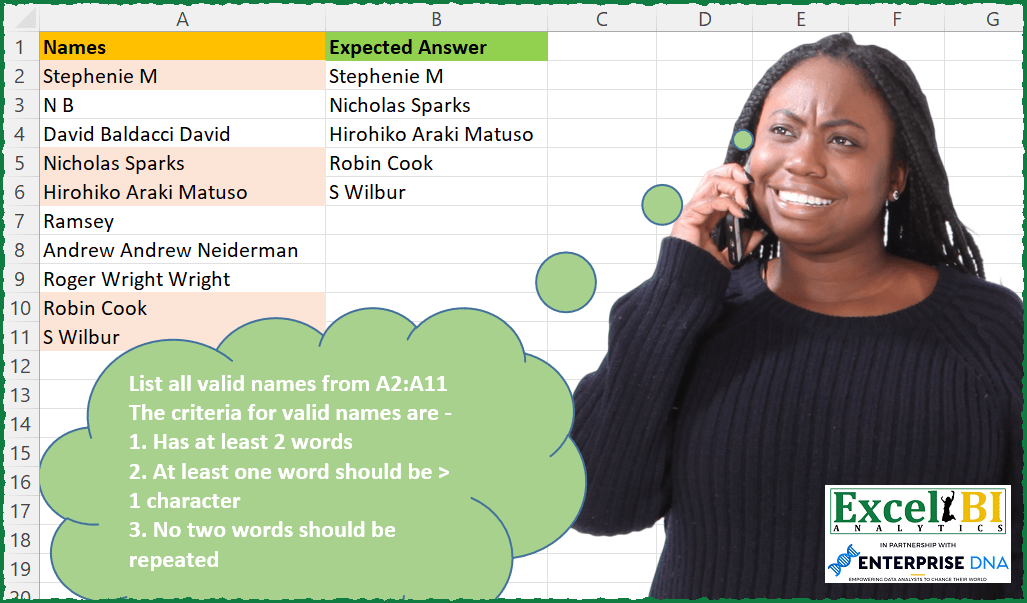
List all valid names from A2:A11 The criteria for valid names are – 1. Has at least 2 words 2. At least one word should be > 1 character 3. No two words should be repeated
📌 Challenge Details and Links
ExcelBI Excel Challenge Number: 233
Challenge Difficulty: ⭐️
📥Download Sample File
📥Link to the solutions on LinkedIn
Solving the challenge of Validate Multi-Word Names with Power Query
Power Query solution 1 for Validate Multi-Word Names, proposed by Bo Rydobon 🇹🇭:
let
  Source = Excel.CurrentWorkbook(){[Name = "Table1"]}[Content],
  Ans = Table.SelectRows(
    Source,
    each
      let
        t = Text.Split([Names], " ")
      in
        List.Distinct(t) = t and List.Count(t) > 1 and Text.Length([Names]) >= 2 * List.Count(t)
  )
in
  Ans
Power Query solution 2 for Validate Multi-Word Names, proposed by Zoran Milokanović:
let
  Source = Excel.CurrentWorkbook(){[Name = "Input"]}[Content][Names],
  S = List.Select(
    Source,
    each
      let
        w = Text.Split(_, " ")
      in
        List.Count(w) > 1 and List.Max(List.Transform(w, Text.Length)) > 1 and List.IsDistinct(w)
  )
in
  S
Power Query solution 3 for Validate Multi-Word Names, proposed by Alejandro Simón 🇵🇦 🇪🇸:
let
  Source = Excel.CurrentWorkbook(){[Name = "Table1"]}[Content],
  Sol = Table.SelectRows(
    Table.AddColumn(
      Source,
      "New",
      each
        let
          a = Text.Split([Names], " "),
          b = List.Select(a, each Text.Length(_) > 1),
          c = List.Count(b) > 0 and List.Count(a) > 1 and List.Distinct(a) = a
        in
          c
    ),
    each [New] = true
  )[[Names]]
in
  Sol
Power Query solution 4 for Validate Multi-Word Names, proposed by Luan Rodrigues:
let
  Fonte = Tabela1,
  res = Table.SelectRows(
    Fonte,
    each [
      a = Text.Split([Names], " "),
      b = List.Count(a) > 1,
      c = List.AnyTrue(List.Transform(a, (x) => Text.Length(x) > 1)),
      d = List.Count(List.Distinct(List.Transform(a, (x) => x)))
        = List.Count(List.Transform(a, (x) => x)),
      e = List.AllTrue({{b} & {c} & {d}}{0})
    ][e]
  )
in
  res
Power Query solution 5 for Validate Multi-Word Names, proposed by Brian Julius:
let
  Source = Table.DuplicateColumn(
    Excel.CurrentWorkbook(){[Name = "Table1"]}[Content],
    "Names",
    "Words"
  ),
  SplitToRows = Table.ExpandListColumn(
    Table.TransformColumns(
      Source,
      {
        {
          "Words",
          Splitter.SplitTextByDelimiter(" ", QuoteStyle.Csv),
          let
            itemType = (type nullable text) meta [Serialized.Text = true]
          in
            type {itemType}
        }
      }
    ),
    "Words"
  ),
  Trim = Table.TransformColumns(SplitToRows, {{"Words", Text.Trim, type text}}),
  AddWordLength = Table.AddColumn(Trim, "Length", each Text.Length([Words]), Int64.Type),
  Group = Table.Group(
    AddWordLength,
    {"Names"},
    {
      {"Count", each Table.RowCount(_), Int64.Type},
      {"Distinct", each Table.RowCount(Table.Distinct(_)), Int64.Type},
      {"MaxLength", each List.Max([Length]), type number}
    }
  ),
  Filter = Table.SelectRows(
    Group,
    each ([Count] = [Distinct]) and ([Count] > 1) and [MaxLength] > 1
  ),
  Clean = Table.SelectColumns(Filter, {"Names"})
in
  Clean
Power Query solution 6 for Validate Multi-Word Names, proposed by Venkata Rajesh:
let
  Source = Data,
  Output = List.Select(
    Source[Names],
    each [
      x = Text.Split(_, " "),
      y = List.Distinct(x),
      z = List.Count(y) > 1 and List.Max(List.Transform(y, each Text.Length(_))) > 1 and x = y
    ][z]
  )
in
  Output
Solving the challenge of Validate Multi-Word Names with Excel
Excel solution 1 for Validate Multi-Word Names, proposed by Bo Rydobon 🇹🇭:
=TOCOL(MAP(A2:A11,LAMBDA(z,IFS((TEXTJOIN(" ",,UNIQUE(TEXTSPLIT(z,," ")))=z)*FIND(" ",z)*(LEN(z)>3),z))),3)Excel solution 2 for Validate Multi-Word Names, proposed by Bo Rydobon 🇹🇭:
=FILTER(A2:A11,MAP(A2:A11,LAMBDA(z,LET(t,TEXTSPLIT(z,," "),r,ROWS(t),(ROWS(UNIQUE(t))=r)*(r>1)*OR(LEN(t)>1)))))Excel solution 3 for Validate Multi-Word Names, proposed by Rick Rothstein:
=FILTER(A2:A11,MAP(A2:A11,LAMBDA(x,LET(w,TEXTSPLIT(x," "),c,COUNTA(w),(c>1)*(SUM(LEN(w))>c)*(x=TEXTJOIN(" ",,UNIQUE(w,1)))))))Excel solution 4 for Validate Multi-Word Names, proposed by John V.:
=TOCOL(MAP(A2:A11,LAMBDA(x,LET(n,TEXTSPLIT(x,," "),IFS(AND(ROWS(n)>1,n=UNIQUE(n),OR(LEN(n)>1)),x)))),2)Excel solution 5 for Validate Multi-Word Names, proposed by محمد حلمي:
=FILTER(A2:A11,MAP(A2:A11,LAMBDA(a,LET(v,TEXTSPLIT(a,," "),IFNA(AND(v=UNIQUE(v),ROWS(v)>1,OR(LEN(v)>1)),)))))Excel solution 6 for Validate Multi-Word Names, proposed by Kris Jaganah:
=FILTER(A2:A11,MAP(A2:A11,LAMBDA(x,LET(a,TEXTSPLIT(x,," "),b,ROWS(a),MAX(--(LEN(a)>1))*(b=ROWS(UNIQUE(a)))*(b>1)))))Excel solution 7 for Validate Multi-Word Names, proposed by Julian Poeltl:
=FILTER(A2:A11,MAP(A2:A11,LAMBDA(N,LET(SP,TEXTSPLIT(N,," "),R,ROWS(SP),(ROWS(UNIQUE(SP))=R)*(MAX(LEN(SP))>1)*R>1))))Excel solution 8 for Validate Multi-Word Names, proposed by Timothée BLIOT:
=FILTER(A2:A11,MAP(A2:A11,LAMBDA(z,LET(A,TEXTSPLIT(z,""),(COUNTA(A)>1)*(SUM(--(LEN(A)>1))>0)*(SUM(MAP(A,LAMBDA(x,SUMPRODUCT(1*(x=A)))))=COLUMNS(A))))))Excel solution 9 for Validate Multi-Word Names, proposed by Sunny Baggu:
=FILTER(
 A2:A11,
 MAP(
 A2:A11,
 LAMBDA(a,
 LET(
 _ts, TEXTSPLIT(a, , " "),
 _r, ROWS(_ts),
 _cri1, _r > 1,
 _cri2, OR(LEN(_ts) > 1),
 _cri3, ROWS(UNIQUE(_ts)) = _r,
 AND(_cri1, _cri2, _cri3)
 )
 )
 )
)
Excel solution 10 for Validate Multi-Word Names, proposed by JvdV –:
=FILTER(A2:A11,ISERR(FILTERXML(""&SUBSTITUTE(A2:A11," ","")&"Excel solution 11 for Validate Multi-Word Names, proposed by Julien Lacaze:
=FILTER(A2:A11,
MAP(A2:A11,LAMBDA(names,
LET(split,TEXTSPLIT(names," "),
crit1,(COLUMNS(split)>=2),
crit2,OR(LEN(split)>1),
crit3,AND(IFNA(split=UNIQUE(split,1),0)),
AND(crit1,crit2,crit3)))))
Excel solution 12 for Validate Multi-Word Names, proposed by Nicolas Micot:
=LET(_noms;A2:A11;_nbMots;BYROW(_noms;LAMBDA(a;COLONNES(FRACTIONNER.TEXTE(a;" "))));
_sup1Car;BYROW(_noms;LAMBDA(a;OU(NBCAR(FRACTIONNER.TEXTE(a;" "))>1)));
_noDoublons;BYROW(_noms;LAMBDA(a;COLONNES(UNIQUE(FRACTIONNER.TEXTE(a;" ");VRAI))))=_nbMots;
FILTRE(_noms;(_nbMots>=2)*(_sup1Car)*(_noDoublons);""))
Excel solution 13 for Validate Multi-Word Names, proposed by Ziad A.:
=FILTER(A:A,MAP(A:A,LAMBDA(_,LET(s,SPLIT(_," "),AND(COUNTA(s)>1,OR(LEN(s)>1),COUNTIF(s,s)=1)))))

We are essentialy splitting the strings and checking the 3 conditions:

• COUNTA(s) > 1: At least two words
• OR(LEN(s)>1): At least one word with length greater than 1
• COUNTIF(s,s)
Excel solution 14 for Validate Multi-Word Names, proposed by Daniel Garzia:
=FILTER(A2:A11,MAP(A2:A11,LAMBDA(l,LET(t,TEXTSPLIT(l,," "),r,ROWS(t),AND(OR(LEN(t)>1),r=ROWS(UNIQUE(t)),r>1)))))Excel solution 15 for Validate Multi-Word Names, proposed by Quadri Olayinka Atharu:
=LET(n,A2:A11,u,DROP(IFNA(REDUCE("",n,LAMBDA(a,x,(VSTACK(a,UNIQUE(TEXTSPLIT(x," "),1))))),""),1),
_c,BYROW(u,LAMBDA(x,LET(a,SUM(N(x<>""))>1,b,SUM(LEN(x))>2,c,TEXTJOIN(" ",1,x),d,ISNUMBER(XMATCH(c,n)),a*b*d))),
FILTER(n,_c))
Excel solution 16 for Validate Multi-Word Names, proposed by Diarmuid Early:
=FILTER(A2:A11,MAP(A2:A11,
 LAMBDA(a,LET(
 w,TEXTSPLIT(a,," "),
 m,MAX(LEN(w)),
 c,ROWS(w),
 u,ROWS(UNIQUE(w)),
 (c>1)*(u=c)*(m>1)))))

MAP applies the LAMBDA to each value a. For each one, we work out:
* w = list of words (using TEXTSPLIT - two commas so it splits to rows rather than columns, which works better with UNIQUE later)
* m = max length of word (needs to be >1)
* c = count of words (needs to be >1)
* u = count of unique words (needs to be =c)
Excel solution 17 for Validate Multi-Word Names, proposed by Henriette Hamer:
=LET(
 _list;A2:A11;
 _len_list;LEN(_list);
 _list_wo_spaces;SUBSTITUTE(_list;" ";"");
 _len_list_wo_spaces;LEN(_list_wo_spaces);
 FILTER(
 _list;
 MAP(
 _len_list-_len_list_wo_spaces+1;
 MAP(
 _list;
 LAMBDA(_text;
 COUNTA(UNIQUE(TEXTSPLIT(_text;" ");TRUE))
 )
 );
 _len_list_wo_spaces;
 LAMBDA(_words;_unique_words;_lengths_wo_sapces;
 AND(_words>1;_unique_words=_words;_lengths_wo_sapces>_words+1)
 )
 )
 )
 )

Now I'm going to look at the other comments, and learn from them. Especially the short ones :-)
Excel solution 18 for Validate Multi-Word Names, proposed by Amr Tawfik CMA®,FMVA,Lean Coach:
=FILTER(A2:A11,MAP(A2:A11,LAMBDA(z,LET(x,TOCOL(TEXTSPLIT(z," ")),y,IF(AND(SUM(LEN(x))>2,ROWS(x)>=2,SUM(LEN(x))=SUM(LEN(UNIQUE(x)))),TRUE,FALSE),y)))=TRUE)Excel solution 19 for Validate Multi-Word Names, proposed by Harry Seiders:
=LET(Test,TRIM(A2:A11),two_parts,IF(LEN(Test)>LEN(SUBSTITUTE(Test," ","")),Test,""),More_than_one_Char,IF(LEN(SUBSTITUTE(two_parts," ",""))=COUNTA(TEXTSPLIT(two_parts," ")),"",two_parts),no_Dups,MAP(More_than_one_Char,LAMBDA(Z,IF(COUNTA(TEXTSPLIT(Z," "))=COUNTA(UNIQUE(TEXTSPLIT(Z," "),TRUE)),
Z,""))),FILTER(no_Dups,no_Dups<>""))
&&&