
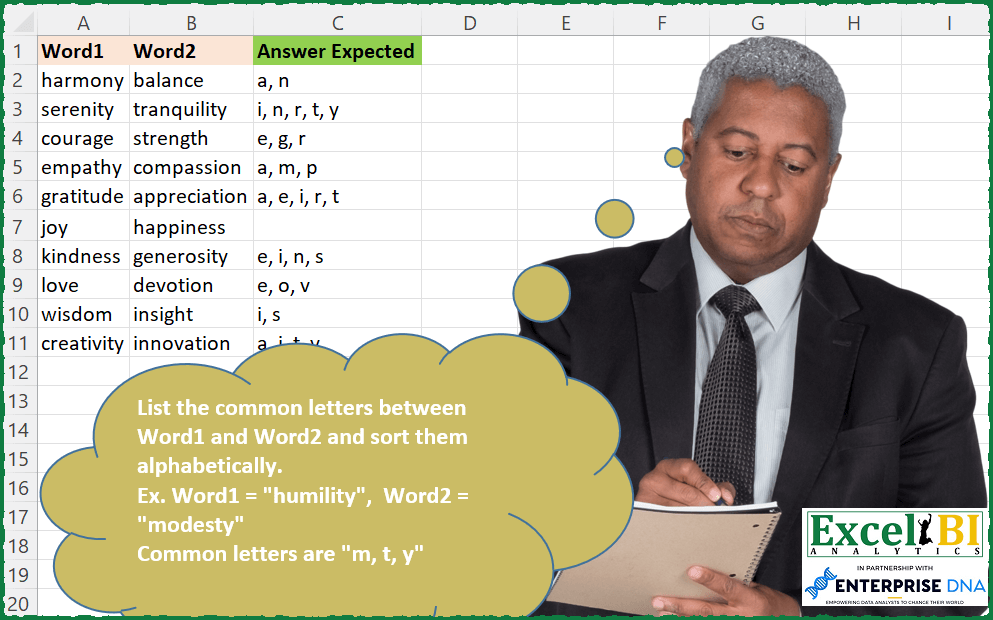
List the common letters between Word1 and Word2 and sort them alphabetically. Ex. Word1 = “humility”, Word2 = “modesty” Common letters are “m, t, y”
📌 Challenge Details and Links
ExcelBI Excel Challenge Number: 140
Challenge Difficulty: ⭐️
📥Download Sample File
📥Link to the solutions on LinkedIn
Solving the challenge of Common Letters Sorted with Power Query
Power Query solution 1 for Common Letters Sorted, proposed by Bo Rydobon 🇹🇭:
let
  Source = Excel.CurrentWorkbook(){[Name = "Table1"]}[Content],
  com = List.Transform(
    Table.ToRows(Source),
    each Text.Combine(List.Intersect({{"a" .. "z"}} & List.Transform(_, each Text.ToList(_))), ", ")
  )
in
  com
Power Query solution 2 for Common Letters Sorted, proposed by Zoran Milokanović:
letters w/ hashtag#powerquery. hashtag#bitanbit

let
 Source = Excel.CurrentWorkbook(){[Name="InputData"]}[Content],
 AddedCommonLetters = Table.AddColumn(Source, "Answer Expected", each List.Sort(List.Distinct(List.Intersect({Text.ToList([Word1]), Text.ToList([Word2])})))),
 ExtractedCommonLetters = Table.TransformColumns(AddedCommonLetters, {"Answer Expected", each Text.Combine(List.Transform(_, Text.From), ", "), type text}),
 Solution = ExtractedCommonLetters[[Answer Expected]]
in
 Solution
Power Query solution 3 for Common Letters Sorted, proposed by Aditya Kumar Darak 🇮🇳:
let
  Source = Excel.CurrentWorkbook(){[Name = "data"]}[Content],
  Return = Table.AddColumn(
    Source,
    "Common",
    each [
      V = Record.FieldValues(_),
      S = List.Transform(V, Text.ToList),
      C = List.Sort(List.Distinct(List.Intersect(S))),
      R = Text.Combine(C, ", ")
    ][R]
  )
in
  Return
Power Query solution 4 for Common Letters Sorted, proposed by Brian Julius:
let
  Source = Excel.CurrentWorkbook(){[Name = "Table1"]}[Content],
  AddAnswer = Table.AddColumn(
    Source,
    "Answer Expected",
    each [
      a = Text.ToList([Word1]),
      b = Text.ToList([Word2]),
      c = List.Distinct(List.Intersect({a, b})),
      d = List.Sort(c),
      e = Text.Combine(d, ", ")
    ][e]
  )
in
  AddAnswer
Power Query solution 5 for Common Letters Sorted, proposed by Bhavya Gupta:
let
  Source = Excel.CurrentWorkbook(){[Name = "Table1"]}[Content],
  Custom1 = Table.TransformRows(
    Source,
    each Text.Combine(
      List.Distinct(List.Sort(List.Intersect({Text.ToList([Word1]), Text.ToList([Word2])}))),
      ", "
    )
  )
in
  Custom1
Power Query solution 6 for Common Letters Sorted, proposed by Jaroslaw Kujawa:
let
 Source = Excel.CurrentWorkbook(){[Name=Table13]}[Content],
 hashtag#Added Custom = Table.AddColumn(Source, Custom, each Lines.ToText( List.Sort(List.Distinct( List.Intersect({Text.ToList([Word1]), Text.ToList([Word2])}))), , )),
 hashtag#Added Custom1 = Table.AddColumn(hashtag#Added Custom, Custom.1, each if [Custom] then Text.Start([Custom],Text.Length([Custom])-2) else )
in
 Table.RemoveColumns(hashtag#Added Custom1,{Custom})
Power Query solution 7 for Common Letters Sorted, proposed by Rafael González B.:
let
  Source = Excel.CurrentWorkbook(){[Name = "Table1"]}[Content],
  ChangeToText = Table.TransformColumnTypes(Source, {{"Word1", type text}, {"Word2", type text}}),
  TransformToList = Table.TransformColumns(
    ChangeToText,
    {{"Word1", each Text.ToList(_)}, {"Word2", each Text.ToList(_)}}
  ),
  CrossLists = Table.AddColumn(
    TransformToList,
    "Combined",
    each List.Distinct(List.Sort(List.Intersect({[Word1], [Word2]})))
  ),
  ExtractValuesFromLists = Table.TransformColumns(
    CrossLists,
    {"Combined", each Text.Combine(List.Transform(_, Text.From), ", "), type text}
  )[[Combined]]
in
  ExtractValuesFromLists
Power Query solution 8 for Common Letters Sorted, proposed by Krzysztof Kominiak:
let
  Source = Data,
  Result = Table.AddColumn(
    Source,
    "Answer",
    each Text.Combine(
      List.Sort(List.Distinct(List.Intersect({Text.ToList([Word1]), Text.ToList([Word2])}))),
      ", "
    )
  )
in
  Result
Power Query solution 9 for Common Letters Sorted, proposed by Udit Chatterjee:
let
  Source = Excel.CurrentWorkbook(){[Name = "common_letters"]}[Content],
  DatatypeChange = Table.TransformColumnTypes(Source, {{"Word1", type text}, {"Word2", type text}}),
  // fetch common letters from the texts
  CustomColumnAddition = Table.AddColumn(
    DatatypeChange,
    "Common Letters",
    each Text.Combine(
      List.Sort(
        List.Intersect({List.Distinct(Text.ToList([Word1])), List.Distinct(Text.ToList([Word2]))}),
        Order.Ascending
      ),
      ", "
    ),
    type text
  )
in
  CustomColumnAddition
Power Query solution 10 for Common Letters Sorted, proposed by Sue Bayes:
let
  Source = Excel.CurrentWorkbook(){[Name = "Table1"]}[Content],
  AddWord1 = Table.AddColumn(Source, "List1", each List.Distinct(Text.ToList([Word1]))),
  AddWord2 = Table.AddColumn(AddWord1, "List2", each List.Distinct(Text.ToList([Word2]))),
  AddAnswer = Table.AddColumn(
    AddWord2,
    "Answer",
    each List.Sort(List.Intersect({[List1], [List2]}))
  )[[Answer]],
  Extract = Table.TransformColumns(
    AddAnswer,
    {"Answer", each Text.Combine(List.Transform(_, Text.From), ", "), type text}
  )
in
  Extract
Solving the challenge of Common Letters Sorted with Excel
Excel solution 1 for Common Letters Sorted, proposed by Rick Rothstein:
=BYROW(A2:B11,LAMBDA(a,LET(c,CHAR(SEQUENCE(26,,97)),TEXTJOIN(", ",,IF(COUNTIF(a,"*"&c&"*")>1,c,"")))))

=BYROW(A2:B11,LAMBDA(a,LET(c,CHAR(SEQUENCE(26,,97)),TEXTJOIN(", ",,LEFT(c,COUNTIF(a,"*"&c&"*")>1)))))
Excel solution 2 for Common Letters Sorted, proposed by Rick Rothstein:
=MAP(A2:A11,B2:B11,LAMBDA(x,y,LET(c,CHAR(SEQUENCE(26,,97)),TEXTJOIN(", ",,SORT(IF(ISNUMBER(SEARCH(c&"*/*"&c,x&"/"&y)),c,""))))))Excel solution 3 for Common Letters Sorted, proposed by محمد حلمي:
=BYROW(A2:B11,LAMBDA(v,LET(
a,CHAR(ROW(97:122)),
TEXTJOIN(", ",,IF(BYROW(--ISNUMBER(FIND(a,v)),
LAMBDA(a,SUM(a)))>1,a,"")))))
Excel solution 4 for Common Letters Sorted, proposed by محمد حلمي:
=BYROW(A2:B11,LAMBDA(v,LET(a,CHAR(ROW(97:122)),TEXTJOIN(", ",,IF(MMULT(--ISNUMBER(FIND(a,v)),{1;1})>1,a,"")))))Excel solution 5 for Common Letters Sorted, proposed by Julian Poeltl:
=MAP(A2:A11,B2:B11,LAMBDA(A,B,LET(SP,LAMBDA(A,UNIQUE(MID(A,SEQUENCE(LEN(A)),1))),O,SP(A),IFERROR(TEXTJOIN(", ",,SORT(FILTER(O,ISNUMBER(XMATCH(O,SP(B)))))),""))))Excel solution 6 for Common Letters Sorted, proposed by Aditya Kumar Darak 🇮🇳:
=MAP(
 A2:A11,
 B2:B11,
 LAMBDA(a, b,
 LET(
 s, MID(b, SEQUENCE(LEN(b)), 1),
 f, FILTER(s, ISNUMBER(FIND(s, a)), ""),
 u, SORT(UNIQUE(f)),
 r, ARRAYTOTEXT(u),
 r
 )
 )
)
Excel solution 7 for Common Letters Sorted, proposed by Timothée BLIOT:
=LET(A,A2:A11, B,B2:B11, F, LAMBDA(x, MID(x,SEQUENCE(LEN(x)),1)),
MAP(SEQUENCE(ROWS(A)), LAMBDA(x, TEXTJOIN(", ",, SORT( MAP( F(INDEX(A,x)), LAMBDA(y, XLOOKUP(y,F(INDEX(B,x)),F(INDEX(B,x)),"") )) )) )) )
Excel solution 8 for Common Letters Sorted, proposed by Hussein SATOUR:
=MAP(A2:A11, B2:B11, LAMBDA(x,y,TEXTJOIN(", ",1,SORT( XLOOKUP(MID(x, SEQUENCE(LEN(x)),1), MID(y, SEQUENCE(LEN(y)),1), MID(y, SEQUENCE(LEN(y)),1),"")))))Excel solution 9 for Common Letters Sorted, proposed by Sunny Baggu:
=IFERROR(MAP(A2:A11,B2:B11,LAMBDA(x,y,
LET(_w1,MID(x,SEQUENCE(LEN(x)),1),_w2,MID(y,SEQUENCE(LEN(y)),1),
ARRAYTOTEXT(SORT(DROP(UNIQUE(REDUCE("",_w2,LAMBDA(a,v,VSTACK(a,IFERROR(FILTER(_w1,_w1=v),""))))),1)))))),"")
Excel solution 10 for Common Letters Sorted, proposed by Sunny Baggu:
=MAP(A2:A11,B2:B11,LAMBDA(x,y,
LET(_w1,MID(x,SEQUENCE(LEN(x)),1),
_w2,MID(y,SEQUENCE(LEN(y)),1),
_cri,IFNA(XMATCH(_w1,_w2),0),
IFERROR(ARRAYTOTEXT(UNIQUE(SORT(FILTER(_w1,_cri)))),""))))
Excel solution 11 for Common Letters Sorted, proposed by Md. Zohurul Islam:
=MAP(A2:A11,B2:B11,LAMBDA(x,y,LET(a,UNIQUE(MID(x,SEQUENCE(LEN(x)),1)),b,UNIQUE(MID(y,SEQUENCE(LEN(y)),1)),d,VSTACK(a,b),
e,UNIQUE(d),f,MAP(e,LAMBDA(p,SUM(ABS(d=p)))),g,IFERROR(ARRAYTOTEXT(SORT(UNIQUE(FILTER(e,f>1)))),""),g)))
Excel solution 12 for Common Letters Sorted, proposed by Charles Roldan:
=LET(f, LAMBDA(x, MID(x, SEQUENCE(LEN(x)), 1)),
MAP(A2:A11, B2:B11, LAMBDA(x,y, IFERROR(ARRAYTOTEXT(SORT(UNIQUE(FILTER(f(x), ISNUMBER(FIND(f(x), y)))))), ""))))
Excel solution 13 for Common Letters Sorted, proposed by Charles Roldan:
=MAP(A2:A11, B2:B11, LAMBDA(Word1,Word2, LET(_Letters, LAMBDA(Word, UNIQUE(MID(Word, SEQUENCE(LEN(Word)), 1), , TRUE)), List, VSTACK(_Letters(Word1), _Letters(Word2)),
uList, _Letters(Word1&Word2), IFERROR(ARRAYTOTEXT(SORT( UNIQUE(FILTER(List, ISNA(XMATCH(List, uList)))))), ""))))
Excel solution 14 for Common Letters Sorted, proposed by Stefan Olsson:
=MAP(A2:A11, B2:B11,
LAMBDA(w, rx,
LET(x, REGEXREPLACE(w, "[^"&rx&"]", ""),
IF(x<>"", TEXTJOIN(", ", 1, SORT( UNIQUE( MID(x, SEQUENCE( LEN(x)), 1)))),)
)))
Excel solution 15 for Common Letters Sorted, proposed by Abhishek Kumar Jain:
=MAP(A2:A11,B2:B11,LAMBDA(x,y,LET(a,UNIQUE(MID(x,SEQUENCE(LEN(x)),1)),b,UNIQUE(MID(y,SEQUENCE(LEN(y)),1)),c,XLOOKUP(a,b,b,""),TEXTJOIN(", ",1,SORT(c)))))Excel solution 16 for Common Letters Sorted, proposed by Guillermo Arroyo:
=LET(g,LAMBDA(n,UNIQUE(MID(n,SEQUENCE(LEN(n)),1))),MAP(A2:A11,B2:B11,LAMBDA(a,b,LET(x,g(a),y,g(b),m,MMULT(--(x=TRANSPOSE(y)),SEQUENCE(ROWS(y),,1,0)),TEXTJOIN(", ",1,SORT(FILTER(x,m,"")))))))Excel solution 17 for Common Letters Sorted, proposed by Anup Kumar:
=MAP(A2:A11,B2:B11,
 LAMBDA(a,b,
LET(
word1UniqueLetters, UNIQUE(MID(a,SEQUENCE(LEN(a),,1),1)),
word2UniqueLetters, UNIQUE(MID(b,SEQUENCE(LEN(b),,1),1)),
commonLettersArray, FILTER(word1UniqueLetters,IFERROR(XMATCH(word1UniqueLetters, word2UniqueLetters,0),FALSE)),
IFERROR(TEXTJOIN(", ",1,SORT(commonLettersArray)),"")
)
)
)
Excel solution 18 for Common Letters Sorted, proposed by Rayan S.:
=MAP(
 A2:A11,
 B2:B11,
 LAMBDA(a, b,
 LET(
 x, MID(a, SEQUENCE(LEN(a)), 1),
 y, MID(b, SEQUENCE(LEN(b)), 1),
 TEXTJOIN(", ", , UNIQUE(SORT(IF(IFNA(XMATCH(x, y), 0), x, ""))))
 )
 )
)
&&&