
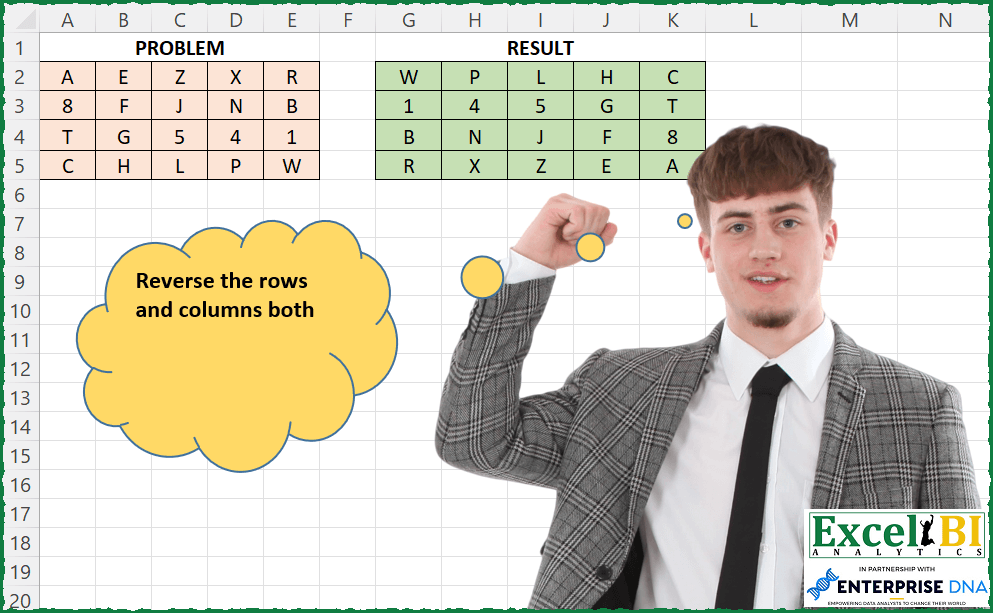
Reverse the rows and columns both
📌 Challenge Details and Links
ExcelBI Excel Challenge Number: 108
Challenge Difficulty: ⭐️
📥Download Sample File
📥Link to the solutions on LinkedIn
Solving the challenge of Reverse Rows and Columns with Power Query
Power Query solution 1 for Reverse Rows and Columns, proposed by Bo Rydobon 🇹🇭:
let
  Source = Excel.CurrentWorkbook(){[Name = "Table2"]}[Content],
  Res    = Table.Transpose(Table.ReverseRows(Table.Transpose(Table.ReverseRows(Source))))
in
  Res
Power Query solution 2 for Reverse Rows and Columns, proposed by Kris Jaganah:
let
  Source = Excel.CurrentWorkbook(){[Name = "Table2"]}[Content],
  #"Changed Type" = Table.TransformColumnTypes(
    Source,
    {
      {"Column1", type any},
      {"Column2", type text},
      {"Column3", type any},
      {"Column4", type any},
      {"Column5", type any}
    }
  ),
  #"Reordered Columns" = Table.ReorderColumns(
    #"Changed Type",
    {"Column5", "Column4", "Column3", "Column2", "Column1"}
  ),
  #"Added Index" = Table.AddIndexColumn(#"Reordered Columns", "Index", 0, 1, Int64.Type),
  #"Sorted Rows" = Table.Sort(#"Added Index", {{"Index", Order.Descending}}),
  #"Removed Columns" = Table.RemoveColumns(#"Sorted Rows", {"Index"})
in
  #"Removed Columns"
Power Query solution 3 for Reverse Rows and Columns, proposed by Aditya Kumar Darak 🇮🇳:
let
  Source = Excel.CurrentWorkbook(){[Name = "data"]}[Content],
  Rows   = Table.ReverseRows(Source),
  Header = List.Reverse(Table.ColumnNames(Rows)),
  Result = Table.SelectColumns(Rows, Header)
in
  Result
Power Query solution 4 for Reverse Rows and Columns, proposed by Alejandro Simón 🇵🇦 🇪🇸:
let
  Source = Excel.CurrentWorkbook(){[Name = "Table1"]}[Content],
  Custom1 = Table.FromColumns(
    List.Transform(List.Reverse(Table.ToColumns(Source)), each List.Reverse(_))
  )
in
  Custom1
Power Query solution 5 for Reverse Rows and Columns, proposed by Luan Rodrigues:
let
  Fonte = Tabela,
  tab = Table.ReverseRows(
    Table.AddColumn(
      Fonte,
      "Column",
      each [a = Record.FieldValues(_), b = List.Reverse(a), c = Text.Combine(b, "|")][c]
    )[[Column]]
  ),
  Result = Table.SplitColumn(
    tab,
    "Column",
    Splitter.SplitTextByDelimiter("|", QuoteStyle.None),
    Table.ColumnCount(Fonte)
  )
in
  Result
Power Query solution 6 for Reverse Rows and Columns, proposed by Brian Julius:
let
  Source = Table.ReverseRows(
    Table.Transpose(
      Table.ReverseRows(Table.Transpose(Excel.CurrentWorkbook(){[Name = "Table1"]}[Content]))
    )
  )
in
  Source
Power Query solution 7 for Reverse Rows and Columns, proposed by Bhavya Gupta:
let
  Source          = Excel.CurrentWorkbook(){[Name = "Table1"]}[Content],
  ReversedRows    = Table.ReverseRows(Source),
  ReversedColumns = Table.ReorderColumns(ReversedRows, List.Reverse(Table.ColumnNames(Source)))
in
  ReversedColumns
Power Query solution 8 for Reverse Rows and Columns, proposed by Md. Zohurul Islam:
let
  Source = Excel.CurrentWorkbook(){[Name = "data"]}[Content],
  A      = Table.ReorderColumns(Source, List.Reverse(Table.ColumnNames(Source))),
  B      = Table.AddIndexColumn(A, "Index", 1, 1, Int64.Type),
  C      = Table.Sort(B, {{"Index", Order.Descending}}),
  D      = Table.RemoveColumns(C, {"Index"})
in
  D
Power Query solution 9 for Reverse Rows and Columns, proposed by Matthias Friedmann:
let
  Source               = Excel.CurrentWorkbook(){[Name = "Reverse"]}[Content],
  #"Transposed Table"  = Table.Transpose(Source),
  #"Reversed Rows"     = Table.ReverseRows(#"Transposed Table"),
  #"Transposed Table1" = Table.Transpose(#"Reversed Rows"),
  #"Reversed Rows1"    = Table.ReverseRows(#"Transposed Table1")
in
  #"Reversed Rows1"
Power Query solution 10 for Reverse Rows and Columns, proposed by Rafael González B.:
let
  Source  = Excel.CurrentWorkbook(){[Name = "Table1"]}[Content],
  Reorder = Table.ReorderColumns(Table.ReverseRows(Source), List.Reverse(Table.ColumnNames(Source)))
in
  Reorder
Power Query solution 11 for Reverse Rows and Columns, proposed by Krzysztof Kominiak:
let
  Source = Table.ReverseRows(Excel.CurrentWorkbook(){[Name = "Table1"]}[Content])
in
  Table.SelectColumns(Source, List.Reverse(Table.ColumnNames(Source)))
Power Query solution 12 for Reverse Rows and Columns, proposed by Jan Willem Van Holst:
let
  Source = Table.FromRows(
    Json.Document(
      Binary.Decompress(
        Binary.FromText(
          "HchBCoAgFAbhu/xrN0FB2wozIiREKHy8+1/DwcUHw5hpU1BEw48iD6aVOnEjYx+3UgkLZkzjHtSFBy8+uXc=",
          BinaryEncoding.Base64
        ),
        Compression.Deflate
      )
    ),
    let
      _t = ((type nullable text) meta [Serialized.Text = true])
    in
      type table [Column1 = _t, Column2 = _t, Column3 = _t, Column4 = _t, Column5 = _t]
  ),
  #"Added Custom" = Table.AddColumn(Source, "Custom", each List.Reverse(Record.ToList(_))),
  #"Removed Columns" = Table.RemoveColumns(
    #"Added Custom",
    {"Column1", "Column2", "Column3", "Column4", "Column5"}
  ),
  #"Added Index" = Table.AddIndexColumn(#"Removed Columns", "Index", 0, 1, Int64.Type),
  #"Sorted Rows" = Table.Sort(#"Added Index", {{"Index", Order.Descending}}),
  #"Extracted Values" = Table.TransformColumns(
    #"Sorted Rows",
    {"Custom", each Text.Combine(List.Transform(_, Text.From), "|"), type text}
  ),
  #"Removed Columns1" = Table.RemoveColumns(#"Extracted Values", {"Index"}),
  #"Split Column by Delimiter" = Table.SplitColumn(
    #"Removed Columns1",
    "Custom",
    Splitter.SplitTextByDelimiter("|", QuoteStyle.Csv),
    {"Custom.1", "Custom.2", "Custom.3", "Custom.4", "Custom.5"}
  )
in
  #"Split Column by Delimiter"
Power Query solution 13 for Reverse Rows and Columns, proposed by Ian Segard:
let
  Source = Excel.CurrentWorkbook(){[Name = "Ch108in"]}[Content],
  #"Changed Type" = Table.TransformColumnTypes(
    Source,
    {
      {"Column1", type text},
      {"Column2", type text},
      {"Column3", type text},
      {"Column4", type text},
      {"Column5", type text}
    }
  ),
  #"Added Index" = Table.AddIndexColumn(#"Changed Type", "Index", 0, 1, Int64.Type),
  #"Sorted Rows" = Table.Sort(#"Added Index", {{"Index", Order.Descending}}),
  #"Removed Columns" = Table.RemoveColumns(#"Sorted Rows", {"Index"}),
  Custom1 = Table.ColumnNames(#"Removed Columns"),
  reverse = List.Reverse(Custom1),
  #"Reordered Columns" = Table.ReorderColumns(#"Removed Columns", reverse)
in
  #"Reordered Columns"
Power Query solution 14 for Reverse Rows and Columns, proposed by Gráinne Duggan:
let
  Source = Excel.CurrentWorkbook(){[Name = "Table1"]}[Content],
  Output = Table.Transpose(Table.ReverseRows(Table.Transpose(Table.ReverseRows(Source))))
in
  Output
Power Query solution 15 for Reverse Rows and Columns, proposed by Saurabh Jain:
let
  Source = Excel.CurrentWorkbook(){[Name = "Table1"]}[Content],
  #"Changed Type" = Table.TransformColumnTypes(
    Source,
    {
      {"Column1", type any},
      {"Column2", type text},
      {"Column3", type any},
      {"Column4", type any},
      {"Column5", type any}
    }
  ),
  #"Added Index" = Table.AddIndexColumn(#"Changed Type", "Index", 1, 1, Int64.Type),
  #"Sorted Rows" = Table.Sort(#"Added Index", {{"Index", Order.Descending}}),
  #"Removed Columns" = Table.RemoveColumns(#"Sorted Rows", {"Index"}),
  #"Transposed Table" = Table.Transpose(#"Removed Columns"),
  #"Added Index1" = Table.AddIndexColumn(#"Transposed Table", "Index", 1, 1, Int64.Type),
  #"Sorted Rows1" = Table.Sort(#"Added Index1", {{"Index", Order.Descending}}),
  #"Removed Columns1" = Table.RemoveColumns(#"Sorted Rows1", {"Index"}),
  #"Transposed Table1" = Table.Transpose(#"Removed Columns1")
in
  #"Transposed Table1"
Power Query solution 16 for Reverse Rows and Columns, proposed by Garima A.:
Let
ReverseRows= Table.ReverseRows(Source),
Reordercolumns= Table.ReorderColumns(ReverseRows,{"Column5","Column4","Column3","Column2","Column1"})
 in Reordercolumns
Power Query solution 17 for Reverse Rows and Columns, proposed by YOGESH KUMAR:
let
 Source = Excel.Workbook(File.Contents("C:UsersYoshriOneDriveDesktopTask3.xlsx"), null, true),
 Sheet1_Sheet = Source{[Item="Sheet1",Kind="Sheet"]}[Data],
 #"Reordered Columns" = Table.ReorderColumns(Sheet1_Sheet,List.Reverse(Table.ColumnNames(Sheet1_Sheet))),
 Custom2 = Table.RemoveColumns(Table.Sort(Table.AddIndexColumn(#"Reordered Columns","Index",1,1),{{"Index", Order.Descending}}),{"Index"}),
 Lstclmnnames = List.Reverse(Table.ColumnNames(Sheet1_Sheet))
in
 Custom2
Power Query solution 18 for Reverse Rows and Columns, proposed by Alejandra Horvath CPA, CGA:
let
  Source    = Excel.CurrentWorkbook(){[Name = "Table1"]}[Content],
  TblToCols = List.Reverse(List.Transform(Table.ToColumns(Source), each List.Reverse(_))),
  ColsToTbl = Table.FromColumns(TblToCols)
in
  ColsToTbl
Solving the challenge of Reverse Rows and Columns with Excel
Excel solution 1 for Reverse Rows and Columns, proposed by Bo Rydobon 🇹🇭:
=LET(
    z,
    A2:E5,
    SORTBY(
        SORTBY(
            z,
            -ROW(
                z
            )
        ),
        -COLUMN(
                z
            )
    )
)
Excel solution 2 for Reverse Rows and Columns, proposed by Rick Rothstein:
=LET(
    a,
    A2:E5,
    r,
    ROWS(
        a
    ),
    c,
    COLUMNS(
        a
    ),
    INDEX(
        a,
        SEQUENCE(
            r,
            ,
            r,
            -1
        ),
        SEQUENCE(
            ,
            c,
            c,
            -1
        )
    )
)
Excel solution 3 for Reverse Rows and Columns, proposed by Rick Rothstein:
=INDEX(A2:E5,6-ROW(A2:E5),6-COLUMN(A2:E5))Excel solution 4 for Reverse Rows and Columns, proposed by John V.:
=WRAPROWS(
    INDEX(
        TOCOL(
            A2:E5
        ),
        21-SEQUENCE(
            20
        )
    ),
    5
)
✅ =CHOOSECOLS(
    CHOOSEROWS(
        A2:E5,
        4,
        3,
        2,
        1
    ),
    5,
    4,
    3,
    2,
    1
)
✅ =INDEX(
    A2:E5,
    {4;3;2;1},
    {5,
    4,
    3,
    2,
    1}
)
Excel solution 5 for Reverse Rows and Columns, proposed by محمد حلمي:
=SORTBY(SORTBY(A2:E5,{4;3;2;1}),{5,4,3,2,1})Excel solution 6 for Reverse Rows and Columns, proposed by محمد حلمي:
=MAKEARRAY(
    4,
    5,
    LAMBDA(
        r,
        c,

        INDEX(
            SORTBY(

                INDEX(
                    SORTBY(
                        A2:E5,
                        {4;3;2;1}
                    ),
                    r
                ),
                {5,
                4,
                3,
                2,
                1}
            ),
            c
        )
    )
)
Excel solution 7 for Reverse Rows and Columns, proposed by 🇰🇷 Taeyong Shin:
=LET(

     d,
     A2:E5,

     INDEX(
         TOCOL(
             d
         ),
          SEQUENCE(
              ROWS(
             d
         ),
               COLUMNS(
             d
         ),
               COUNTA(
             d
         ),
               -1
          ),
          1
     )

)

=LET(

     d,
     A2:E5,

     Rn,
     ROWS(
             d
         ),

     Cn,
     COLUMNS(
             d
         ),

     MAKEARRAY(
         Rn,
          Cn,
          LAMBDA(
              r,
              c,
               INDEX(
                   d,
                    Rn - r + 1,
                    Cn - c + 1
               )
          )
     )

)

=LET(

     d,
     A2:E5,

     WRAPROWS(
         SORTBY(
             TOCOL(
             d
         ),
              SEQUENCE(
                  COUNTA(
             d
         )
              ),
              -1
         ),
          COLUMNS(
             d
         )
     )

)
Excel solution 8 for Reverse Rows and Columns, proposed by Kris Jaganah:
=LET(
    a,
    A2:E5,
    d,
    VSTACK(
        HSTACK(
            a,
            SEQUENCE(
                ROWS(
                    A2:A5
                )
            )
        ),
        SEQUENCE(
            ,
            COLUMNS(
                A2:E2
            )+1
        )
    ),
    e,
    SORTBY(
        d,
        CHOOSEROWS(
            d,
            5
        ),
        -1
    ),
    f,
    SORTBY(
        e,
        CHOOSECOLS(
            e,
            1
        ),
        -1
    ),
    g,
    CHOOSECOLS(
        f,
        2,
        3,
        4,
        5,
        6
    ),
    h,
    CHOOSEROWS(
        g,
        2,
        3,
        4,
        5
    ),
    h
)
Excel solution 9 for Reverse Rows and Columns, proposed by Julian Poeltl:
=LET(
    M,
    A2:E5,
    R,
    ROWS(
        M
    ),
    C,
    C&OLUMNS(
        M
    ),
    CHOOSEROWS(
        CHOOSECOLS(
            M,
            SEQUENCE(
                C,
                ,
                C,
                -1
            )
        ),
        SEQUENCE(
            R,
            ,
            R,
            -1
        )
    )
)
Excel solution 10 for Reverse Rows and Columns, proposed by Julian Poeltl:
=LET(
    M,
    A2:E5,
    CHOOSEROWS(
        CHOOSECOLS(
            M,
            SEQUENCE(
                5,
                ,
                5,
                -1
            )
        ),
        SEQUENCE(
            4,
            ,
            4,
            -1
        )
    )
)
Excel solution 11 for Reverse Rows and Columns, proposed by Aditya Kumar Darak 🇮🇳:
=LET(

     _d,
     A2:E5,

     _c,
     SORTBY(
         _d,
          ROW(
              _d
          ),
          -1
     ),

     _r,
     SORTBY(
         _c,
          COLUMN(
              _d
          ),
          -1
     ),

     _r

)

Here:
d = Data
c = Sorted Rows
r = Return (Sorted Columns)
Excel solution 12 for Reverse Rows and Columns, proposed by Timothée BLIOT:
=LET(
    A,
    A2:E5,
    SORTBY(
        SORTBY(
            A,
            -ROW(
                A
            )
        ),
        -COLUMN(
                A
            )
    )
)
Excel solution 13 for Reverse Rows and Columns, proposed by Duy Tùng:
=SORTBY(SORTBY(A2:E5,-ROW(A2:E5)),-COLUMN(A2:E5))Excel solution 14 for Reverse Rows and Columns, proposed by Md. Zohurul Islam:
=LET(

    rng,
    A2:E5,

    rws,
    ROWS(
        rng
    ),

    cols,
    COLUMNS(
        rng
    ),

    aw,
    SEQUENCE(
        rws,
        ,
        rws,
        -1
    ),

    ac,
    SEQUENCE(
        ,
        cols,
        cols,
        -1
    ),

    P,
    CHOOSEROWS(
        rng,
        aw
    ),

    Q,
    CHOOSECOLS(
        P,
        ac
    ),
    Q
)
Excel solution 15 for Reverse Rows and Columns, proposed by Charles Roldan:
=LET(
    f,
     LAMBDA(
         x,
          TRANSPOSE(
              SORTBY(
                  x,
                   SEQUENCE(
                       ROWS(
                           x
                       )
                   ),
                   -1
              )
          )
     ),

    TEXT(
        f(
            f(
                A2:E5
            )
        ),
         "#"
    )
)
Excel solution 16 for Reverse Rows and Columns, proposed by Stefan Olsson:
=LAMBDA(
    a,

    MAKEARRAY(
        ROWS(
            a
        ),
        COLUMNS(
            a
        ),

        LAMBDA(
            rr,
             cc,

            INDEX(
                a,
                 1+ROWS(
            a
        )-rr,
                 1+COLUMNS(
            a
        )-cc
            )

        )

    )

)(A2:E5)
Excel solution 17 for Reverse Rows and Columns, proposed by Victor Momoh (MVP, MOS, R.Eng):
=LET(
    a,
    A2:E5,
    b,
    ROWS(
        a
    ),
    d,
    COLUMNS(
        a
    ),

    MAKEARRAY(
        b,
        d,
        LAMBDA(
            r,
            c,
            INDEX(
                a,
                b+1-r,
                d-c+1
            )
        )
    )
)

This works too
=LET(
    a,
    A2:E5,
    b,
    ROWS(
        a
    ),
    d,
    COLUMNS(
        a
    ),

    SORTBY(
        SORTBY(
            a,
            SEQUENCE(
                b,
                ,
                b,
                -1
            )
        ),
        SEQUENCE(
            ,
            d,
            d,
            -1
        )
    )
)
Excel solution 18 for Reverse Rows and Columns, proposed by Guillermo Arroyo:
=LET(
    m,
    A2:E5,
    r,
    ROWS(
        m
    ),
    c,
    COLUMNS(
        m
    ),
    INDEX(
        m,
        SEQUENCE(
            r,
            ,
            r,
            -1
        ),
        SEQUENCE(
            ,
            c,
            c,
            -1
        )
    )
)
Excel solution 19 for Reverse Rows and Columns, proposed by Amardeep Singh:
=LET(
    rng,
    A2:E5,
    first,
    TAKE(
        rng,
        1,
        1
    ),

    INDEX(
        rng,
        SORT(
            ROW(
                rng
            )-ROW(
                first
            )+1,
            ,
            -1
        ),
        SORT(
            COLUMN(
                rng
            )-COLUMN(
                first
            )+1,
            ,
            -1,
            1
        )
    )
)
Excel solution 20 for Reverse Rows and Columns, proposed by roberto mensa:
=INDEX(A2:E5,MAX(ROW(A2:E5))-ROW(A2:E5)+1,MAX(COLUMN(A2:E5))-COLUMN(A2:E5)+1)Excel solution 21 for Reverse Rows and Columns, proposed by Murat Hasanoglu:
=INDEX(
    $A$2:$E$5;
    ROWS(
        A2:$E$5
    );
    COLUMNS(
        A2:$E$5
    )
)
Excel solution 22 for Reverse Rows and Columns, proposed by Tushar Mehta:
=LET(
    n,
    4,
    MAKEARRAY(
        n,
        n,
        LAMBDA(
            r,
            c,
            IF(
                r+c=n+1,
                1,
                0
            )
        )
    )
)

So:
=LET(arr,
    A3:E6,

 exchangeM,
    LAMBDA(n,
    MAKEARRAY(n,
    n,
    LAMBDA(r,
    c,
    --(r+c=n+1)))),

 CHAR(

      MMULT(

           MMULT(

                exchangeM(
                    ROWS(
                        arr
                    )
                ),

                CODE(
                        arr
                    )
           ),

           exchangeM(
               COLUMNS(
                        arr
                    )
           )
      )
 ))
Excel solution 23 for Reverse Rows and Columns, proposed by David Wasserman:
=LET(
    r,
    A2:E5,
    WRAPROWS(
        INDEX(
            TOROW(
                r
            ),
            1,
            COUNTA(
                r
            )-SEQUENCE(
                COUNTA(
                r
            )
            )+1
        ),
        COLUMNS(
                r
            )
    )
)
Excel solution 24 for Reverse Rows and Columns, proposed by Muhammad Nauman:
=INDIRECT(ADDRESS(ROWS($A$2:$A$7)-ROW(A1),COLUMNS(A2:$E$2)))Solving the challenge of Reverse Rows and Columns with Excel VBA
Excel VBA solution 1 for Reverse Rows and Columns, proposed by Md. Zohurul Islam:
Sub ExcelChallenge108()
 Dim nr As Long, r As Long
 Dim nc As Long, c As Long
 Dim x As Long, k As Long, j As Long
 Dim a() As String
 Dim txt As String
 Dim data As String
 Dim rng As Range

 'header
 shv.Range("G1") = "VBA Solution"

 Set rng = Range("A2:E5")

 nr = rng.Rows.Count
 nc = rng.Columns.Count
 j = 1

 For r = nr To 1 Step -1
 k = 7
 j = j + 1
 data = ""
 For c = 1 To nc
 txt = Cells(r + 1, c).Value
 data = data & "," & txt
 Next c

 'remove prefix coma
 data = Right(data, Len(data) - 1)

 'split data
 a = Split(data, ",")

 For x = nc To 1 Step -1
 Cells(j, k) = a(x - 1)
 k = k + 1
 Next x
 Next r
End Sub
Excel VBA solution 2 for Reverse Rows and Columns, proposed by Vasin Nilyok:
vba
Sub ReverseRows()
ThisWorkbook.Activate
Worksheets(1).Activate
Const ColQ As Integer = 5
Const ColA As Integer = 11
Dim MyCollection As New Collection
RowQ = Cells(Rows.Count, 1).End(xlUp).Row
For rQ = 2 To RowQ
 For cQ = 1 To ColQ
 Var = Cells(rQ, cQ).Value
 MyCollection.Add Var
 Next cQ
Next rQ
x = 1
For rA = RowQ To 2 Step -1
 For cA = ColA To ColA - 4 Step -1
 Cells(rA, cA) = MyCollection(x)
 x = x + 1
 Next cA
Next rA
End Sub
Solving the challenge of Reverse Rows and Columns with SQL
SQL solution 1 for Reverse Rows and Columns, proposed by Zoran Milokanović:
SELECT /* Microsoft SQL Server 2019 */
 REVERSE(F.PROBLEM) AS RESULT
FROM
(
 SELECT
 ROW_NUMBER() OVER (ORDER BY (SELECT 1)) AS ORDINAL_NUMBER
 ,D.PROBLEM
 FROM DATA D
) F
ORDER BY
 F.ORDINAL_NUMBER DESC
;
&&